

Integrating SDK with Native JS
The native JS SDK provides UI, functionality, and integration similar to iframe, allowing you to directly use ChatBI's conversation components, styles, and features. You only need to include the AI assistant's JS file in your HTML file (or Vue/React components) and call the relevant APIs. This will require you to have some JavaScript development experience.
Quick Start
- Obtain the JS SDK Link
On any page of the system, click Data Agent to open the conversation sidebar. Click the first icon button in the upper right corner. In the drawer popup, you will find the SDK link for integration, such as:
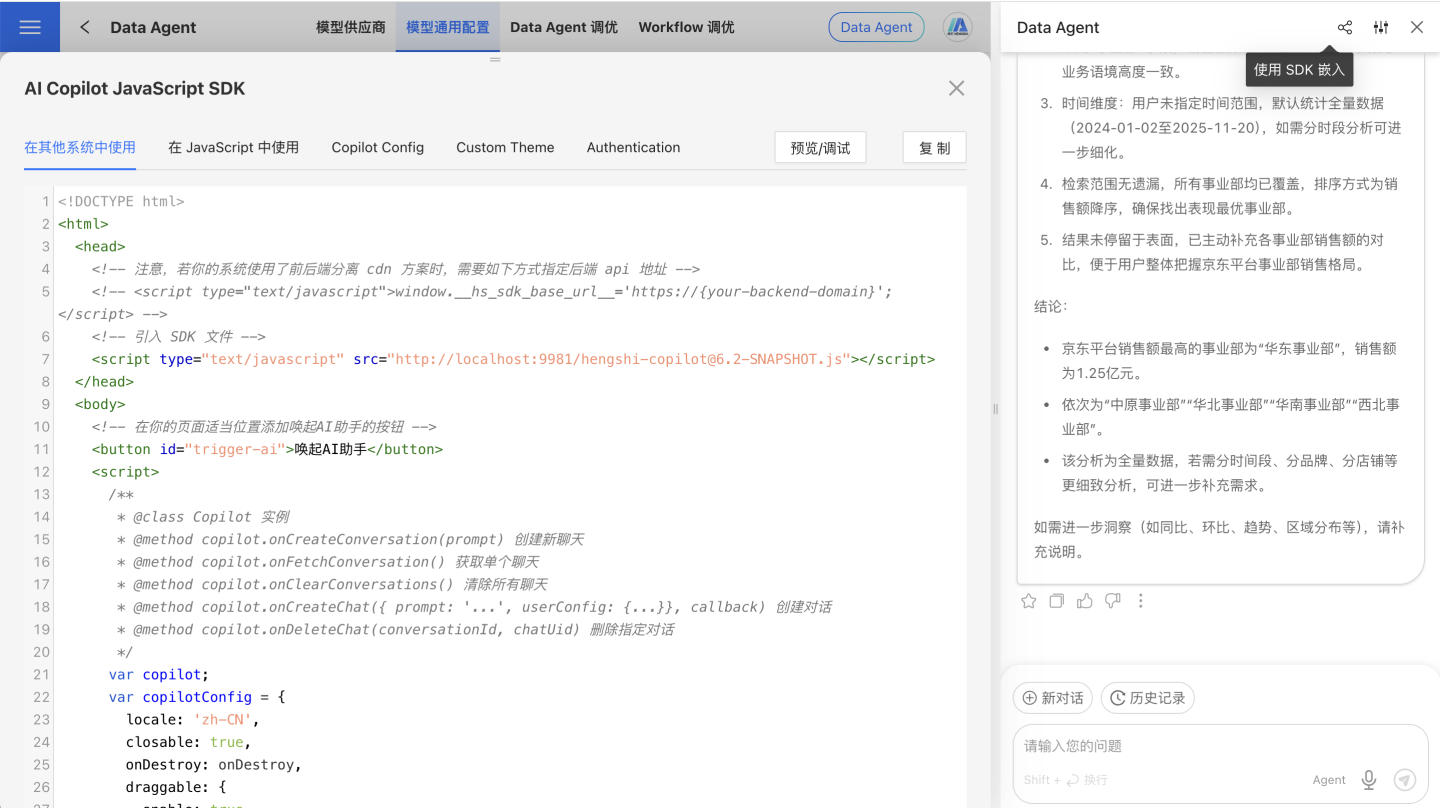
As shown in the figure:
<host>/assets/hengshi-copilot@<version>.jsNote
@<version> is the version number of the SDK. Please ensure that the SDK version you use matches your system version. You also need to update it when the system is upgraded.
- Import the JS SDK
We provide sample code for integrating the SDK in front-end frameworks such as Vue, React, and plain JS. You can choose according to your needs. This requires you to have some front-end development experience.
<!DOCTYPE html>
<html lang="en">
<head>
    <meta charset="UTF-8">
    <meta name="viewport" content="width=device-width, initial-scale=1.0">
    <title>AI Assistant</title>
    <script type="text/javascript" src="https://develop.hengshi.org/assets/hengshi-copilot@<version>.js" defer></script>
</head>
<body>
    <!-- Add a button in an appropriate position in your project -->
    <button id="trigger-ai">Launch AI Assistant</button>
    <!-- Add a container required by the SDK in an appropriate position in your project -->
    <div id="copilot-root" style="display: none;"></div>

    <script>
        const copilotConfig = { // Define AI Assistant configuration
            locale: 'en-US',
            draggable: {
                enable: true,
                minWidth: 440,
                minHeight: 440,
                position: {
                    x: window.innerWidth - 480,
                    y: 20,
                },
                size: {
                    width: 440,
                    height: window.innerHeight * 0.8,
                },
                onDragStop: onDragStop,
                onResize: onResize,
            },
            userConfig: {
                dataAppId: 130870,
                datasetId: 1,
            },
        };

        let copilotInstance = null;
        const button = document.getElementById('trigger-ai');
        const copilotRoot = document.getElementById('copilot-root');

        button.addEventListener('click', toggleCopilot);

        function onDragStop(event, position) {
            copilotConfig.draggable.position = position;
        }

        function onResize(event, position, size) {
            copilotConfig.draggable.position = position;
            copilotConfig.draggable.size = size;
        }

        function launchCopilot() {
            if (typeof Copilot === 'undefined') {
                (function(fn) {
                    fn(launchCopilot);
                })(requestIdleCallback || setTimeout);
            } else {
                if (!copilotInstance) {
                    copilotInstance = new Copilot(copilotRoot, copilotConfig);
                    copilotRoot.style.display = 'block';
                    button.textContent = 'Close AI Assistant';
                } else {
                    copilotInstance.show(); // Use the show method to display an existing instance
                }
            }
        }

        function toggleCopilot() {
            if (copilotInstance) {
                const isVisible = copilotRoot.style.display !== 'none';
                if (isVisible) {
                    copilotInstance.hide(); // Use the hide method to hide the instance instead of destroying it
                    button.textContent = 'Launch AI Assistant';
                } else {
                    copilotInstance.show();
                    button.textContent = 'Close AI Assistant';
                }
            } else {
                launchCopilot();
            }
        }
    </script>
</body>
</html>import React, { useState, useEffect } from 'react';
const CopilotComponent = () => {
const [copilotInstance, setCopilotInstance] = useState(null);
const [buttonLabel, setButtonLabel] = useState('Launch AI Assistant');
const copilotConfig = {
locale: 'en-US',
draggable: {
enable: true,
minWidth: 440,
minHeight: 440,
position: {
x: window.innerWidth - 480,
y: 20,
},
size: {
width: 440,
height: window.innerHeight * 0.8,
},
onDragStop: onDragStop,
onResize: onResize,
},
userConfig: {
dataAppId: 130870,
datasetId: 1,
},
};
useEffect(() => {
// Load SDK
const script = document.createElement('script');
script.src = 'https://develop.hengshi.org/assets/hengshi-copilot@<version>.js';
script.async = true;
document.body.appendChild(script);
return () => {
document.body.removeChild(script); // Clean up the loaded script
};
}, []);
function onDragStop(event, position) {
copilotConfig.draggable.position = position;
}
function onResize(event, position, size) {
copilotConfig.draggable.position = position;
copilotConfig.draggable.size = size;
}
const launchCopilot = () => {
if (typeof Copilot === 'undefined') {
(function(fn) {
fn(launchCopilot);
})(requestIdleCallback || setTimeout);
} else {
if (!copilotInstance) {
const copilotRoot = document.getElementById('copilot-root');
const instance = new Copilot(copilotRoot, copilotConfig);
setCopilotInstance(instance);
setButtonLabel('Close AI Assistant');
} else {
copilotInstance.show(); // Use the show method to display an existing instance
setButtonLabel('Close AI Assistant');
}
}
};
const toggleCopilot = () => {
if (copilotInstance) {
const isVisible = document.getElementById('copilot-root').style.display !== 'none';
if (isVisible) {
copilotInstance.hide(); // Use the hide method to hide the instance instead of destroying it
setButtonLabel('Launch AI Assistant');
} else {
copilotInstance.show();
setButtonLabel('Close AI Assistant');
}
} else {
launchCopilot();
}
};
return (
<div>
<button onClick={toggleCopilot}>{buttonLabel}</button>
{copilotInstance && <div id="copilot-root"></div>}
</div>
);
};
export default CopilotComponent;<template>
<div>
<button @click="toggleCopilot">{{ buttonLabel }}</button>
<div id="copilot-root" v-if="copilotInstance"></div>
</div>
</template>
<script>
import { ref, onMounted, onBeforeUnmount } from 'vue';
export default {
setup() {
const copilotInstance = ref(null);
const buttonLabel = ref('Launch AI Assistant');
const copilotConfig = {
locale: 'en-US',
draggable: {
enable: true,
minWidth: 440,
minHeight: 440,
position: {
x: window.innerWidth - 480,
y: 20,
},
size: {
width: 440,
height: window.innerHeight * 0.8,
},
onDragStop: onDragStop,
onResize: onResize,
},
userConfig: {
dataAppId: 130870,
datasetId: 1,
},
};
function onDragStop(event, position) {
copilotConfig.draggable.position = position;
}
function onResize(event, position, size) {
copilotConfig.draggable.position = position;
copilotConfig.draggable.size = size;
}
function launchCopilot() {
if (typeof Copilot === 'undefined') {
(function(fn) {
fn(launchCopilot);
})(requestIdleCallback || setTimeout);
} else {
if (!copilotInstance.value) {
copilotInstance.value = new Copilot(document.getElementById('copilot-root'), copilotConfig);
buttonLabel.value = 'Close AI Assistant';
} else {
copilotInstance.value.show(); // Use the show method to display an existing instance
buttonLabel.value = 'Close AI Assistant';
}
}
}
function toggleCopilot() {
if (copilotInstance.value) {
const isVisible = document.getElementById('copilot-root').style.display !== 'none';
if (isVisible) {
copilotInstance.value.hide(); // Use the hide method to hide the instance instead of destroying it
buttonLabel.value = 'Launch AI Assistant';
} else {
copilotInstance.value.show();
buttonLabel.value = 'Close AI Assistant';
}
} else {
launchCopilot();
}
}
return {
copilotInstance,
buttonLabel,
toggleCopilot,
};
},
};
</script>
<style>
/* Add styles (if needed) */
</style>- Start/open your project and check if the integration is successful.
JS SDK Instance
The result of new Copilot(...) is a copilot instance, through which you can operate Copilot.
{
  copilotConfig: {
    config: {...}, // Large model configuration information
    loading: false, // Whether it is loading
    onVerifyConfig: () => {}, // Verify configuration information
    onChangeProvider: () => {}, // Switch model provider
    // ...
  },
  context: {
    api: {...},
    endpoints: {...},
    // Copilot state
    isLoading: false,
    // Current conversation list, data format reference
    // https://api.hengshi.com/conversation.html#conversation
    conversations: [],
    setConversations: () => {},
    currentConversationId: null,
    setCurrentConversationId: () => {},
    runningChatUid: null,
    setRunningChatUid: () => {},
    setChat: (id, chatUid, chat) => {},
    // Fetch historical conversation list
    onFetchConversations: (offset = 0, limit = 10) => {},
    // Create conversation
    onCreateConversation: prompt => {},
    onFetchConversation: id => {},
    onClearConversations: () => {},
    onFetchPreviousConversations: () => {},
    // Create Q&A
    onCreateChat: body => {},
    onDeleteChat: (id, chatUid) => {},
    onFetchSuggestions: refresh => {},
    onFetchFavorites: () => {},
    onCancelChatFavorite: (id, chatUid) => {},
  },
  // Control dialog display/hide
  show: () => {}, // Show dialog
  hide: () => {}, // Hide dialog
}JS SDK Instance Configuration Parameters
The configuration parameters for new Copilot(...) include the following main parts:
const copilotConfig = {
  locale: 'zh-CN', // Language settings
  i18n: { // Localization text configuration
    "zh-CN": {
      'copilot.question-reasoning': 'Question Understanding',
      'copilot.question-answer': 'Data Performance',
      'copilot.question-reasoning-logic': 'Data Logic'
    },
    "en-US": {
      'copilot.question-reasoning': 'Question Understanding',
      'copilot.question-answer': 'Data Performance',
      'copilot.question-reasoning-logic': 'Data Logic'
    }
  },
  stylesheet: ':host > *, ::before, ::after { --brand: #4CAF50; }', // Custom styles
  draggable: { // Dialog drag configuration
    enable: true,
    minWidth: 440,
    minHeight: 440,
    position: {
      x: window.innerWidth - 480,
      y: 20,
    },
    size: {
      width: 440,
      height: window.innerHeight * 0.8,
    },
    onDragStop: onDragStop,
    onResize: onResize,
  },
  userConfig: { // Data source configuration
    dataSources: [
      {
        dataAppId: 130870,
        datasetId: 1,
      },
      {
        dataAppId: 130871,
        datasetId: 2,
      }
    ]
  },
  completionConfig: { // AI conversation completion configuration
    meta: 'answer,chart,chartConfig', // Specify the content combination to render
    openChartConfig: false, // Whether to expand the data logic panel, default is true
    stylesheet: ':host > *, ::before, ::after { --brand: #4CAF50; }', // Custom styles after conversation completion
    i18n: { // Localization text configuration after conversation completion
      "zh-CN": {
        'copilot.question-reasoning': 'Question Understanding',
        'copilot.question-answer': 'Data Performance',
        'copilot.question-reasoning-logic': 'Data Logic'
      }
    },
    onCompletionDone: (conversationId, uid) => {
      // AI conversation completion callback
      // conversationId: Current conversation ID
      // uid: Unique identifier for the completed conversation
      console.log('AI completion done:', conversationId, uid);
    },
  },
};Configuration Instructions
userConfig Data Source Configuration
userConfig is used to configure data sources and supports multiple data source configurations. There are two modes of data source configuration, but only one mode can be used within the same configuration:
- Data Package and Dataset Mode:
dataSources: An array containing multiple data source configuration objectsdataAppId: Data Package IDdatasetId: Dataset ID
Example:
userConfig: {
  dataSources: [
    {
      dataAppId: 130870,
      datasetId: 1,
    },
    {
      dataAppId: 130871,
      datasetId: 2,
    }
  ]
}- Business Metric Subject Domain Mode:
dataSources: An array containing multiple subject domain configuration objectssubjectId: Subject Domain ID
Example:
userConfig: {
  dataSources: [
    {
      subjectId: 1,
    },
    {
      subjectId: 2,
    }
  ]
}Note: Each dataSources configuration can only use one mode, meaning it must either use the combination of dataAppId + datasetId or subjectId. Mixing the two modes within the same configuration is not allowed.
i18n Localization Configuration
The i18n configuration is used to customize interface text and supports multiple languages:
- Organize text by language codes (e.g., 'zh-CN', 'en-US')
- Multiple key-value pairs can be configured under each language
- Predefined text keys include:
copilot.question-reasoning: Title for the Question Understanding sectioncopilot.question-answer: Title for the Data Representation sectioncopilot.question-reasoning-logic: Title for the Data Retrieval Logic section
stylesheet Style Configuration
The stylesheet is used to customize the interface style:
- Accepts CSS strings
- Can be defined and retrieved via the
<style>tag - Supports CSS custom properties (variables)
- Main style variables:
--brand: Theme color
Example: Define styles using the <style> tag
<style id="copilot-css">
  /* Modify theme color */
  :host > *, ::before, ::after {
    --brand: #4CAF50;
  }
</style>
<script>
  const css = document.querySelector('#copilot-css');
  const style = css.textContent;

  // Use in Copilot configuration
  const copilot = new window.Copilot({
    // Other configurations...
    stylesheet: style,
  });

  // Or use in the chat completion configuration
  window.Copilot.renderChat(container, {
    // Other configurations...
    stylesheet: style,
  });
</script>completionConfig Configuration Description
completionConfig is used to control the completion behavior and display style of AI conversations:
meta: String, specifies the combination of content to be rendered.openChartConfig: Boolean, controls whether to expand the data fetching logic panel, default istrue.stylesheet: String, customizes the style after the conversation is completed.i18n: Object, customizes the text after the conversation is completed.onCompletionDone: Function, a callback function triggered when the AI conversation is completed, receiving two parameters:conversationId: The ID of the current conversation.uid: The unique identifier of the completed conversation.
1. Controlling the Display and Hiding of the Dialog Box
The Copilot instance provides show and hide methods to control the display and hiding of the dialog box, which is more efficient than completely destroying and recreating the instance:
// Create a Copilot instance
const copilotInstance = new Copilot(copilotRoot, copilotConfig);

// Hide the dialog box (does not destroy the instance, just hides the interface)
copilotInstance.hide();

// Show the dialog box
copilotInstance.show();

// Toggle the display/hide state
function toggleCopilot() {
  if (copilotInstance) {
    // You can check the DOM element's state to determine the current visibility
    const isVisible = copilotRoot.style.display !== 'none';
    if (isVisible) {
      copilotInstance.hide();
      button.textContent = 'Summon AI Assistant';
    } else {
      copilotInstance.show();
      button.textContent = 'Close AI Assistant';
    }
  }
}Compared to completely destroying and recreating the instance, using the show/hide methods has the following advantages:
- Maintains dialog context and state
- Faster response time (no need for reinitialization)
- Lower resource consumption
2. Calling HTTP API via JS
In the copilot example above, the api object provides all the methods for calling HTTP APIs. You can interact with the backend by invoking these methods, such as:
2.1 Create a Conversation
const { body: { data: conversation }} = await copilot.api.requestCreateConversation({
  body: {
    title: 'This is the title of the conversation',
  },
}).value;Data Example
conversation = {
  "id": 135,
  "title": "This is the title of the conversation",
  "createdBy": 268,
  "createdAt": "2024-09-14 15:47:23",
  "updatedBy": 268,
  "updatedAt": "2024-09-14 15:47:23"
}2.2 Create Q&A
const { body: { data: chat }} = await copilot.api.requestCreateChat({
  id: conversation.id,
  body: {
    prompt: 'Which director has the highest-grossing movies?', // This is the user's question
    userConfig: { // Refer to the userConfig in the copilotConfig above
      dataAppId: 129150,
      datasetId: 1,
    }
  },
  qs: {
    sync: true, // Whether to execute synchronously
    timeout: 1000 * 60, // Timeout in milliseconds
  },
}).value;Data Example
chat = {
    "conversationId": 135,
    "prompt": "Which director has the highest-grossing movies?",
    "answer": "Christopher Nolan has the highest-grossing movies.",
    "model": "gpt-4o",
    "uid": "08ff93ca-1972-4916-b884-35fab6f91c64",
    "temperature": 0,
    "createdBy": 268,
    "createdAt": "2024-09-14 15:47:23",
    "updatedBy": 268,
    "updatedAt": "2024-09-14 15:47:23",
    "responseAt": "2024-09-14 15:47:30",
    "isDelete": false,
    "isContextEnd": false,
    "suggestQuestions": [],
    "statusList": [
        "PENDING",
        "ANALYZE_REQUEST",
        "HQL_SELECT_FIELDS",
        "HQL_SELECT_FUNCTIONS",
        "GENERATE_HQL_QUERY",
        "DOING_HQL_QUERY",
        "DOING_SUMMARY",
        "DOING_QUESTION_SUGGESTING",
        "DONE"
    ],
    "userConfig": {
        "datasetId": 1,
        "dataAppId": 129150
    },
    "autoConfig": {
        "agentType": "HQL_AGENT"
    },
    "isCurrent": true,
    "usage": [
        {
            "completion_tokens": 24,
            "prompt_tokens": 4063,
            "total_tokens": 4087
        },
        {
            "completion_tokens": 5,
            "prompt_tokens": 1424,
            "total_tokens": 1429
        },
        {
            "completion_tokens": 49,
            "prompt_tokens": 3906,
            "total_tokens": 3955
        },
        {
            "completion_tokens": 16,
            "prompt_tokens": 299,
            "total_tokens": 315
        }
    ],
    "chartCreatedAt": "2024-09-14 15:47:30",
    "refineQuestion": "Which director has the highest-grossing movies?",
    "favorite": false,
    "charts": [
        {
            "appId": 129150,
            "datasetId": 1,
            "options": {
                "axes": [
                    {
                        "op": "{{1}}.{director}",
                        "uid": "uid1",
                        "fieldName": "director",
                        "kind": "formula",
                        "datasetId": 1,
                        "labelOrigin": "director",
                        "label": "director",
                        "isAggregate": false,
                        "value": "{{coffe_产品表}}.{director}",
                        "dataset": 1,
                        "fieldType": "string"
                    },
                    {
                        "op": "max({{1}}.{votes})",
                        "uid": "uid2",
                        "fieldName": "votes",
                        "kind": "formula",
                        "datasetId": 1,
                        "labelOrigin": "votes",
                        "label": "votes",
                        "isAggregate": true,
                        "value": "max({{coffe_产品表}}.{votes})",
                        "dataset": 1,
                        "fieldType": "number"
                    }
                ],
                "name": "Bar",
                "limit": 1,
                "sort": [
                    {
                        "op": "uid2",
                        "kind": "reference",
                        "direction": "desc"
                    },
                    {
                        "op": "uid1",
                        "kind": "reference",
                        "direction": "asc"
                    }
                ]
            },
            "dataAppId": 129150,
            "datasetIds": [
                1
            ]
        }
    ]
}Integrating Copilot into Dashboards in the System
The method of invoking Copilot in the system is similar to the aforementioned HTML method.
First, load the Copilot SDK through code in the global JS file:
// 1. Keep the copilot sdk synchronized with the system's store data
window.__INITIAL_STATE__ = window._hs_store_.getState();
// 2. Import the copilot sdk code
var script = document.createElement('script');
script.src = 'https://develop.hengshi.org/assets/hengshi-copilot@<version>.js';
script.async = true;
script.onload = function() {
  // 3. Reset the sdk base url
  window.__hs_sdk_base_url__ = undefined;
  // 4. Create the sdk container
  var copilotRoot = document.createElement('div');
  copilotRoot.id = 'copilot-root';
  copilotRoot.style.width = '100%';
  copilotRoot.style.height = '100%';
  copilotRoot.style.position = 'fixed';
  copilotRoot.style.inset = '0';
  copilotRoot.style.zIndex = '9999';
  copilotRoot.style.pointerEvents = 'none';
  document.body.appendChild(copilotRoot);
  // 5. Assign to a custom sandbox variable for use in custom JS
  window.myJS = window.myJS || {};
  window.myJS.innerWidth = window.innerWidth;
  window.myJS.innerHeight = window.innerHeight;
  window.myJS.Copilot = Copilot;
  window.myJS.CopilotRoot = copilotRoot;
};
document.body.appendChild(script);Then, you can use a Control Button in the dashboard to trigger Copilot. Add a click event in the button control settings to execute the corresponding JS code.
if (!myJS) {
  throw new Error('hengshi copilot sdk not loaded yet');
}
if (!myJS.copilotConfig) {
  var stylesheet = `html.hengshi-copilot-sdk, html.hengshi-copilot-sdk body {width:100% !important; height: 100% !important;}
    html.hengshi-copilot-sdk body.hst {background: transparent;}
    .react-draggable {pointer-events: all;}`;
  myJS.copilotConfig = {
    locale: 'zh-CN',
    stylesheet: stylesheet,
    closable: true, // Set the dialog to be closable
    draggable: { // Enable dialog dragging functionality; set to false or omit if not needed
      enable: true,
      minWidth: 440,
      minHeight: 440,
      position: {
        x: myJS.innerWidth - 480,
        y: 20,
      },
      size: {
        width: 440,
        height: myJS.innerHeight * 0.8,
      },
      // Set to remember the drag position and size
      onDragStop: onDragStop,
      onResize: onResize,
    },
    // Set the dialog data source
    userConfig: {
      sourceAppId: params.appId, // `params` is a parameter provided within the button control JS event scope; `params.appId` is the application ID to which the dashboard containing the button belongs
      dataSources: [
        {
          dataAppId: 354, // Data package ID
          datasetId: 26, // Dataset ID
        },
      ],
    },
  };
}
function onDragStop(event, position) {
  myJS.copilotConfig.draggable.position = position;
}
function onResize(event, position, size) {
  myJS.copilotConfig.draggable.position = position;
  myJS.copilotConfig.draggable.size = size;
}
function launchCopilot() {
  if (typeof myJS.Copilot === 'undefined') {
    (function (fn) {
      fn(launchCopilot);
    })(requestIdleCallback || setTimeout);
  } else {
    if (!myJS.copilot) {
      myJS.copilot = new myJS.Copilot(myJS.CopilotRoot, myJS.copilotConfig);
    } else {
      myJS.copilot.show(); // Use the show method to display an existing instance
    }
  }
}

if (myJS.copilot) {
  myJS.copilot.hide(); // Use the hide method to hide the instance instead of destroying it
} else {
  launchCopilot();
}Embedding Copilot's Questioning Capability into Existing AI Conversation Tools
In addition to embedding the full AI assistant conversation functionality, the SDK also provides a static method renderChat. This method allows you to integrate the questioning capability into your own large language model conversation tools, supporting two usage modes: dynamic query mode based on prompts and static rendering mode.
Dynamic Q&A Mode
In this mode, you only need to provide the user's question (prompt), and the SDK will automatically handle data querying, analysis, and visualization. This is ideal for integrating data analysis capabilities into your own AI conversational tools.
<div class="conversation"></div>
<script src="https://develop.hengshi.org/assets/hengshi-copilot@<version>.js"></script>
<script>
  // Using the prompt configuration, the SDK will automatically handle data querying and analysis
  const chat = {
    prompt: "Module distribution of bug issues",
    // type: "agent", // Optional parameter, you can specify the copilot mode as type agent|workflow. By default, it follows the PREFER_AGENT_MODE switch in the system configuration
    // conversationId: 1, // Optional parameter, you can specify conversationId to continue in an existing conversation
  };
  const container = document.querySelector('.conversation');
  // case 1: Without specifying data sources
  window.Copilot.renderChat(container, chat);

  // case 2: Specifying data sources
  // window.Copilot.renderChat(container, chat, {
  //   usePropsUserConfig: true,
  //   userConfig: {
  //     dataSources: [{
  //       dataAppId: 136789,
  //       datasetId: 10,
  //     }],
  //   },
  // });
</script>Static Rendering Mode
This mode is suitable for displaying existing analysis results. You need to provide a complete conversation data structure.
<div class="conversation"></div>
<script src="https://develop.hengshi.org/assets/hengshi-copilot@<version>.js"></script>
<script>
  // Provide a complete conversation data structure for static rendering
  const chat = {
    "meta": "refineQuestion,answer,chart,chartConfig",
    "conversationId": 226,
    "uid": "00747081-9cc3-4c7c-b3de-735244498fd6",
    "prompt": "Module distribution of bug issues",
    "answer": "The distribution of bug issues across modules is relatively even. The module with the most bugs has 4, while most other modules have 2-3 bugs.",
    "refineQuestion": "Please provide the distribution of bug issues across modules",
    "options": {
      "charts": [],
      "chartsData": []
    },
  };
  const container = document.querySelector('.conversation');
  window.Copilot.renderChat(container, chat);
</script>Parameter Description
The Copilot.renderChat method accepts three parameters:
container: A DOM element that serves as the container for rendering the chat content.chat: The chat data object, which supports two configuration modes:a. Dynamic Q&A Configuration:
prompt: A string representing the user's question. When this configuration is provided, the SDK will automatically perform data queries and analysis.type: (Optional) A string, eitheragentorworkflow, specifying the copilot mode.conversationId: (Optional) The conversation ID, specifying that the conversation should continue based on an existing one.meta: (Optional) A string specifying the combination of content to render, which can include fields such asrefineQuestion,answer,chart, andchartConfig.openChartConfig: (Optional) A boolean value controlling whether to expand the data logic panel. Defaults totrue.onCompletionDone: (Optional) A function that serves as a callback when the conversation is completed.
b. Static Rendering Configuration:
meta: A string specifying the content to render, which can include fields such asrefineQuestion,answer,chart, andchartConfig.conversationId: The conversation ID.uid: The unique identifier for the conversation.prompt: The original question.answer: The AI-generated response.refineQuestion: The refined question.charts: An array of chart configurations.chartsData: An array of chart data.
config: (Optional) Configuration options, used in dynamic Q&A mode to specify the data source viausePropsUserConfigin combination withuserConfig.