

Parameter Controls
Parameters can participate in Dashboard layout through parameter controls. Like filters, parameter controls adjust parameter values so that the charts in the Dashboard change accordingly and display different content. 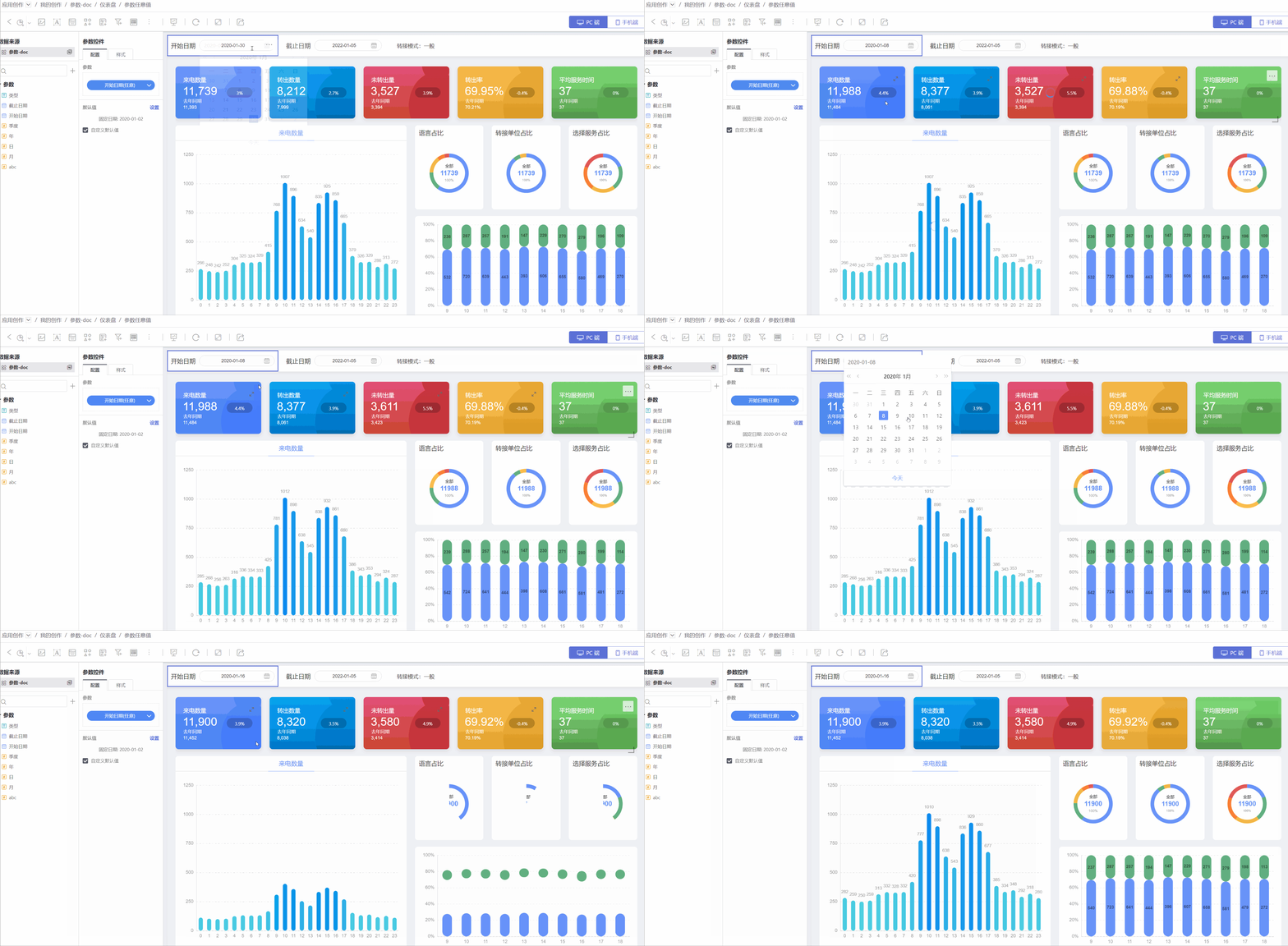
Parameter controls are divided into Local Parameter Controls and App Parameter Controls. Their scopes differ: Local Parameter Controls affect only the relevant charts within the current Dashboard, whereas App Parameter Controls can affect the relevant charts across all Dashboards within the App.
Local Parameter Controls
Creating a Parameter Control
The following explains how to create a local parameter control.
Before using a parameter control, please refer to Parameter to create a new parameter.
In the Dashboard, click the
New Parameter Control->Parameter Controlicon to add a parameter control to the dashboard.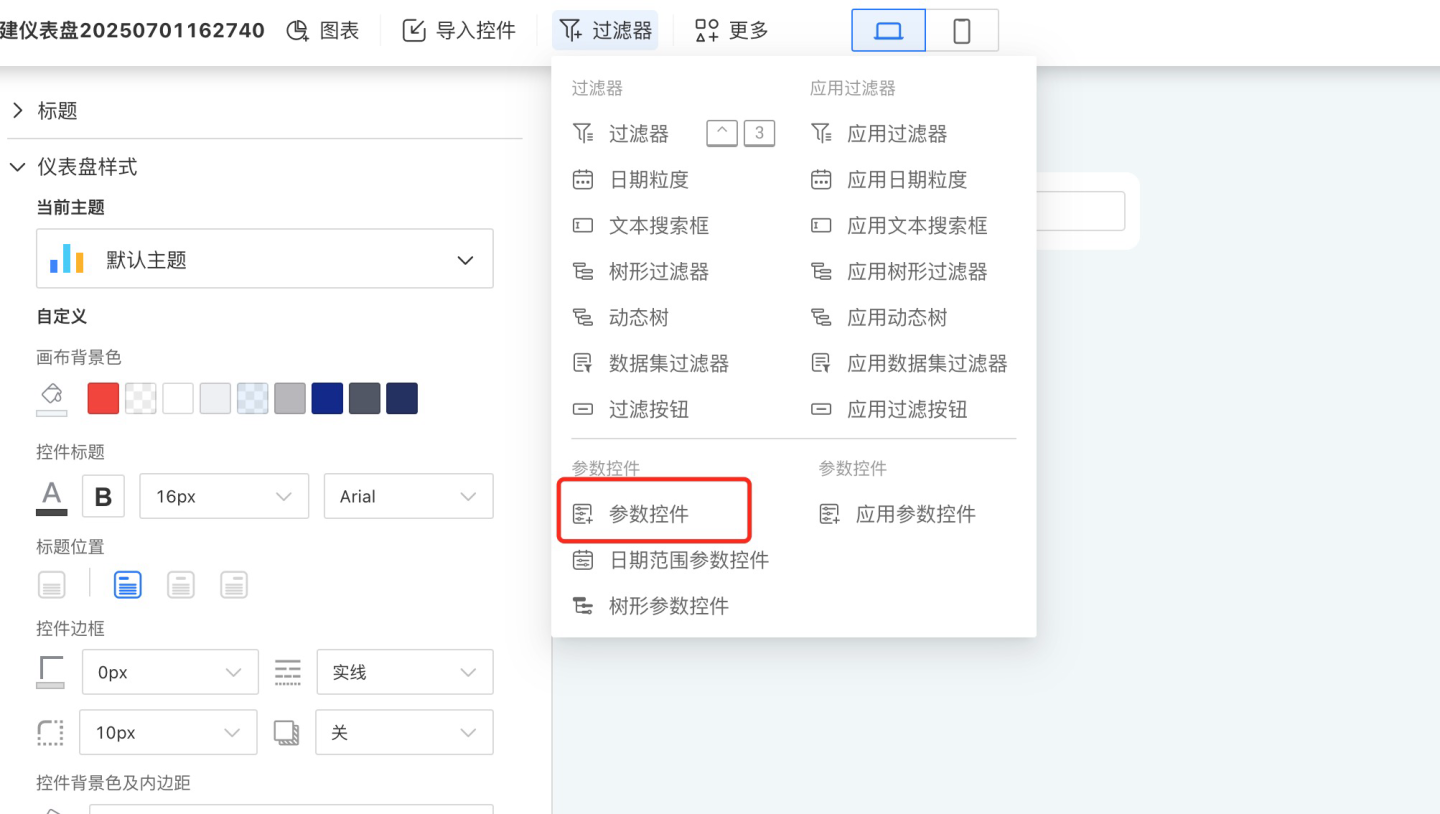
Drag a parameter from the
Parameterlist on the left into the parameter configuration area; a parameter-style filter will appear in the dashboard. Parameters can only be selected one at a time, because a parameter can have only one current value.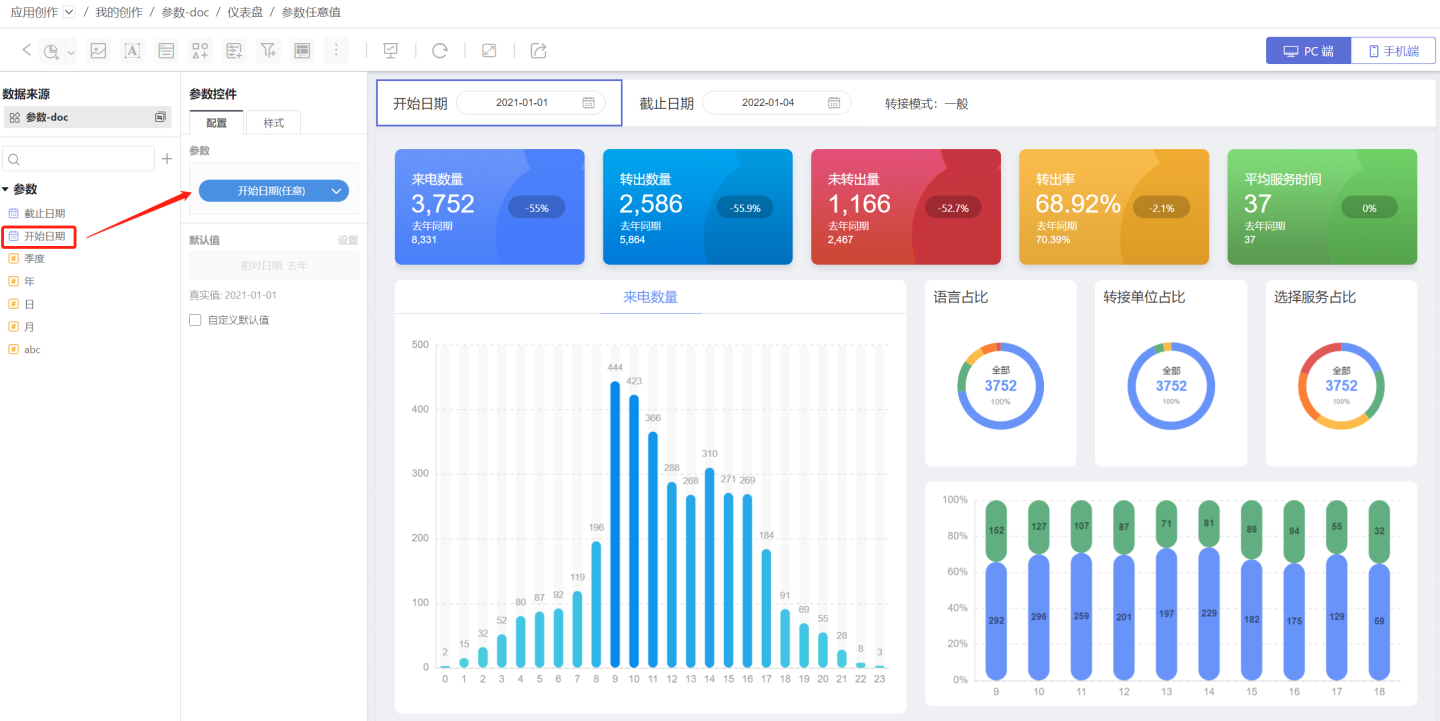
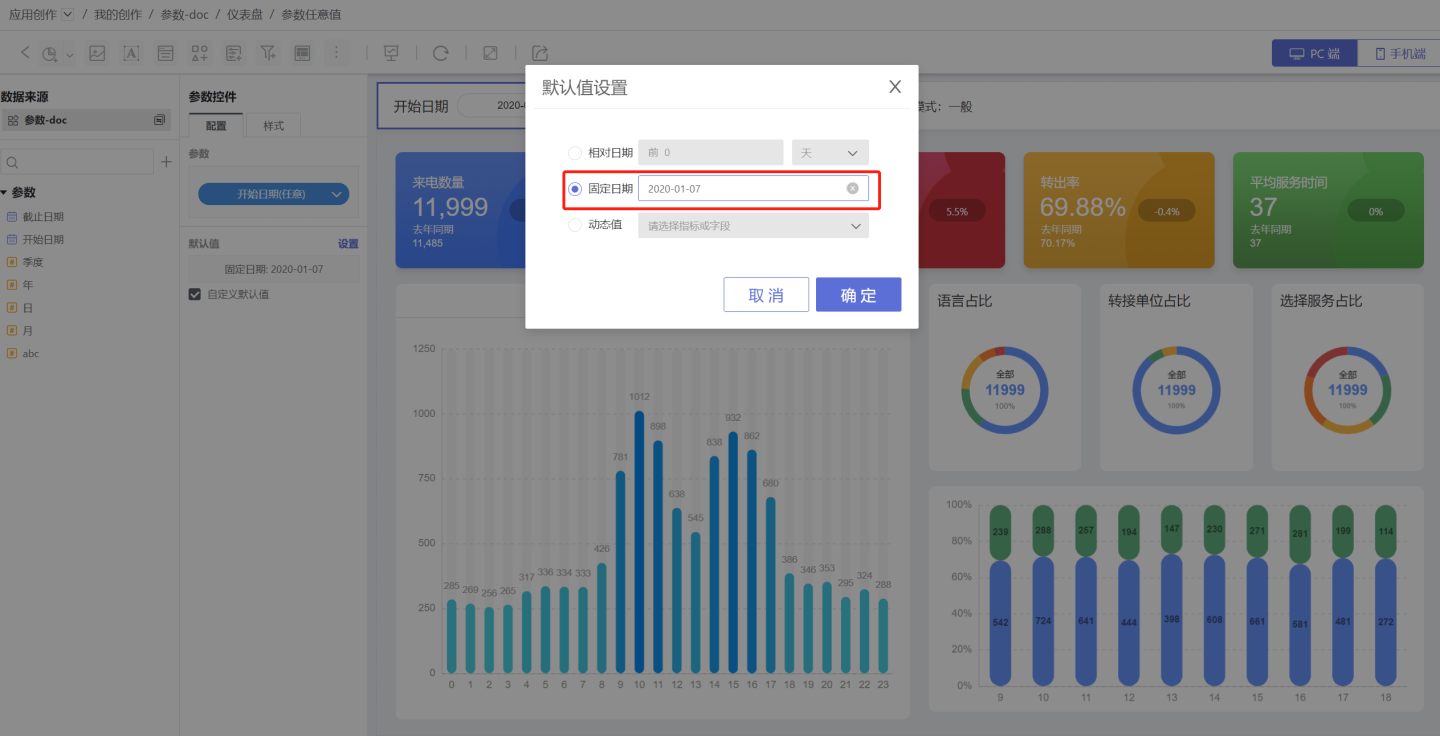
The parameter control supports modifying the parameter’s default value; check “Customize default value” to edit it.
Switch to the
Styletab to configure various styles for the parameter control.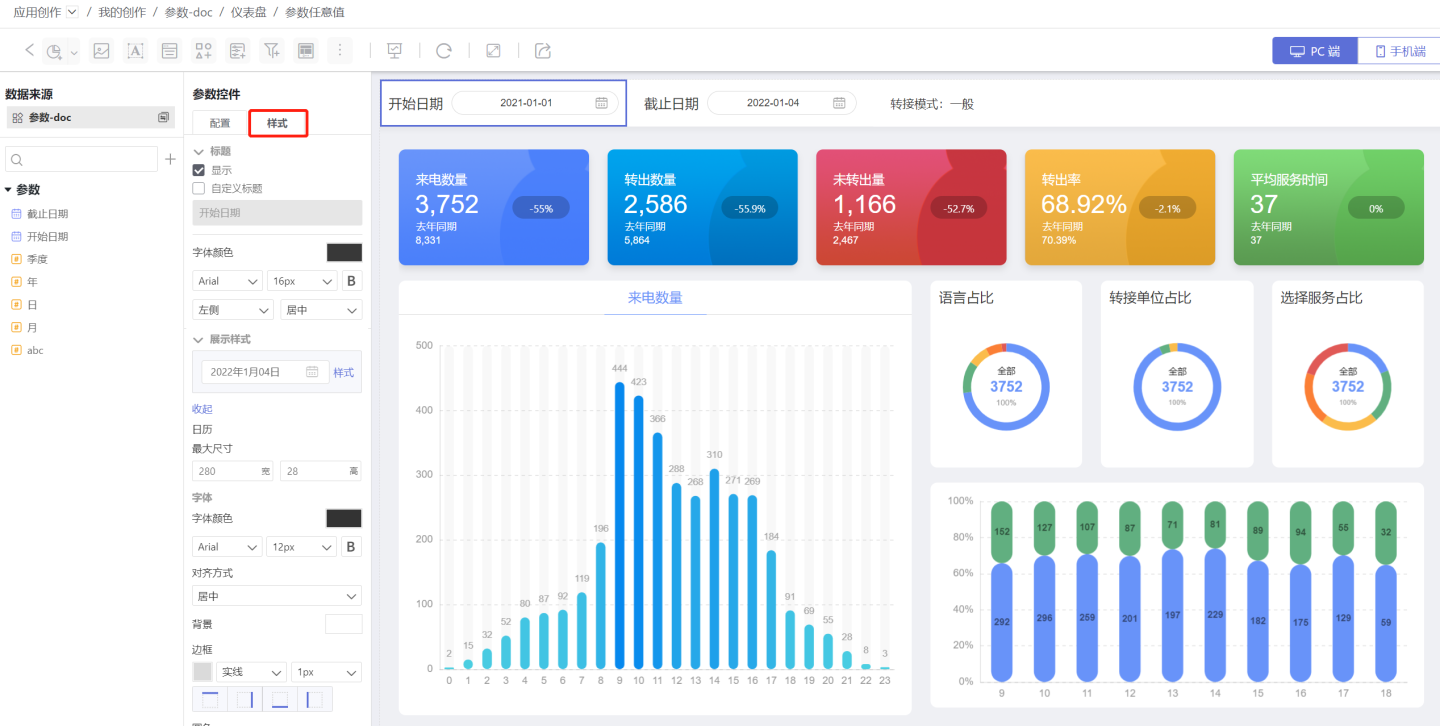
After completing the steps above, the parameter control is created. If changing the parameter value does not update the chart content, the chart may not be associated with the parameter.
Parameter Association
Parameters must be associated with Charts before the parameter controls can drive the Chart content. The two most common association methods are as follows.
Pre-creation Association of Charts
Pre-creation association of charts refers to the use of parameters in the Dataset on which the chart is built.
If parameters are employed during Dataset creation, row-level permission settings, new field creation, or new metric creation, the chart is automatically linked to those parameters once it is created. Consequently, any adjustment to the parameter control will instantly update the chart’s content.
Associating Parameters During Chart Creation
If the Dataset used to create the Chart does not already reference a parameter, you can still bind the Chart to a parameter by adding an in-chart filter while building the Chart.
As shown below, in the filter for Call Start Time, use a parameter expression for filtering; this links the Chart to the parameter.
When the parameter control changes, the filter value updates accordingly, and the Chart display is refreshed.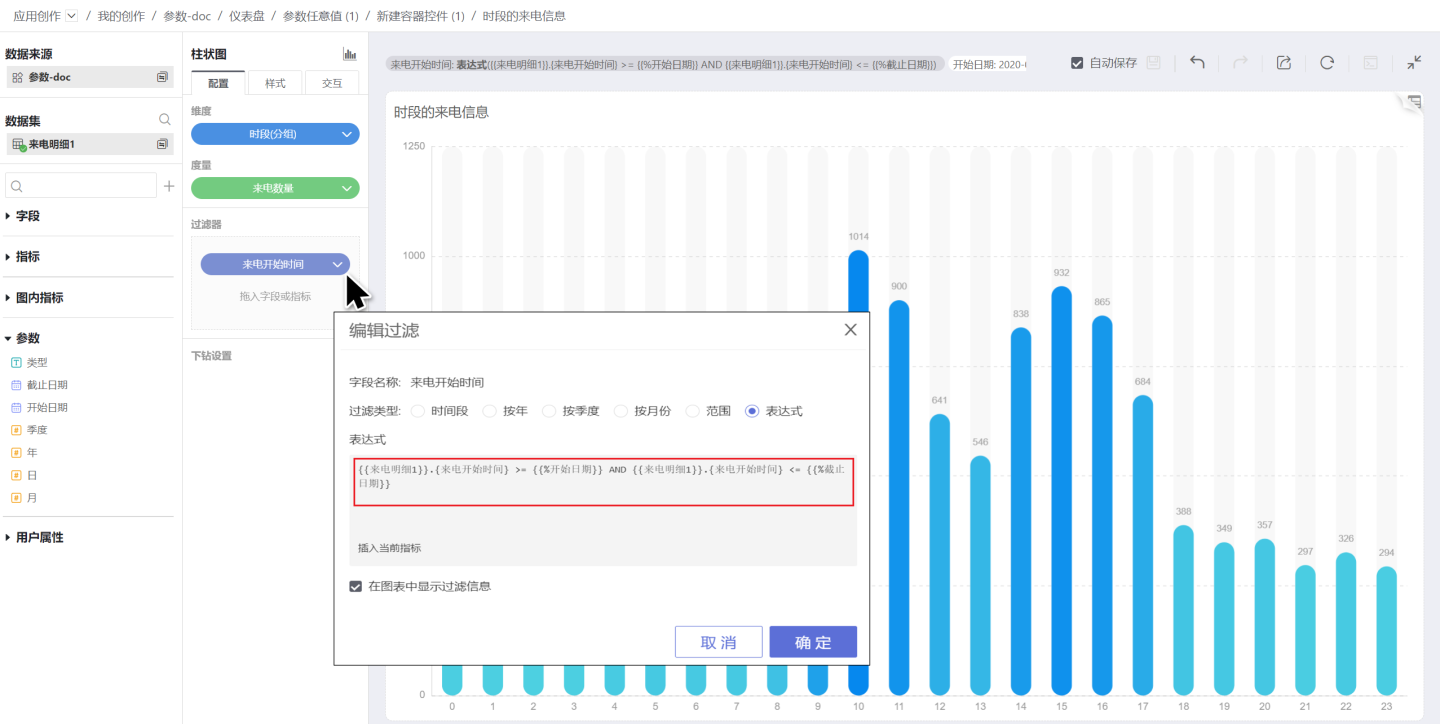
Parameter Control Types
Parameter control types include regular parameter controls, date range parameter controls, and tree parameter controls.
Regular parameter controls apply to text, date, and numeric parameter controls. Only one parameter can be dragged in at a time, and the chart data display is controlled by the parameter value.
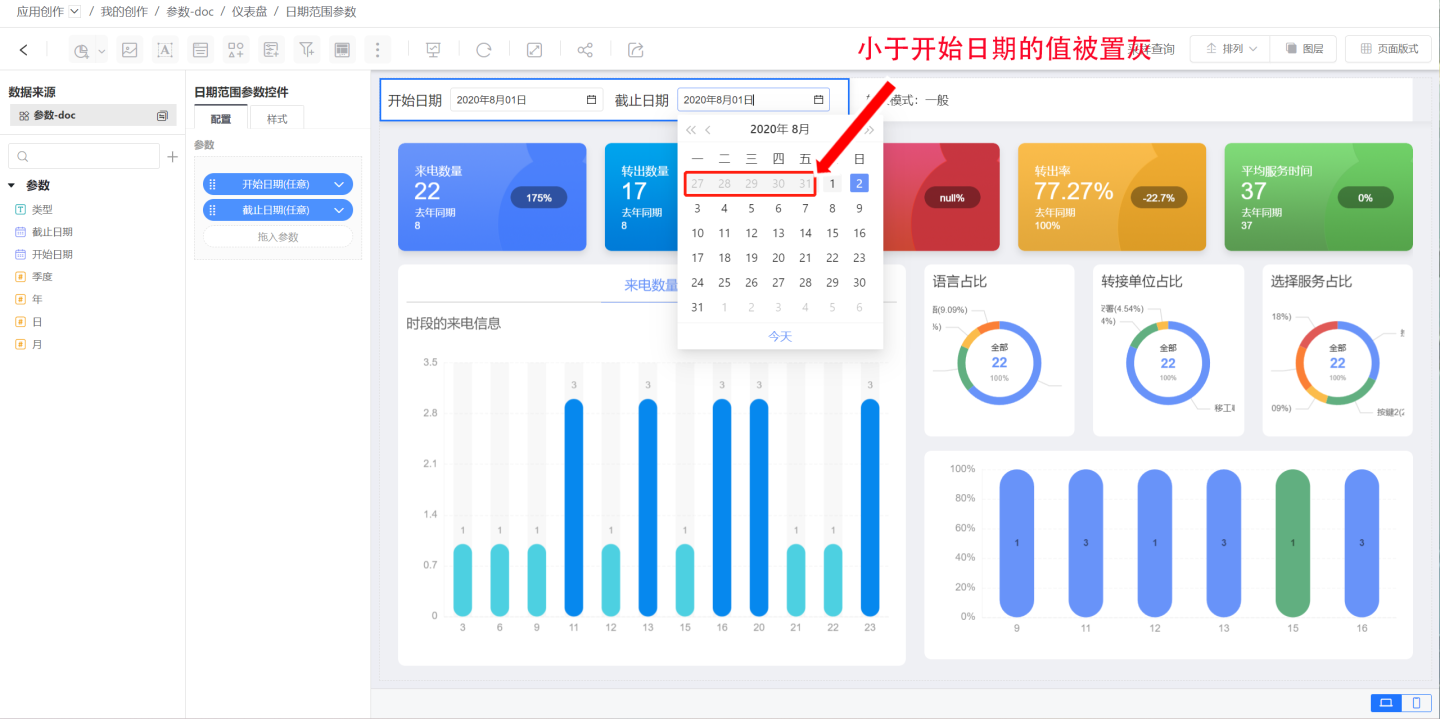
Date range parameter controls support dragging in two date parameters, using the date range formed by the two date parameters to control chart data display. The date range parameter is automatically validated to ensure the later parameter value is greater than the earlier one. As shown in the image, the Dashboard displays data between the
Start DateandEnd Date. Using the date range parameter control, drag in theStart DateandEnd Dateparameters; the system will automatically restrict theEnd Dateparameter so that only values greater than or equal to theStart Datecan be selected.
Version 6.2 Update
Date range parameter controls now support the “Custom Default Value” configuration item. A default value can be set independently for each control without being affected by the parameter’s own default value.
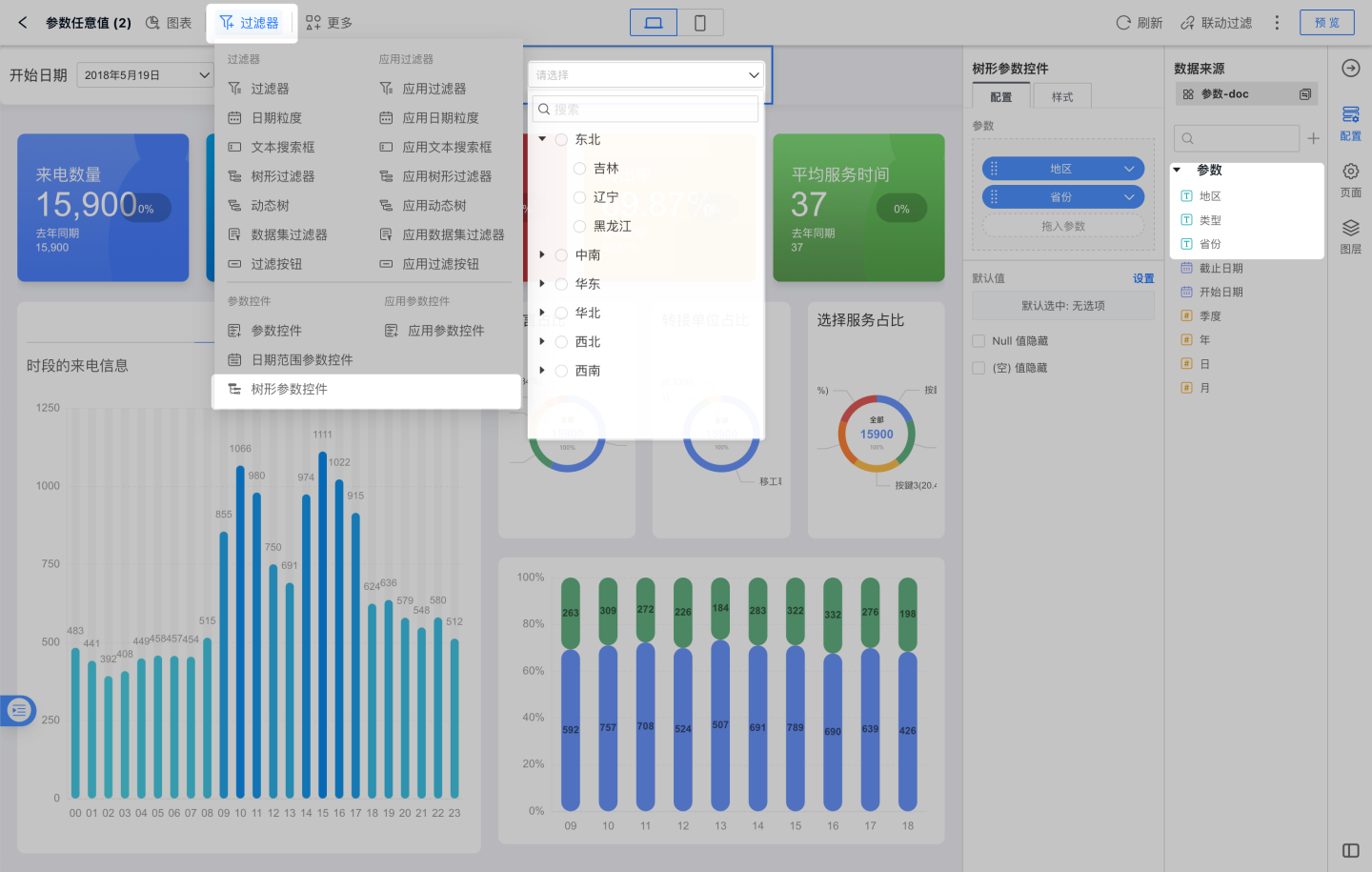
- Tree parameter controls are suitable for scenarios where one control manages multiple parameters with hierarchical relationships. For example, a
CompanycontainsDepartments, and aDepartmentcontainsEmployees; or aRegioncontainsProvinces. Such hierarchical structures allow users to locate the desired option more conveniently when selecting parameter controls.
App Parameter Controls
The creation process for App Parameter Controls is the same as for Local Parameter Controls. The difference is that App Parameter Controls can only be placed at the top of the Dashboard, added as individual small cards in the persistent global parameter area at the top. Their size is fixed and cannot be adjusted. The display style is also relatively simple and does not support tiling, but it does allow customization of color, border, corner radius, text, and so on.
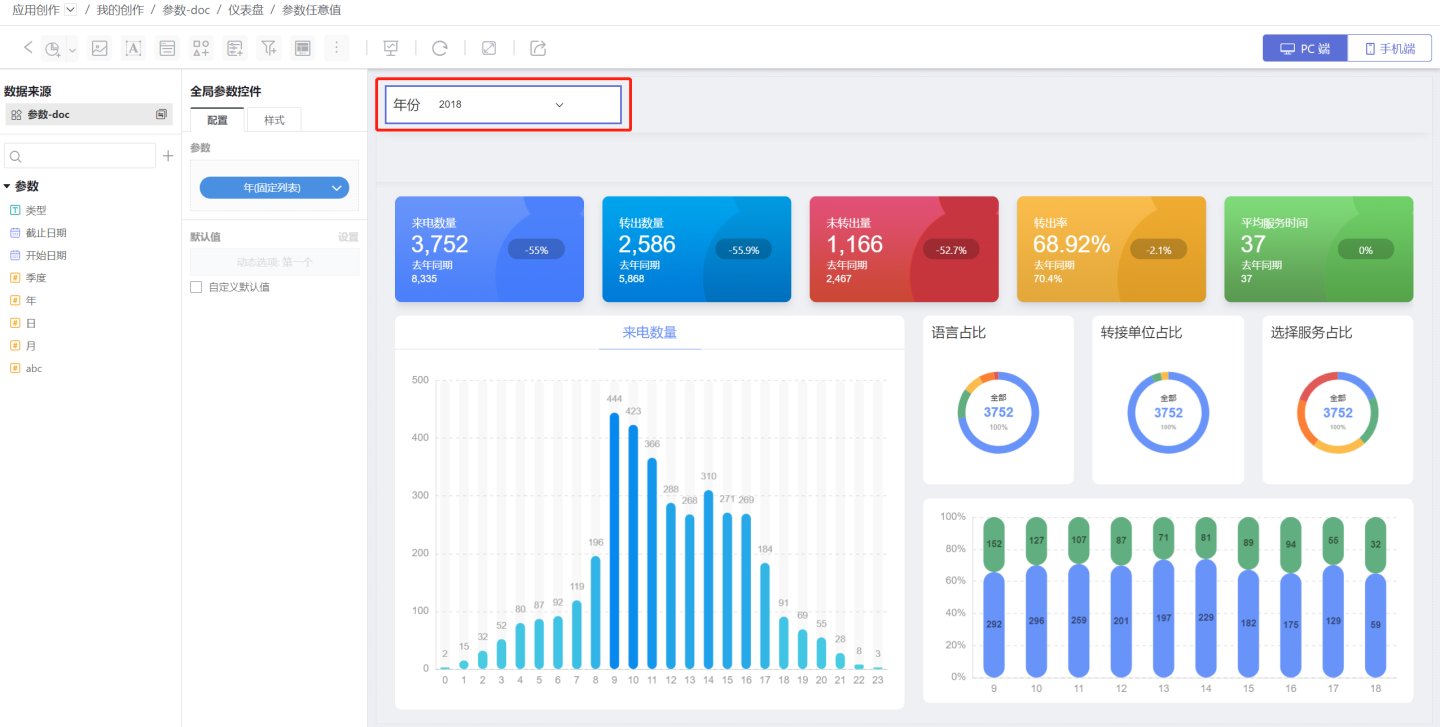
Sidebar Parameter Controls
When space on the Dashboard canvas is tight, parameter controls can be moved to the sidebar. In this case, style changes for the controls are not supported. 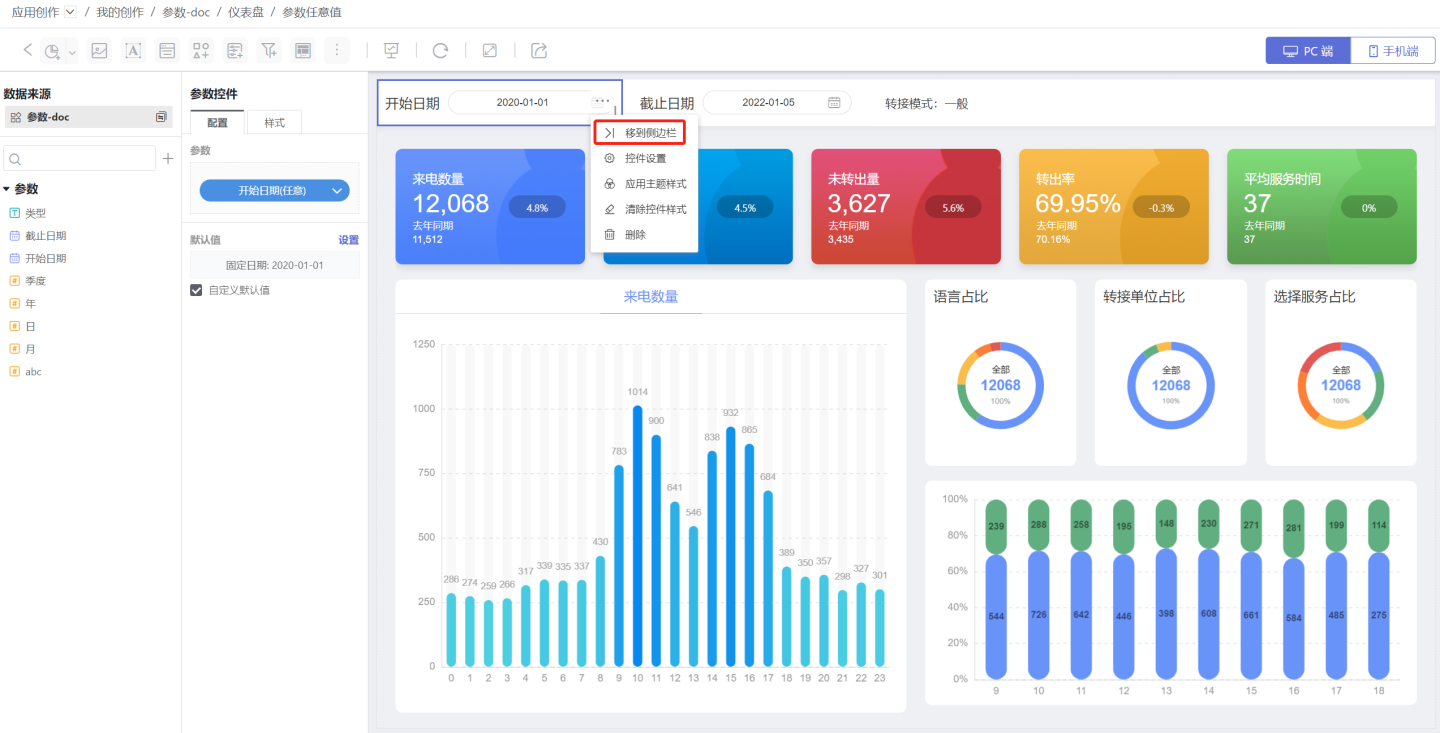
Sidebar parameter controls can be dragged back onto the canvas; you will then need to reposition them and re-apply any desired control styles.
Tip
Both local parameter controls and App-level parameter controls can be moved to the sidebar.
Parameter Control Association
When multiple parameters use different fields from the same Dataset for their dynamic allowed values, these parameters are inter-linked. In the global settings, drag the parameter controls to build a hierarchy; when the parent selection changes, the child options update accordingly. 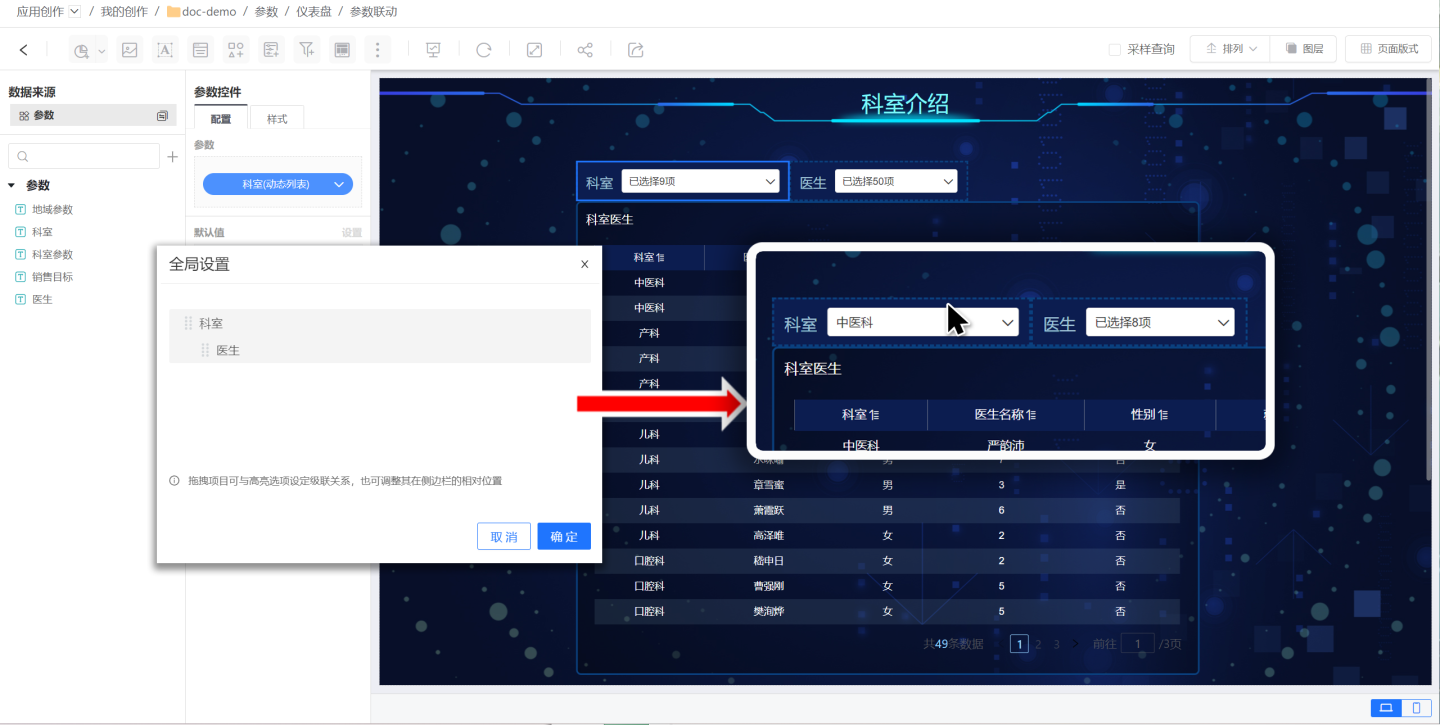
Tip
Association can only be established when the parameter’s allowed values are a Dynamic List.
Parameter Control Use Cases
Parameter controls can enable the following scenarios.
Scenario 1
Parameter controls can display Field A while actually applying Field B. Parameters support separate Value and Display Value settings; in the Dynamic List you can assign Field B as the Value and Field A as the Display Value. Thus, the parameter control shows the Display Value (Field A) but filters by the Value (Field B).
Scenario 2
A parameter control governs charts built from different Datasets. Because parameters can be flexibly linked to any Chart, you can effortlessly control charts that originate from multiple Datasets.
Parameter Usage Notes
A parameter control for the same parameter can appear only once in a single Dashboard, so keep the following in mind:
- Within the same App, a parameter control for the same parameter cannot serve as both an App-level parameter control and a local parameter control.
- Within the same Dashboard, a parameter control for the same parameter cannot appear both on the Dashboard and inside a Container.