Metrics Marketplace
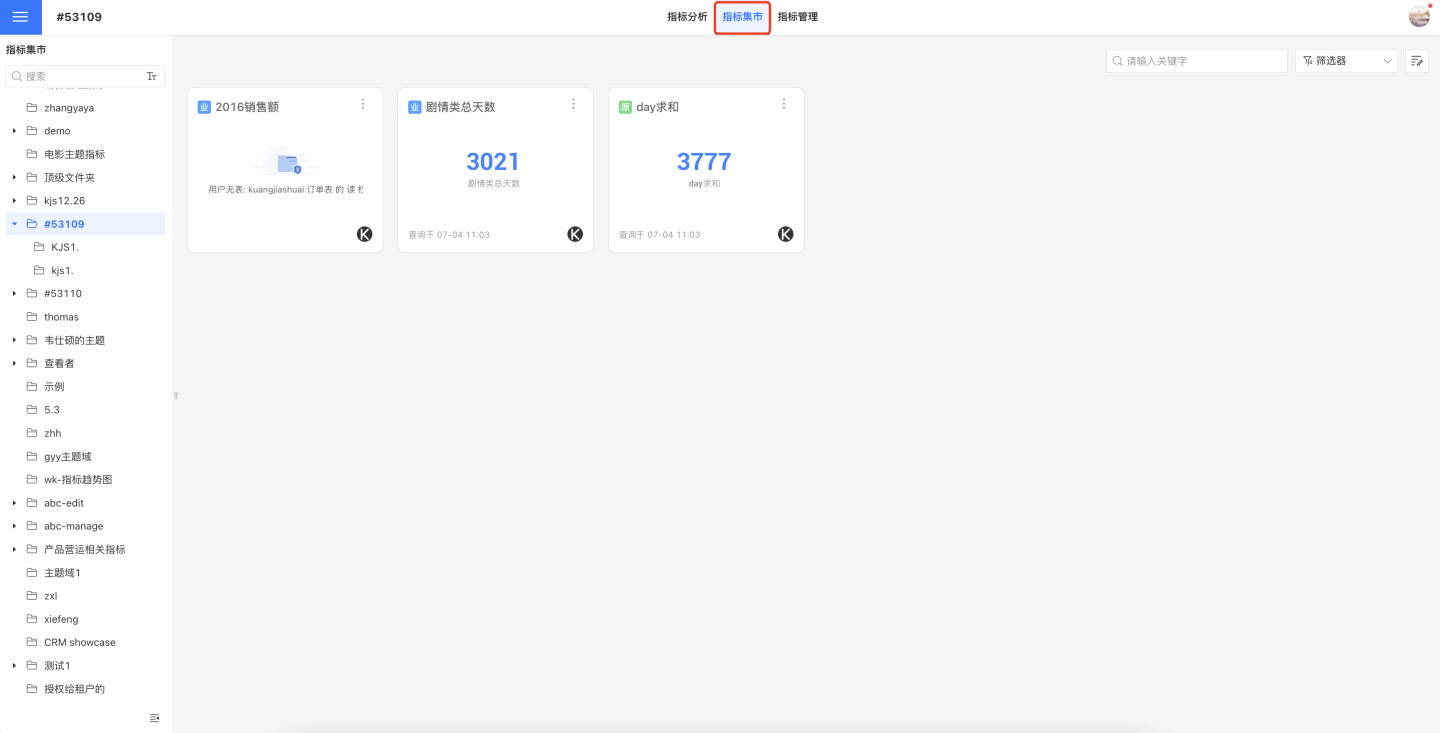
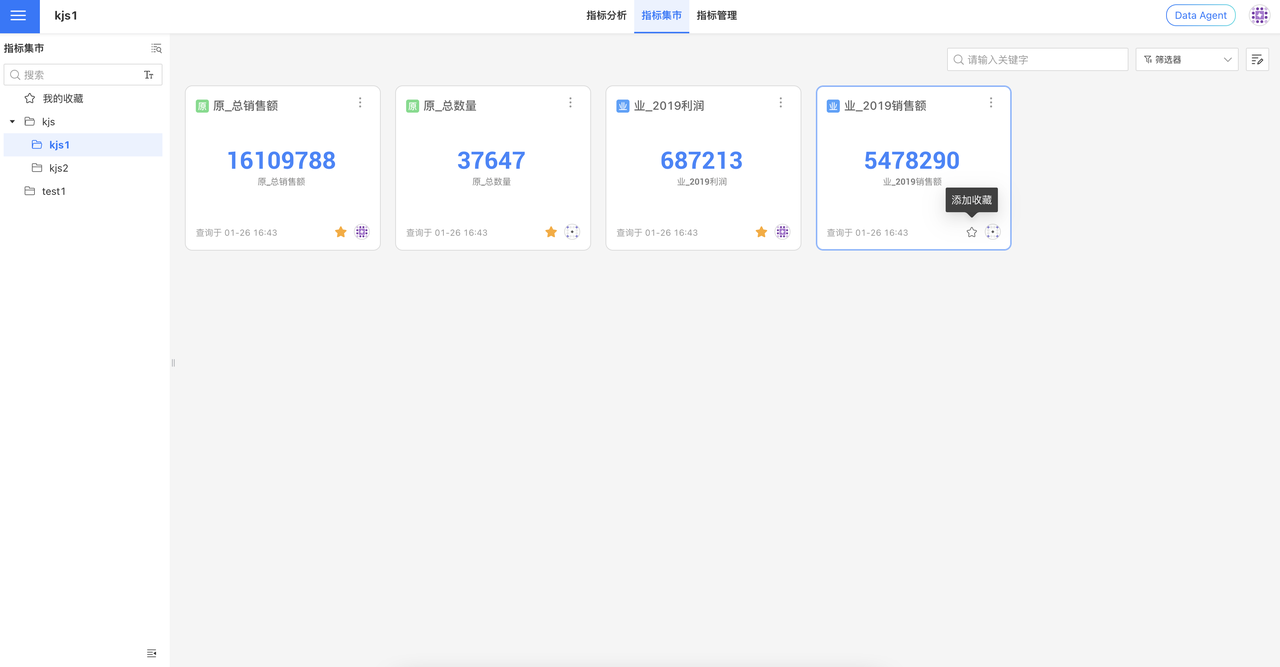
The Metrics Marketplace displays all metrics available to users on the metrics platform, including business metrics and atomic metrics. On the left side, business topics and their sub-topics are listed; clicking a business topic shows its metrics on the right. Metrics shown here can be used for related business analysis in Metrics Analysis.
Metrics View
Metric Information Display
When viewing a metric, you can inspect its detailed information, including the metric chart, lineage, and definition. Within the chart display, you can switch the dimension, calculation method, and chart type to present the metric in different ways.
Metric Filtering
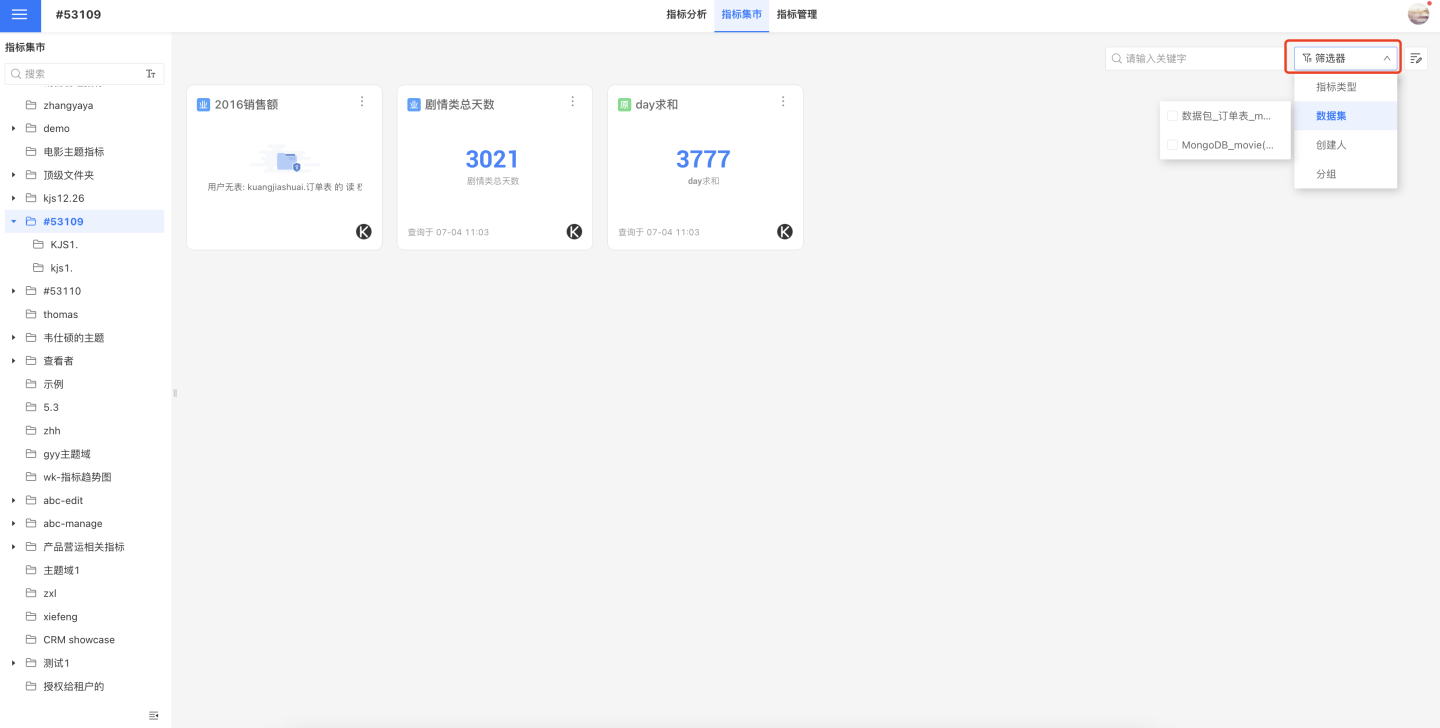
When viewing metrics in the Metric Mart, you can locate them under each business topic by using filters. The following filter types are supported:
- Metric Type: Filter by metric type, including Atomic Metrics and Business Metrics.
- Dataset: Filter by dataset name.
- Creator: Filter by the creator of the metric.
- Group: Filter by metric group.
My Favorites
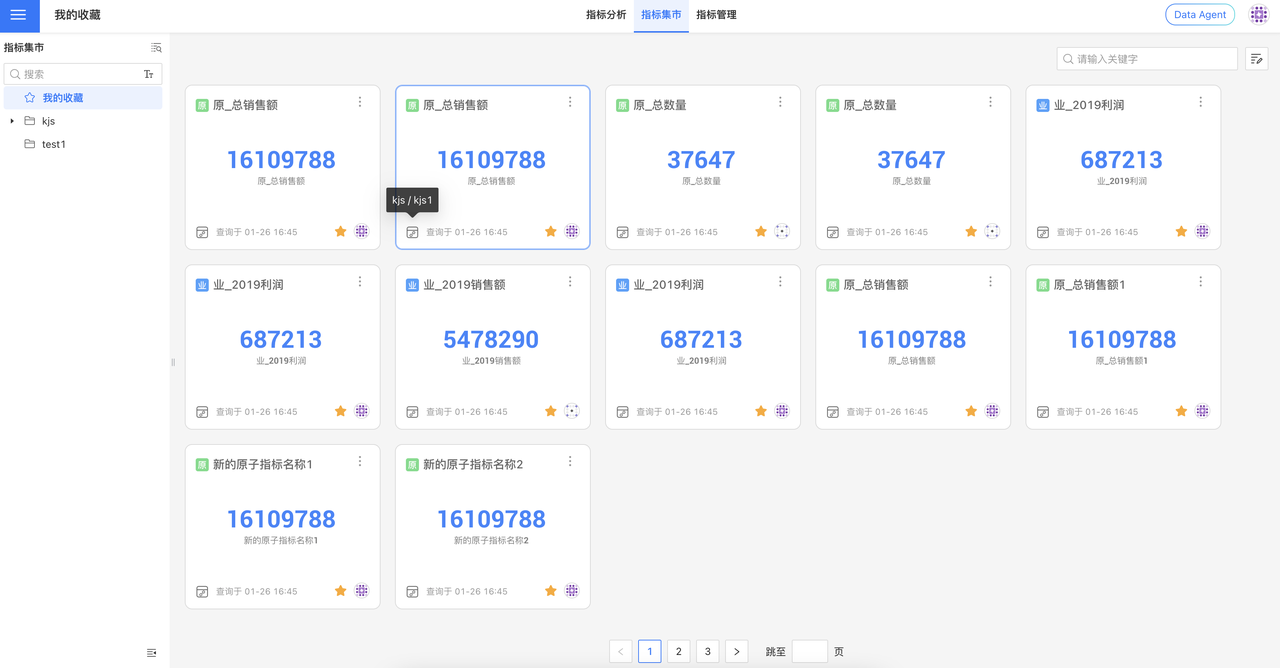
The Metrics Mart supports the metric favorites feature, allowing you to add frequently used metrics to your favorites with one click, making it easy to quickly locate core data among a vast number of metrics. Favorited metrics are centrally displayed in "My Favorites" and can be called up in seconds when configuring the Metrics Dashboard.
Favorite Metrics
While browsing metrics in the Metric Mart, click the star icon on a metric card to add it to your favorites. Favorited metrics appear under "My Favorites" in the left navigation bar.
View Favorite Metrics
In My Favorites, you can view all metrics you have bookmarked:
- Each favorite metric clearly displays its topic path
- Click the topic path to jump directly to that topic list page
- Click the metric card to view metric details
Note
The maximum number of favorite metrics is 1,000.
Using in Metric Dashboards
When adding metrics in the Metrics Analysis Dashboard, you can instantly select your favorited metrics from "My Favorites" for one-click insertion.
Global Search
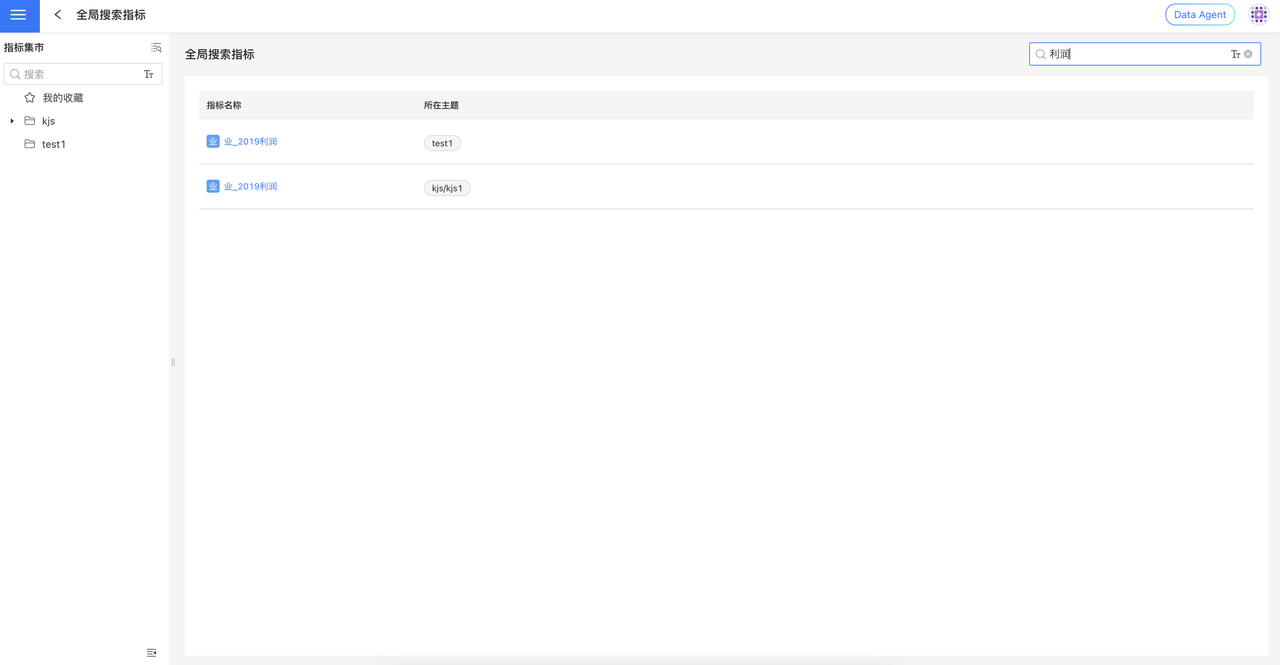
Both Metric Management and the Metric Marketplace support a global metric search feature, ensuring a consistent search experience whether you are managing metrics, browsing metrics in the marketplace, or adding metrics to a dashboard.
Search Function Description
- Search Retention: After searching, when you enter the detail page and then return, the current search keyword is retained.
- Scenario Switching: When you click the subject to which a metric belongs, the page jumps directly to that subject’s list page (the original search keyword is not retained).
Note
Global metric search returns a maximum of 1,000 records; it is recommended to enter relatively precise keywords to obtain more accurate search results.
Access Point
To the right of the indicator-tree directory title area
Metric Permissions
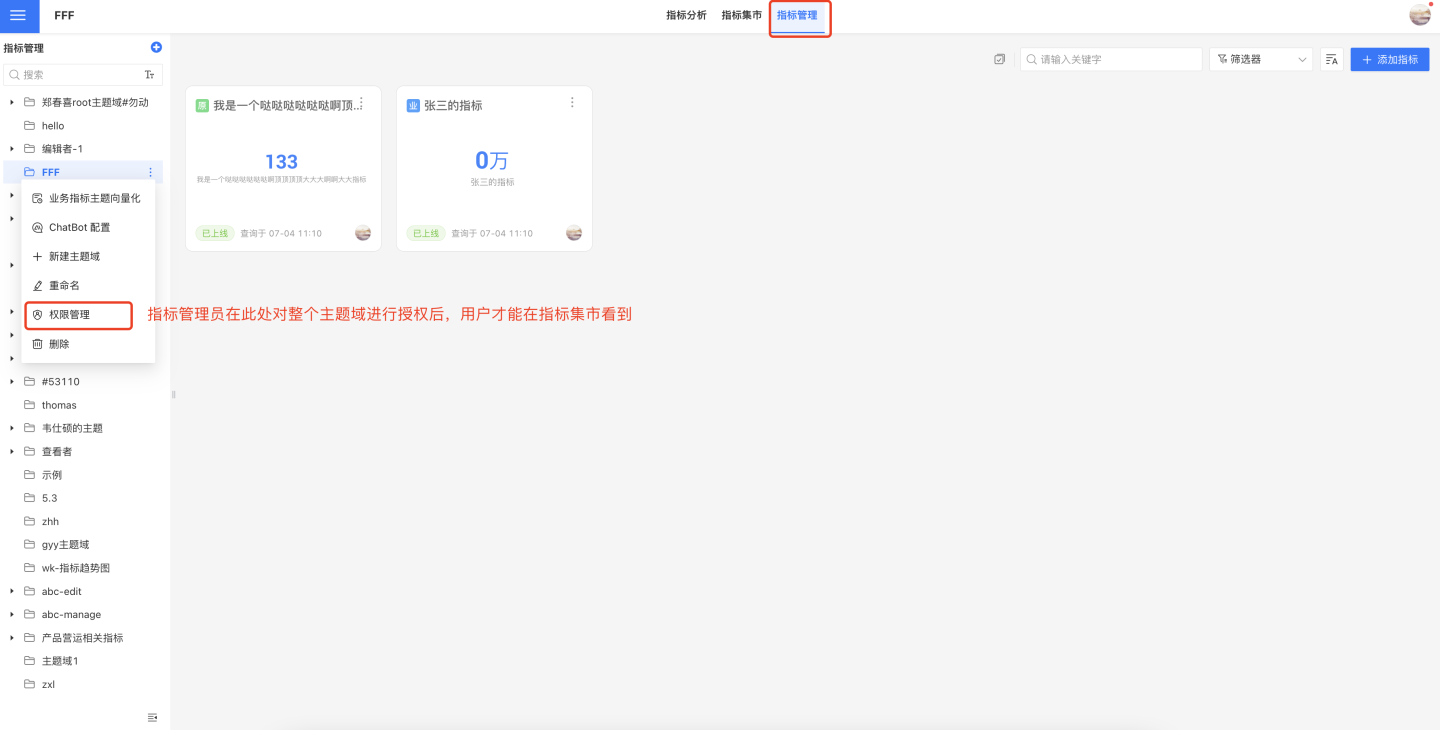
To view or use a metric in the Metric Mart or on a metric analysis Dashboard, you must request access to the Business Topic in which the metric resides. Please contact the relevant metric administrator to apply for and obtain authorization.