

Table Interaction Settings
Tables support various interaction operations—such as drill-down, filtering, and jump—to display information for different analytical scenarios.
Table Pagination
Tables allow you to configure both the content displayed per page and how it is displayed.
In Interaction → Row Limit, set how many rows appear per page. The minimum is 1 and the maximum is 10,000. The default is 1,000 rows. Subtotals count as one row.
NOTE
For cross-tables, the row limit also determines the upper bound for exported rows, overriding the “Export Row Limit” defined in security policies.
When Interaction → Auto Scroll is enabled, the page will play automatically. You can configure the scroll speed and the delay before scrolling begins.
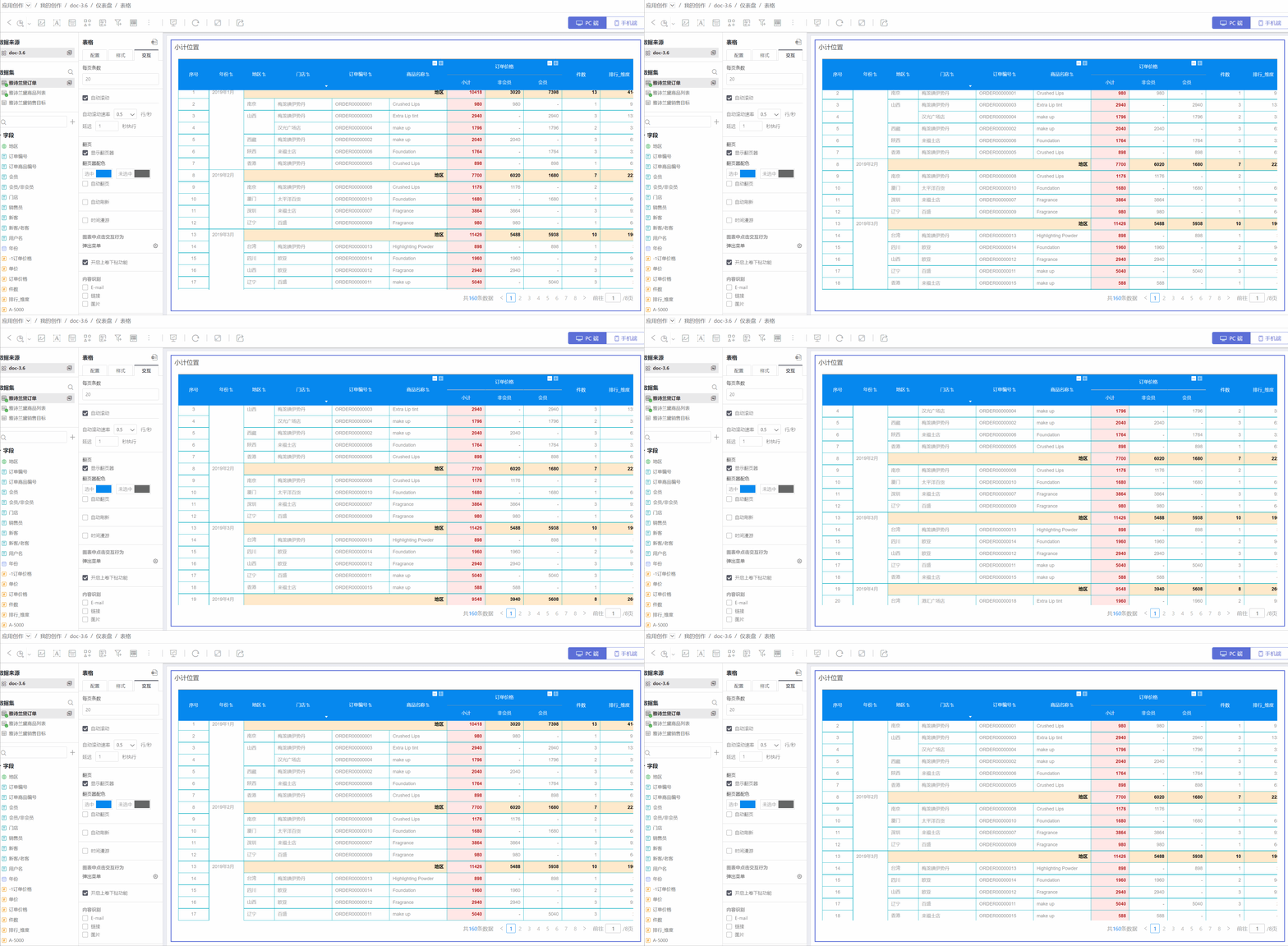
When the total number of rows exceeds the per-page limit, the table paginates the data.
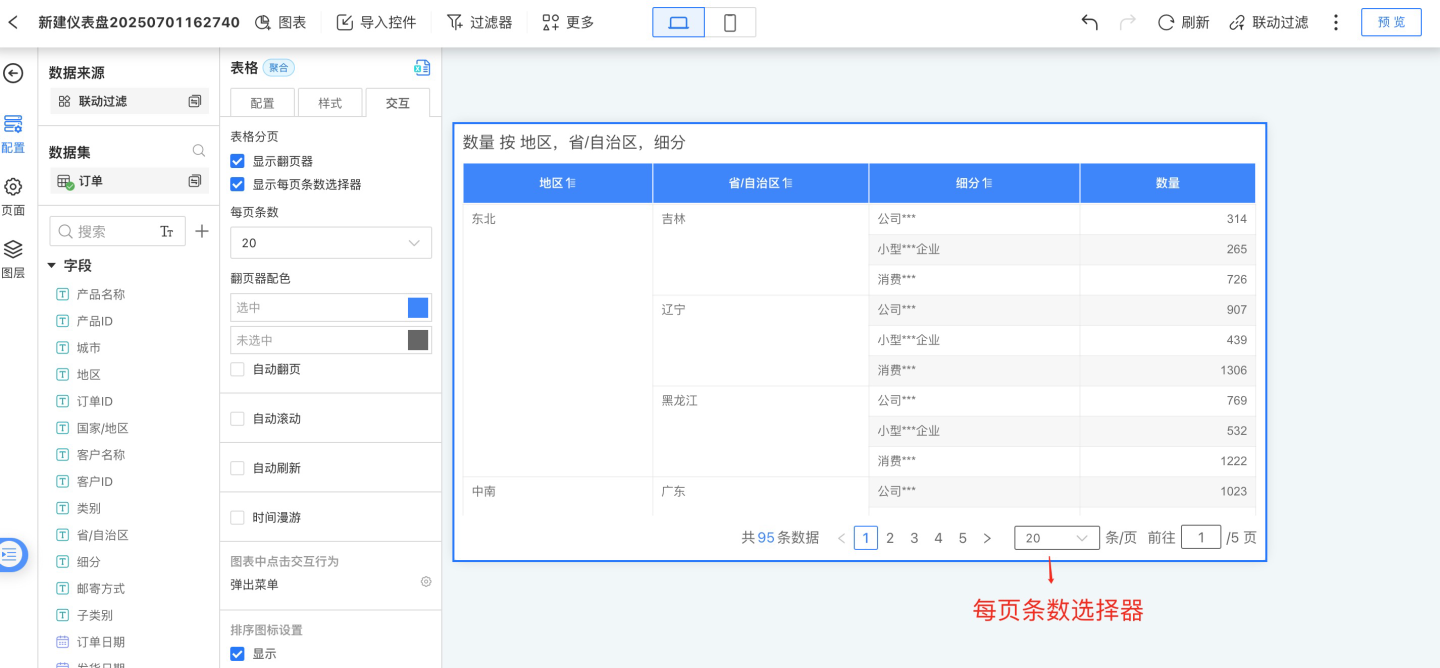
A pager below the table shows the total row count and total pages. The pager supports jumping to a specific page, moving to the previous or next page, and skipping five pages forward or backward. The pager is shown by default; if you manually hide it, only the first page is displayed. When the “Rows per page” selector is enabled, it appears whenever space allows.
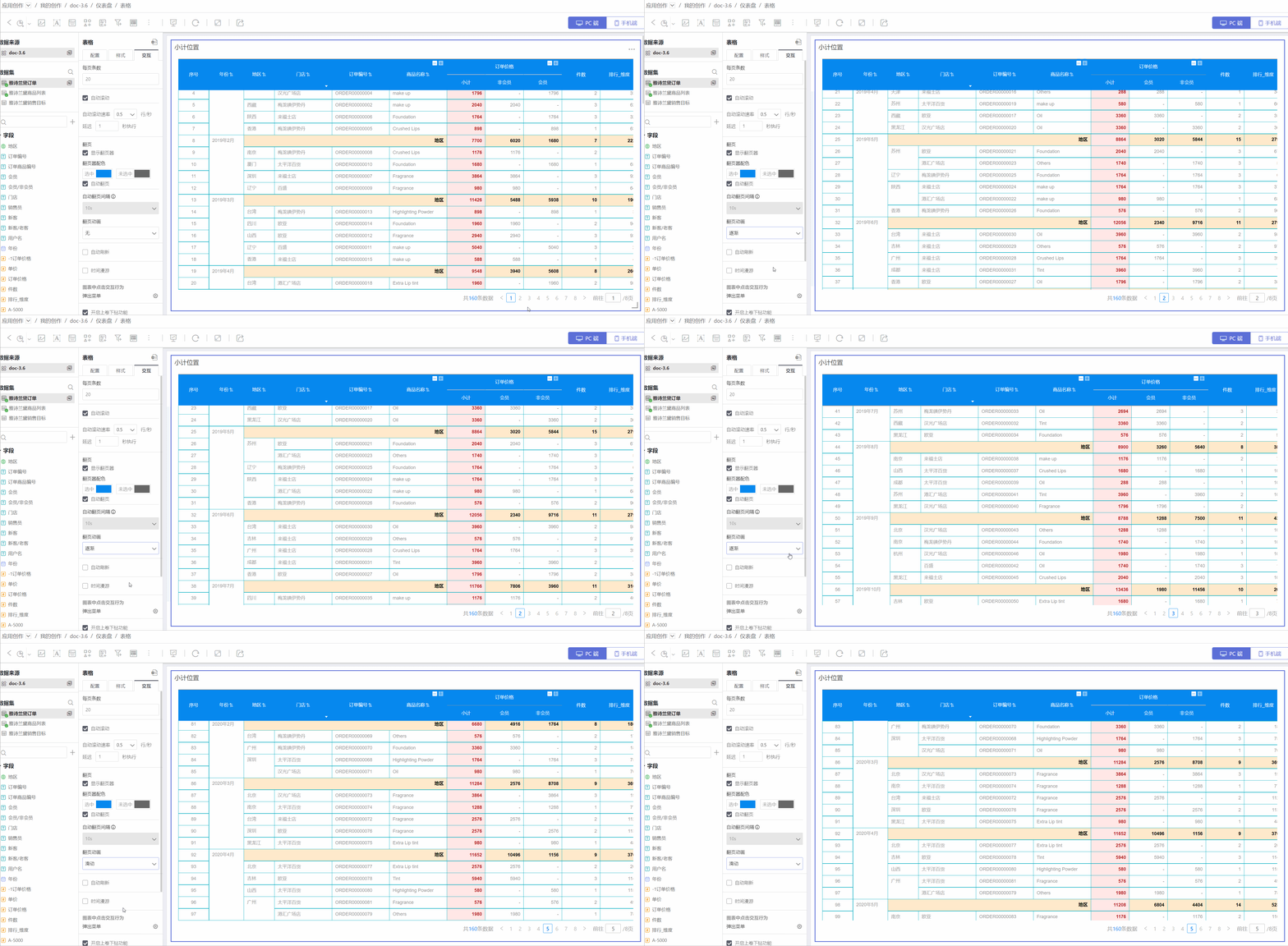
After pagination is active, you can enable automatic page flipping. Open
Interaction→Auto Page Flipand set the interval and animation style.- Once the interval is set, the page will flip after the specified time. If both auto-scroll and auto-page-flip are on, the interval is ignored; the page flips only after the current page finishes scrolling, following the scroll delay.
- Auto page flip supports three animation styles: None, Fade, and Slide.
Click Interactions in Charts
Click interactions in charts refer to the interactive behavior when clicking on a chart after opening a table.
No Response
After opening the table, clicking on any cell in the detail area produces no reaction.Pop-up Menu
After opening the table, clicking on a cell in the detail area opens a menu with Exclude, Detail, and Drill-down options.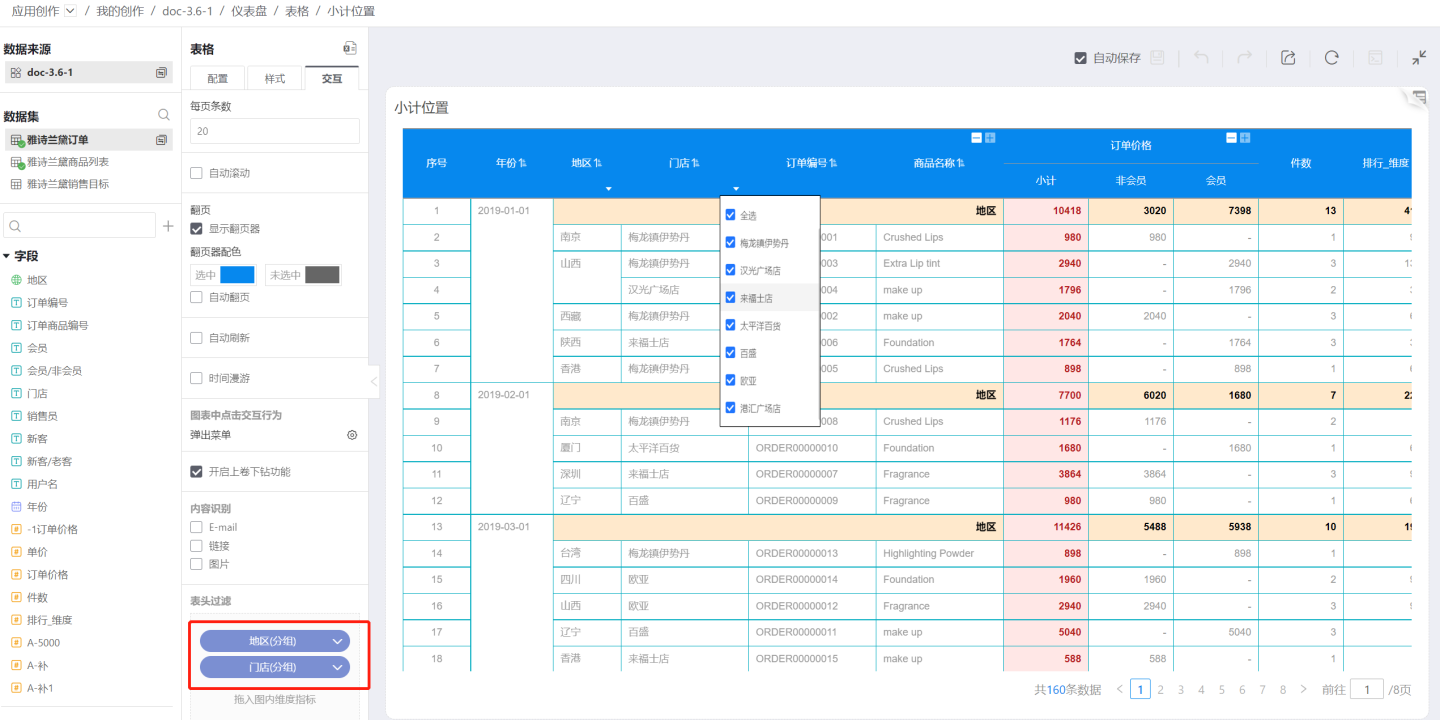
- Exclude removes the entire row containing the clicked cell; for example, after clicking Exclude, the data for row 10 is deleted.
- Detail displays the detailed data information of the clicked cell.
- Drill-down is available when drill-down layers have been configured.
Drill-down
After opening the table, clicking on a cell in the detail area directly drills down into the next layer.
Enable Read-Only Sorting
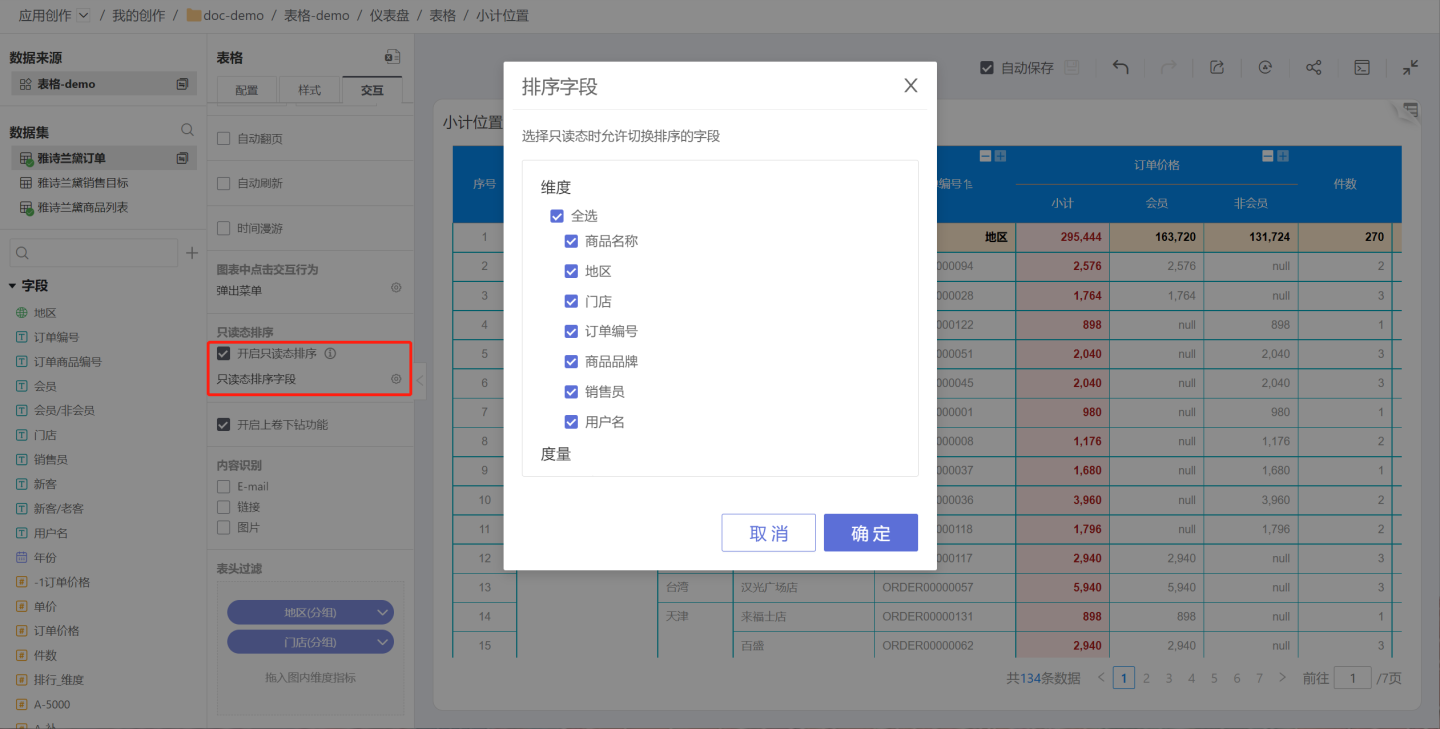
Tables retain the sorting capability in read-only states such as publish, preview, and embed. Creators can toggle this feature on or off for the published view. When the toggle is on, sort buttons appear on the table, letting viewers reorder fields and resort the table. When the toggle is off, no field-setting buttons are shown, and viewers cannot sort the table.
Enabling read-only sorting also lets you specify which fields users are allowed to sort. While the app creator defines a fixed sort order, viewers can additionally sort by the permitted fields.
Enable Roll-Up
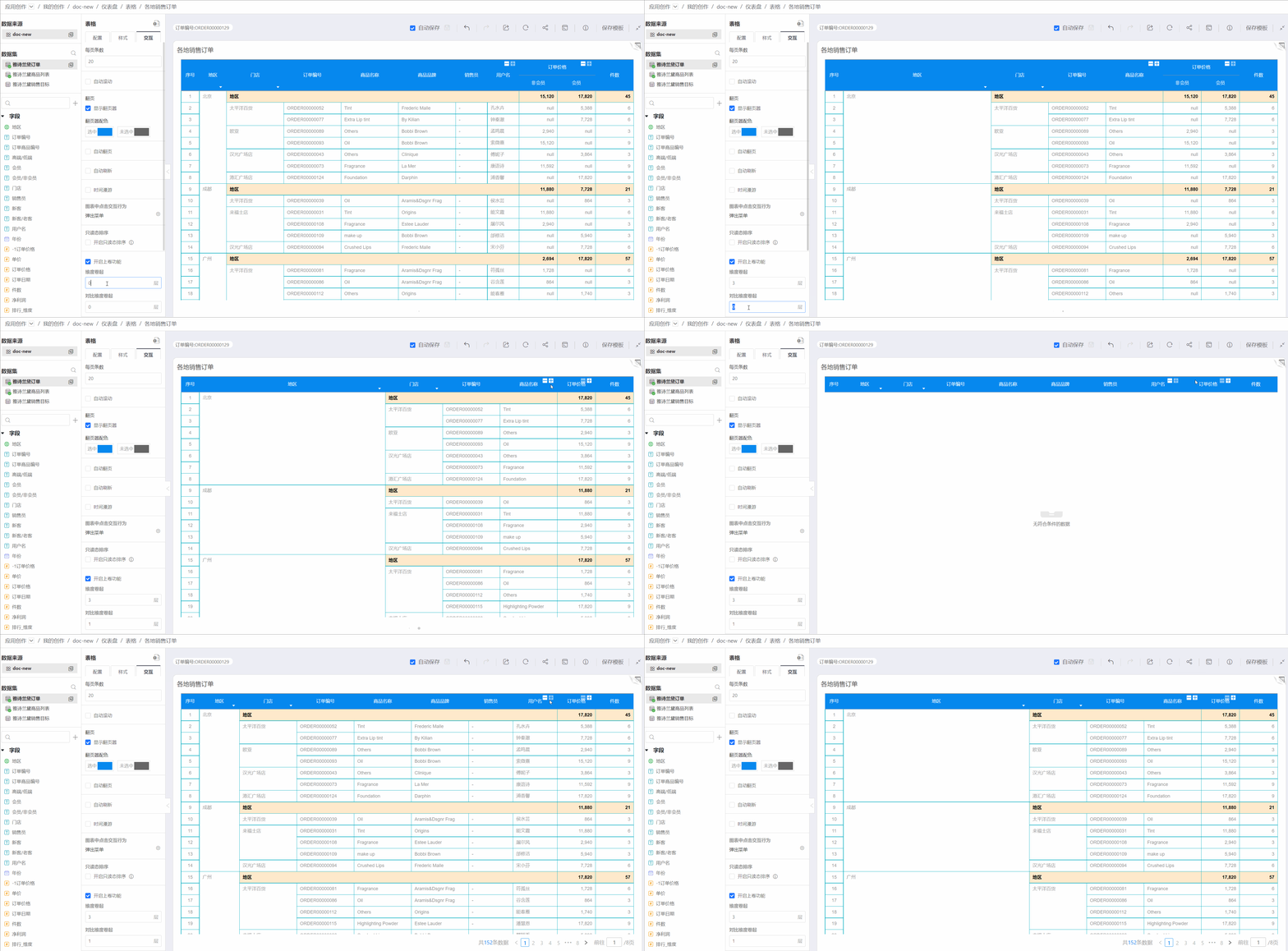
The table roll-up feature lets you set how many levels of dimensions are rolled up. By default, only the top-level column is shown; the rest can be expanded when needed. You can configure the roll-up depth for both dimensions and comparison dimensions.
After roll-up is enabled, “+” (roll-up) and “–” (drill-down) icons appear on dimension headers and subtotal headers in the table, allowing you to collapse or expand the hierarchy step by step. Here, “roll-up” means collapsing the field, and “drill-down” means expanding it.
Content Recognition
Content recognition includes: E-mail, Link, Image. All options are unchecked by default when creating a new table.
E-mail
Check E-mail to enable automatic recognition of e-mail addresses in table cells; clicking an e-mail link will open your default mail client.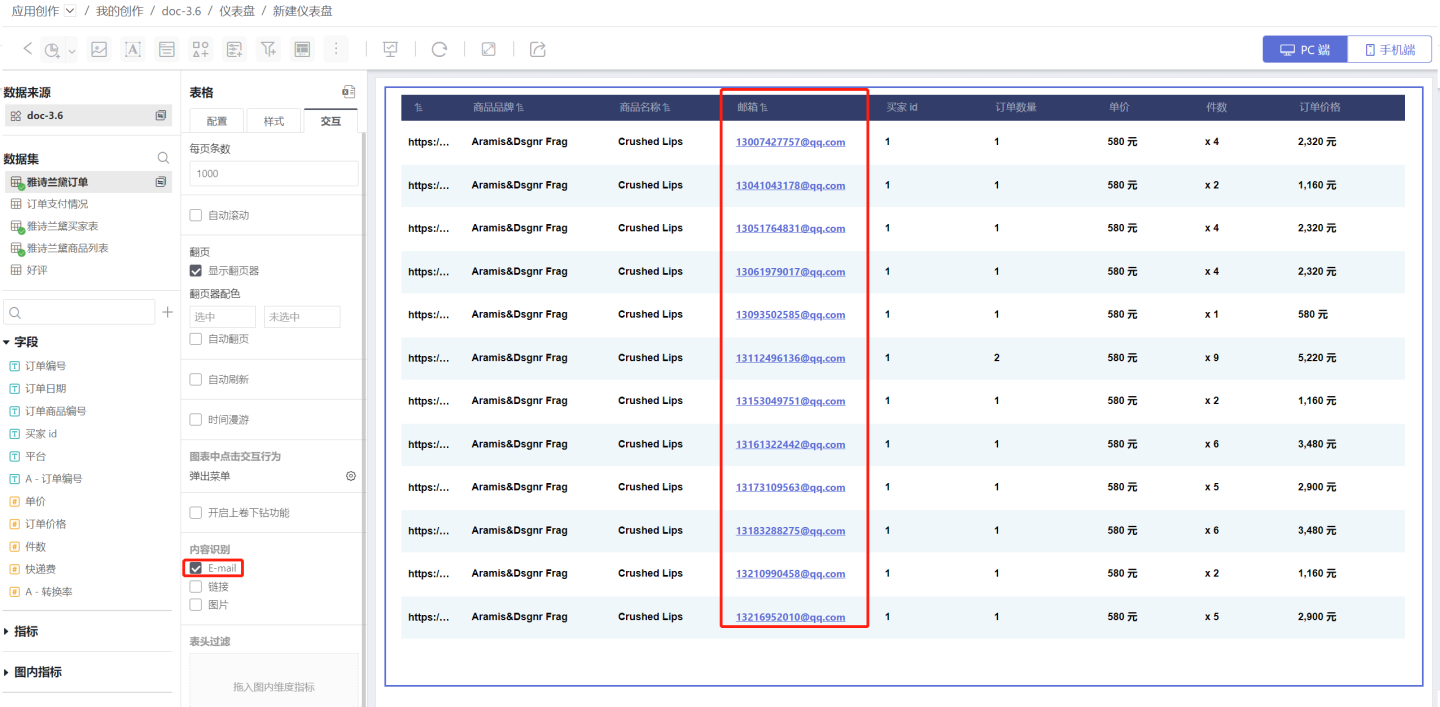
Link
Check Link (with Image unchecked) to enable automatic recognition of URLs in table cells; clicking a URL will open the linked page.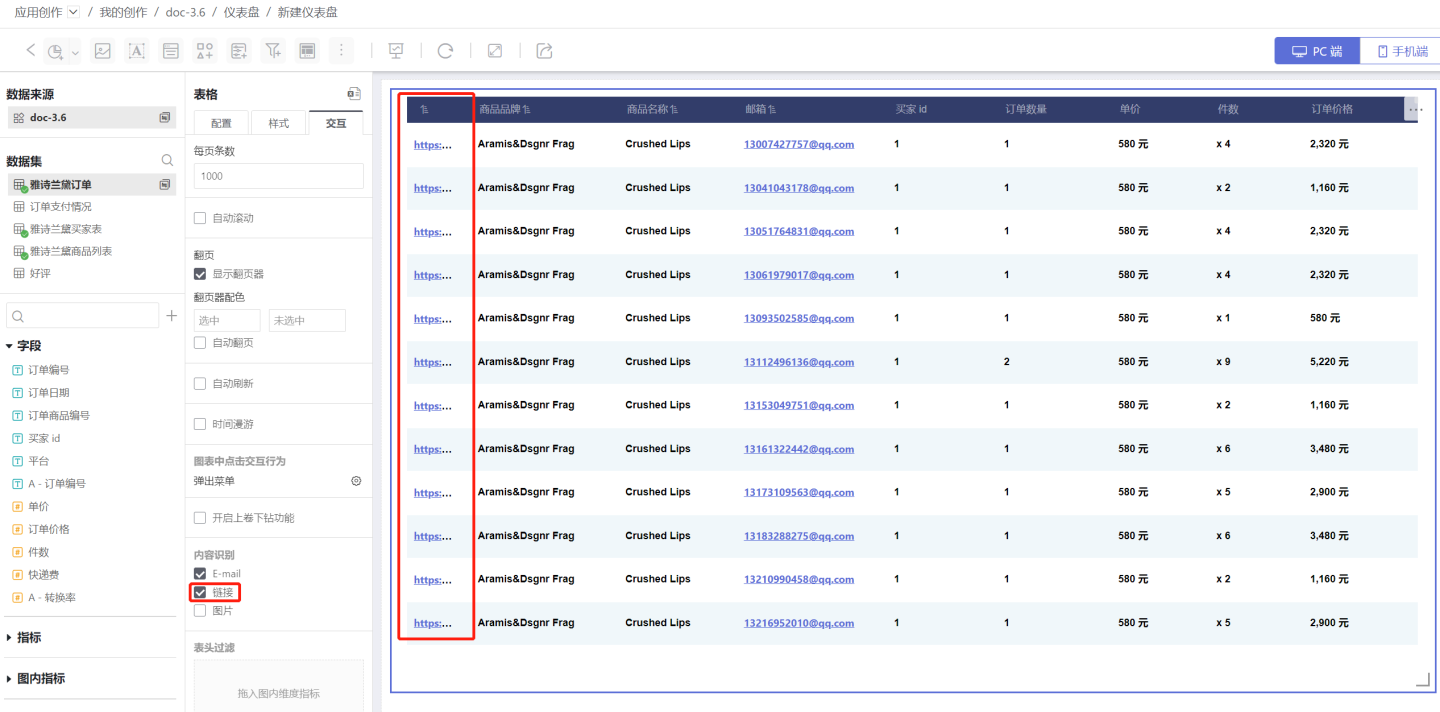
Image
Check Image or check both Link and Image to enable automatic conversion of image URLs into inline images; clicking an image will open the linked page.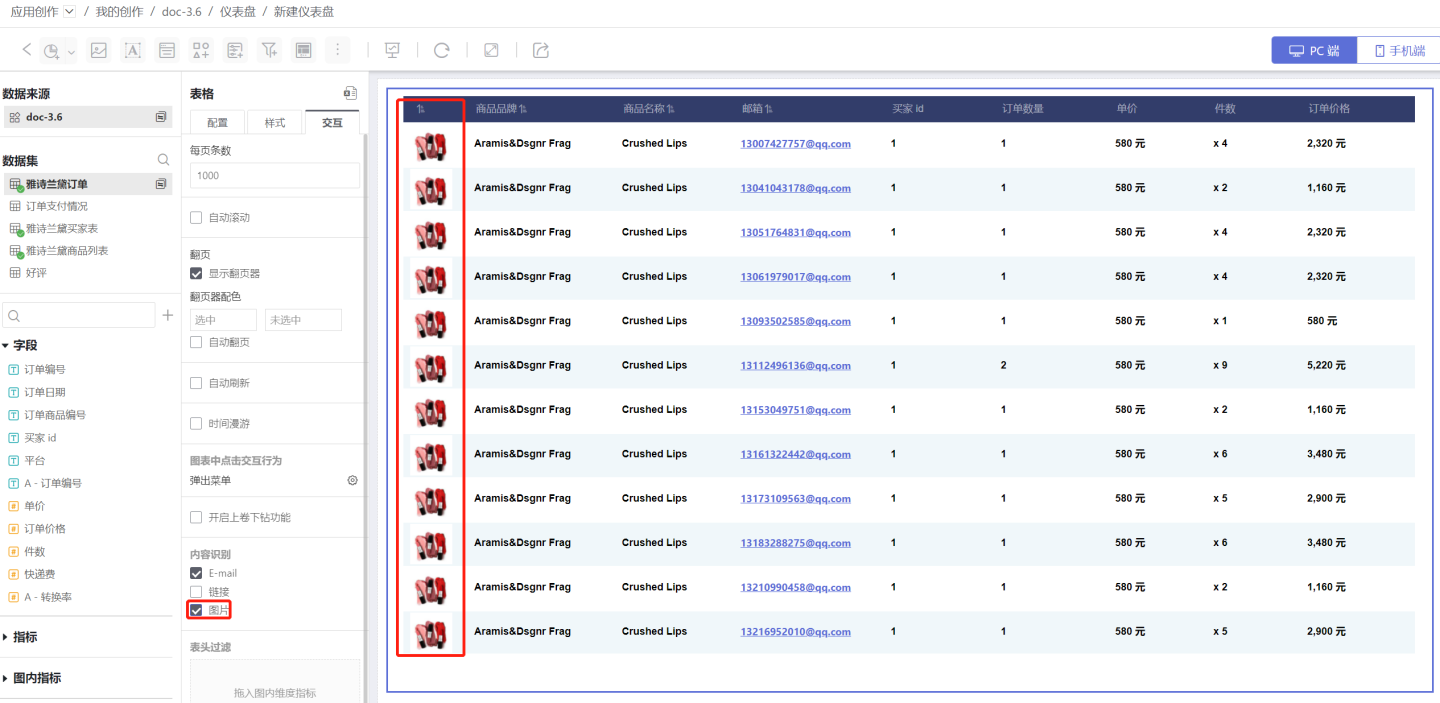
CLI support
Content recognition can also be configured via CLI:
# Enable link, email, and image recognition when creating a table
hbi element chart create --dashboard <id> --app <id> table --dataset <id> --identify-link true --identify-email true --identify-image true

# Update content recognition settings for an existing table
hbi element chart update <chart-id> --dashboard <id> --app <id> --file chart.yaml --identify-image trueSee hbi element chart create --help for details.
Header Filter
Header filtering lets you quickly isolate the data you care about. Drag any measure into the Header Filter area; a small triangle appears below the header—click it to filter the data.
Tip
Header filtering is quick and easy—use it whenever you only need to filter the table itself.
The header must be visible for this feature to work. If the table is designed without headers, use a Filter to filter the table data instead.