

Authentication Methods
When users log in to HENGSHI SENSE, the system must verify the entered username and password to ensure security. HENGSHI supports multiple single sign-on (SSO) authentication methods such as CAS, SAML2, and OAUTH2.
In SSO, HENGSHI acts as the Service Provider (SP) that delivers the requested services to users, while user authentication is handled by the Identity Provider (IDP).
Before using an authentication service, make sure the IDP and SP can communicate with each other.
Configure Base URL
The Base URL plays a key role in login authentication; please set the Base URL before configuring authentication.
How to Fall Back if Authentication Is Misconfigured
If the default authentication method has already been switched to LDAP, CAS, SAML2, OAuth2, or another external provider and users can no longer log in because of a bad configuration, system administrators can still fall back to the built-in HENGSHI login page.
You can access:
http(s)://<hengshi-host>/#/login- When troubleshooting directly on the service node, addresses such as
http://localhost:8080/#/loginorhttp://<server-ip>:<port>/#/login
Prefer the real service address that is reachable in your environment. If the reverse proxy or Base URL itself is part of the problem, bypass the proxy temporarily and go directly to the HENGSHI service address to recover access.
Authentication Method Configuration
In Settings -> Organization Management -> Authentication Methods, configure how users log in to the system. The following methods are currently supported: HENGSHI, LDAP, CAS, SAML2, OAUTH2, DingTalk, WeChat Work, CTR, YUNZHIJIA, JWT Request Parameters, Feishu, QinCe, and more.
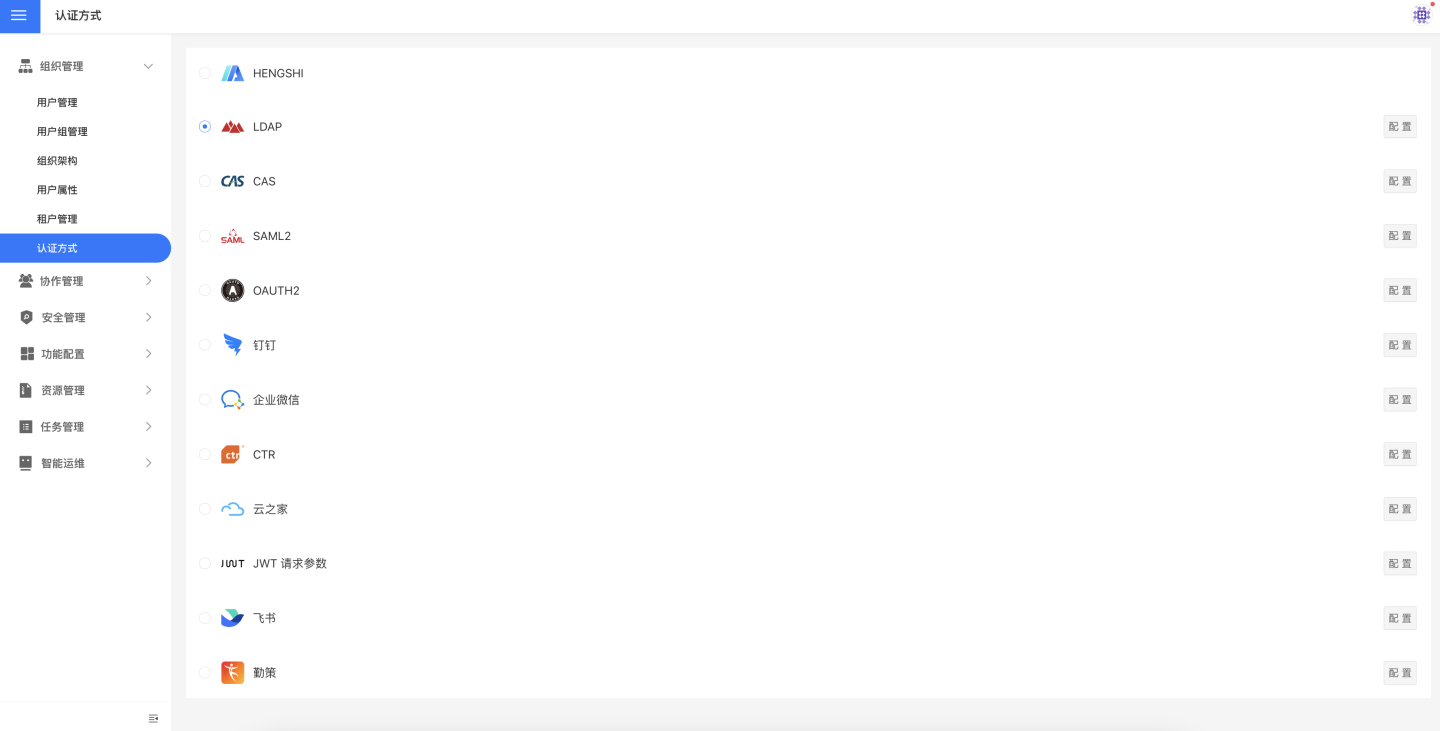
When a user logs in via an authentication method, certain user information is synchronized into the system through configuration items—for example, user attributes and organizational structures are synced to HENGSHI SENSE.
These configuration items are collectively referred to as “common configurations” and are explained together in the Common Configuration section.
HENGSHI
HENGSHI’s built-in user authentication system verifies identity through the platform’s internal user information. Even when another authentication method is configured, HENGSHI system administrators can still log in by visiting the /login page.
LDAP
When users store their account information in an LDAP authentication server and want to log in to HENGSHI SENSE with the same credentials, they can select the LDAP authentication method. To enable it, tick “LDAP” under Settings → Organization Management → Authentication Methods and fill in the required LDAP settings.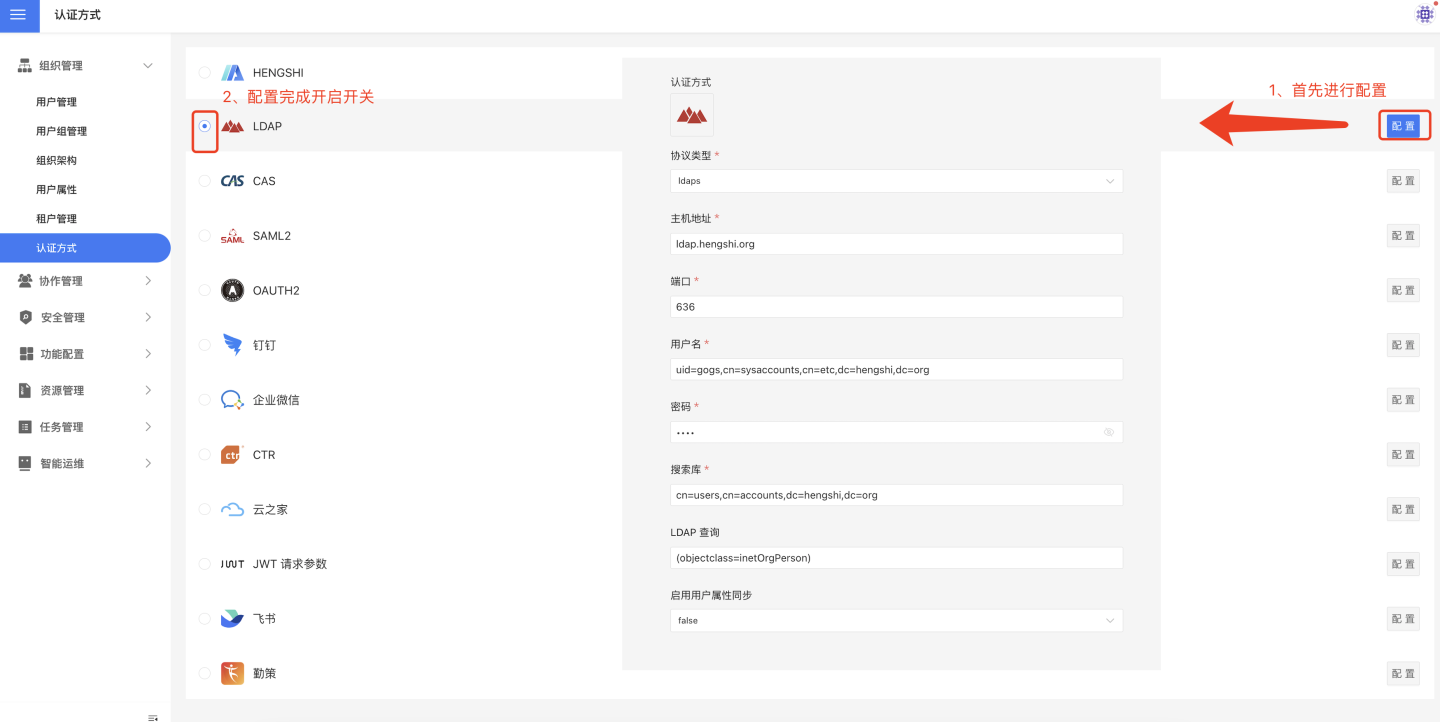
Basic LDAP settings include:
- Protocol type:
ldaporldaps - Host address
- Port
- Username
- Password
- Search base
- LDAP query
Common LDAP mappings cover username, display name, email, mobile number, role, group, organizational structure, enterprise ID, enterprise name, platform ID, enable SSO exp session-expiration sync, and session-expiration mapping. For details on these fields, refer to the Common Configuration section.
CAS
When user information is stored on a CAS authentication server and you want to log in to HENGSHI SENSE with the same method, select the CAS authentication option. To use CAS, enable it under Settings → Organization Management → Authentication Methods and complete the CAS-related configuration.
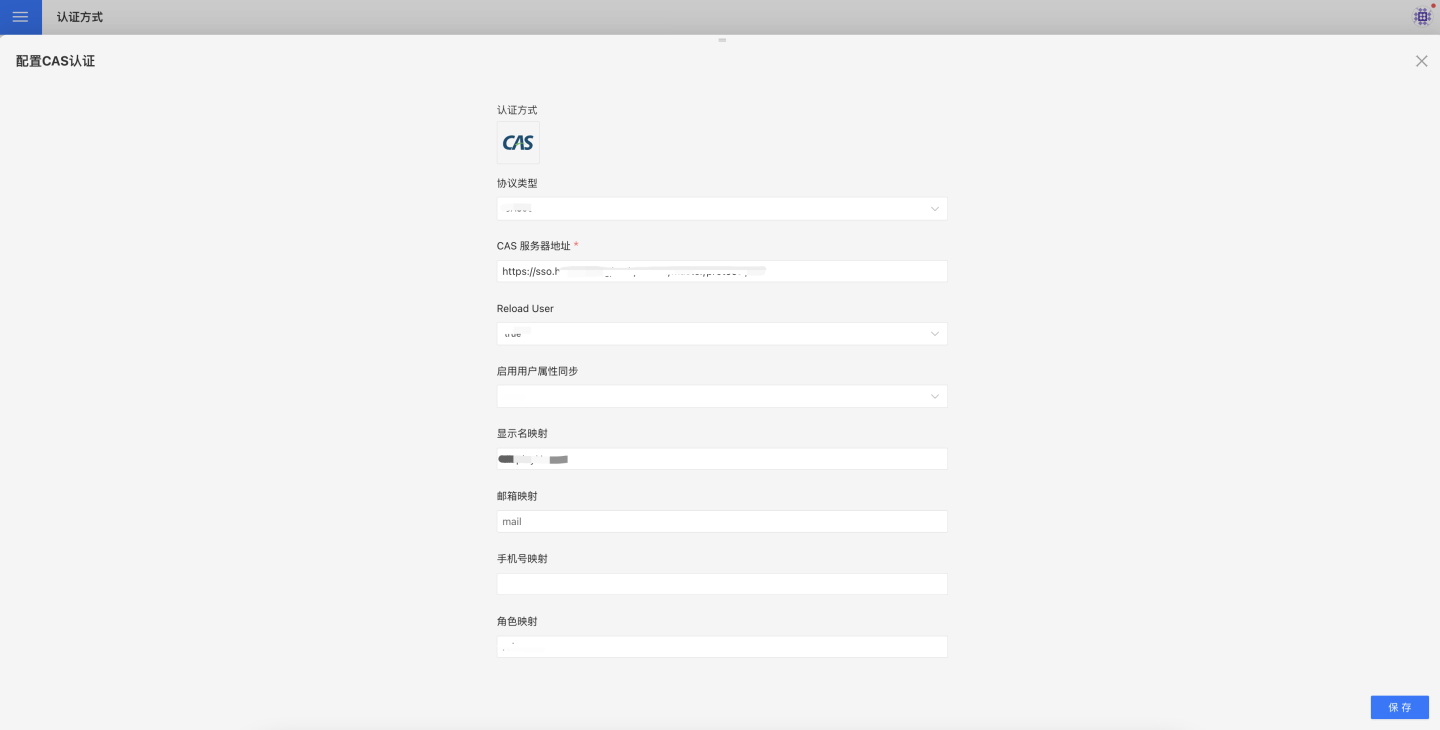
Basic CAS settings include:
- Protocol type
- CAS server address
- Reload User
Common CAS settings cover display-name mapping, email mapping, mobile-number mapping, role mapping, group mapping, organizational-structure mapping, enterprise-ID mapping, enterprise-name mapping, platform-ID mapping, enable SSO exp session-expiration synchronization, and session-expiration mapping. For details and usage of these common fields, refer to the Common Configuration section.
SAML2
When user information is stored in a SAML2 identity provider and you want to log in to HENGSHI SENSE with the same authentication method, choose the SAML2 option.
Enable it under Settings → Organization Management → Authentication Methods, tick SAML2, and fill in the SAML2 settings.
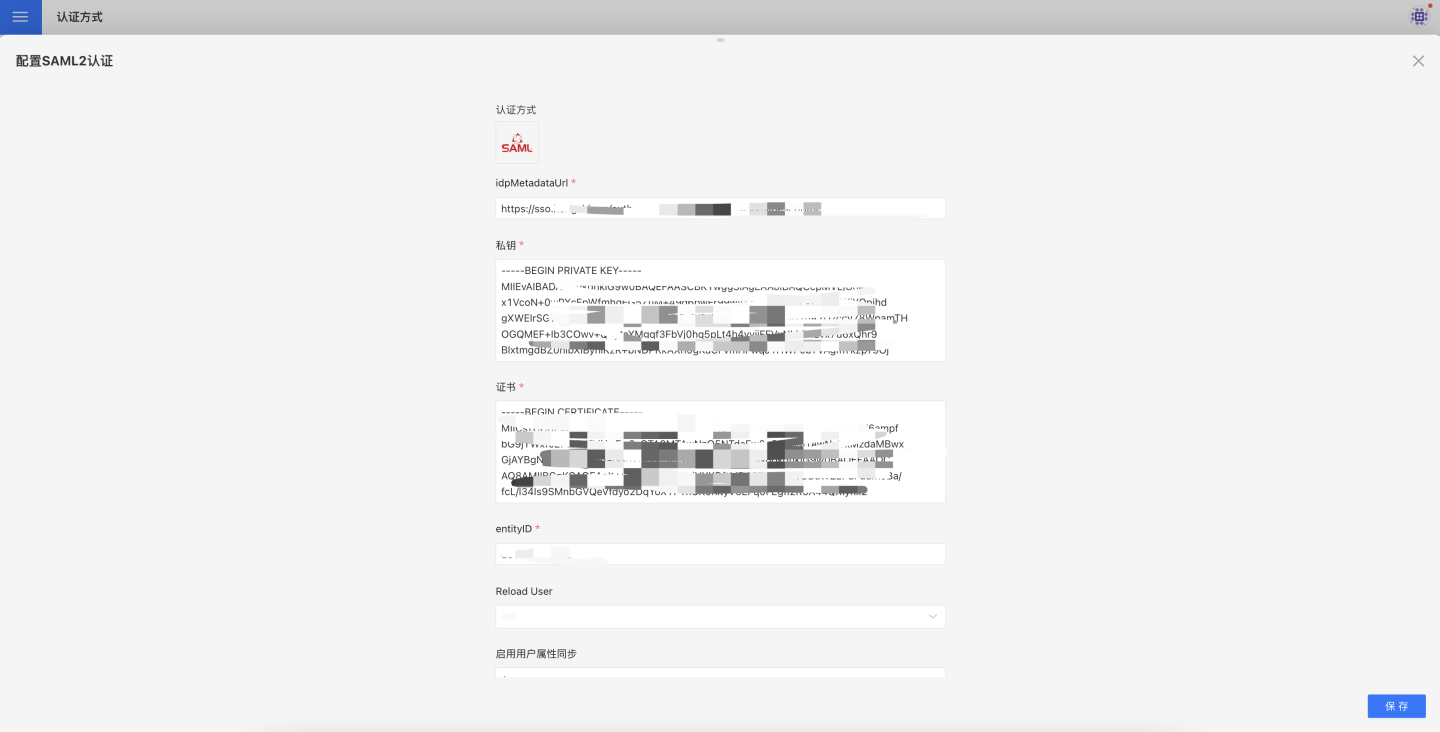
SAML2-specific settings:
- idpMetadataUrl
- Private key
- Certificate
- entityID
- Reload User
Common mappings used to synchronize user attributes via SAML2 include: username, display name, e-mail, mobile, role, group, organization, enterprise ID, enterprise name, platform ID, enable SSO exp session-life synchronization, and session-life mapping.
For details on these common fields, refer to the Common Configuration section.
OAuth2
When user information is stored in an OAuth2 authentication server and you want to log in to HENGSHI SENSE with the same method, choose the OAuth2 authentication option.
Enable it under Settings → Organization Management → Authentication Methods, tick OAuth2, and fill in the required OAuth2 settings.
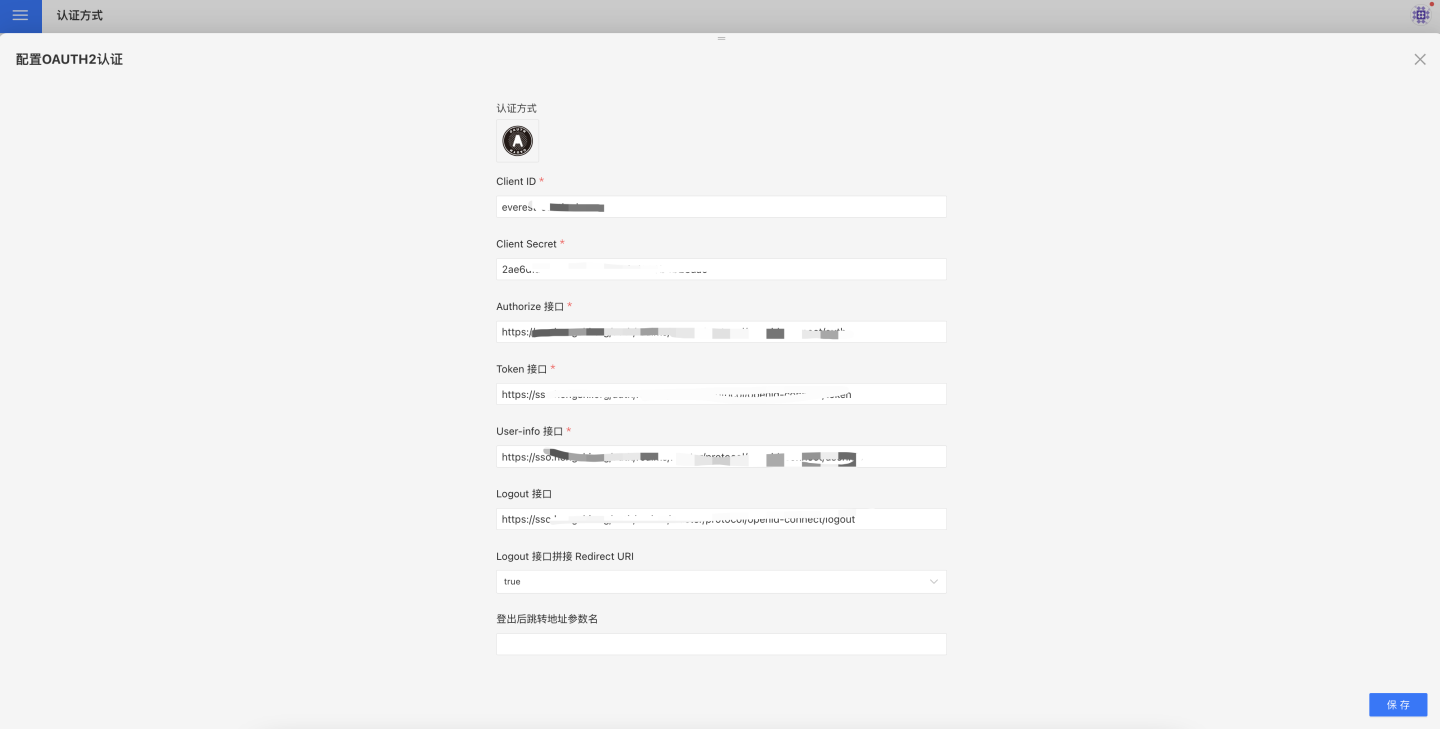
OAuth2-related parameters:
- Client Id – the client ID registered in the OAuth server; some systems call it App Id.
- Client Secret – the client secret registered in the OAuth server; some systems call it App Secret.
- Authorize endpoint – where users are redirected when not logged in. After successful login the OAuth server redirects back to the
redirect_urisupplied by HENGSHI with acodeparameter. - Token endpoint – HENGSHI exchanges the
codefor a token at this endpoint. - User-info endpoint – HENGSHI retrieves the user’s basic profile with the token.
- Logout endpoint – HENGSHI redirects to this URL on logout so the user is also logged out of the OAuth server (some servers do not implement it).
- Append redirect URI to logout endpoint – default
true. Whether to append the HENGSHI URL visited before logout to the logout endpoint. - Redirect parameter name – default
redirect_uri. The query parameter used when HENGSHI calls the OAuth server’s logout endpoint; the server redirects to this address after logout. - Scope – defined by the OAuth server and configured in HENGSHI SENSE. It is sent when requesting the
code. New Keycloak versions (≥ 19.0.2) requireopenid. - Original URL pass-through – how the original URL requested by the user is preserved. For example, if the user entered
http://{host}:{port}/apps/1/dashboard/1, after login they will be sent there. Usually stored in session; for multiple iframe embeds, pass it in the URL. - Validate original URL – if
true, the original URL must start with the base URL. - Reload User – whether to refetch the current user from the OAuth server on every page refresh. See Authentication Integration Notes for usage.
Logout examples (URLs are illustrative only):
- If Logout endpoint is not configured, only HENGSHI logs out.
- If Logout endpoint is
http://logout.comand Append redirect URI istrue, the final logout URL becomeshttp://logout.com?redirect_uri=http://hengshi.com&activeAuth=oauth2&tenantId=xxxx
(redirect_uriis URL-encoded; shown in plain text for clarity). The parameter name follows Redirect parameter name. - New Keycloak versions changed the logout
redirect_uribehavior; see
Keycloak upgrade notes.
If Logout endpoint is configured and Append redirect URI isfalse, Keycloak asks the user to confirm logout.
Set Append redirect URI totrueand Redirect parameter name topost_logout_redirect_urito skip confirmation.
Keycloak parameter behavior may vary by version; consult Keycloak documentation.
Common OAuth2 mappings for synchronizing user attributes:
username, display name, email, mobile, role, group, organization, enterprise ID, enterprise name, platform ID, enable SSO exp session sync, session-expiry mapping.
Refer to the Common Settings section for field descriptions and usage.
OAuth2 (Azure)
Integrate with the Azure OAuth server via the OAuth2 authentication method.
Azure obtains the configuration information through the following steps:
Add an App Registration
- Go to Azure
- Select “App registrations”.
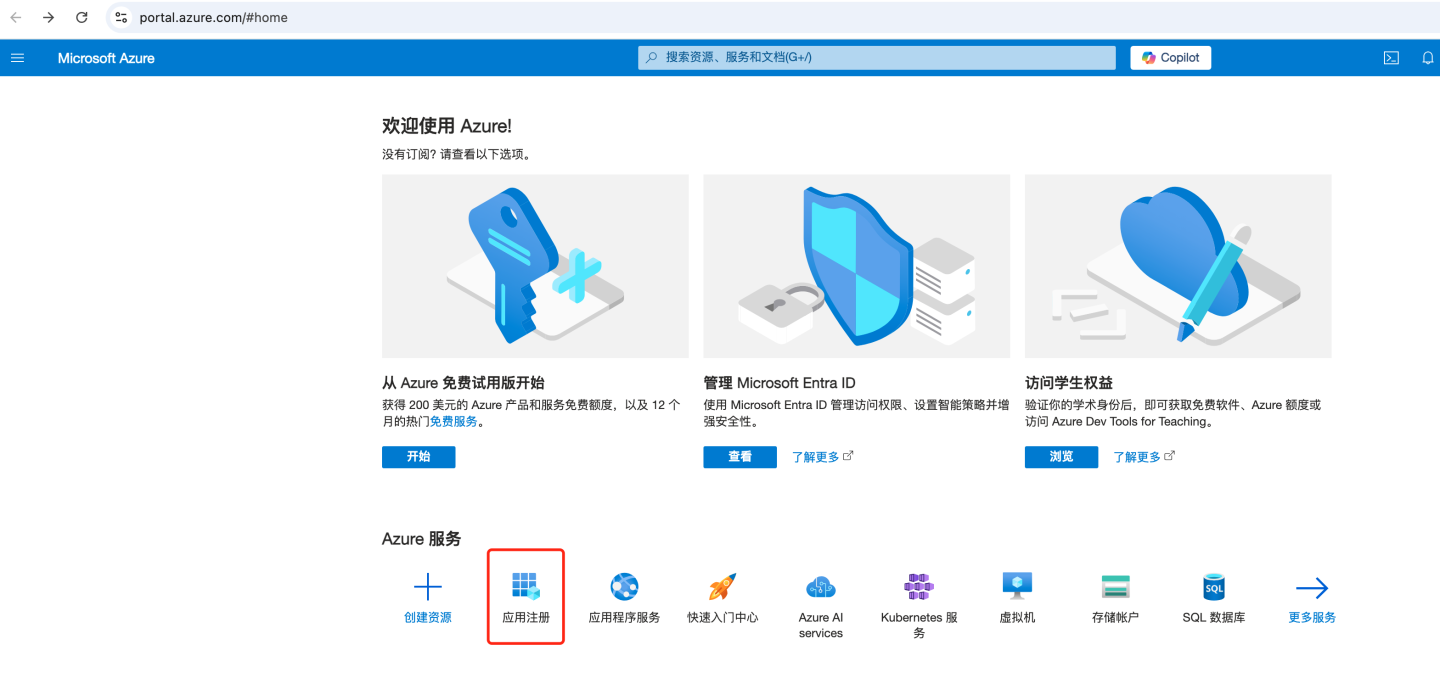
- Select “+ New registration”.
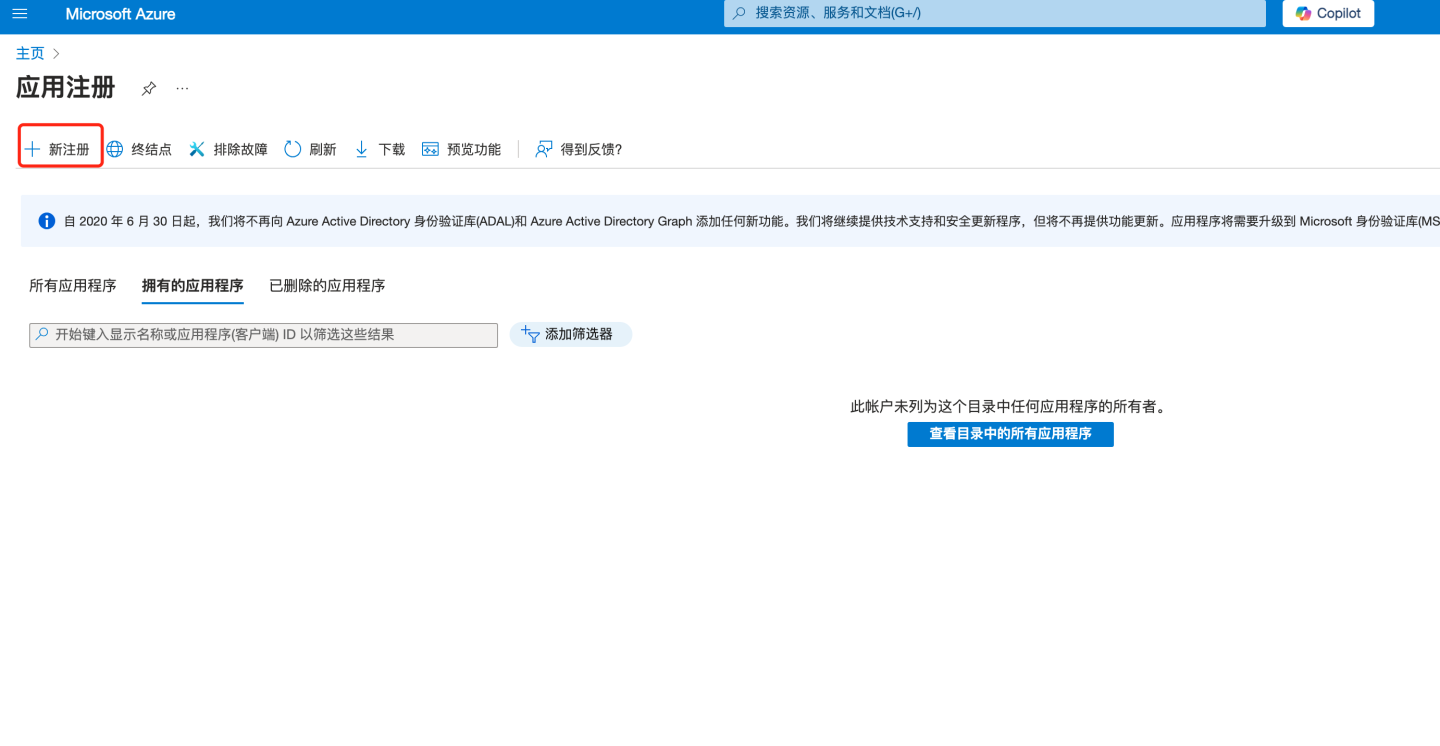
- Enter a name and other required information, then click “Register”.
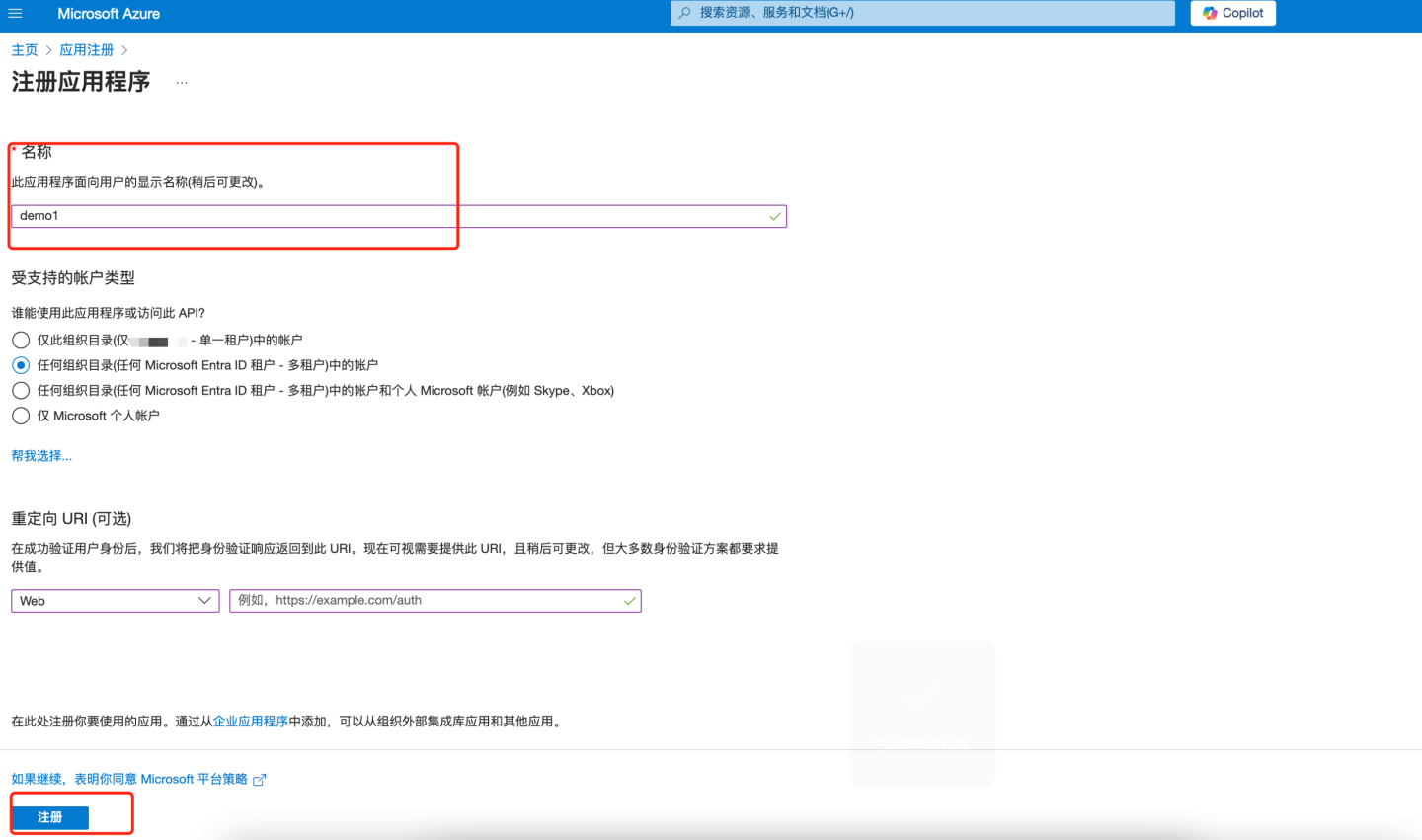
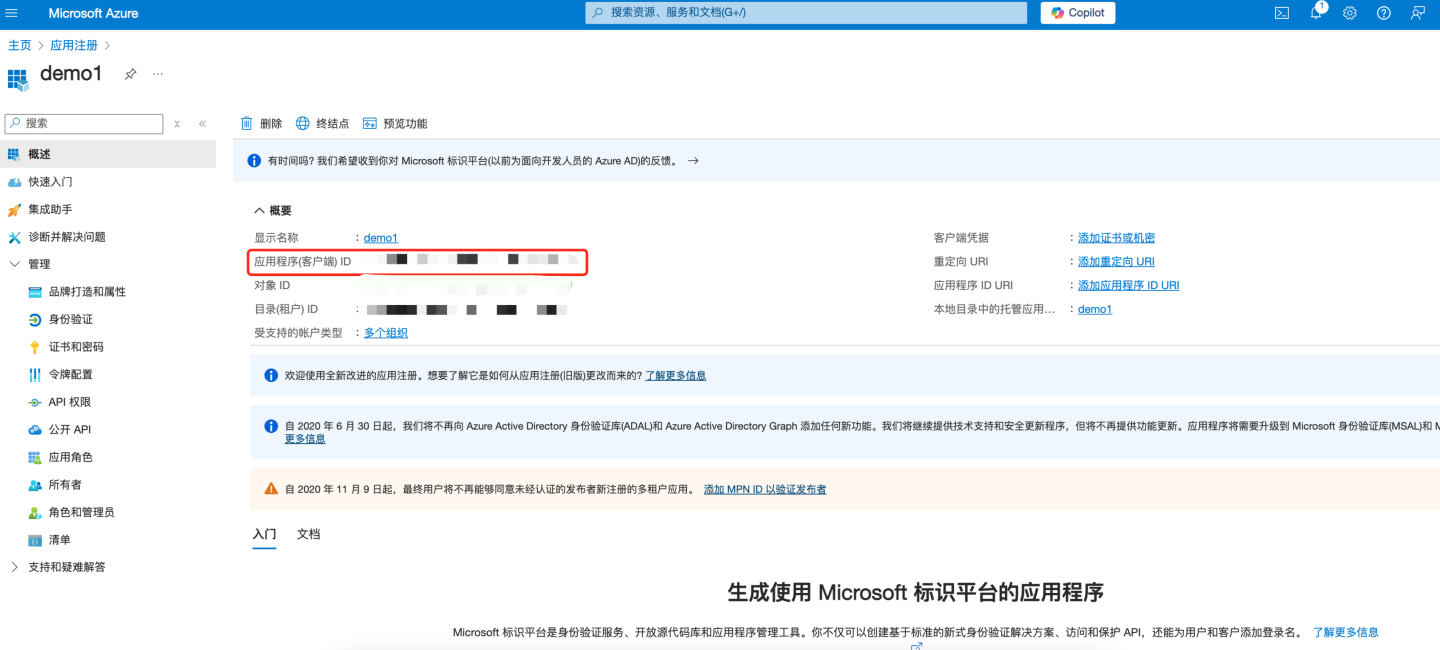
- The application is now registered in Microsoft Entra ID. The overview page appears. Record the “Application (client) ID” and enter it into the “Client ID” field of the HENGSHI OAuth2 authentication method.
Add Web Authentication
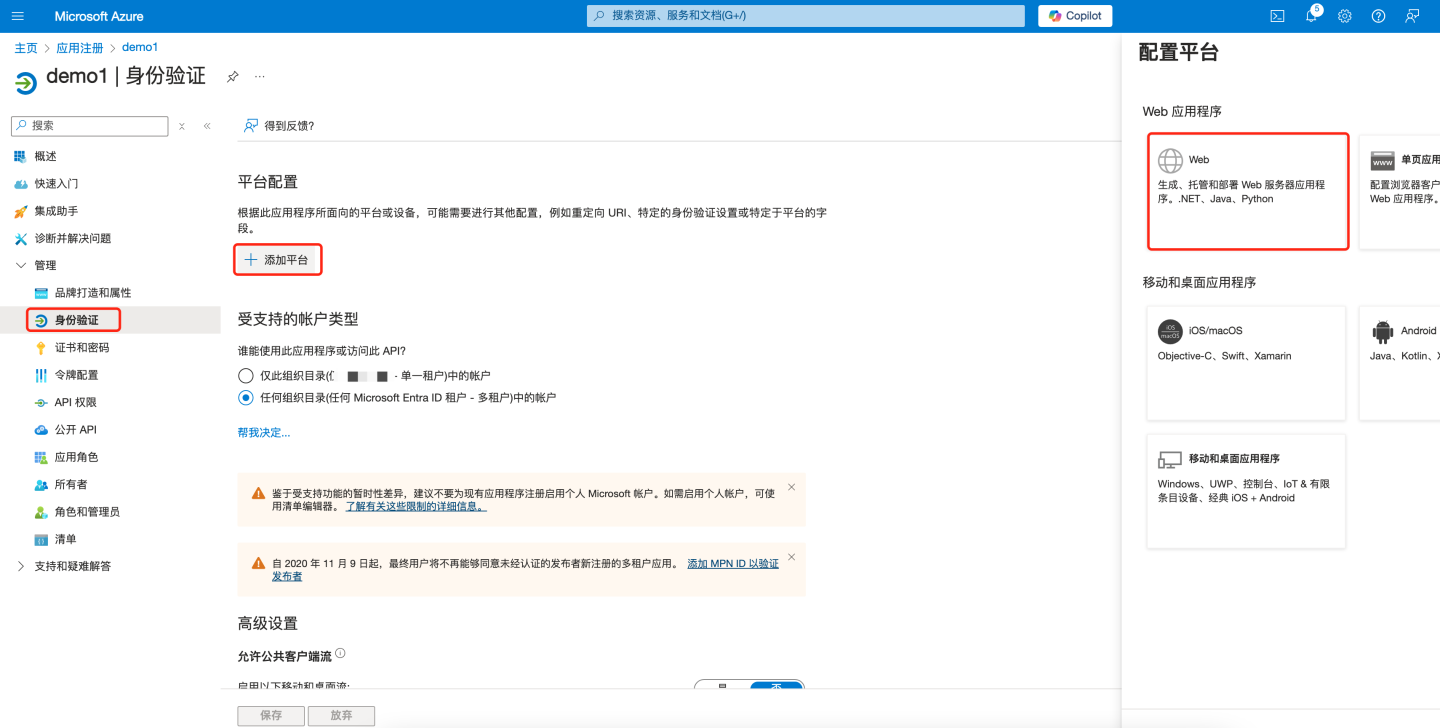
- In the left pane under “Manage”, select “Authentication”.
- Choose “Add a platform > Web”.
- Enter the application’s redirect URL, e.g.
{https://your-domain}/oauth2/callback?client_name=oauth2. Replace{https://your-domain}with the actual root path used to access the HENGSHI system, append/oauth2/callback?client_name=oauth2, then click “Configure” to save.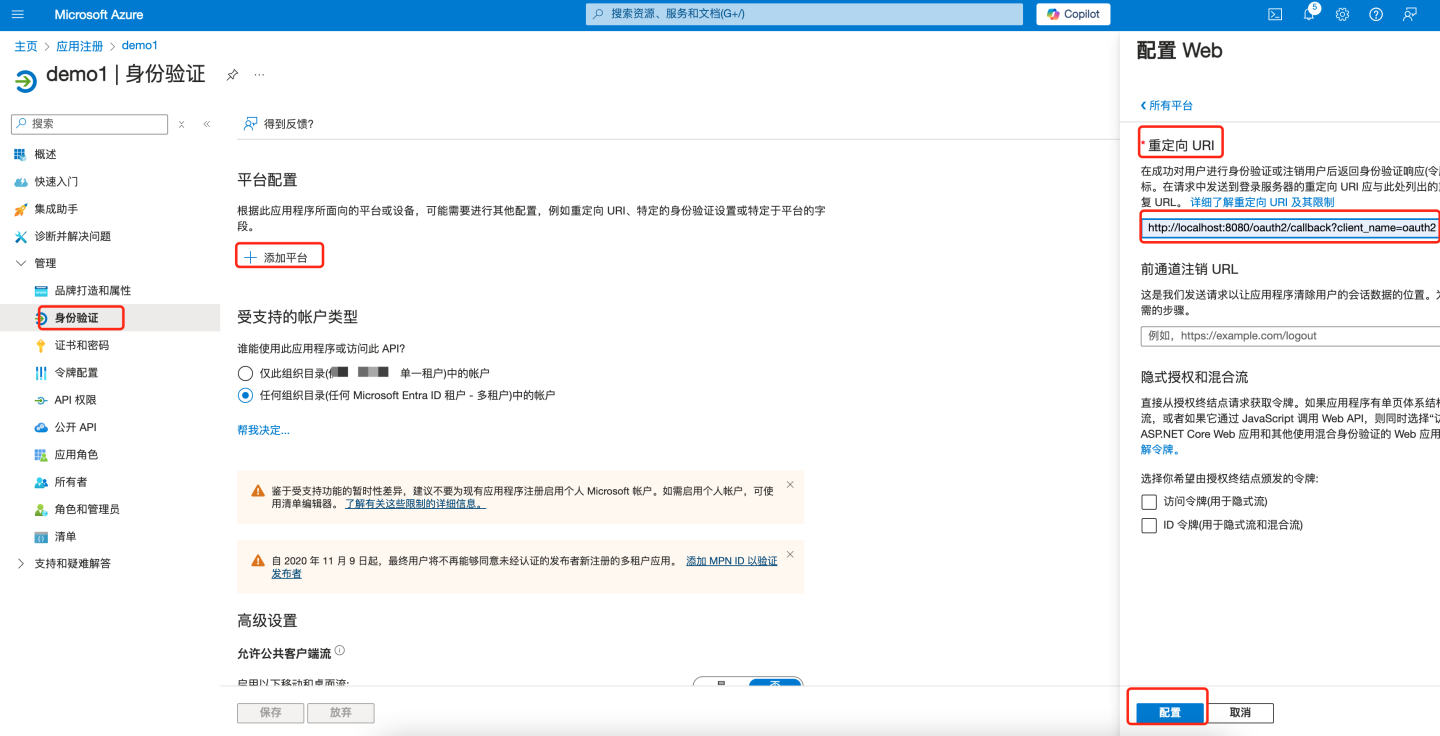
Create a Client Secret
- In the left pane under “Manage”, select “Certificates & secrets”. On the right, click “+ New client secret”.
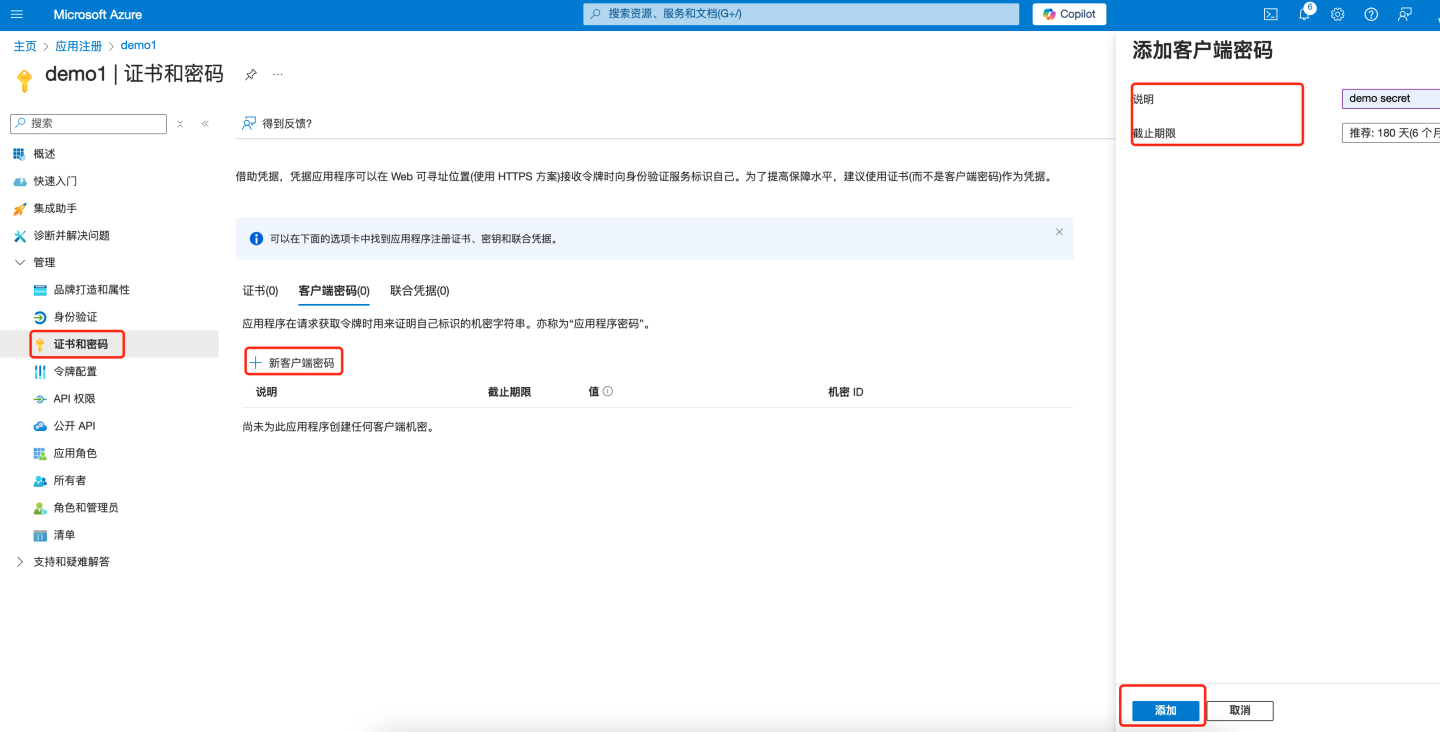
- Under “Value”, click “Copy to clipboard” to save the client secret value for later use (the value cannot be viewed again after creation; be sure to save it before leaving the page). Enter this secret into the “Client Secret” field of the HENGSHI OAuth2 authentication method.
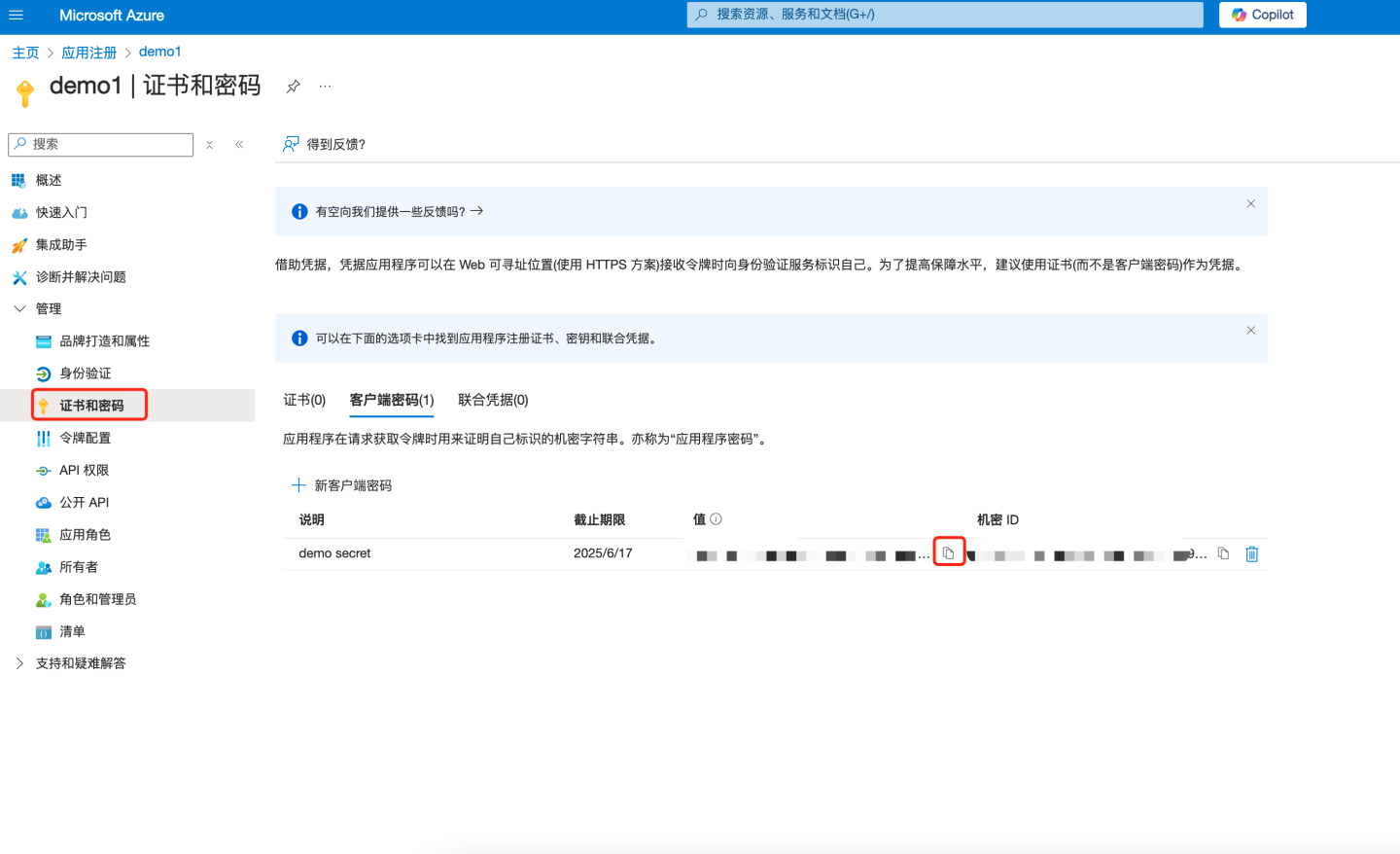
- In the left pane under “Manage”, select “Certificates & secrets”. On the right, click “+ New client secret”.
Obtain the OAuth client configuration and set up HENGSHI OAuth authentication.
- Enter the “Application (client) ID” recorded in step 1.5 into the “Client ID” field of the HENGSHI OAuth authentication.
- Enter the client secret value recorded in step 3.2 into the “Client Secret” field of the HENGSHI OAuth authentication.
- In the left pane under “Overview”, select “Endpoints” to view the relevant information.
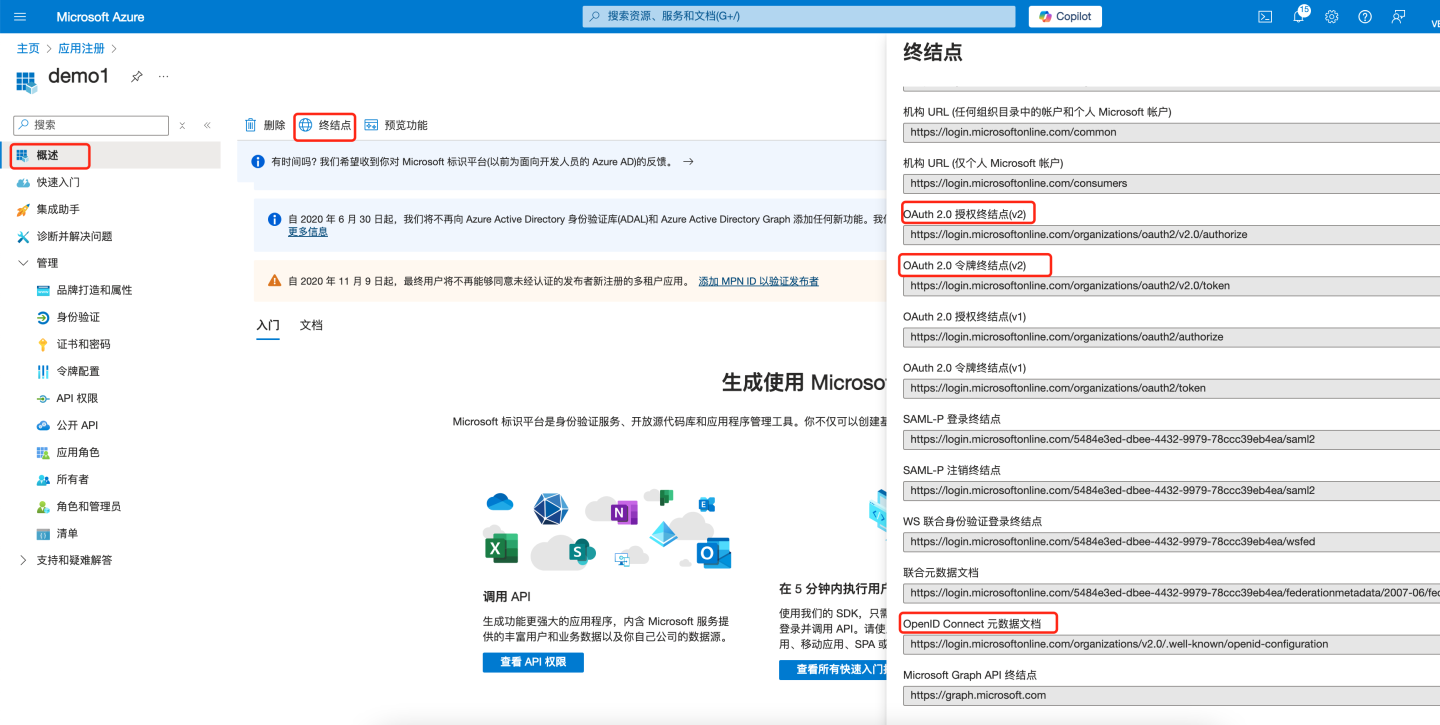
- Enter the “OAuth 2.0 authorization endpoint (v2)” into the “Authorize endpoint” field of the HENGSHI OAuth authentication.
- Enter the “OAuth 2.0 token endpoint (v2)” into the “Token endpoint” field of the HENGSHI OAuth authentication.
- Open the URL under “OpenID Connect metadata document”:
- Enter the “userinfo_endpoint” into the “User-info endpoint” field of the HENGSHI OAuth authentication.
- Enter
openidinto the “Scope” field of the HENGSHI OAuth authentication.
At this point, all necessary information for integrating via OAuth2 authentication has been configured. For more detailed settings, refer to the following resources:
- HENGSHI OAuth2 configuration instructions can be found in the OAuth2 section.
- Teams-related explanations please consult the official documentation.
DingTalk
DingTalk authentication supports QR-code login and micro-app single sign-on (SSO).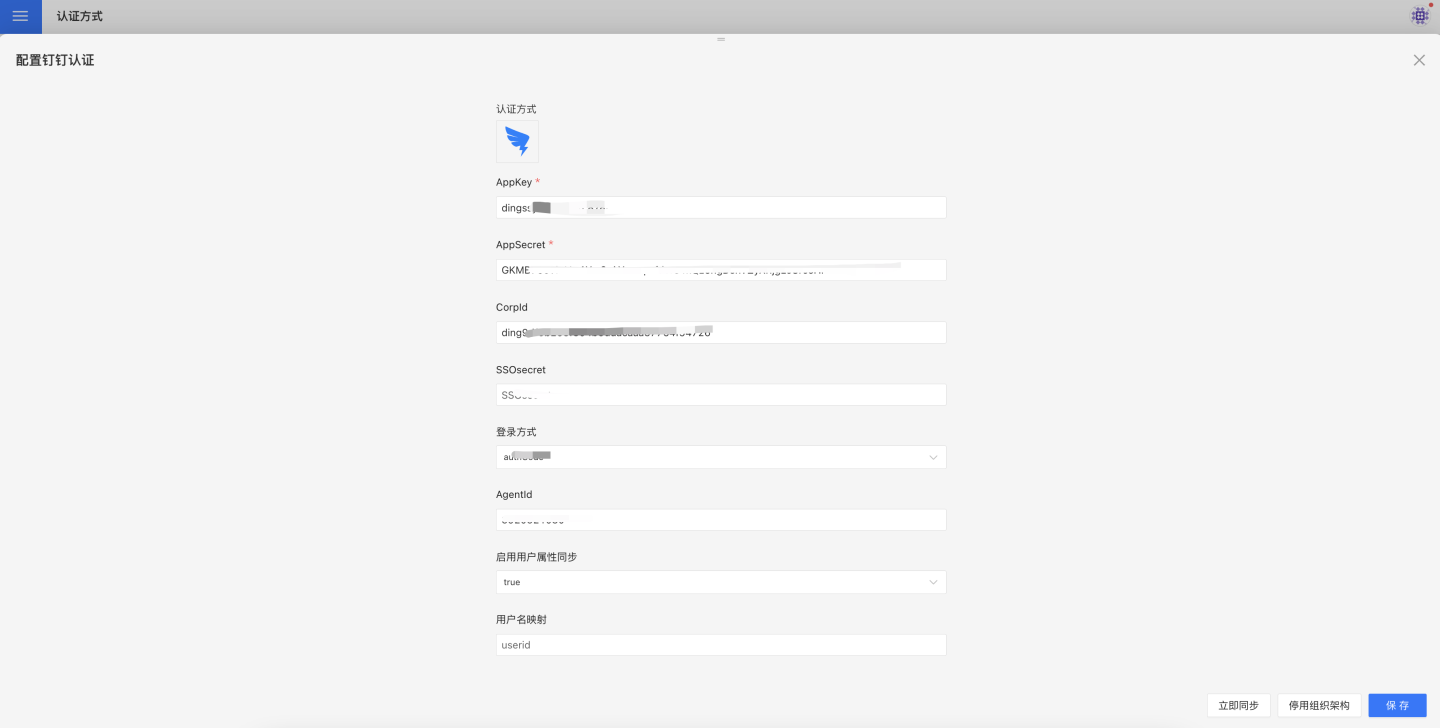
DingTalk authentication settings include:
| Item | Required | Description |
|---|---|---|
| AppKey | Yes | Basic information of the DingTalk micro-app. Refer to the Configure DingTalk Micro-App section for details. |
| AppSecret | Yes | Basic information of the DingTalk micro-app. Refer to the Configure DingTalk Micro-App section for details. |
| CorpId | No | Required if administrators need SSO in the DingTalk admin console. CorpId and SSOsecret can be obtained from the Configure DingTalk Micro-App section. |
| SSOsecret | No | Required if administrators need SSO in the DingTalk admin console. CorpId and SSOsecret can be obtained from the Configure DingTalk Micro-App section. |
| Login Method | Yes | Sets the default login method when none is specified in the URL. authCode enables micro-app SSO; QR-code enables scanning a QR code to log in. |
| Sync Frequency | No | Configures how often the organizational structure is synced, in minutes; 0 means no sync. To enable sync, AppKey and AppSecret must be configured and the app must have the Contacts permission granted. |
| AgentId | No | Required for message push scenarios such as subscriptions and alerts. Refer to DingTalk Work Notification for details. |
| Auto-join Org on Login | No | Whether to automatically add users to existing organizational units based on their department info during login. |
DingTalk also provides generic mappings for synchronizing user attributes: username mapping, display-name mapping, email mapping, and mobile-number mapping.
For field descriptions and usage, refer to the Generic Configuration section.
Configure a DingTalk Mini-App
The following describes how to create and configure a mini-app on the DingTalk Developer Platform.
Obtain DingTalk CorpId and SSOSecret
In DingTalk’s Development Experience Account Management, get the DingTalk CorpId and SSOSecret.
https://open-dev.dingtalk.com/fe/old?hash=%23%2FcorpAuthInfo#/corpAuthInfo
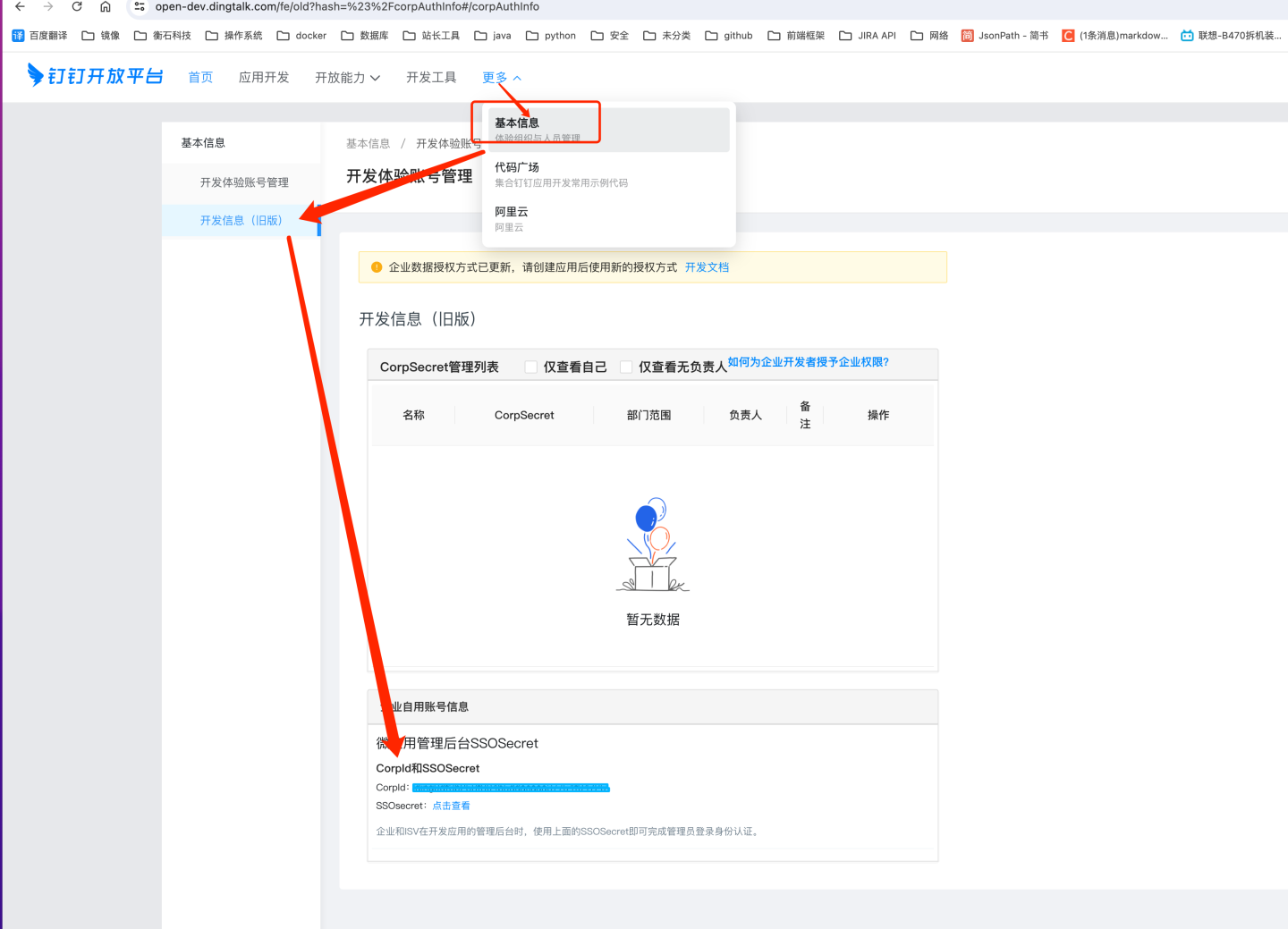
In
DingTalk Developer Console -> App Development -> H5 Mini-App, click Create App.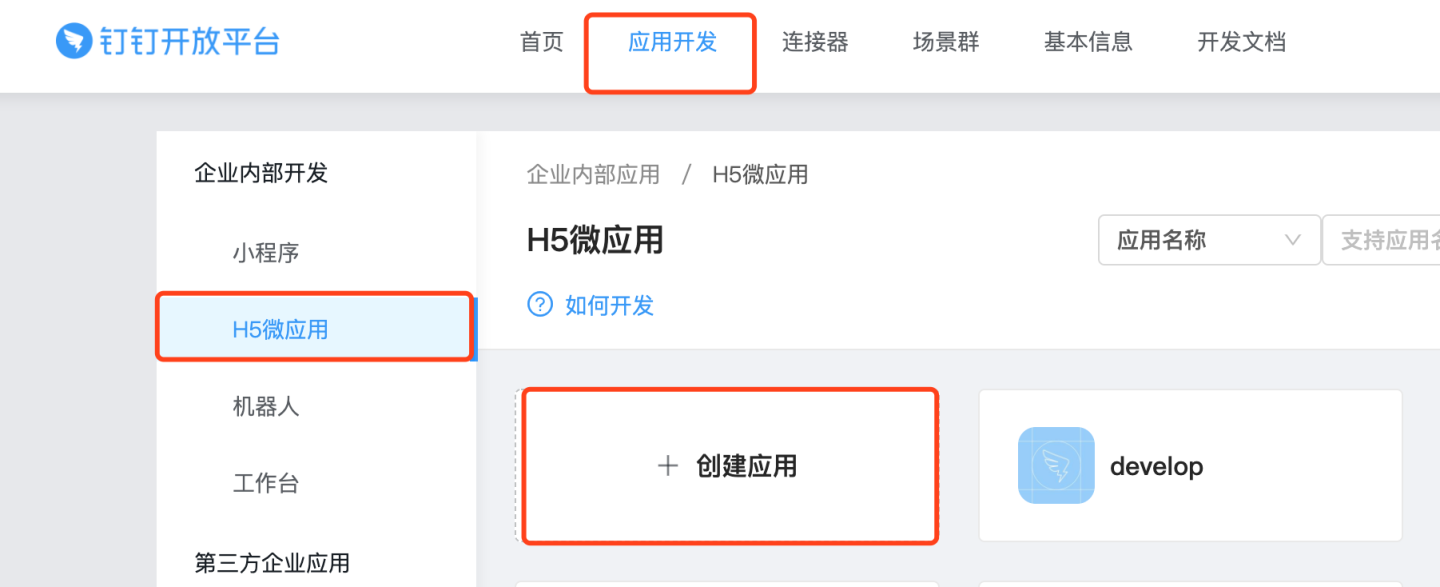
In Basic Information, you can find the AppKey and AppSecret.
These two values must be copied to the identically-named fields on the DingTalk configuration page in HENGSHI SENSE.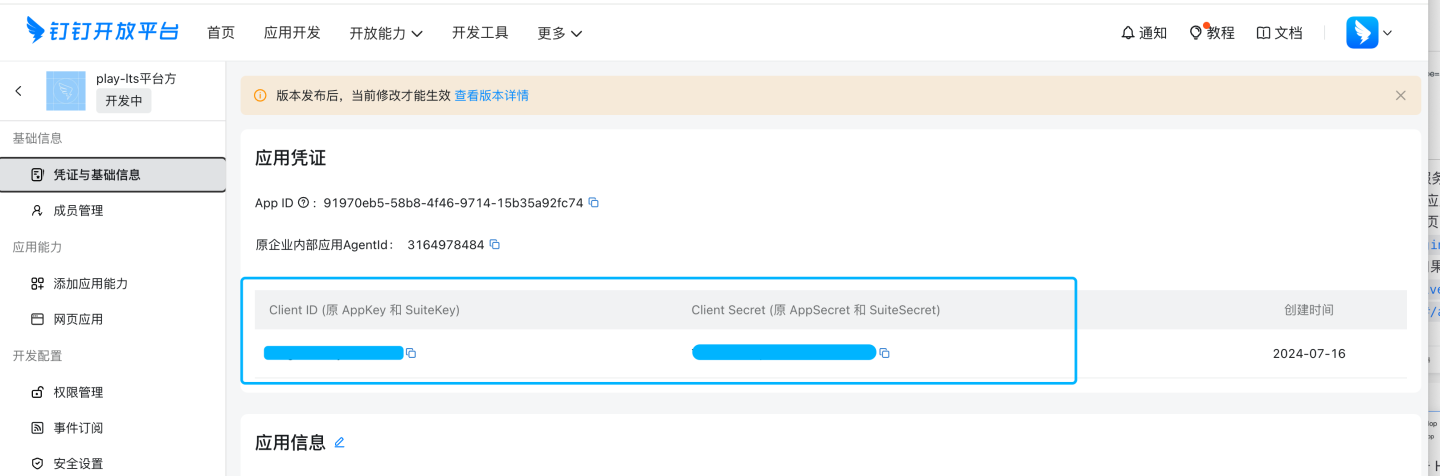
Add App Capabilities
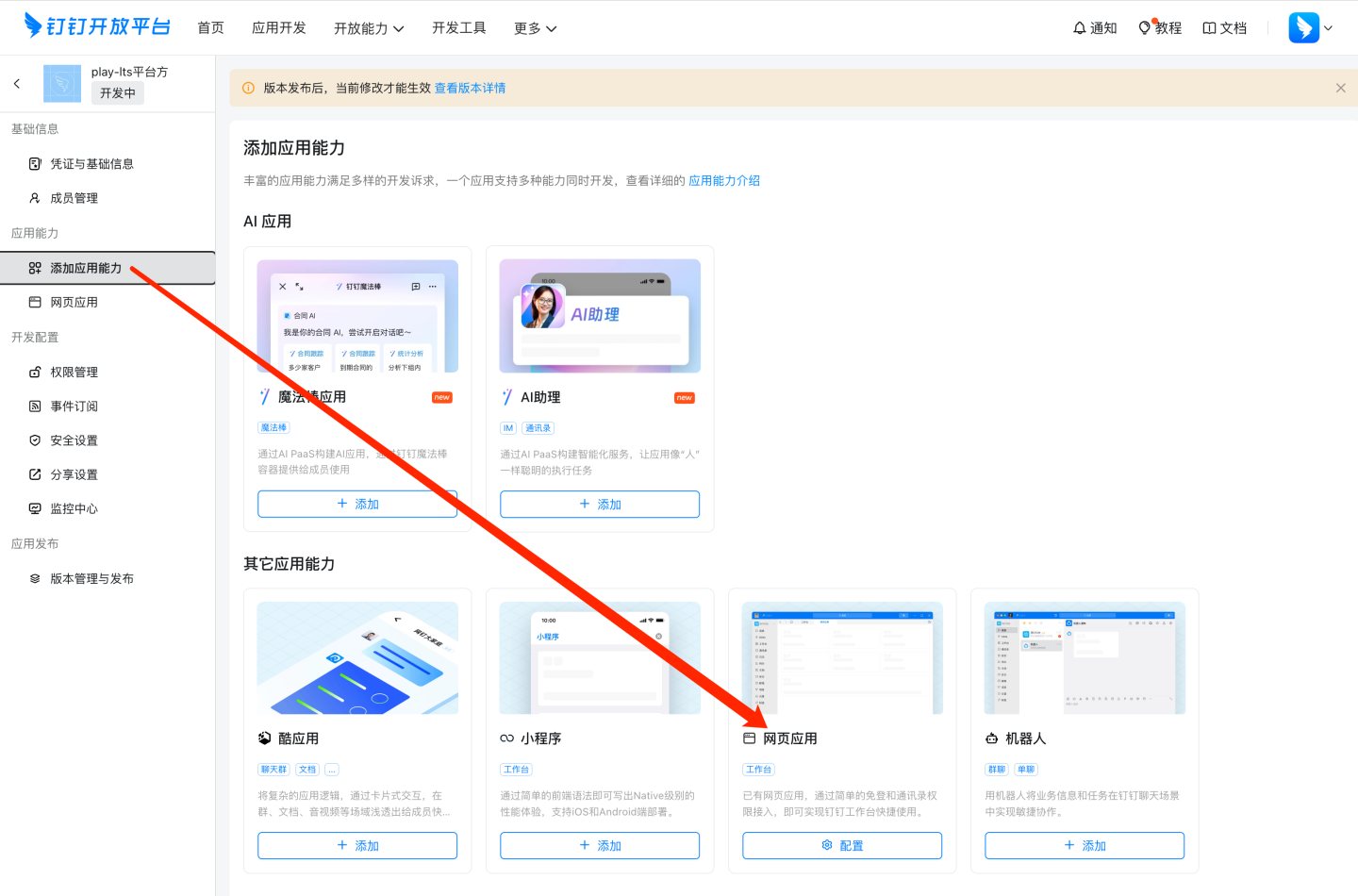
Web H5 App Configuration
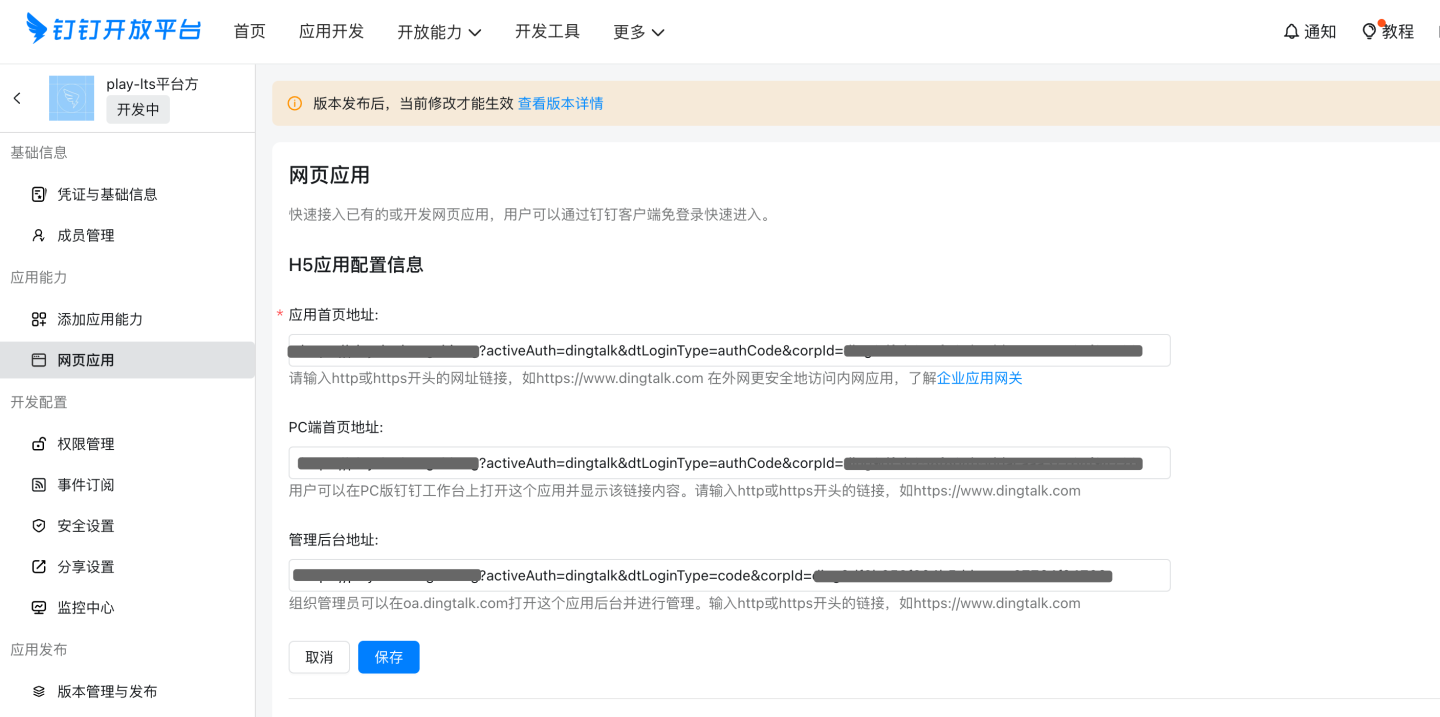
Configuration Item Format Description App Home Page URL http://{host}:{port}/?activeAuth=dingtalk&dtLoginType=authCode&corpId={corpId} dtLoginType=authCode PC Home Page URL http://{host}:{port}/?activeAuth=dingtalk&dtLoginType=authCode&corpId={corpId} dtLoginType=authCode Admin Console URL http://{host}:{port}/?activeAuth=dingtalk&dtLoginType=code&corpId={corpId} dtLoginType=code CAUTION
- Replace {corpId} with the correct corpId value.
- If tenant-level DingTalk configuration is required, append either tenantCode or tenantId (tenantId is recommended). Example:
http://{host}:{port}/?activeAuth=dingtalk&dtLoginType=authCode&corpId={corpId}&tenantId={tenantId} - tenantId is auto-generated after a new tenant is created.
Security Settings
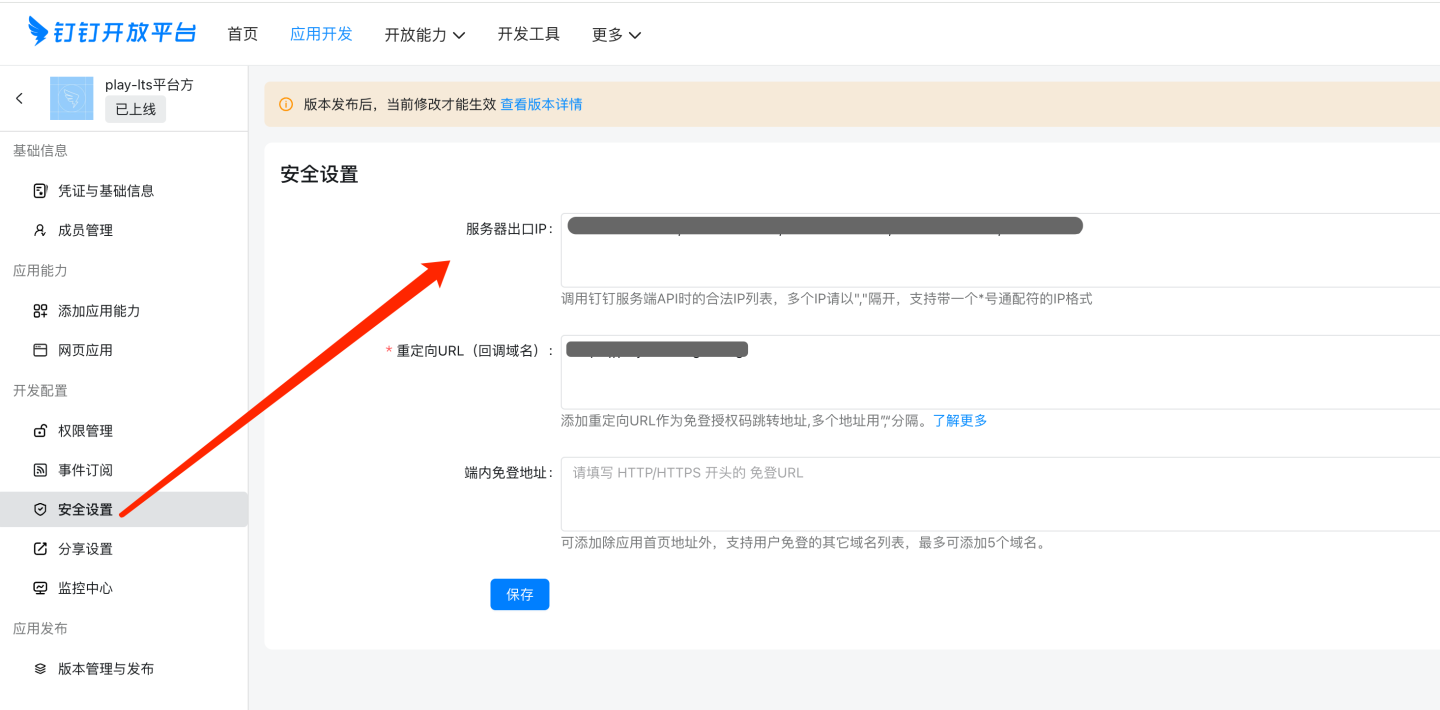
Configuration Item Description Server Outbound IP Enter the server’s outbound IP (check via https://www.ip138.com/or ask the network admin).Redirect URL (Callback Domain) Base URL of the HENGSHI SENSE service. In-App Login-Free URL Fill as needed. Permission Management
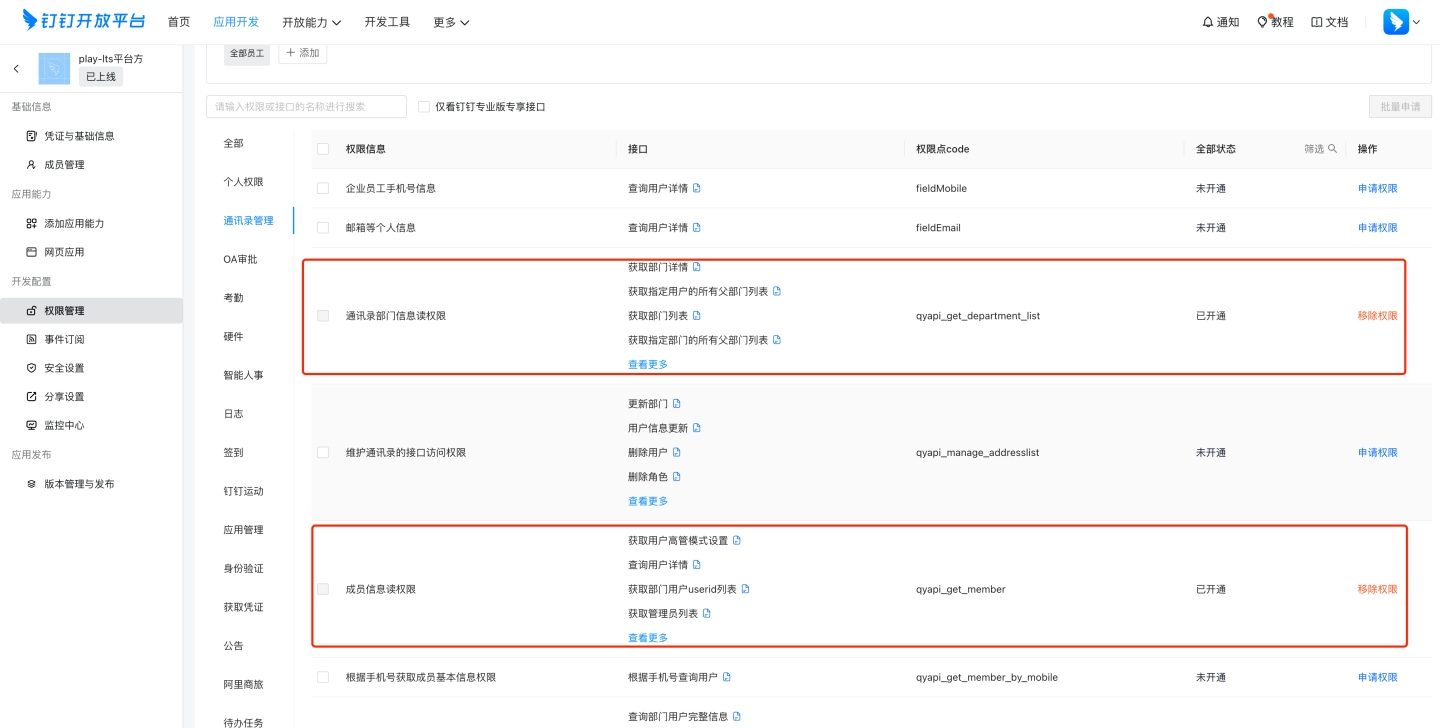
Currently required permissions:
Permission Info Permission Code Read department list qyapi_get_department_list Read member info qyapi_get_member Read personal profile Contact.User.Read Employee mobile number fieldMobile Email and other personal info fieldEmail CAUTION
DingTalk permission policies may change; refer to the official DingTalk documentation.
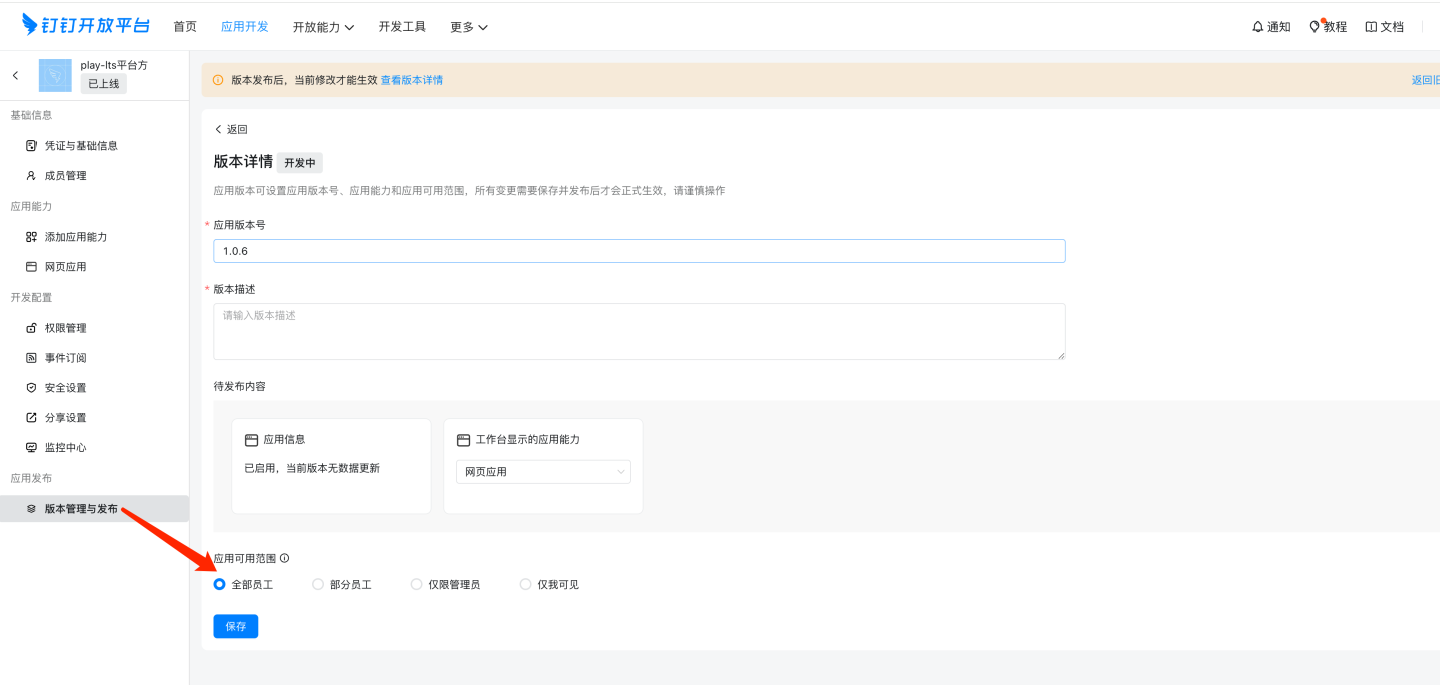
Version Management & Release
Set the release scope as needed; only users within the scope can see the app.
CAUTION
Screenshots in this guide may differ from the latest DingTalk interface; always refer to the official DingTalk documentation.
WeCom
WeCom authentication supports QR-code login and micro-app single sign-on (SSO).
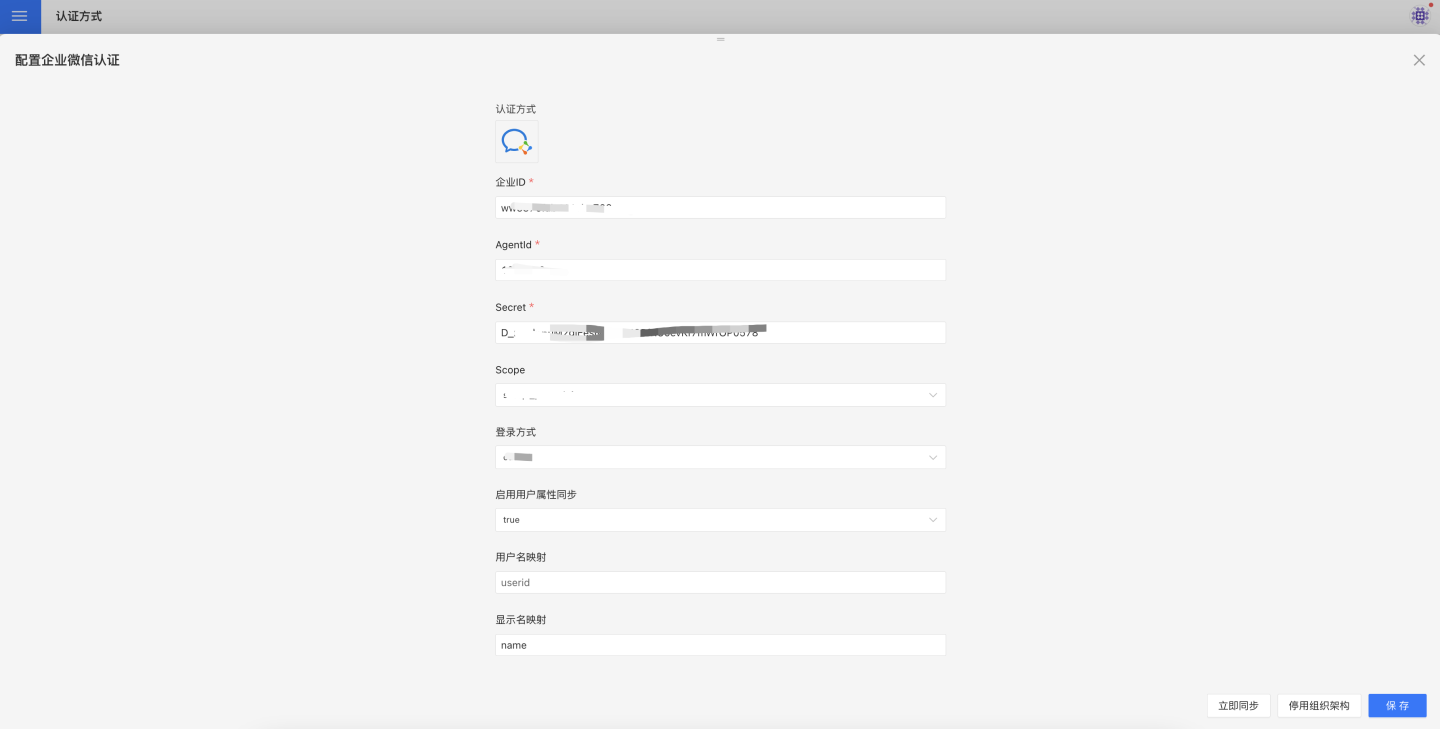
WeCom authentication configuration includes:
- CorpID, AgentId, Secret: Basic information of WeCom. Refer to the Configure a Self-built App in WeCom section for how to obtain them.
- Login Method: The default login method used when none is specified in the URL.
oauth– micro-app SSOqr– scan QR code to log in
- scope
snsapi_base– silent authorization; only basic user info (UserId) is returned.snsapi_privateinfo– manual authorization; detailed user info such as phone number and email is returned.
See the WeCom developer documentation chapter Authentication for details.
- Sync Frequency: Configures how often the organizational structure is synchronized, in minutes; 0 means no sync.
The visible range of the WeCom app should be set to the root node of the organizational structure. - Auto-join Org on Login: Whether to automatically add the user to the existing organizational structure based on the user’s department info during login.
WeCom authentication also provides generic mappings for synchronizing user attributes: Username Mapping, Display Name Mapping, Email Mapping, and Phone Number Mapping.
For field descriptions and usage, refer to the Generic Configuration section.
Configure a Self-Built App in WeCom
Go to WeCom Admin → Applications → Self-Built, then click “Create Application”.
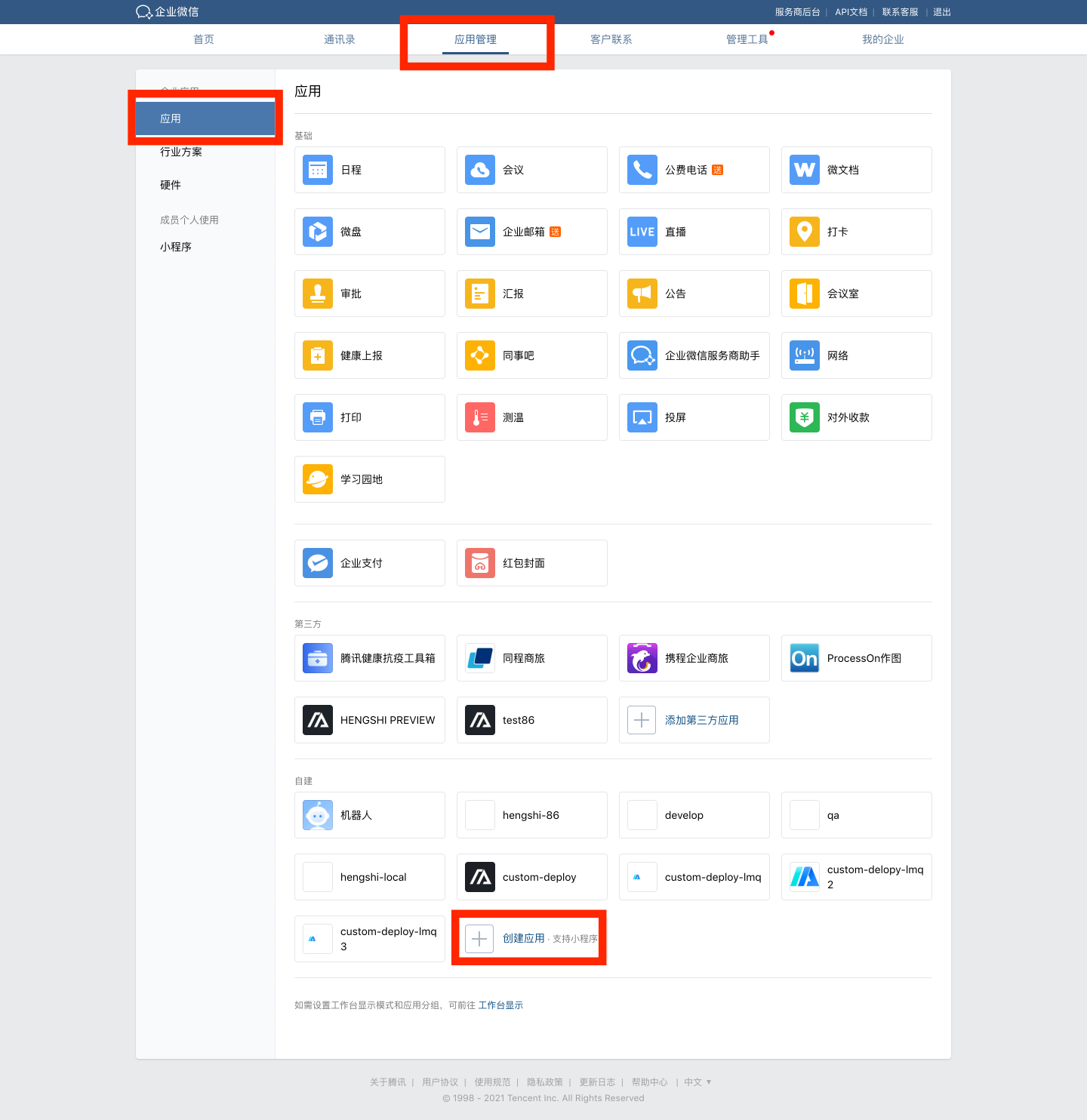
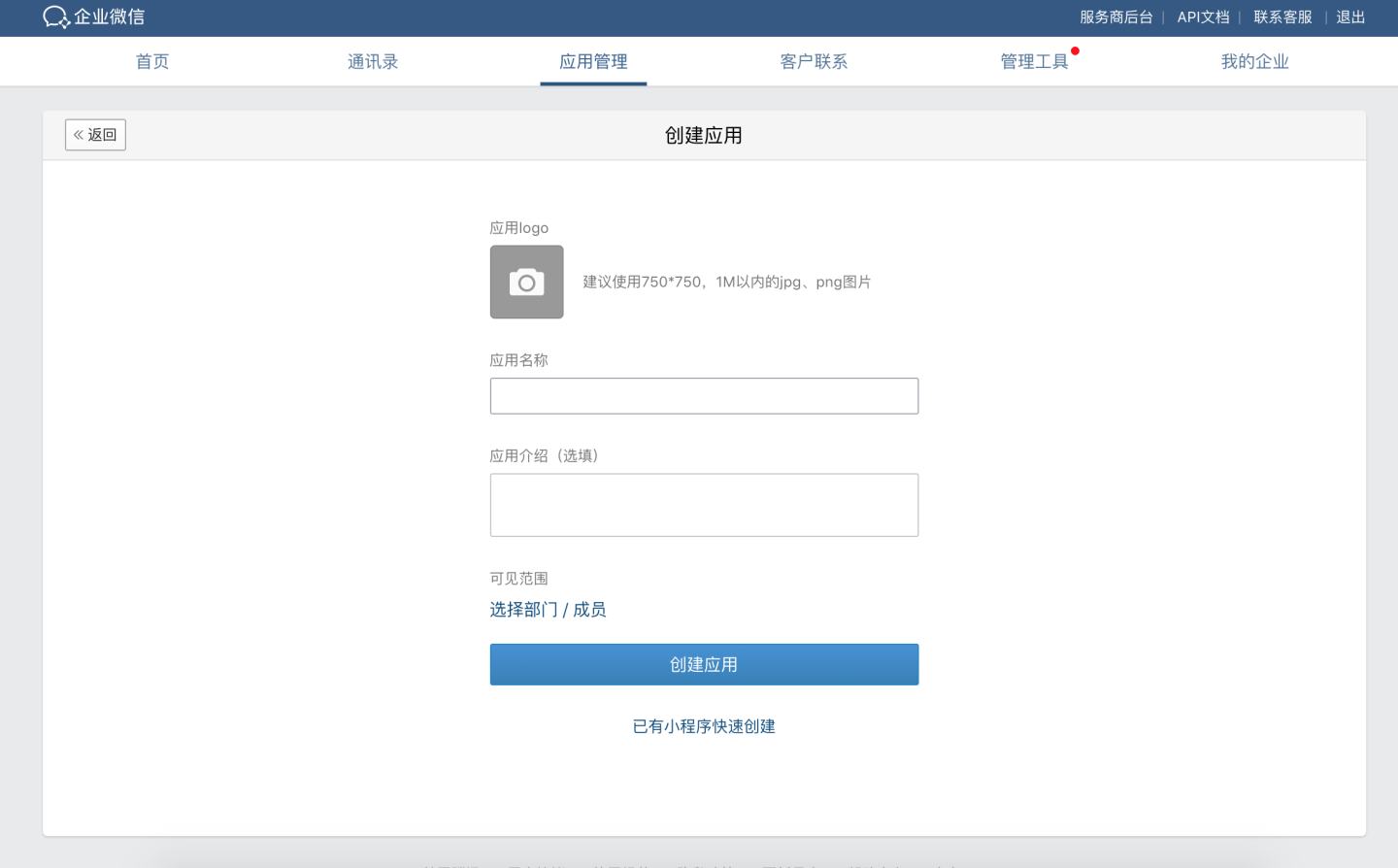
Upload the app logo, set the app name, description, and visible scope.
Configure the application.
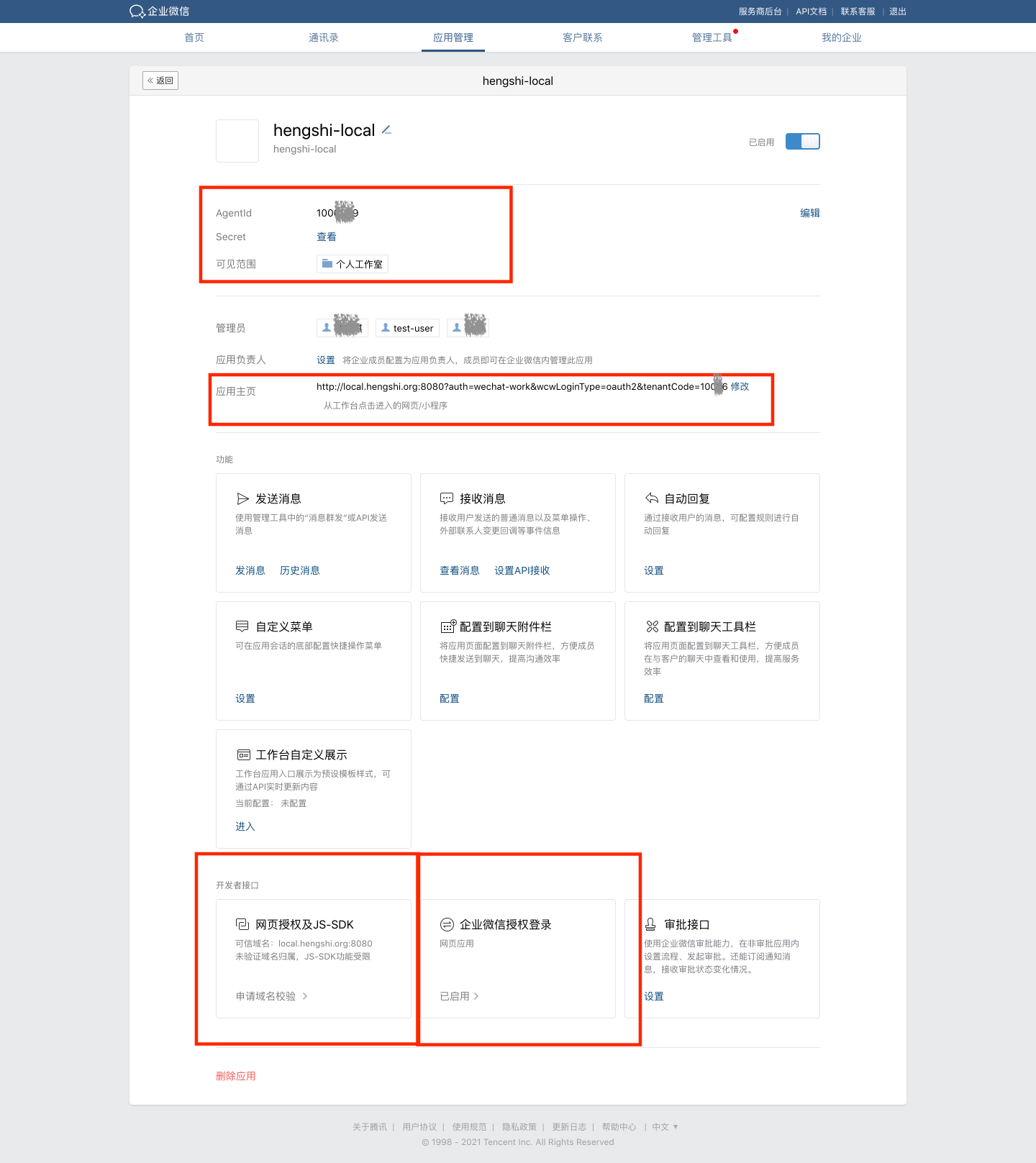
- Enter the AgentId and Secret into the corresponding fields on the WeCom configuration page in HENGSHI SENSE.
- Set the visible scope to the root node of the organizational structure.
- Set the Home Page URL, e.g.
http://local.hengshi.org:8080?activeAuth=wechat-work&wcwLoginType=oauth2&tenantCode={tenantCode}.activeAuthandwcwLoginTypeare fixed values; they enable one-tap login to HENGSHI from WeCom.
For tenant usage, appendtenantCodeortenantId. - Add the trusted domain under Web Authorization & JS-SDK.
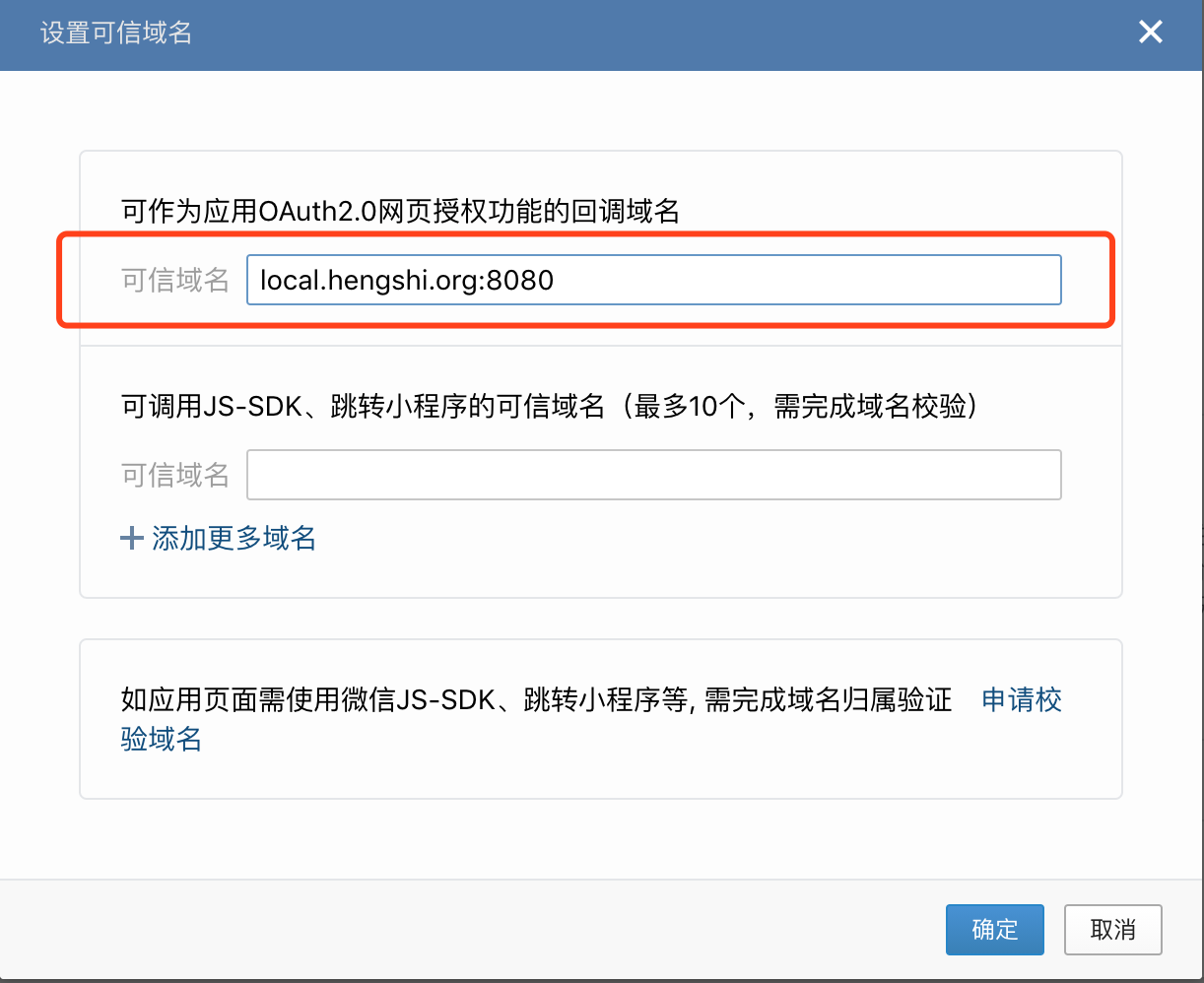
- To enable QR-code login, configure the OAuth Redirect Domain under WeCom Authorization Login.
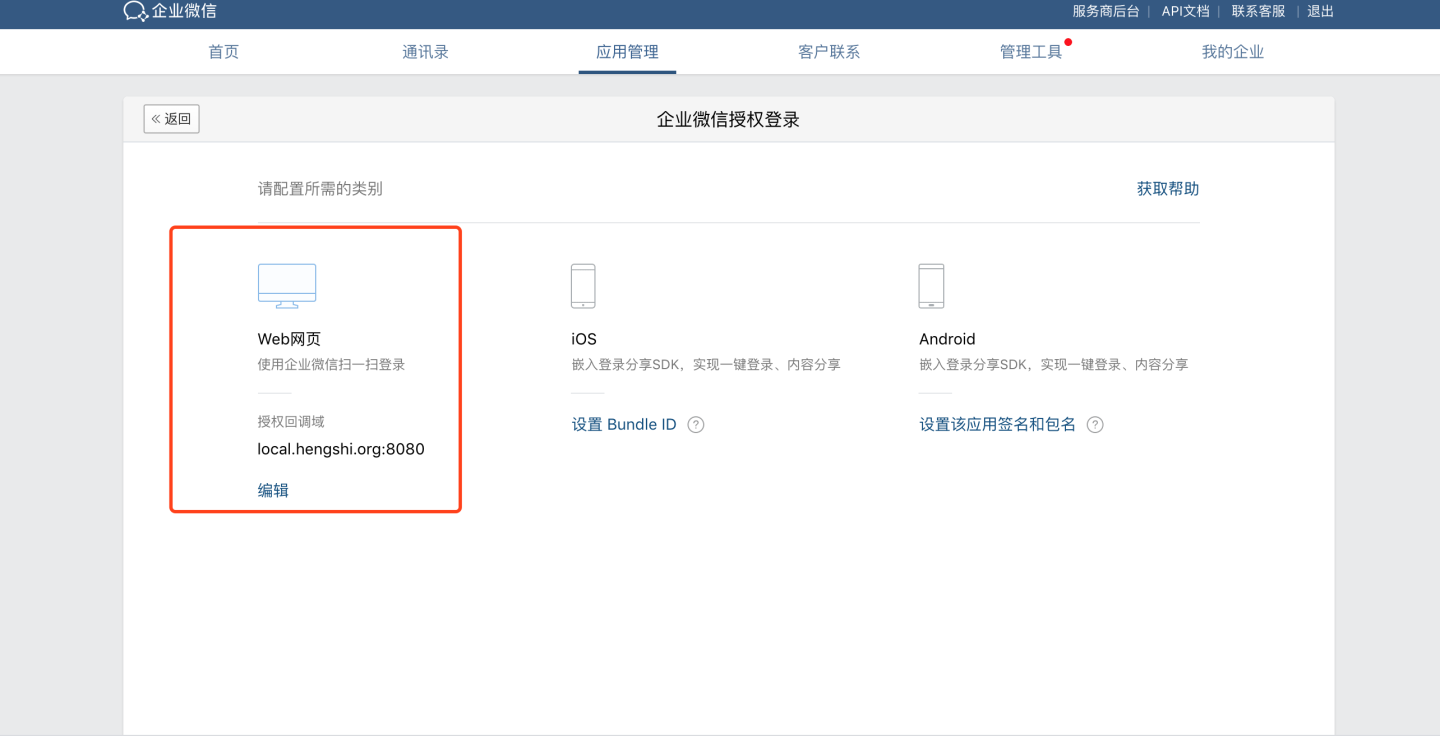
Related WeCom authentication documentation:
- Enable Web OAuth Login
- WeCom Terminology
- Find Corp ID
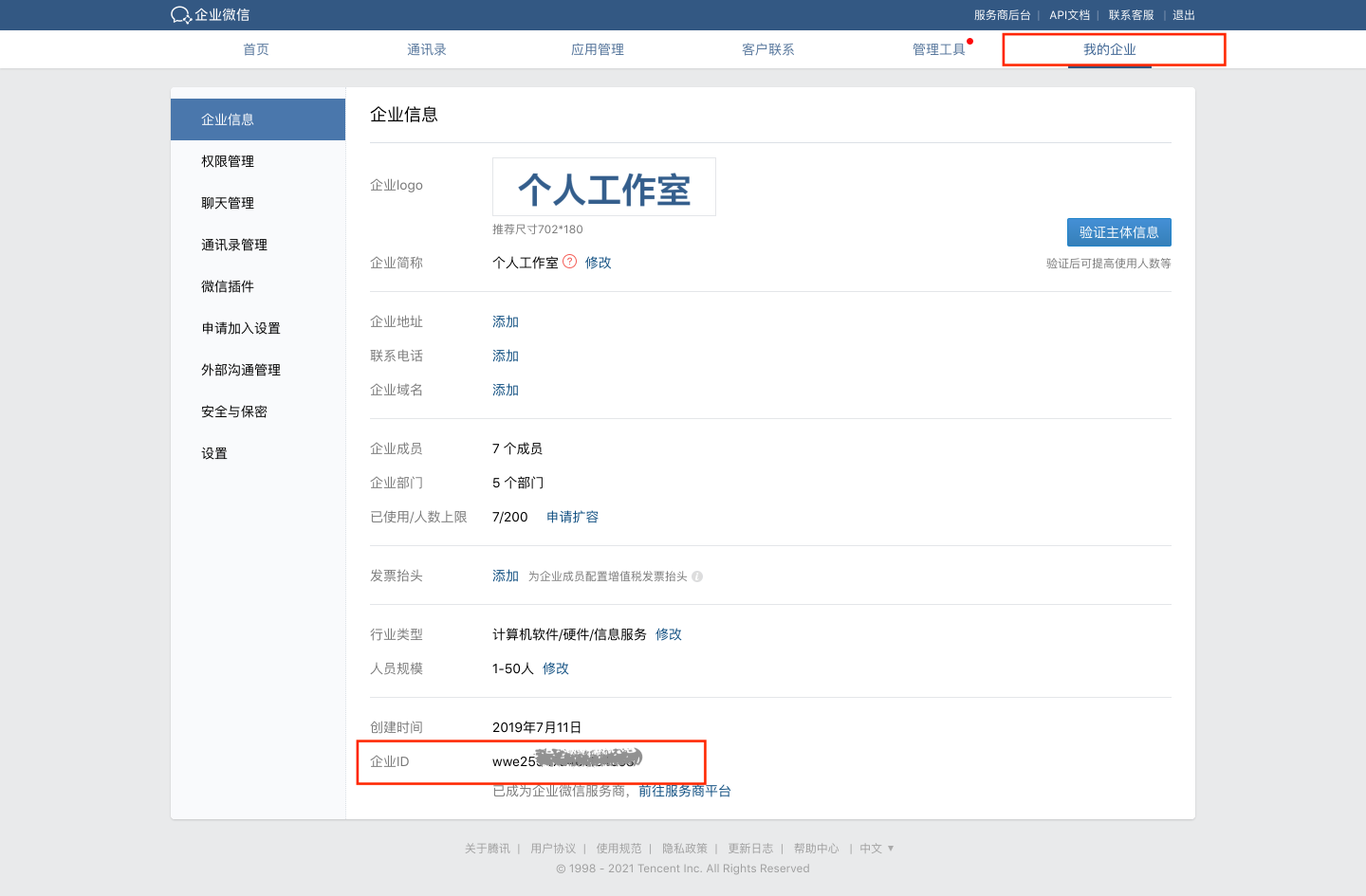
- Find AgentId & Secret
Open the specific app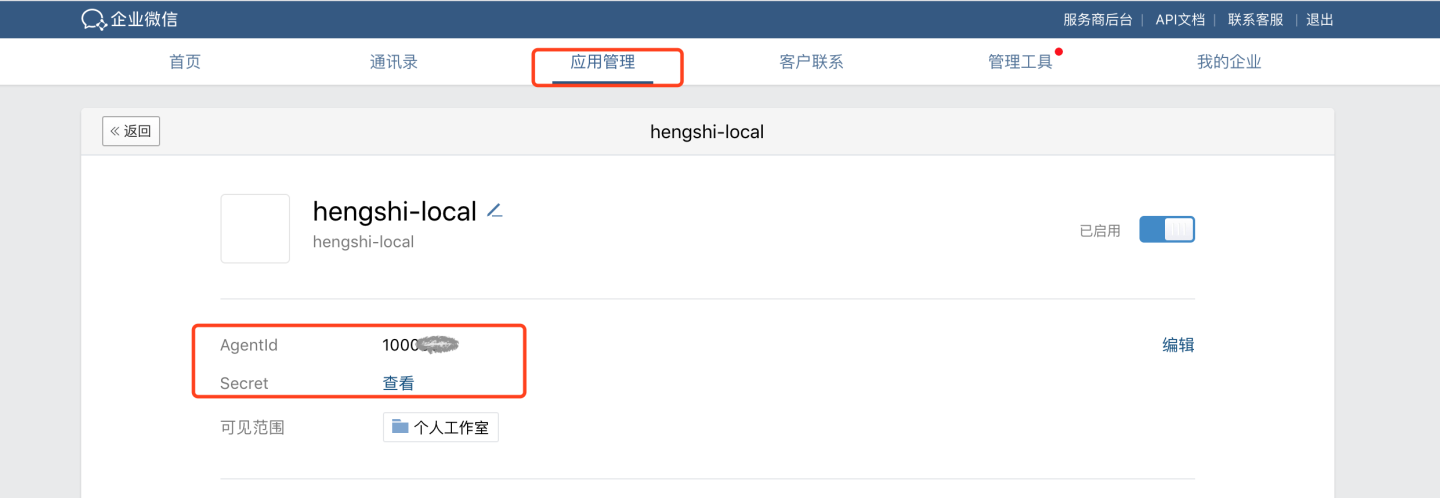
CAUTION
WeCom documentation is subject to change; always refer to the official WeCom docs.
CTR
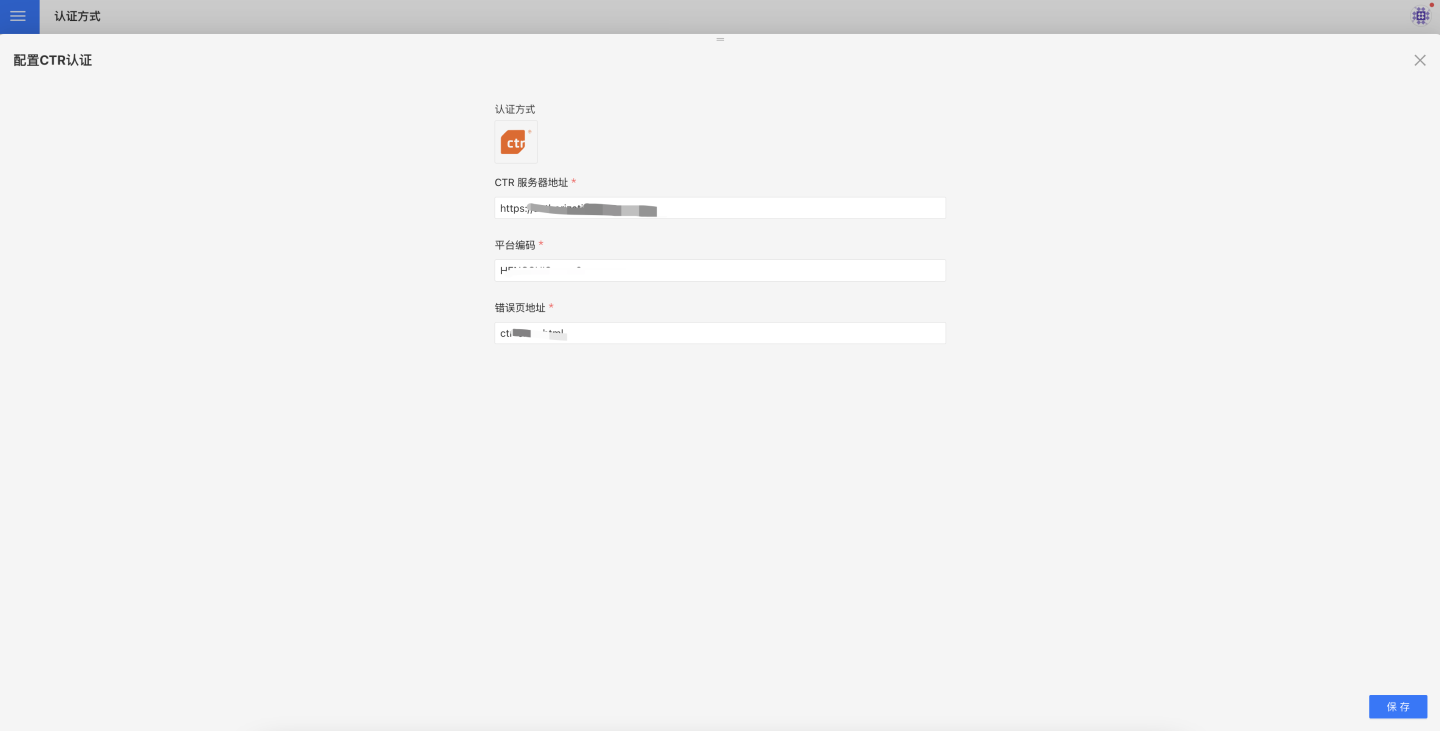
CTR is a customized authentication method designed for clients, integrating with their self-developed SSO system.
CloudHub
If you are using the Kingdee CloudHub app and handling expense approvals and report analysis within CloudHub, you can configure CloudHub authentication to access the corresponding report content on CloudHub.
The entry point for the report is to create an app entry in CloudHub. Using the integration API provided by CloudHub, implement SSO authentication and directly configure the report’s URL address in the CloudHub app; the report will then open without requiring an additional login.
Configuration steps:
Apply to become a system administrator at CloudHub (www.yunzhijia.com), or have someone invite you and set you as a system administrator.
After becoming a system administrator, go to Admin Center → App Center → Light App Management to enter the Light App Management page.
Choose “Create New App,” fill in the information on the page that opens. In the red box, enter the HENGSHI SENSE URL and append
activeAuth=yunzhijiaat the end. If used by a tenant, add thetenantCodeortenantIdparameter, e.g.http://192.168.3.226:8080/?activeAuth=yunzhijia&tenantCode=tenant1#/publish.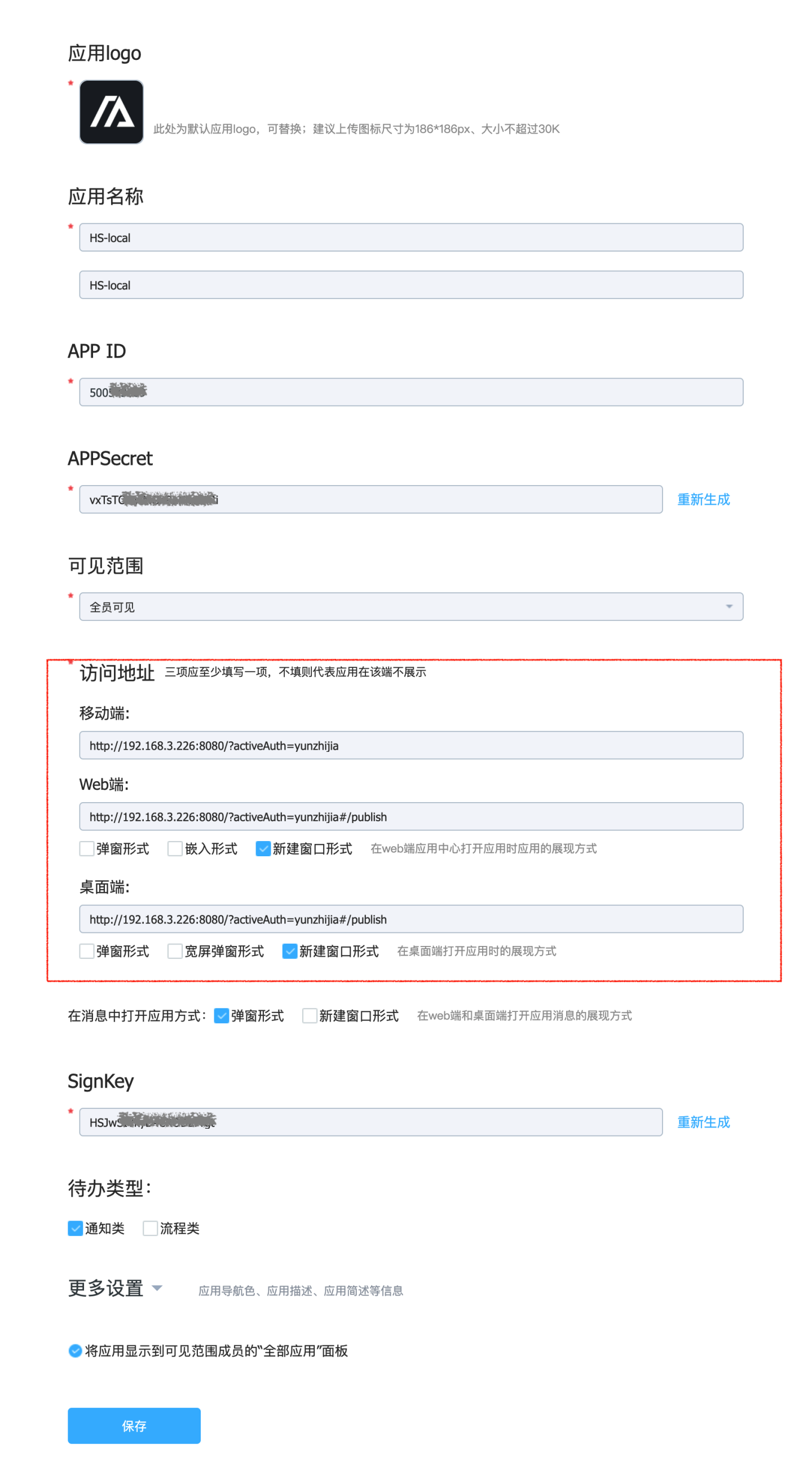
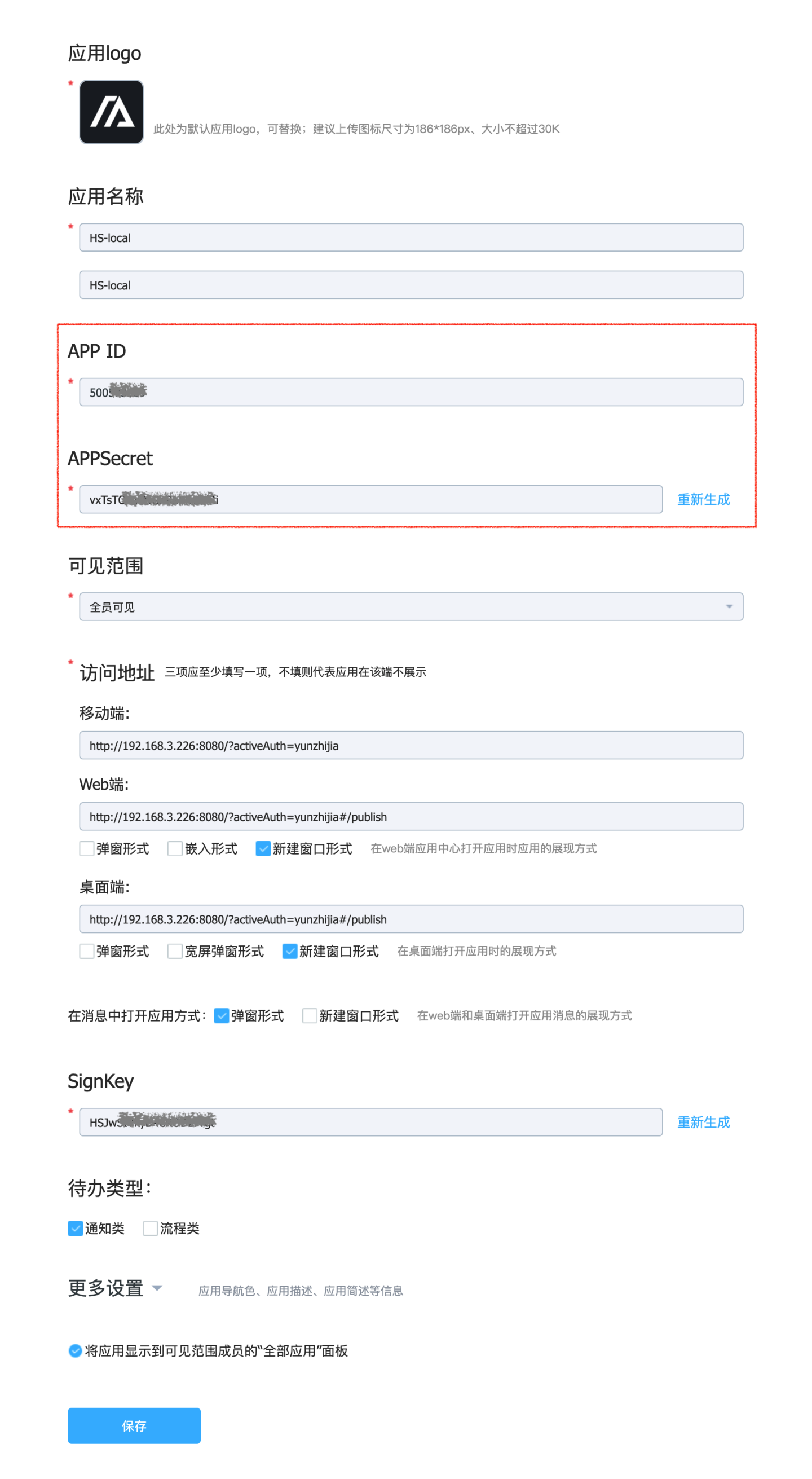
After saving, an APPId and APPSecret will be generated.
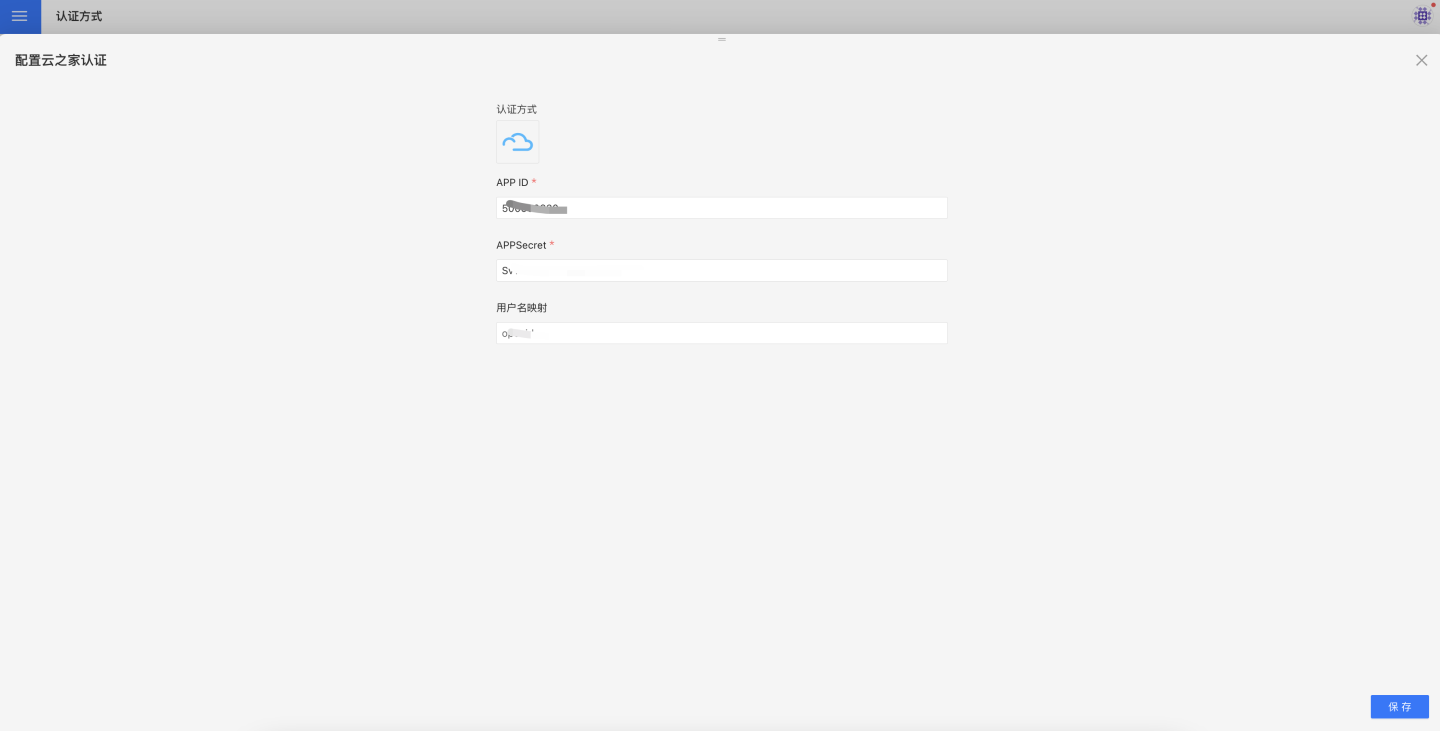
In HENGSHI SENSE settings, go to Organization Management → Authentication Methods → CloudHub and configure the APP ID and APPSecret.
Teams
The Teams authentication method supports seamless login within Teams. 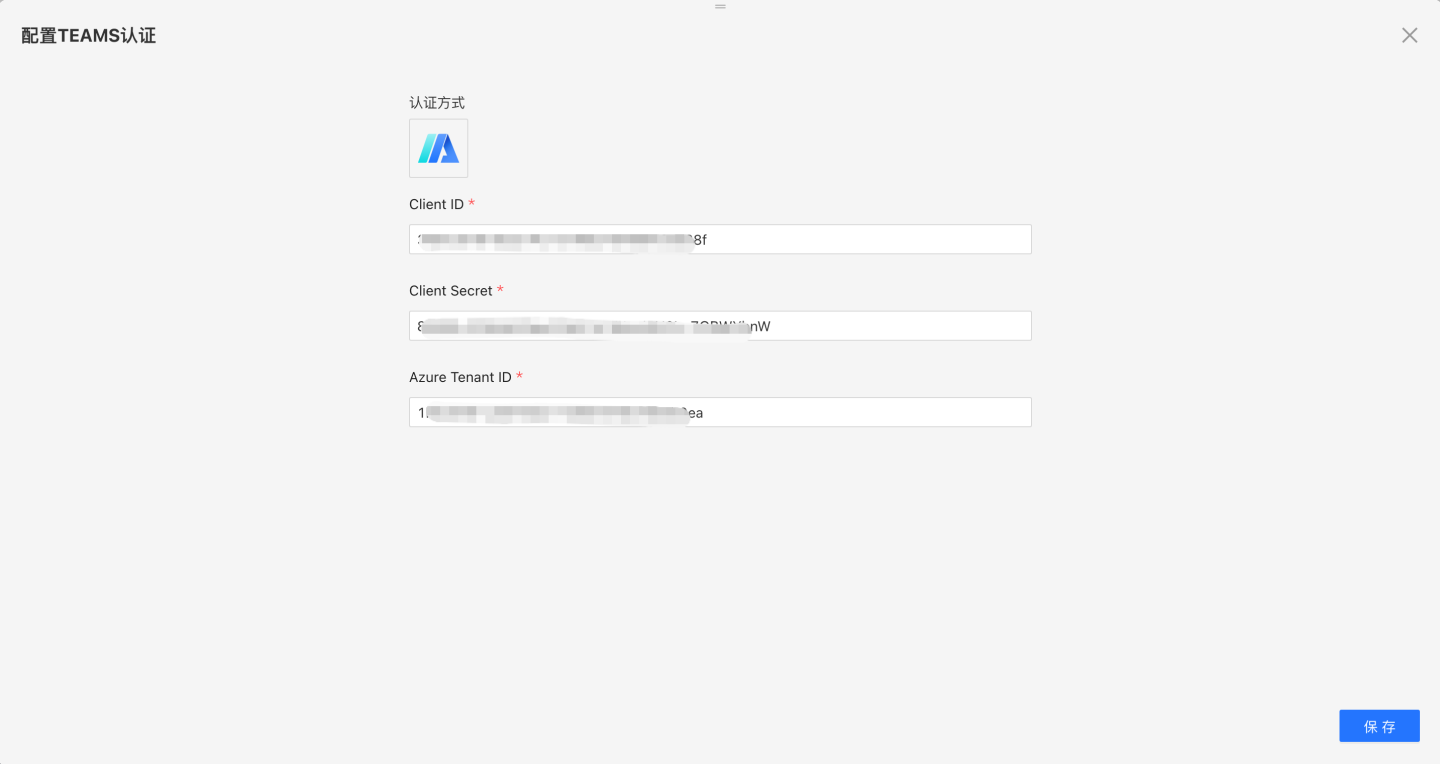
Teams-related configuration includes:
- Client ID, Client Secret, and Azure Tenant ID. Obtain these from the application in Microsoft Entra ID. Refer to Creating a Teams App.
Creating a Teams App
- Register a new application in Microsoft Entra ID.
- Open the Azure portal and select “Register an application”.
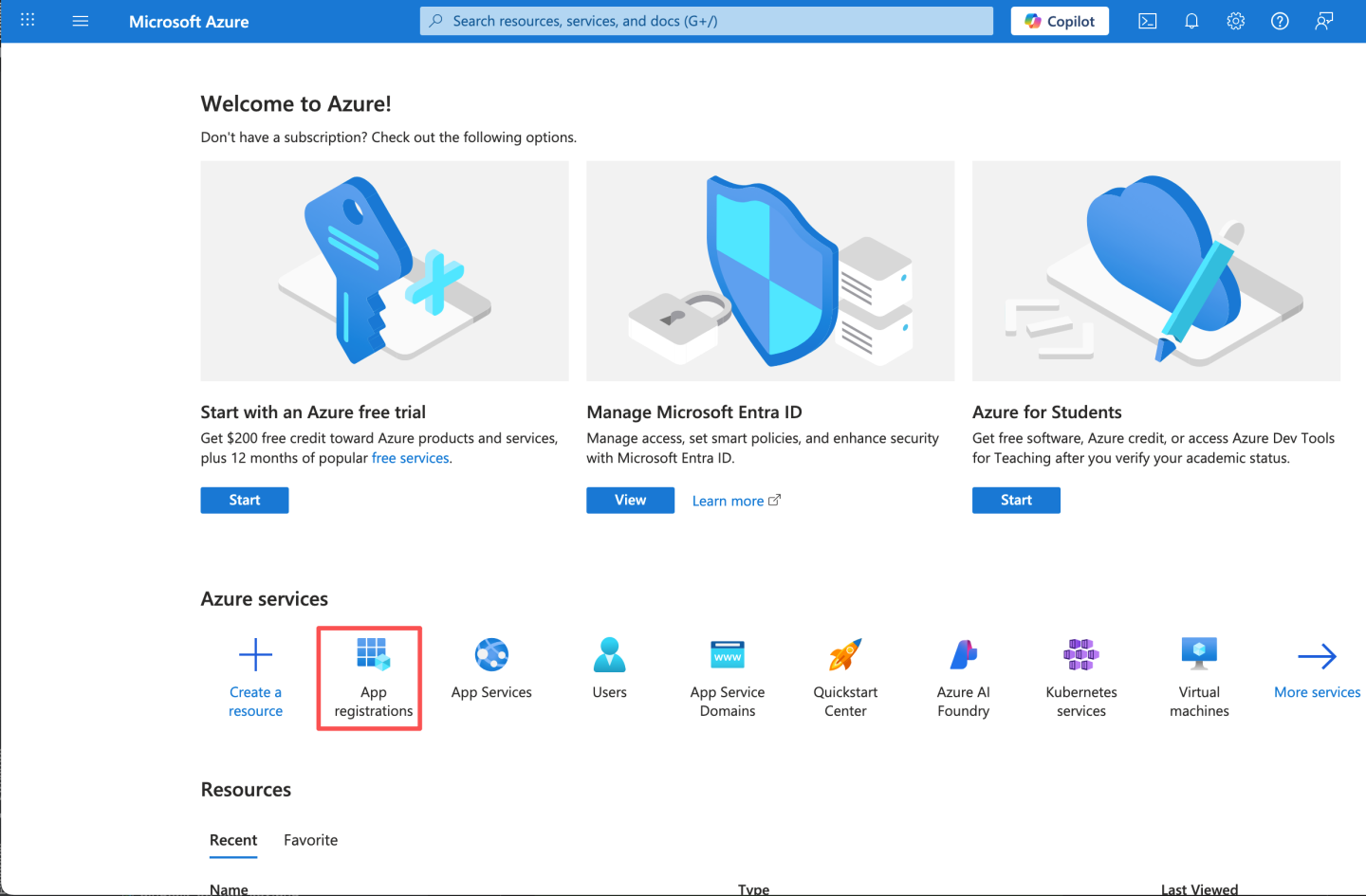
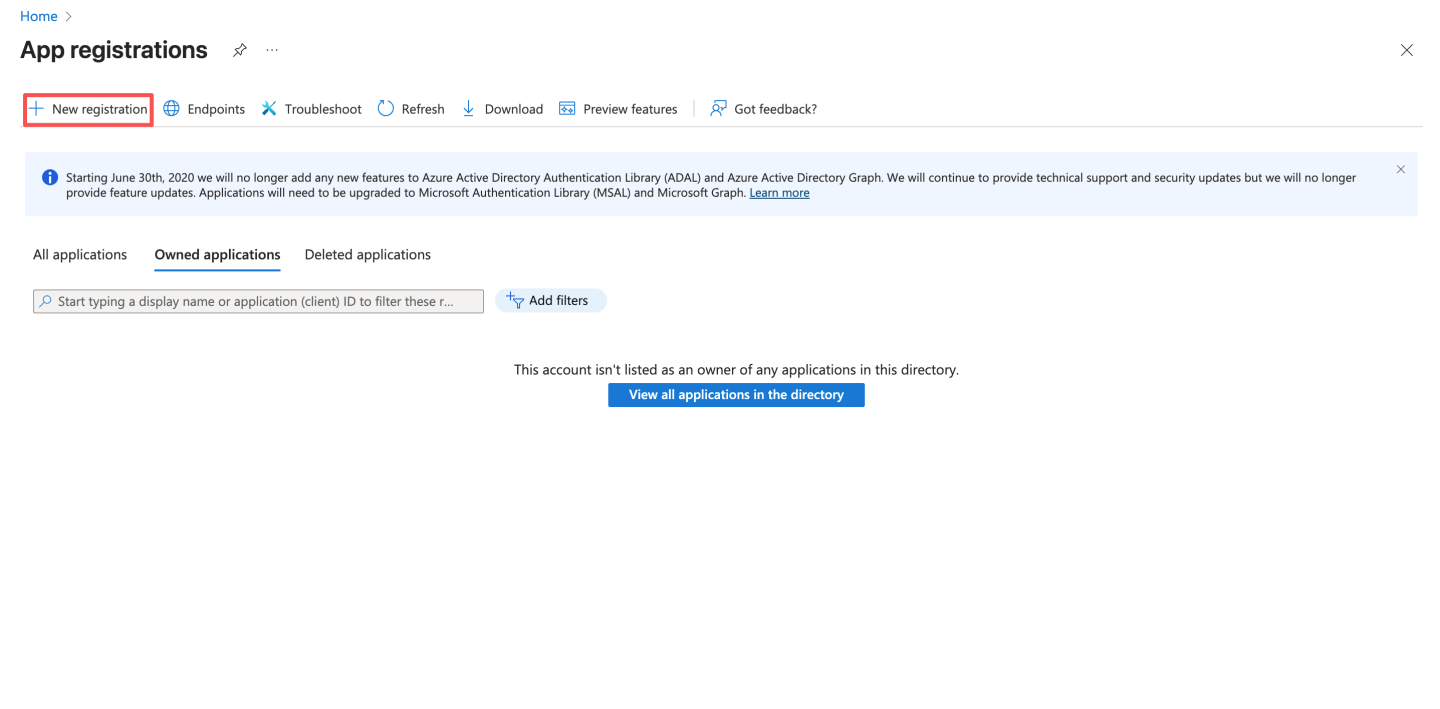
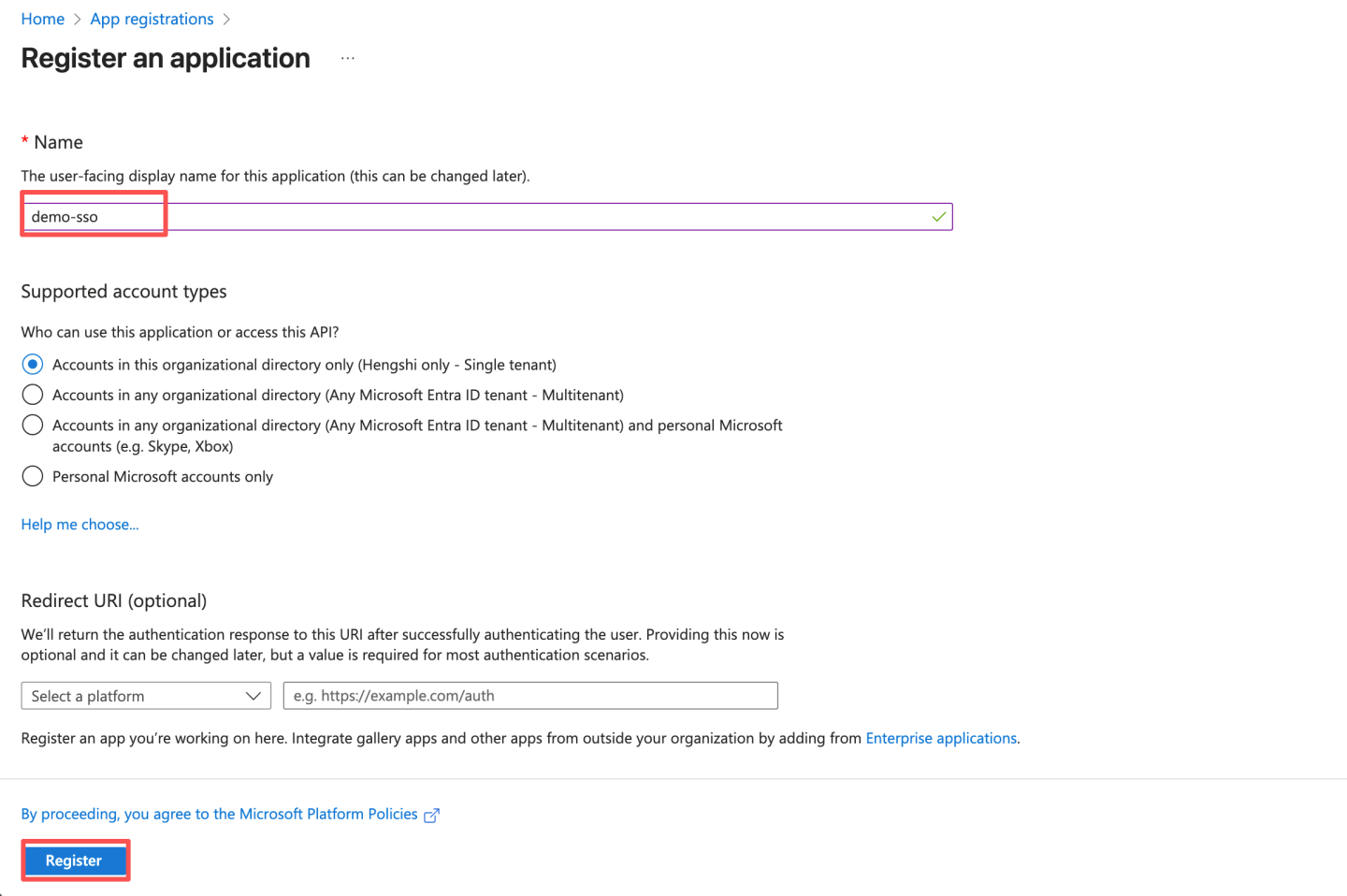
- Enter an application name and click Register.
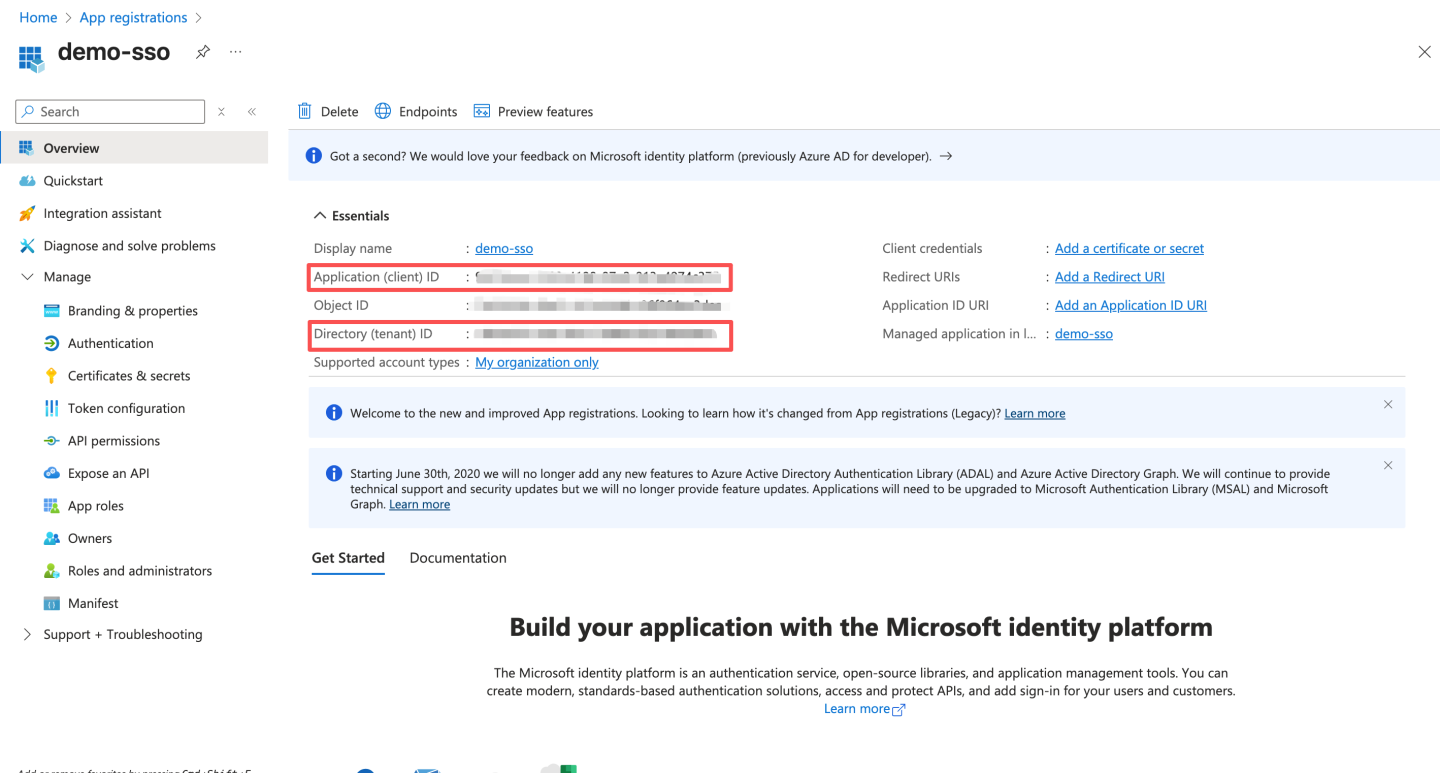
- After registration, record the Application (client) ID and Directory (tenant) ID. Later, you will configure the Application (client) ID as the ClientId in HengShi Teams authentication and the Directory (tenant) ID as the Azure Tenant ID.
- Create a client secret.
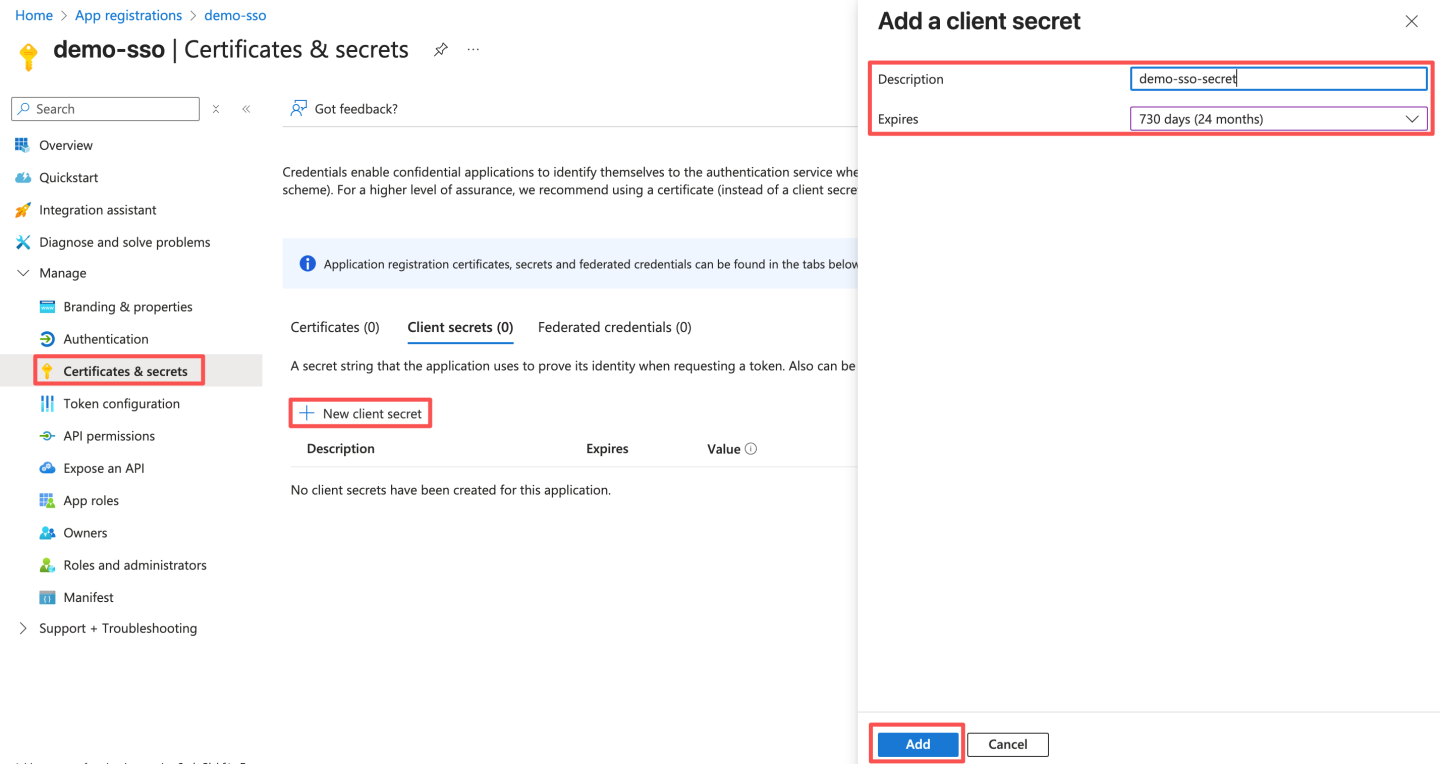 Save the secret immediately; it is only visible at creation time and cannot be retrieved later. Be sure to copy it before leaving the page. You will configure this secret as the Client Secret in HengShi Teams authentication.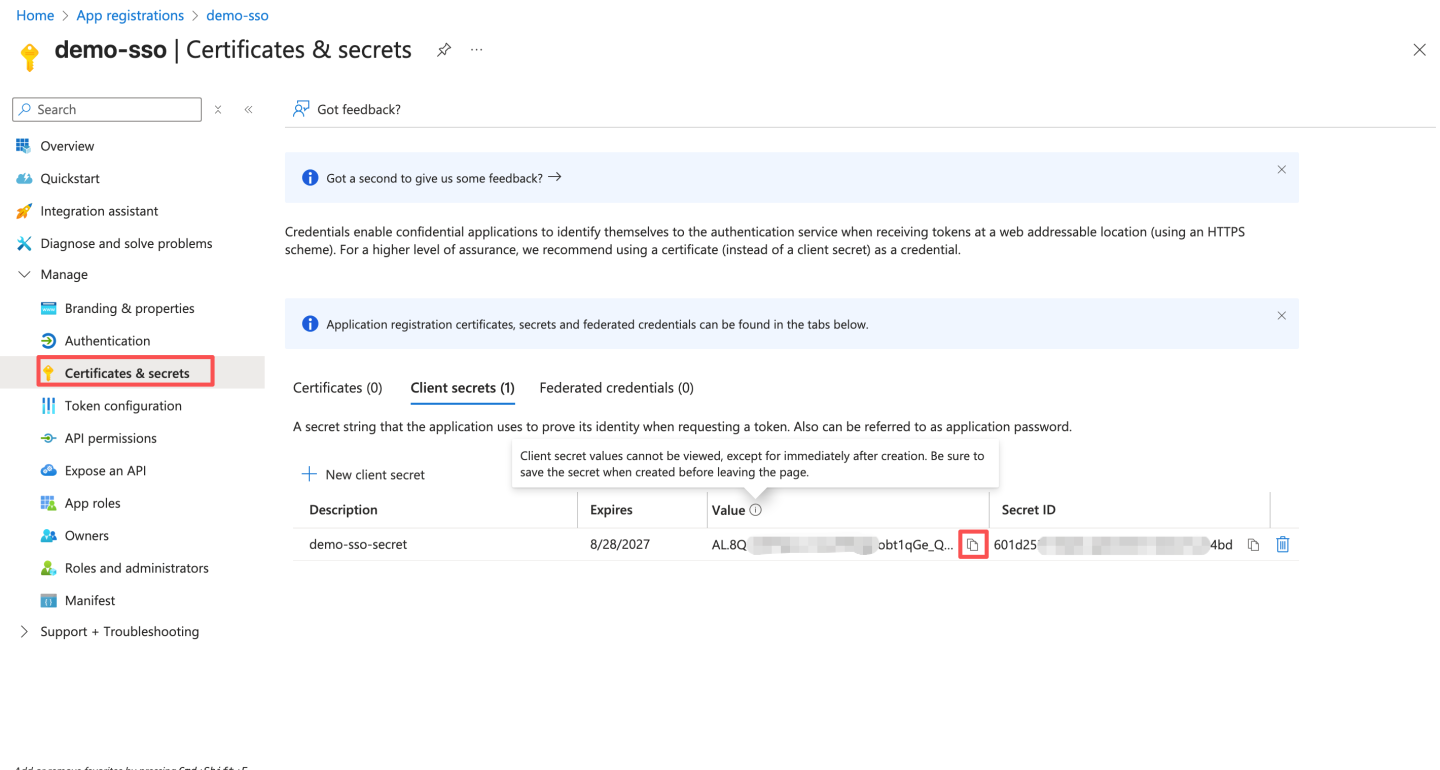
- Configure the access-token version: set
accessTokenAcceptedVersionto2and save.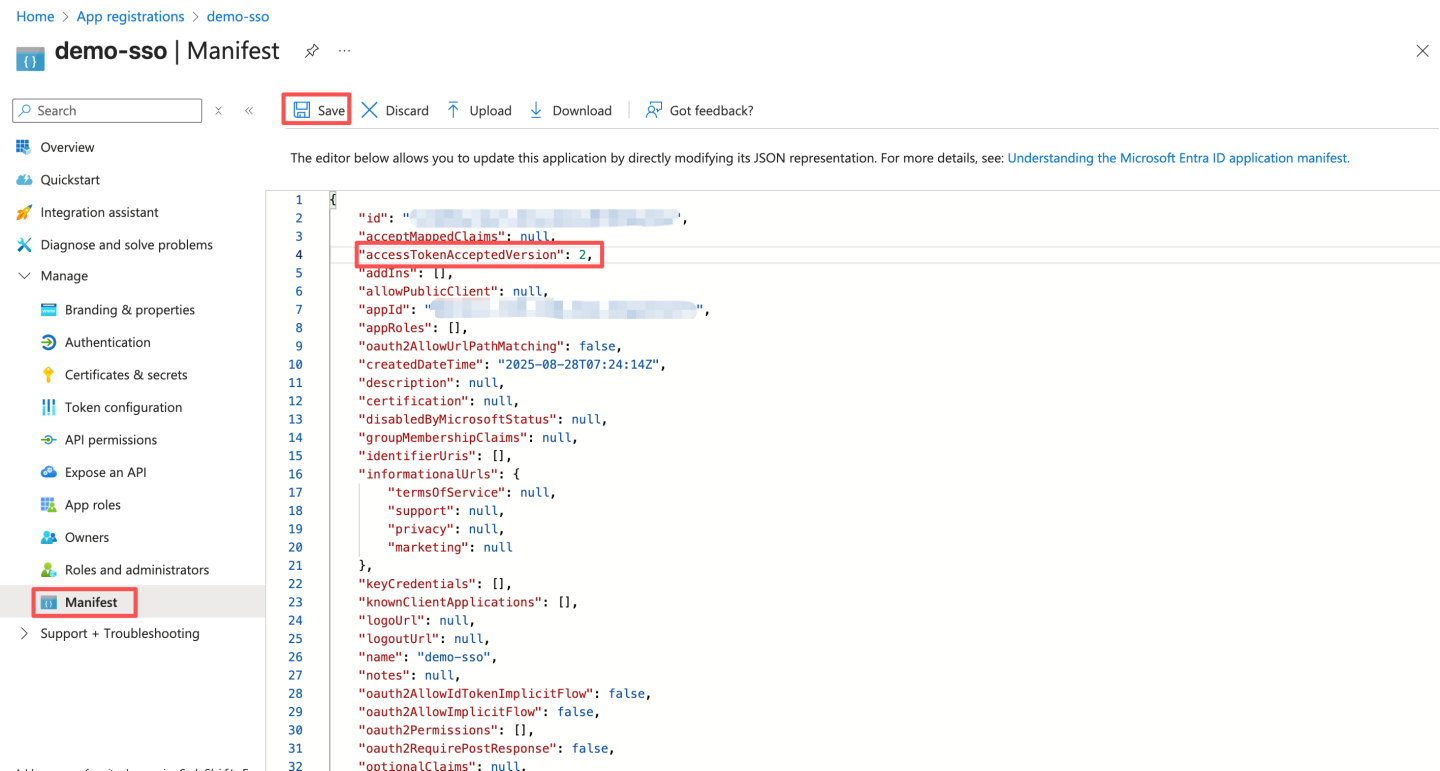
- Configure the access-token scope by exposing an API. The ID URI is pre-filled in the format
api://{AppID}. The Application ID URI must be in the formatapi://domain.example.com/{AppID}. Insertdomain.example.com(your HengShi access domain) betweenapi://and{AppID}, e.g.api://domain.example.com/{AppID}. Use lowercase letters only; do not use uppercase.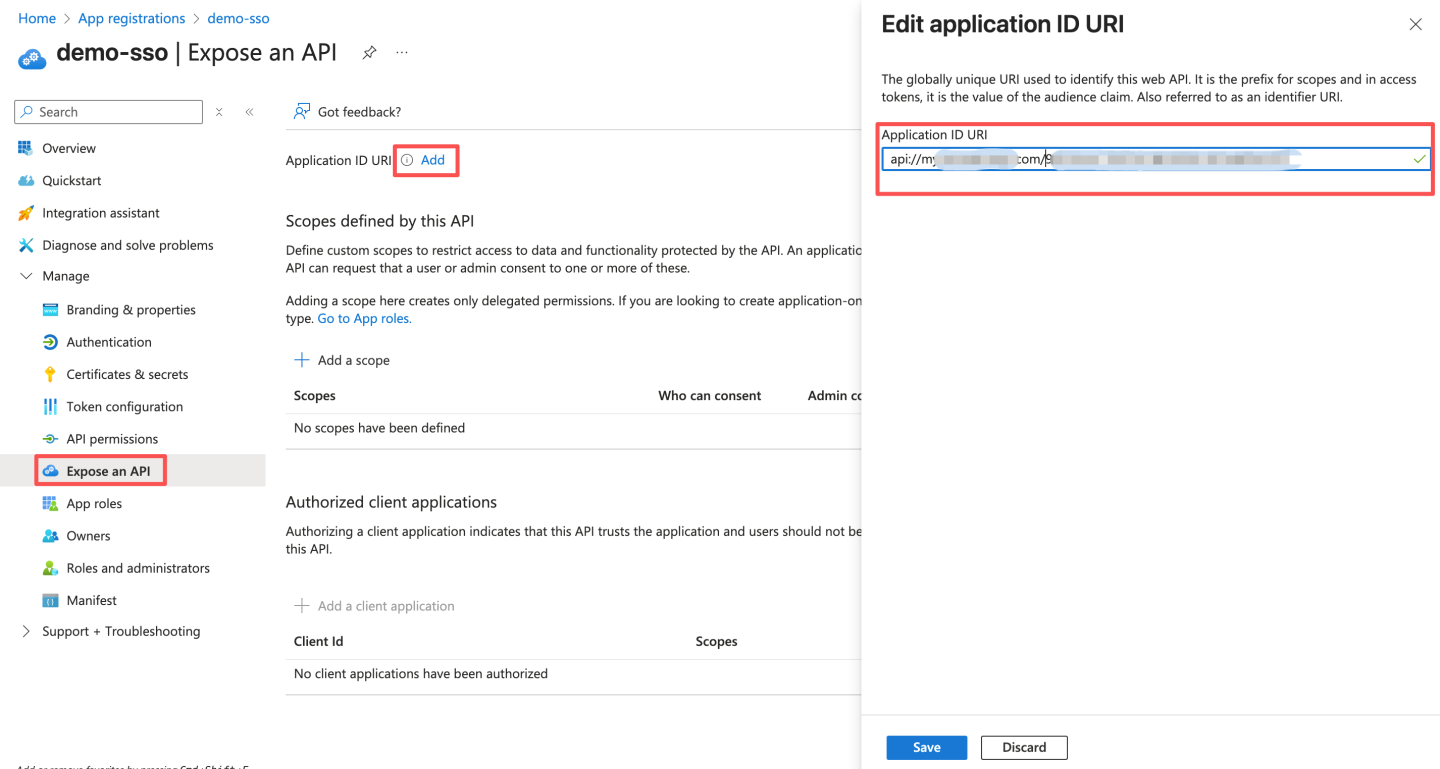 After saving, record the ID URI; you will need it later when updating the Teams app manifest.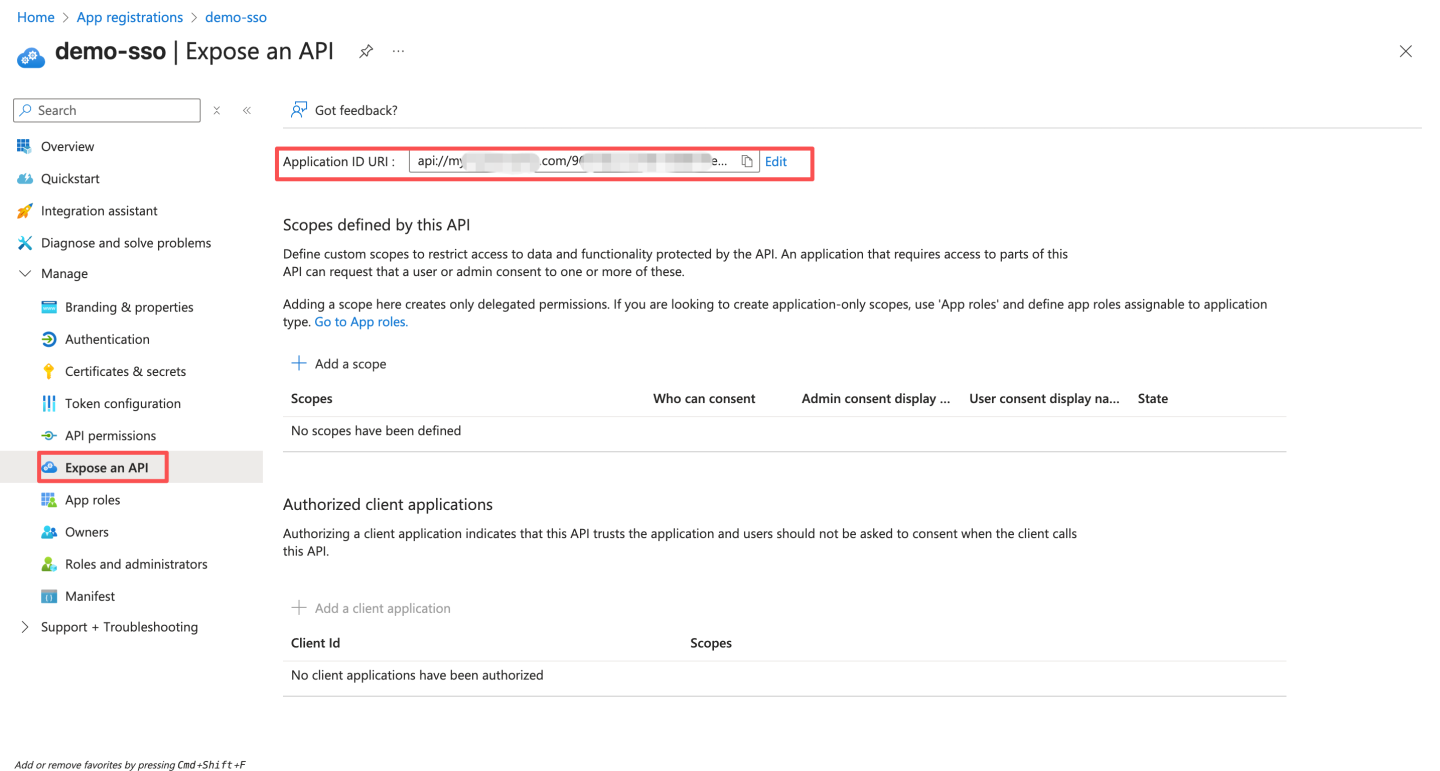
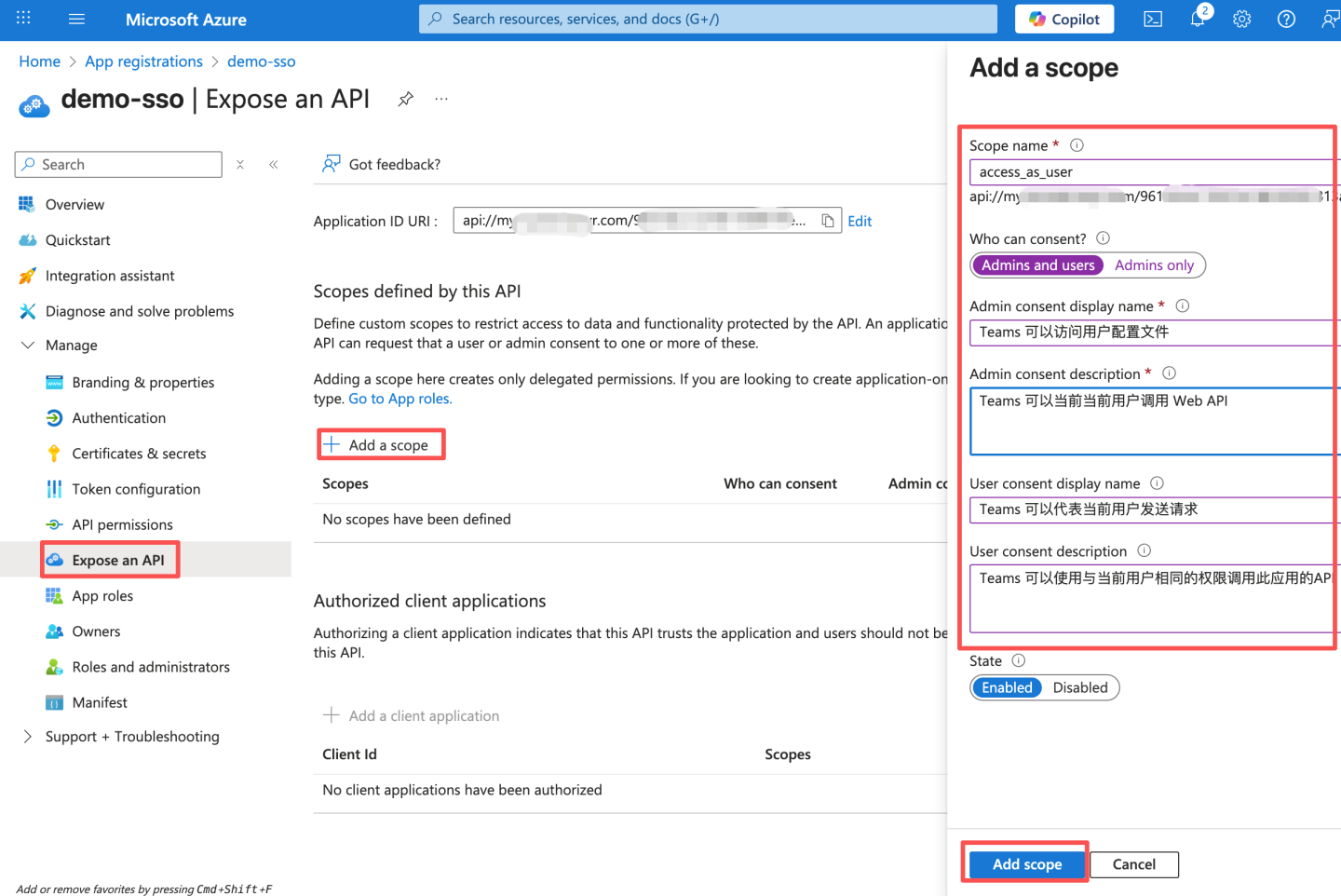
- Configure API scopes; fill the consent prompt text as required.
- Configure authorized client applications. The Client IDs are fixed:
- Teams desktop & mobile:
1fec8e78-bce4-4aaf-ab1b-5451cc387264 - Teams Web:
5e3ce6c0-2b1f-4285-8d4b-75ee78787346Add both clients with the respective IDs.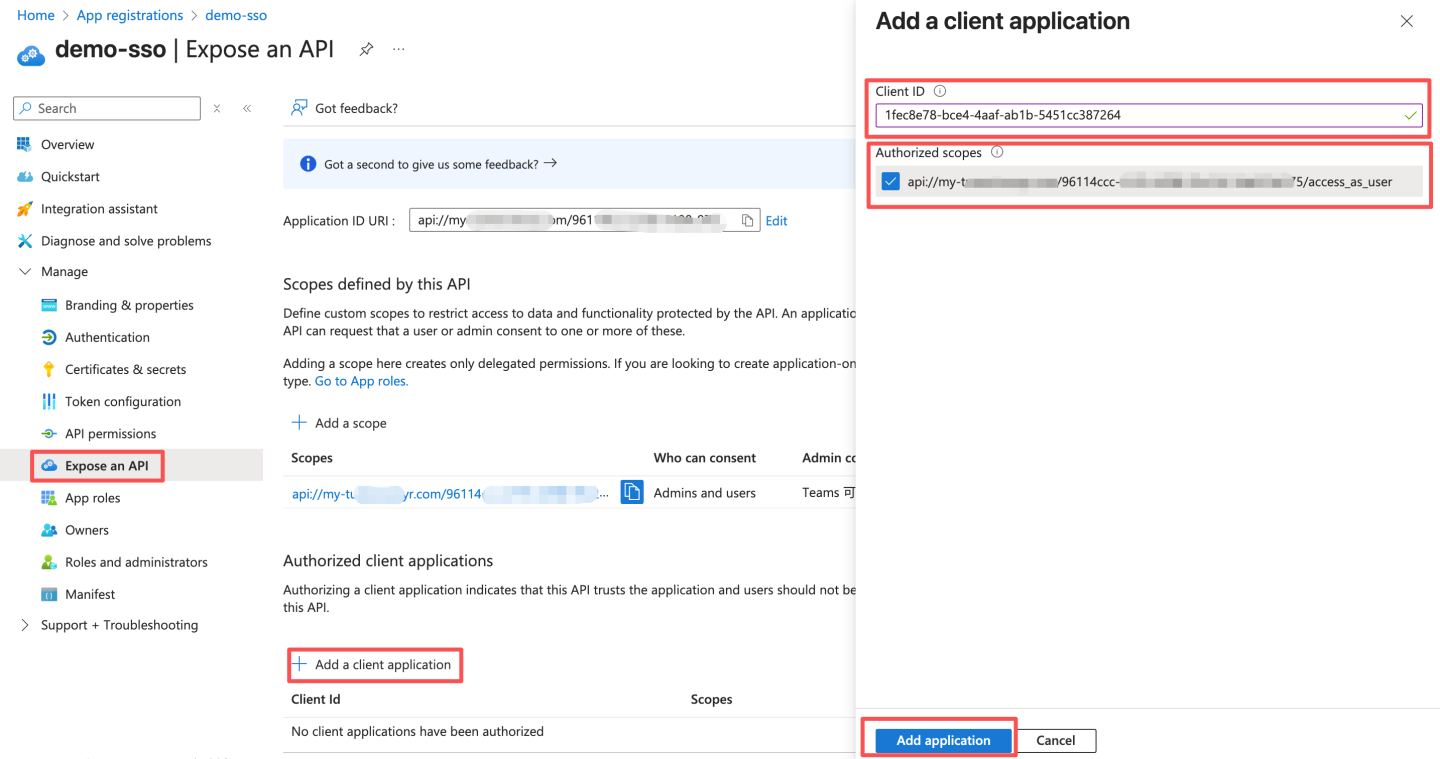
- Teams desktop & mobile:
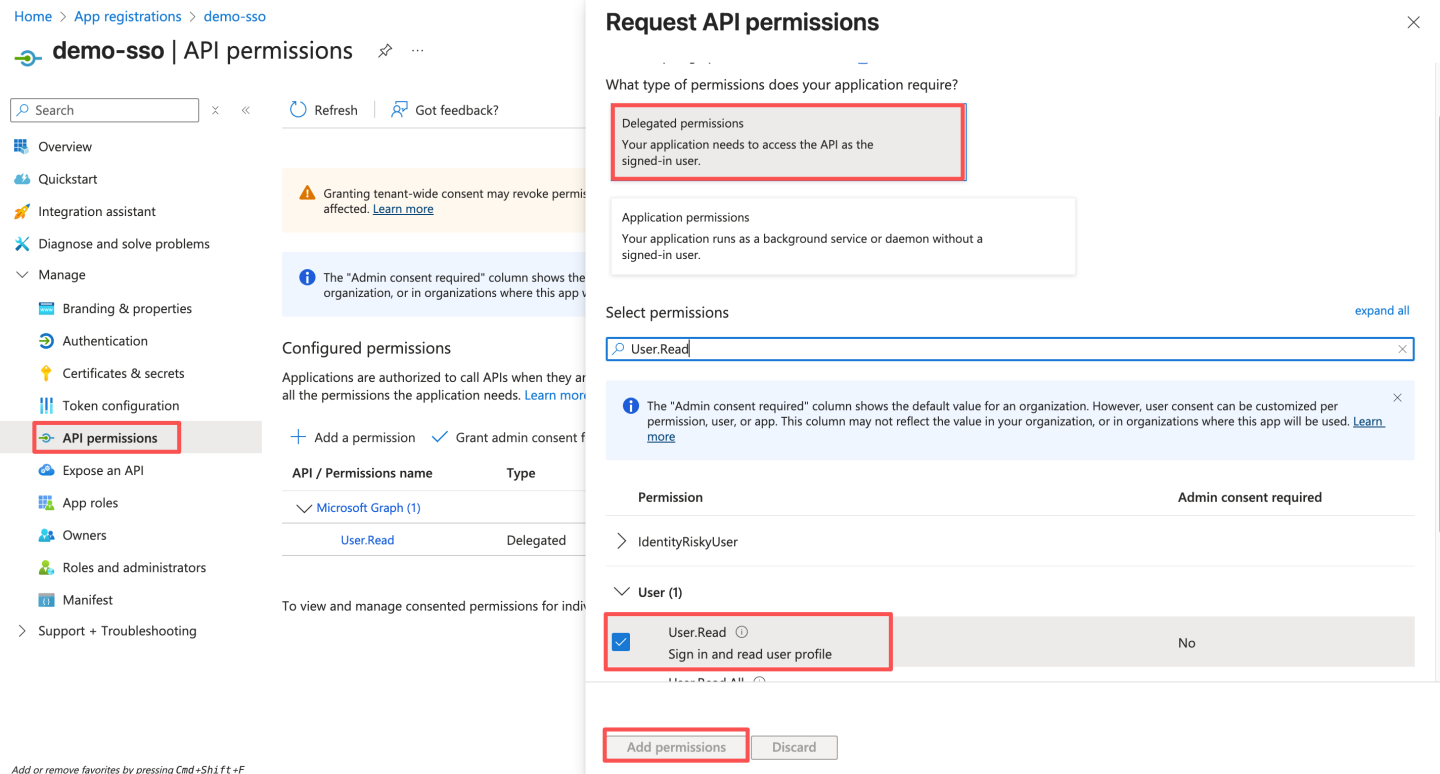
- Configure API permissions. By default
User.Readis present; click Grant admin consent for xxx.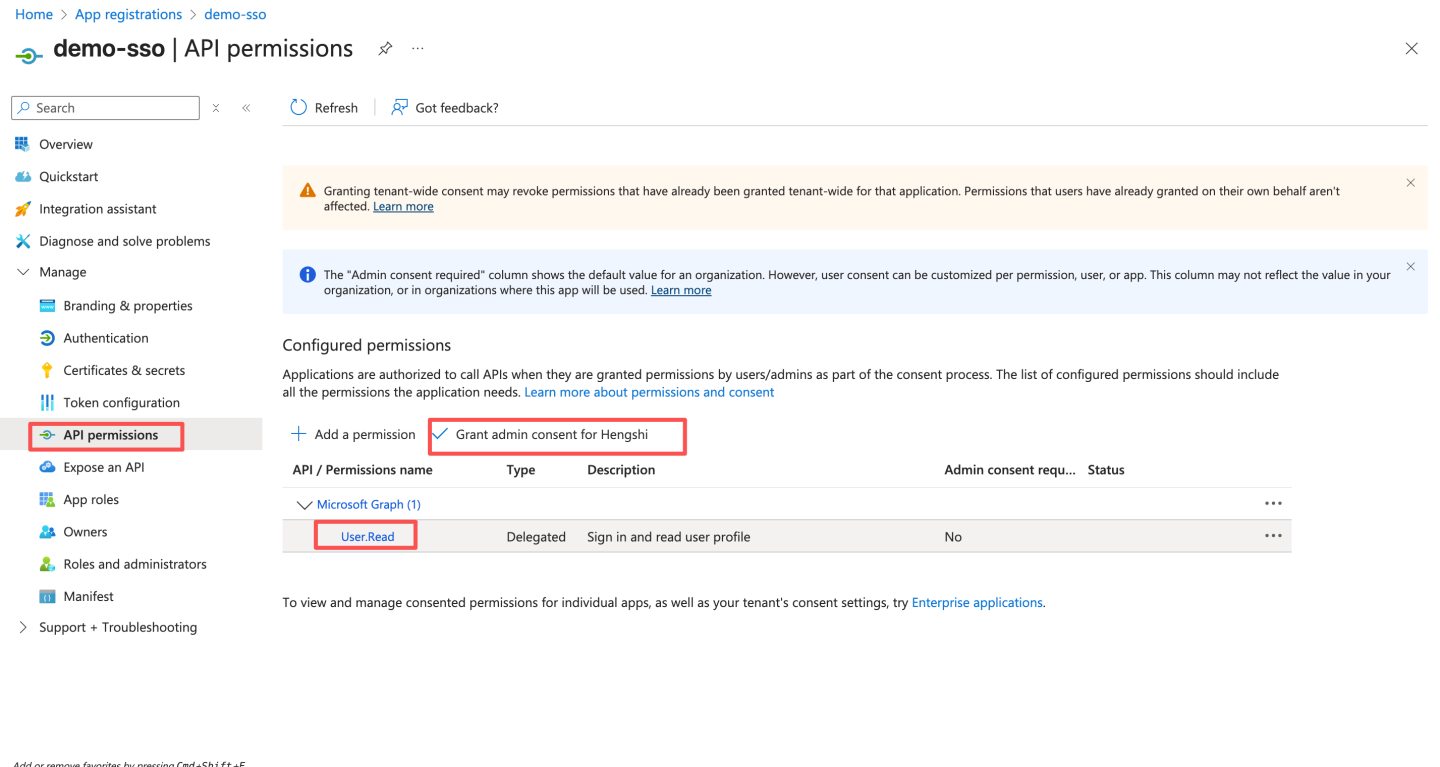 If the permission is missing, add it as shown below, then click Grant admin consent for xxx.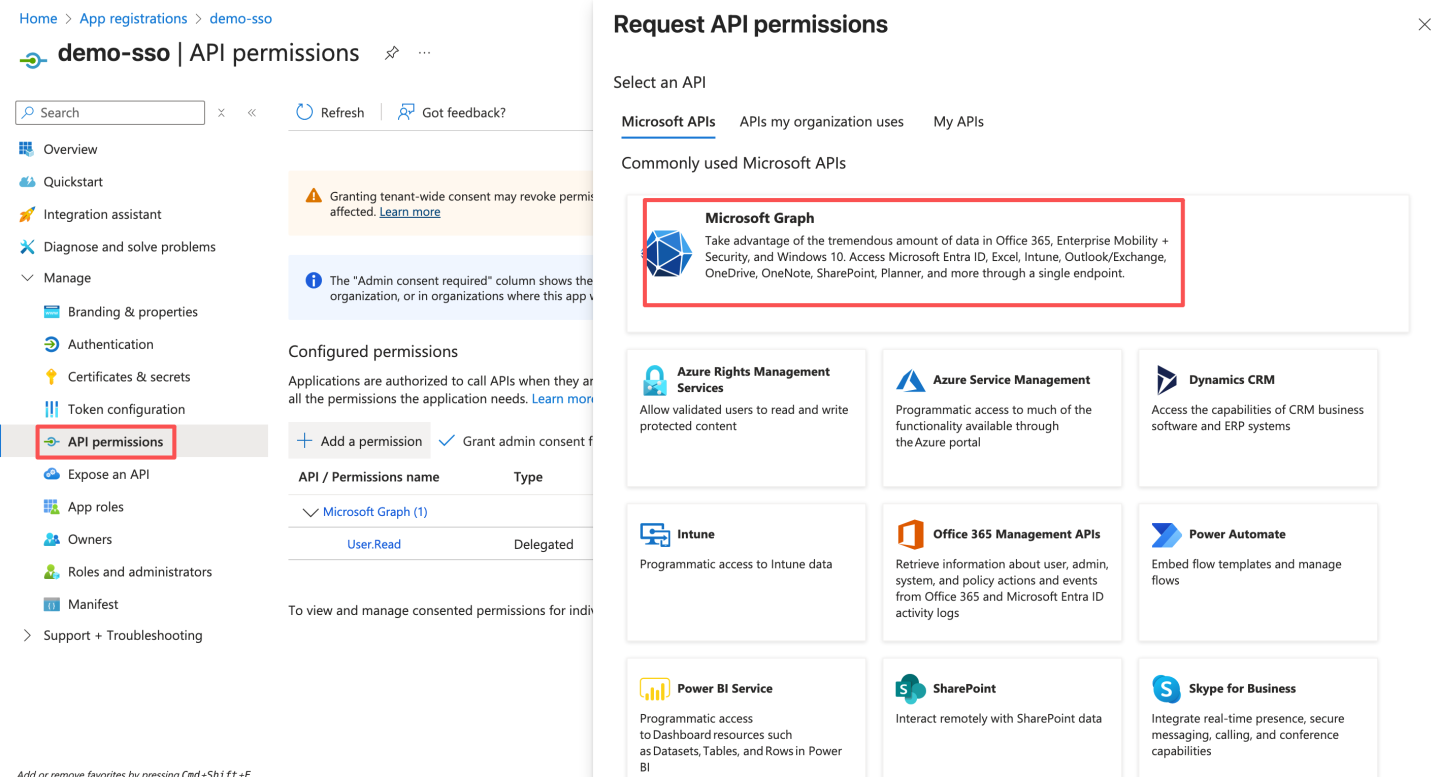
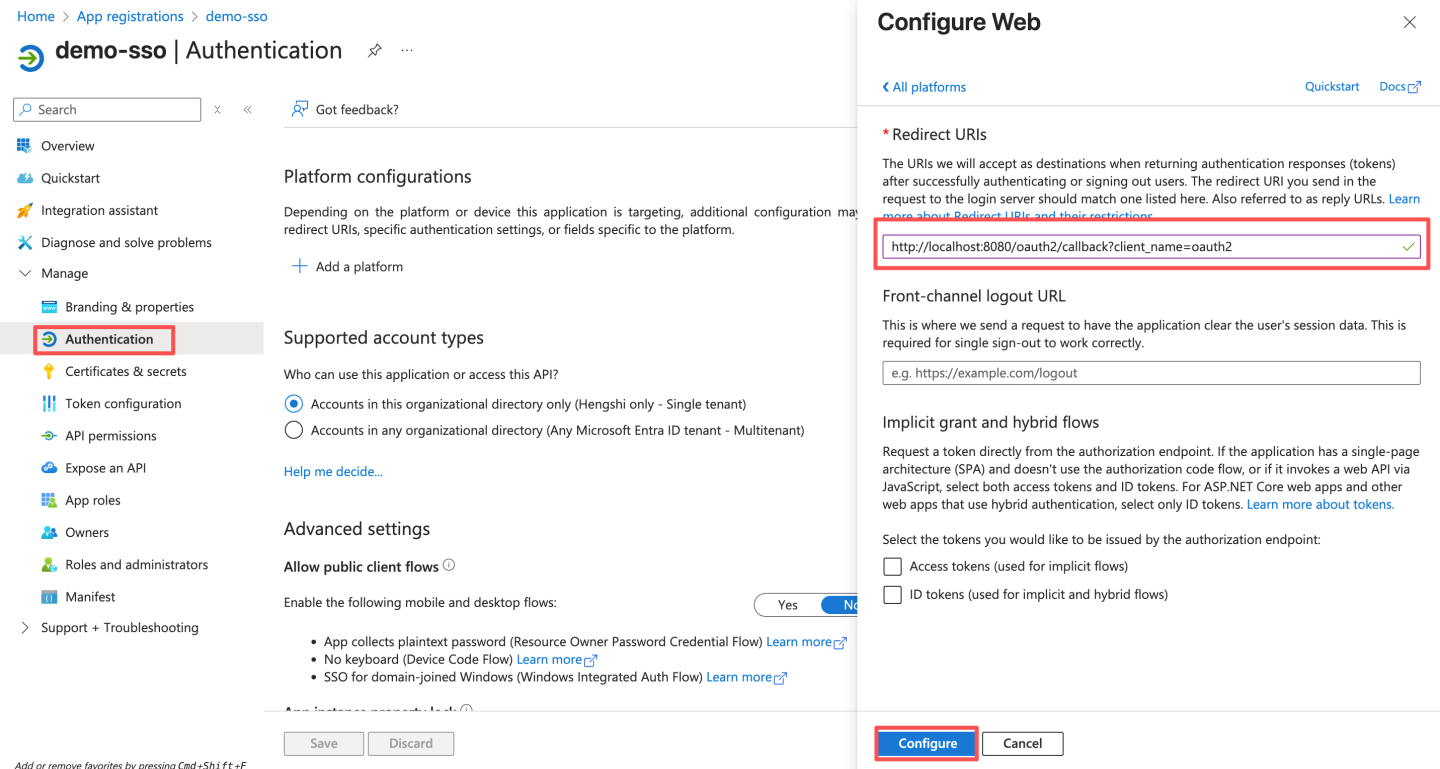
- Configure platform authentication; replace
http://localhost:8080with your HengShi access domain.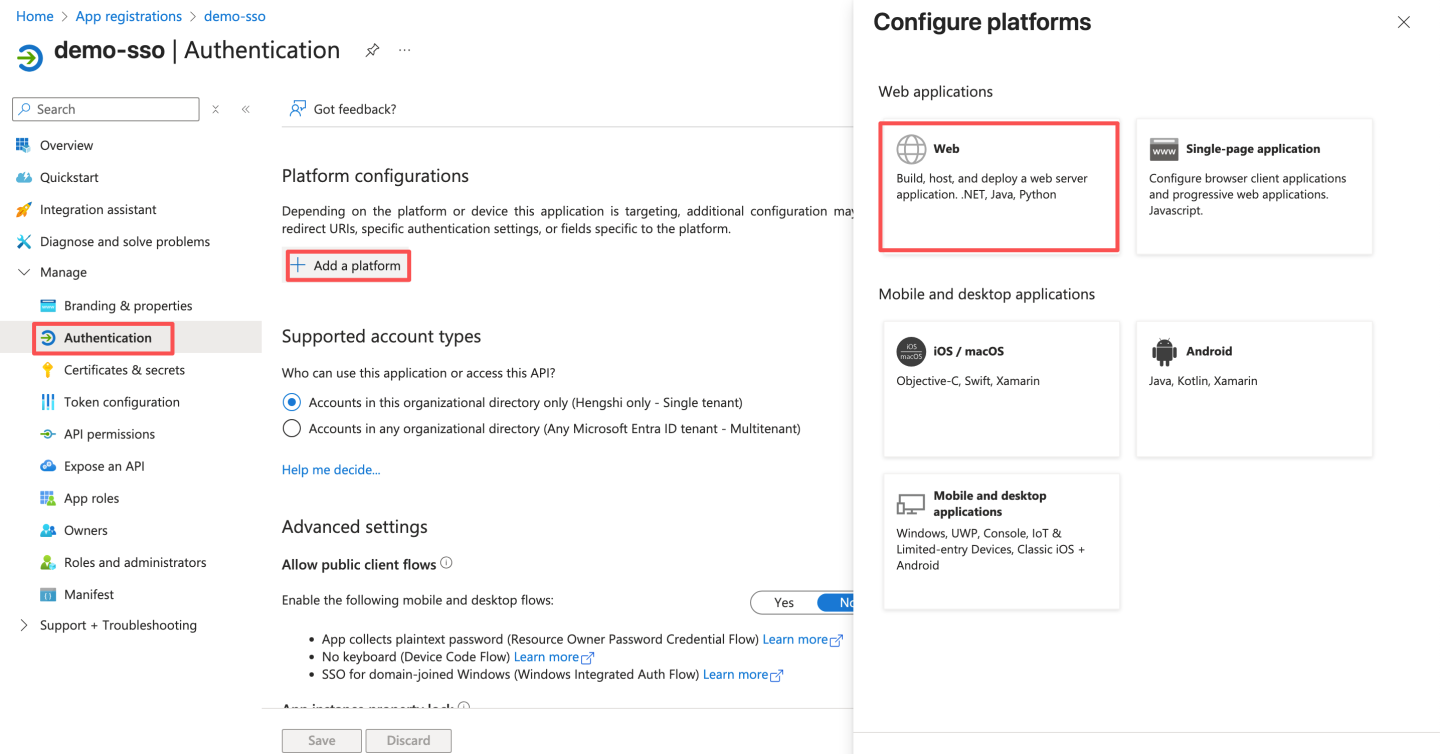
- For reference, see Enable SSO for Teams apps; consult that document for further details.
- Open the Azure portal and select “Register an application”.
- Update the Teams app manifest
- To create a Teams app package, refer to Create a Microsoft Teams app package.
- Update the manifest: Add the following snippet to the manifest file:jsonReplace
"webApplicationInfo":{ "id": "{Application (client) ID}", "resource": "api://domain.example.com/{Application (client) ID}" }idwith the Application (client) ID recorded in step 1.3 andresourcewith the ID URI recorded in step 1.6. Modify thecontentUrlin the manifest by appendingactiveAuth=teamsto the embedded HengShi URL:
jsonSample Teams app package"contentUrl": "https://{domain.example.com}?activeAuth=teams", - You can also create or edit the Teams app package via the Teams Developer Portal; see the Teams Developer Portal documentation for details.
JWT Request Parameters
JWT request parameters refer to the practice—following the JWT specification—of signing/encrypting basic user information and passing it to the server via the URL, balancing security and convenience. 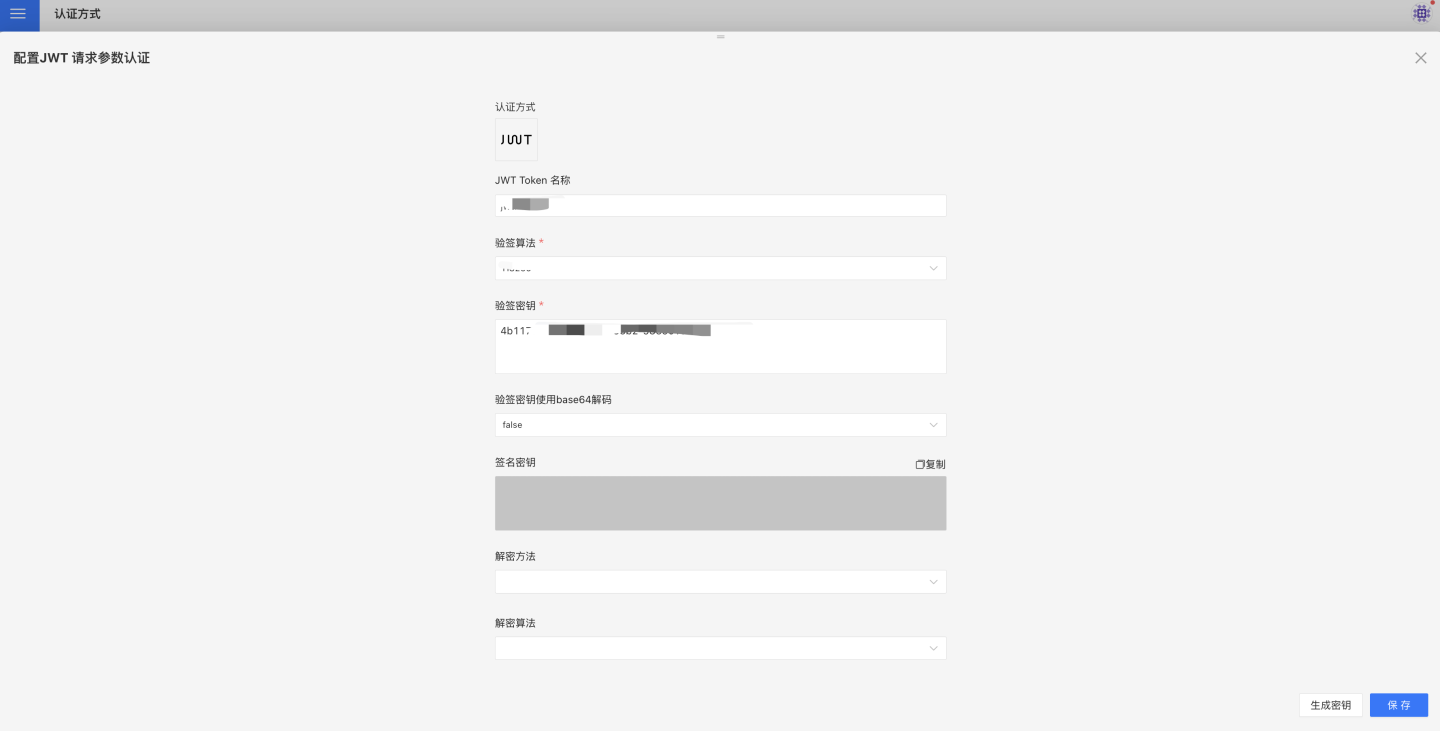
JWT request-parameter authentication settings include:
- JWT Token name
- Signature-verification algorithm: must match the setting in HENGSHI when the client signs
- Signature-verification key:
– For HS256, the same key is used by the client and in HENGSHI
– For RS256, the client signs with the private key; HENGSHI is configured with the public key - The verification key is base64-decoded before use
- Decryption method: must match the setting in HENGSHI when the client encrypts
- Decryption algorithm: must match the setting in HENGSHI when the client encrypts
- Decryption key: the client encrypts with the public key; HENGSHI is configured with the private key
- System access URL:
http://{host}:{port}/?activeAuth=jwt-param&jwtParam={signed/encrypted JWT string} - Groovy script: configures the default role after login; by default the user is assigned the “Data Viewer” role
CAUTION
Starting from version 5.1, the Groovy script field on the page is disabled by default for security reasons.
To use Groovy scripts in JWT authentication for setting default roles, add the following to the configuration file:
ENABLE_GROOVY_SCRIPT=trueRestart the service after the change.
JWT request parameters reference materials.
Common settings used to synchronize user attributes via JWT request parameters include username mapping, display-name mapping, email mapping, mobile-phone mapping, role mapping, group mapping, organizational-structure mapping, enterprise-ID mapping, enterprise-name mapping, platform-ID mapping, enable SSO exp session-lifetime sync, session-lifetime mapping, Groovy script, etc.
For descriptions and usage of these common fields, see the Common Configuration section.
JWT Basic Format Description
Standard claims in JWT:
| Claim | Meaning | Required | Processing Logic & Restrictions |
|---|---|---|---|
| iss | JWT issuer | No | None |
| sub | JWT subject | Yes | Non-empty and unique. If no loginName/email mapping is configured, HENGSHI uses this value as the user’s unique identifier. If loginName/email mapping is configured, this value is ignored. It is recommended to configure loginName/email mapping and set sub identical to loginName/email. |
| exp | JWT expiration time | No | JWT is invalid once expired |
Custom claims:
| Claim | Meaning | Processing Logic & Restrictions |
|---|---|---|
| Mapped custom claims | Claims with mapping configured in HENGSHI | HENGSHI saves them to the corresponding user fields according to the mapping. For example, loginName=alice with loginName mapping configured in HENGSHI will store alice as the user’s loginName. See General Configuration for others. |
| Unmapped custom claims | Claims without mapping configured in HENGSHI | HENGSHI stores them as user attributes. For example, abc=123 without mapping will be saved as a user attribute. |
A JWT consists of three parts concatenated with “.”. Below is an example:
eyJ0eXAiOiJKV1QiLCJhbGciOiJIUzI1NiJ9.eyJzdWIiOiJhbGljZS1zdWJqZWN0IiwiYWJjIjoiMTIzIiwicm9sZXMiOlsic3lzdGVtIGFkbWluIiwiZGF0YSBhZG1pbiIsImRhdGEgYW5hbHlzdCIsImRhdGEgdmlld2VyIiwiYXBpIGFkbWluIl0sImxvZ2luTmFtZSI6ImFsaWNlIn0.PGA9DNa-B_4e4WS-fVG57tvxYe0dlu0r8O_Lw1vEtAQ- First part is header, plaintext
{"typ":"JWT","alg":"HS256"}, after base64URL encoding:eyJ0eXAiOiJKV1QiLCJhbGciOiJIUzI1NiJ9 - Second part is payload, plaintext
{"sub":"alice-subject","abc":"123","roles":["system admin","data admin","data analyst","data viewer","api admin"],"loginName":"alice"}
(loginName, roles, abc are custom examples; add or modify as needed), after base64URL encoding:eyJzdWIiOiJhbGljZS1zdWJqZWN0IiwiYWJjIjoiMTIzIiwicm9sZXMiOlsic3lzdGVtIGFkbWluIiwiZGF0YSBhZG1pbiIsImRhdGEgYW5hbHlzdCIsImRhdGEgdmlld2VyIiwiYXBpIGFkbWluIl0sImxvZ2luTmFtZSI6ImFsaWNlIn0 - Third part is signature. The string to sign is
eyJ0eXAiOiJKV1QiLCJhbGciOiJIUzI1NiJ9.eyJzdWIiOiJhbGljZS1zdWJqZWN0IiwiYWJjIjoiMTIzIiwicm9sZXMiOlsic3lzdGVtIGFkbWluIiwiZGF0YSBhZG1pbiIsImRhdGEgYW5hbHlzdCIsImRhdGEgdmlld2VyIiwiYXBpIGFkbWluIl0sImxvZ2luTmFtZSI6ImFsaWNlIn0
After signing with HS256 and base64URL encoding, the signature isPGA9DNa-B_4e4WS-fVG57tvxYe0dlu0r8O_Lw1vEtAQ
For further details and libraries, refer to the JWT official site.
Java sample dependency:
<dependency>
    <groupId>com.nimbusds</groupId>
    <artifactId>nimbus-jose-jwt</artifactId>
    <version>5.4</version>
</dependency>Java sample code:
import com.nimbusds.jose.EncryptionMethod;
import com.nimbusds.jose.JOSEException;
import com.nimbusds.jose.JWEAlgorithm;
import com.nimbusds.jose.JWEHeader;
import com.nimbusds.jose.JWEObject;
import com.nimbusds.jose.JWSAlgorithm;
import com.nimbusds.jose.JWSHeader;
import com.nimbusds.jose.JWSSigner;
import com.nimbusds.jose.Payload;
import com.nimbusds.jose.crypto.MACSigner;
import com.nimbusds.jose.crypto.RSAEncrypter;
import com.nimbusds.jose.crypto.RSASSASigner;
import com.nimbusds.jwt.JWTClaimsSet;
import com.nimbusds.jwt.SignedJWT;

import java.security.KeyPair;
import java.security.KeyPairGenerator;
import java.security.NoSuchAlgorithmException;
import java.security.interfaces.RSAPrivateKey;
import java.security.interfaces.RSAPublicKey;
import java.util.ArrayList;
import java.util.Base64;
import java.util.List;

public class Test {
    public static void main(String[] args) throws Exception {
        //HS256  hmac sign
        hmacSign();
        System.out.println("------------------------------------------");
        //RS256  rsa sign
        rsaSign();
        System.out.println("------------------------------------------");
        //A128CBC-HS256  RSA-OAEP-256  encrypt
        signAndEncrypt();
    }

    //RS256
    public static void rsaSign() throws NoSuchAlgorithmException, JOSEException {
        KeyPairGenerator kpg = KeyPairGenerator.getInstance("RSA");
        KeyPair kp = kpg.genKeyPair();
        RSAPrivateKey privateKey = (RSAPrivateKey) kp.getPrivate();
        RSAPublicKey publicKey = (RSAPublicKey) kp.getPublic();
        JWTClaimsSet claimsSet = getJwtClaimsSet();

        JWSSigner signer = new RSASSASigner(privateKey);
        SignedJWT signedJWT = new SignedJWT(new JWSHeader.Builder(JWSAlgorithm.RS256).type(JOSEObjectType.JWT).build(), claimsSet);
        signedJWT.sign(signer);
        String token = signedJWT.serialize();
        String url = "http://{host}:{port}?activeAuth=jwt-param&jwtParam=" + token;
        System.out.println(url);
        //Verification key configured in HENGSHI
        System.out.println("Verification key=" + Base64.getEncoder().encodeToString(publicKey.getEncoded()));
    }

    //HS256
    public static void hmacSign() throws Exception {
        JWTClaimsSet claimsSet = getJwtClaimsSet();
        String key = "4b117a14-c652-410a-83b2-9839c16e7ae1";//HS256 key, must be >32 chars
        SignedJWT signedJWT = new SignedJWT(new JWSHeader.Builder(JWSAlgorithm.HS256).type(JOSEObjectType.JWT).build(), claimsSet);
        JWSSigner signer = new MACSigner(key);
        signedJWT.sign(signer);

        String token = signedJWT.serialize();
        String url = "http://{host}:{port}?activeAuth=jwt-param&jwtParam=" + token;
        System.out.println(url);
        //Verification key configured in HENGSHI
        System.out.println("Verification key=" + key);
        /*
        Note: Different content yields different tokens. The token below is generated from the code above; any change alters the token.
        Generated token: eyJ0eXAiOiJKV1QiLCJhbGciOiJIUzI1NiJ9.eyJzdWIiOiJhbGljZS1zdWJqZWN0IiwiYWJjIjoiMTIzIiwicm9sZXMiOlsic3lzdGVtIGFkbWluIiwiZGF0YSBhZG1pbiIsImRhdGEgYW5hbHlzdCIsImRhdGEgdmlld2VyIiwiYXBpIGFkbWluIl0sImxvZ2luTmFtZSI6ImFsaWNlIn0.PGA9DNa-B_4e4WS-fVG57tvxYe0dlu0r8O_Lw1vEtAQ
        Sample request URL: http://{host}:{port}?activeAuth=jwt-param&jwtParam=eyJ0eXAiOiJKV1QiLCJhbGciOiJIUzI1NiJ9.eyJzdWIiOiJhbGljZS1zdWJqZWN0IiwiYWJjIjoiMTIzIiwicm9sZXMiOlsic3lzdGVtIGFkbWluIiwiZGF0YSBhZG1pbiIsImRhdGEgYW5hbHlzdCIsImRhdGEgdmlld2VyIiwiYXBpIGFkbWluIl0sImxvZ2luTmFtZSI6ImFsaWNlIn0.PGA9DNa-B_4e4WS-fVG57tvxYe0dlu0r8O_Lw1vEtAQ
         */
    }

    private static JWTClaimsSet getJwtClaimsSet() {
        List<String> roles = new ArrayList<>();
        roles.add("system admin");//System admin
        roles.add("data admin");//Data admin
        roles.add("data analyst");//Data analyst
        roles.add("data viewer");//Data viewer
        roles.add("api admin");//API admin

        String loginName = "alice";//Unique login name

        JWTClaimsSet claimsSet = new JWTClaimsSet.Builder()
                .subject(loginName + "-subject") //JWT subject, must be non-empty. Used as login name if no mapping is configured. Must be unique, can equal loginName
                //.issuer("https://c2id.com") //Issuer identifier, usually an http(s) url; not used by HENGSHI
                .claim("roles", roles)
                /*Login name, unique. Key can be any name; map it in HENGSHI JWT parameter auth as loginName.
                 * HENGSHI also supports mapping email, phone, roles, groups, etc. See docs for details.*/
                .claim("loginName", loginName)
                .claim("abc", "123")       //Additional claims saved as user attributes
                //.expirationTime(new Date(new Date().getTime() + 60 * 1000)) //Set as needed
                .build();
        return claimsSet;
    }

    public static void signAndEncrypt() throws Exception {
        KeyPairGenerator kpg = KeyPairGenerator.getInstance("RSA");

        KeyPair signkp = kpg.genKeyPair();
        RSAPrivateKey signPrivateKey = (RSAPrivateKey) signkp.getPrivate();
        RSAPublicKey signPublicKey = (RSAPublicKey) signkp.getPublic();
        //Verification key configured in HENGSHI
        System.out.println("Verification key=" + Base64.getEncoder().encodeToString(signPublicKey.getEncoded()));
        JWTClaimsSet jwtClaimsSet = getJwtClaimsSet();
        SignedJWT signedJWT = new SignedJWT(
                new JWSHeader.Builder(JWSAlgorithm.RS256).type(JOSEObjectType.JWT).build(),
                jwtClaimsSet);

        signedJWT.sign(new RSASSASigner(signPrivateKey));
        KeyPair encryptKP = kpg.genKeyPair();
        RSAPrivateKey encryptPrivateKey = (RSAPrivateKey) encryptKP.getPrivate();
        //Decryption key configured in HENGSHI
        System.out.println("Decryption key=" + Base64.getEncoder().encodeToString(encryptPrivateKey.getEncoded()));

        RSAPublicKey encryptPublicKey = (RSAPublicKey) encryptKP.getPublic();
        JWEObject jweObject = new JWEObject(
                new JWEHeader.Builder(JWEAlgorithm.RSA_OAEP_256, EncryptionMethod.A128CBC_HS256).type(JOSEObjectType.JWT)
                        .contentType("JWT")
                        .build(),
                new Payload(signedJWT));

        jweObject.encrypt(new RSAEncrypter(encryptPublicKey));
        String token = jweObject.serialize();
        String url = "http://{host}:{port}?activeAuth=jwt-param&jwtParam=" + token;
        System.out.println(url);
    }
}Feishu
Feishu authentication supports QR-code login, micro-app single sign-on, and admin-console login-free access. 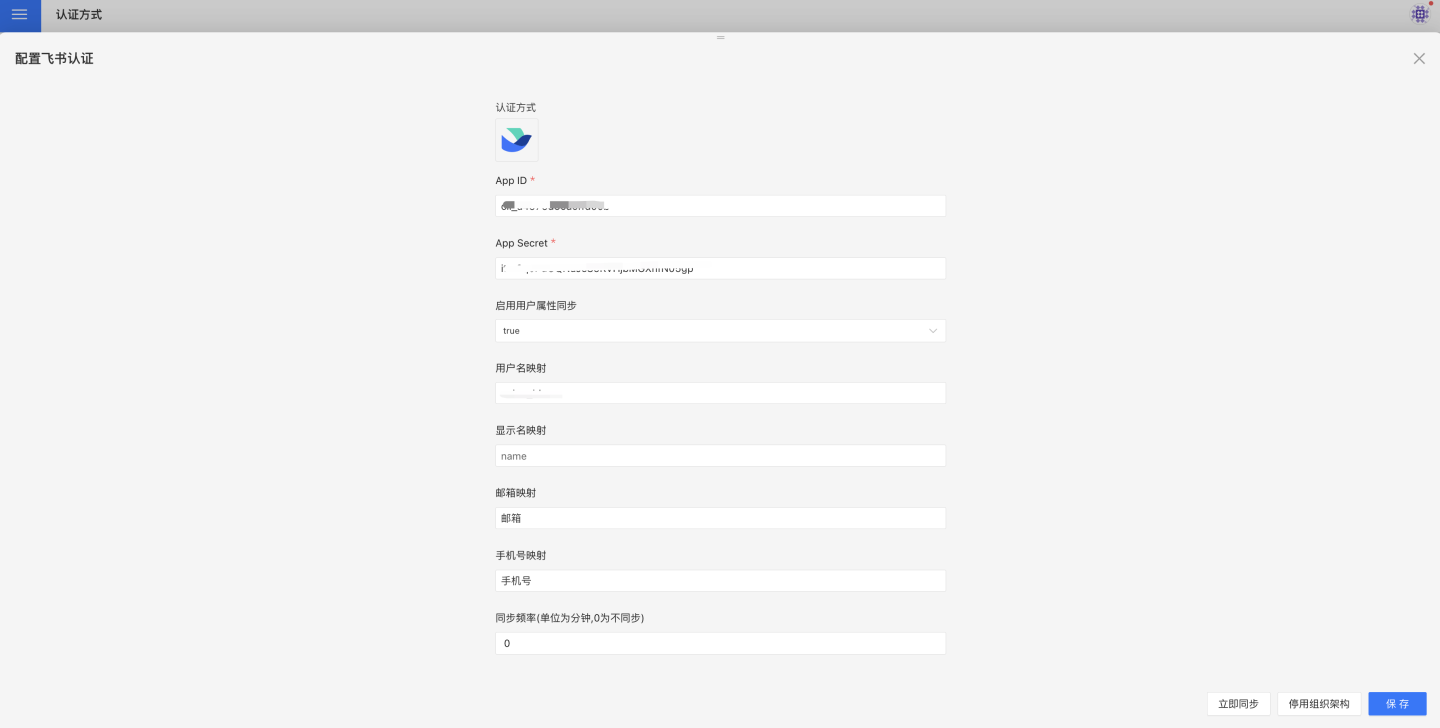
Feishu authentication configuration items include:
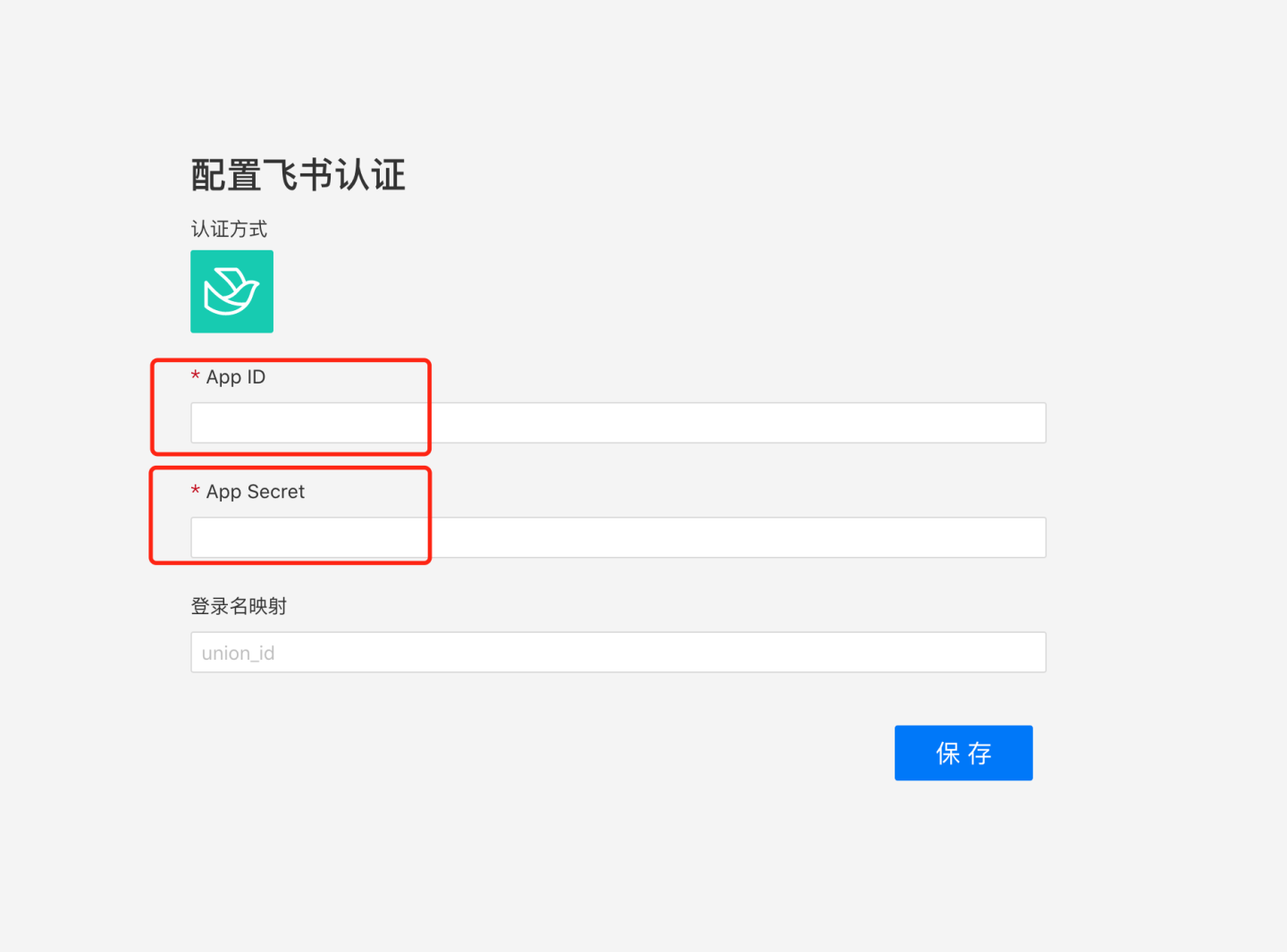
- App ID, App Secret: Basic information of Feishu; refer to Feishu Self-built App Configuration for how to obtain.
- Sync Frequency: Configures how often the organizational structure is synchronized, in minutes; 0 means no sync. To enable organizational structure sync, you must grant permissions to obtain department organizational information and enterprise information from the address book.
- Auto-join Organization on Login: Whether to automatically add the user to an existing organizational structure based on the user’s department information during login.
Configure a Feishu Custom App
Go to Developer Console → Enterprise Custom Apps → click Enterprise Custom App.
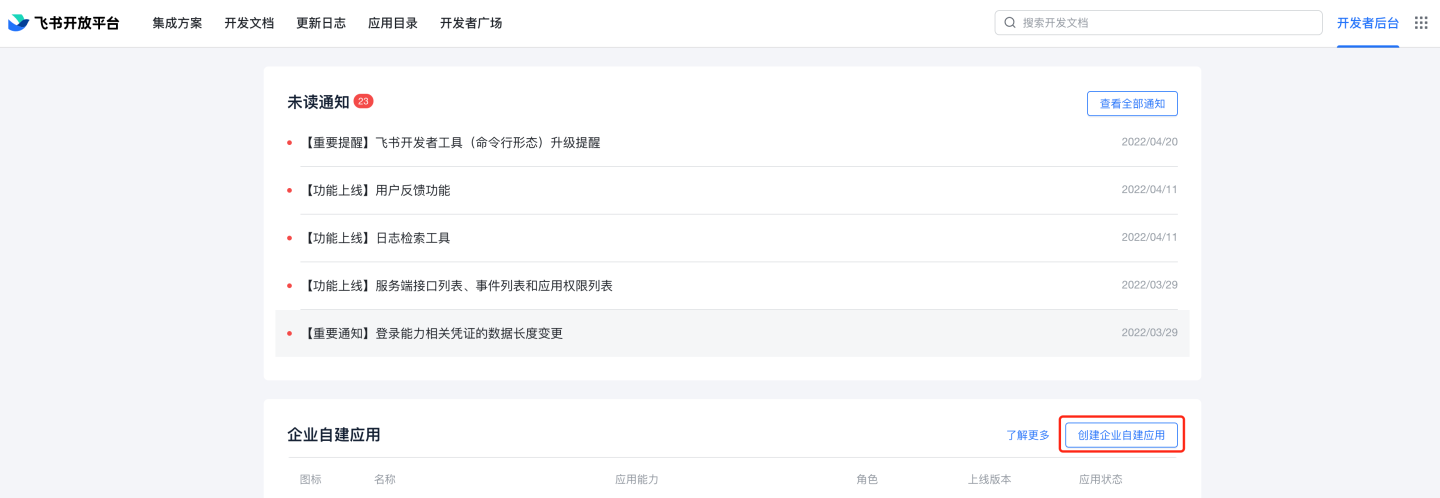
Fill in the App Name and App Description.
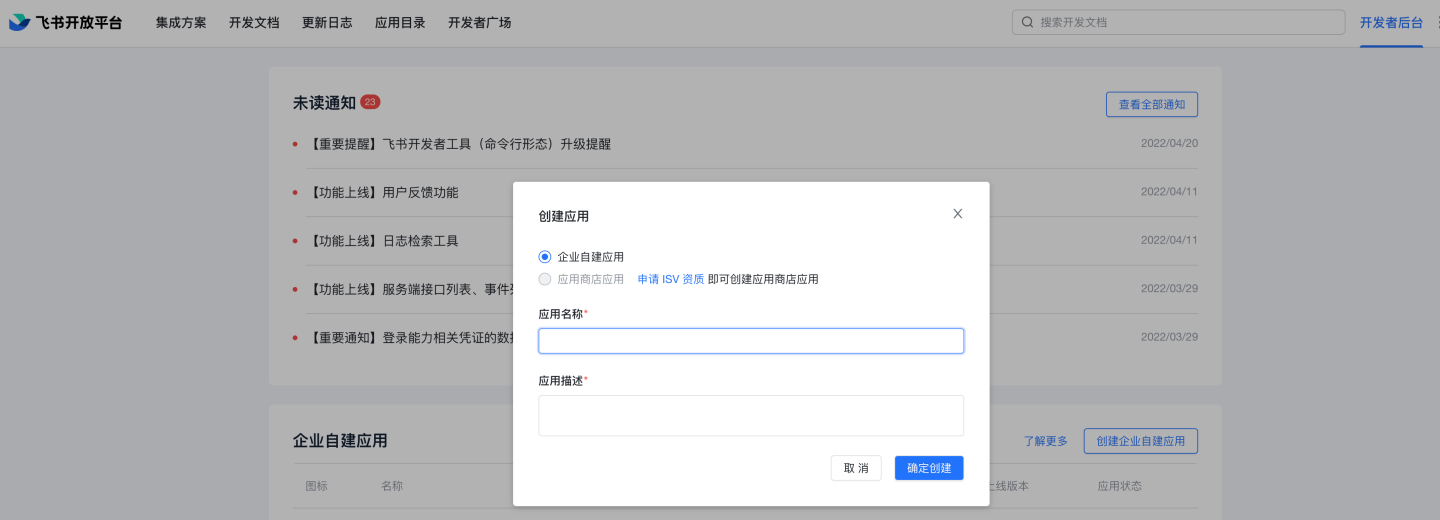
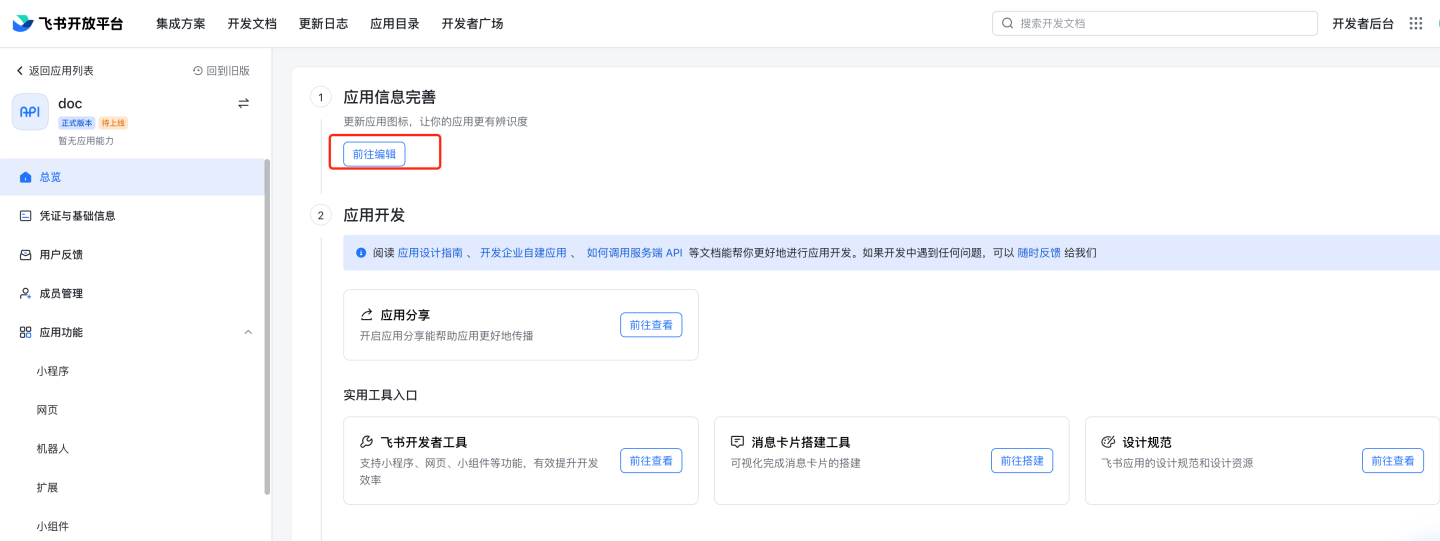
In the enterprise custom-app list, open the app you just created, complete the app information, and edit the General Info.
Upload the app icon.
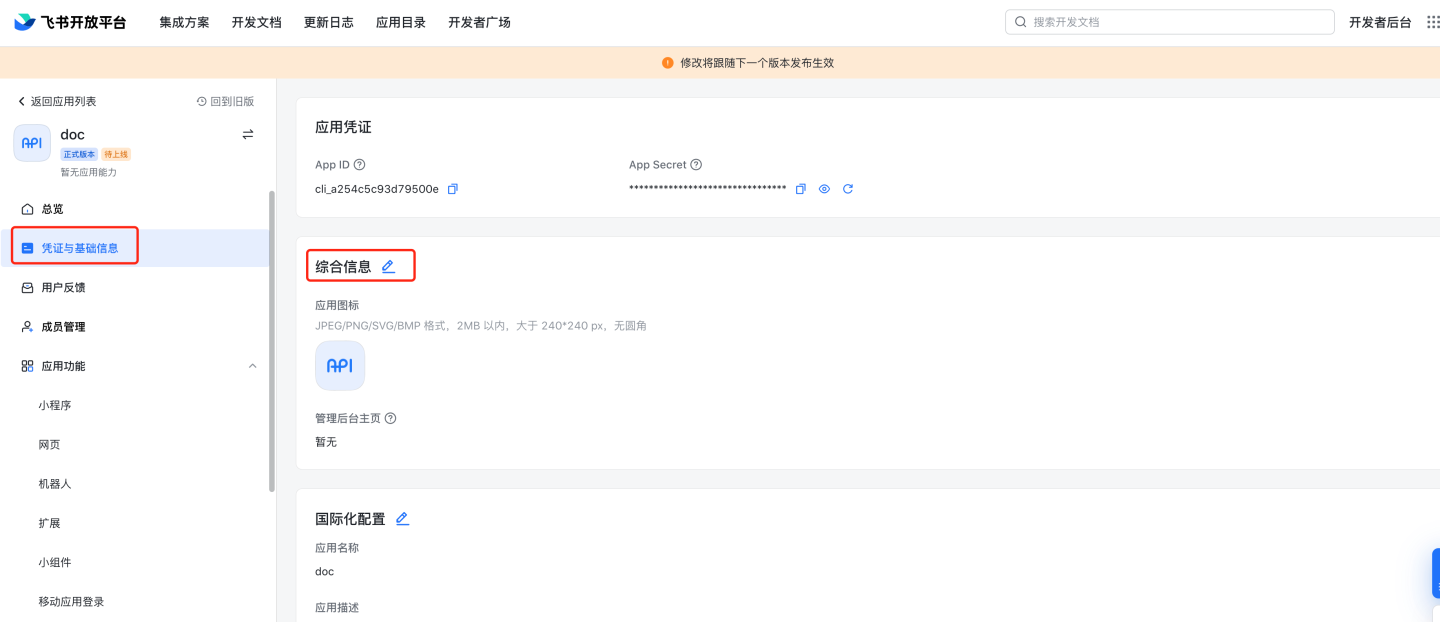
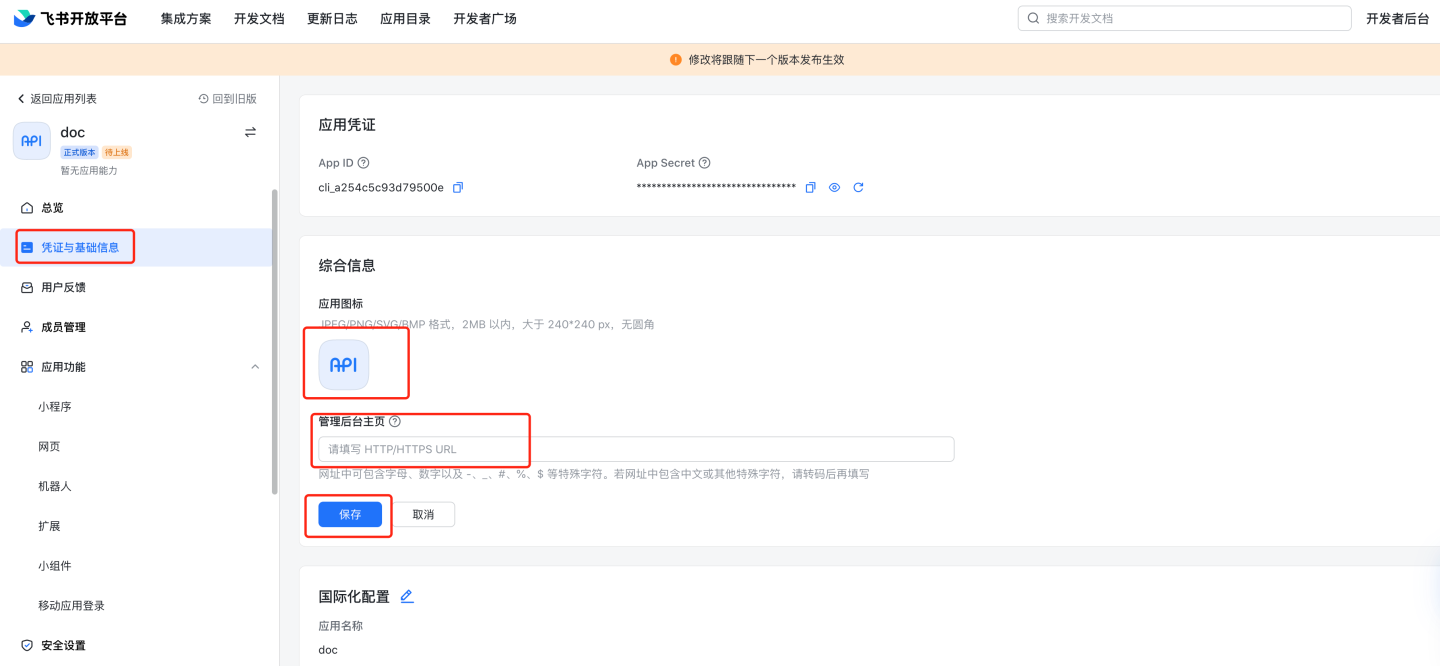
Optionally, fill in the Admin Backend Homepagehttp://{host}:{port}?activeAuth=lark&larkLoginType=larkAdminBackend
This URL is used for single sign-on from the Feishu admin backend into the system. You can change the address as needed; the parametersactiveAuthandlarkLoginTypemust remain unchanged.
Leave blank if this feature is not required.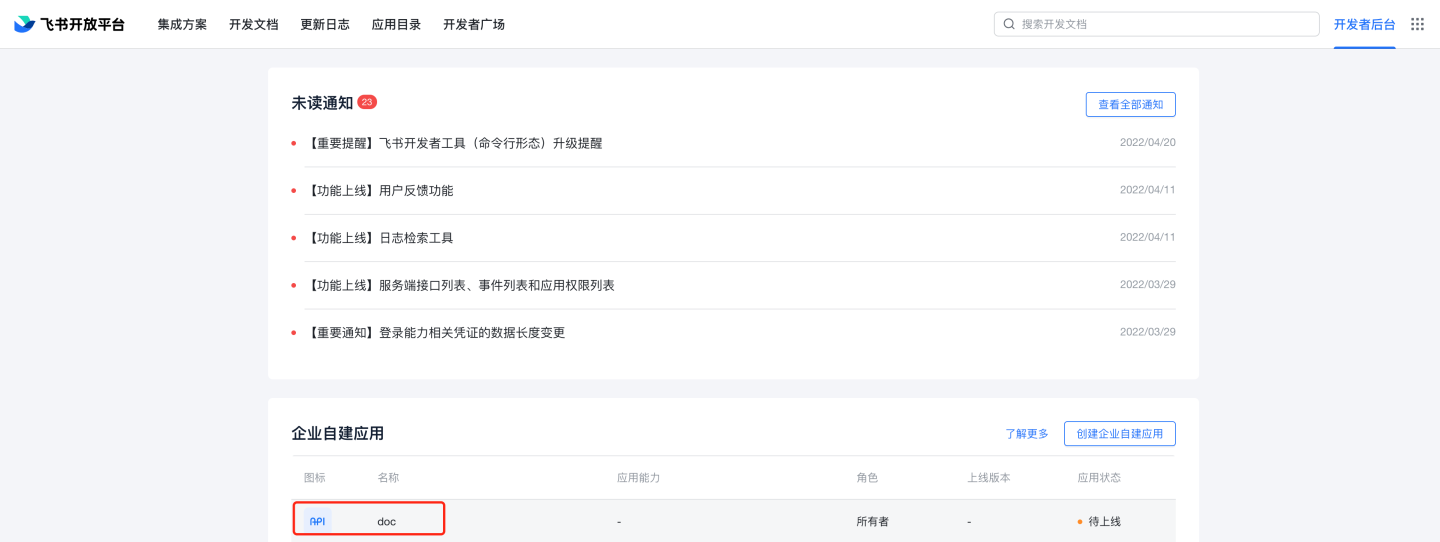
Configure App Features → Web Page, and fill in the Desktop Homepage and Mobile Homepage. You can change the addresses as needed; the parameters
activeAuthandlarkLoginTypemust remain unchanged.
Desktop Homepage:http://{host}:{port}?activeAuth=lark&larkLoginType=desktop
Mobile Homepage:http://{host}:{port}?activeAuth=lark&larkLoginType=app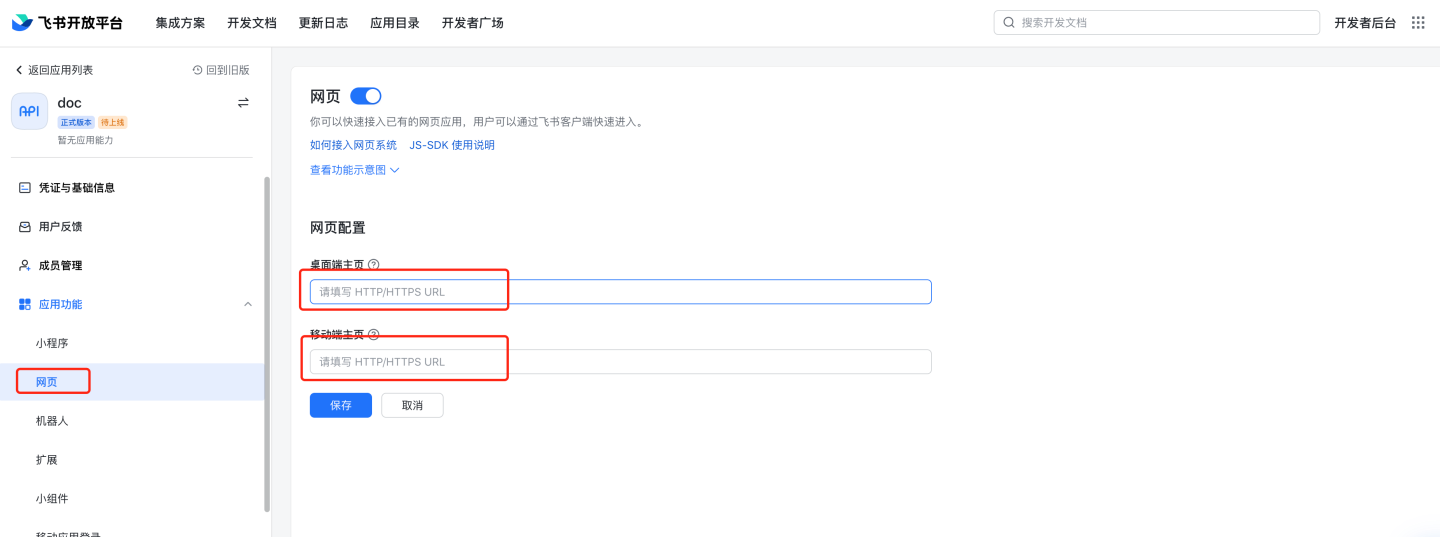
Under Security Settings, configure the Redirect URL:
http://{host}:{port}/lark/callback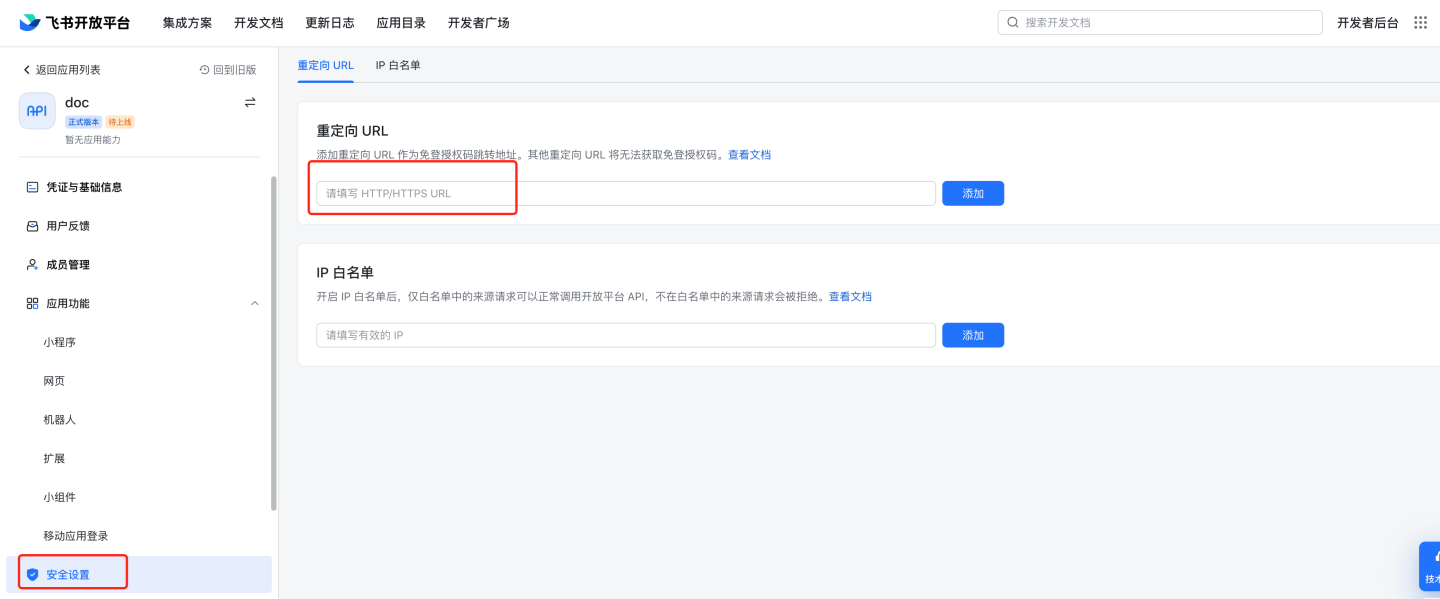
In Permission Management, enable the following scopes:
- Get basic user info (
contact:user.base:readonly) - Get user email (
contact:user.email:readonly) - Get user ID (
contact:user.employee_id:readonly) - Get user phone (
contact:user.phone:readonly)
(See the table below for details.)
The email, user-ID, and phone scopes are optional; if not granted, Feishu will not return the corresponding data.
To synchronize the organizational structure, also grant: - Get department org chart (
contact:department.organize:readonly) - Get tenant info (
tenant:tenant:readonly)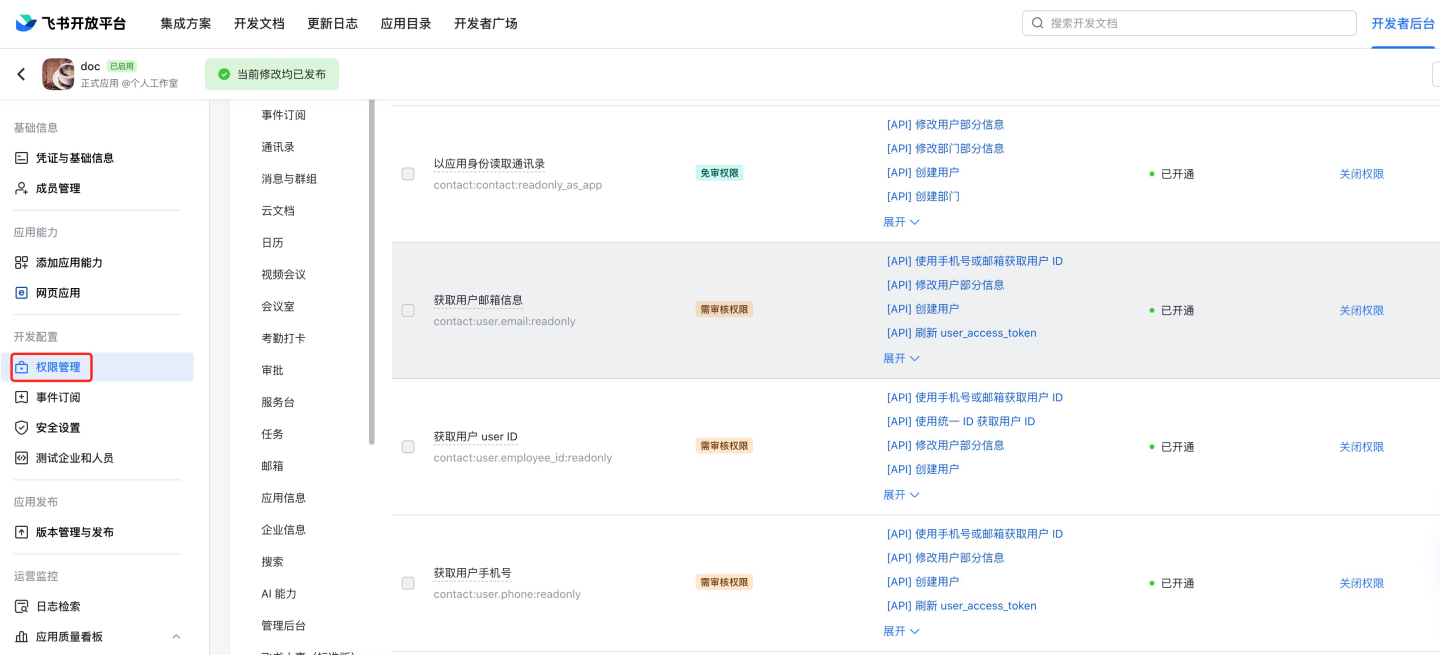
Feishu Required Permission List:
Permission Name Code Description Get basic user info contact:user.base:readonly Get user accessible apps admin:app.user_usable:readonly Get user org info contact:user.department:readonly Get user email contact:user.email:readonly Get user ID contact:user.employee_id:readonly Get user group info contact:group:readonly Get user ID by phone/email contact:user.id:readonly Get user phone contact:user.phone:readonly Get user gender contact:user.gender:readonly Query user job level contact:user.job_level:readonly Query enterprise mailbox mail:user_mailbox:readonly Query personal email corehr:person.email:read Get contact basic info contact:contact.base:readonly Read contacts as app contact:contact:readonly_as_app Get & send single/group messages im:message Required for Feishu message push Send messages as bot im:message:send_as_bot Required for Feishu message push Batch message to dept members im:message:send_multi_depts Required for Feishu message push Batch message to users im:message:send_multi_users Required for Feishu message push Get & upload images/files im:resource Required for Feishu message push Get department org chart contact:department.organize:readonly Required for org sync Get tenant info tenant:tenant:readonly Required for org sync Quickly grant required permissions by searching the following codes in Feishu:
basiccontact:user.base:readonly,contact:contact:readonly_as_app,contact:contact.base:readonly,admin:app.user_usable:readonly,contact:user.department:readonly,contact:user.email:readonly,contact:user.employee_id:readonly,contact:group:readonly,contact:user.id:readonly,contact:user.phone:readonly,contact:user.gender:readonly,contact:user.job_level:readonly,mail:user_mailbox:readonly,corehr:person.email:read,im:message,im:message:send_as_bot,im:message:send_multi_depts,im:message:send_multi_users,im:resource- Get basic user info (
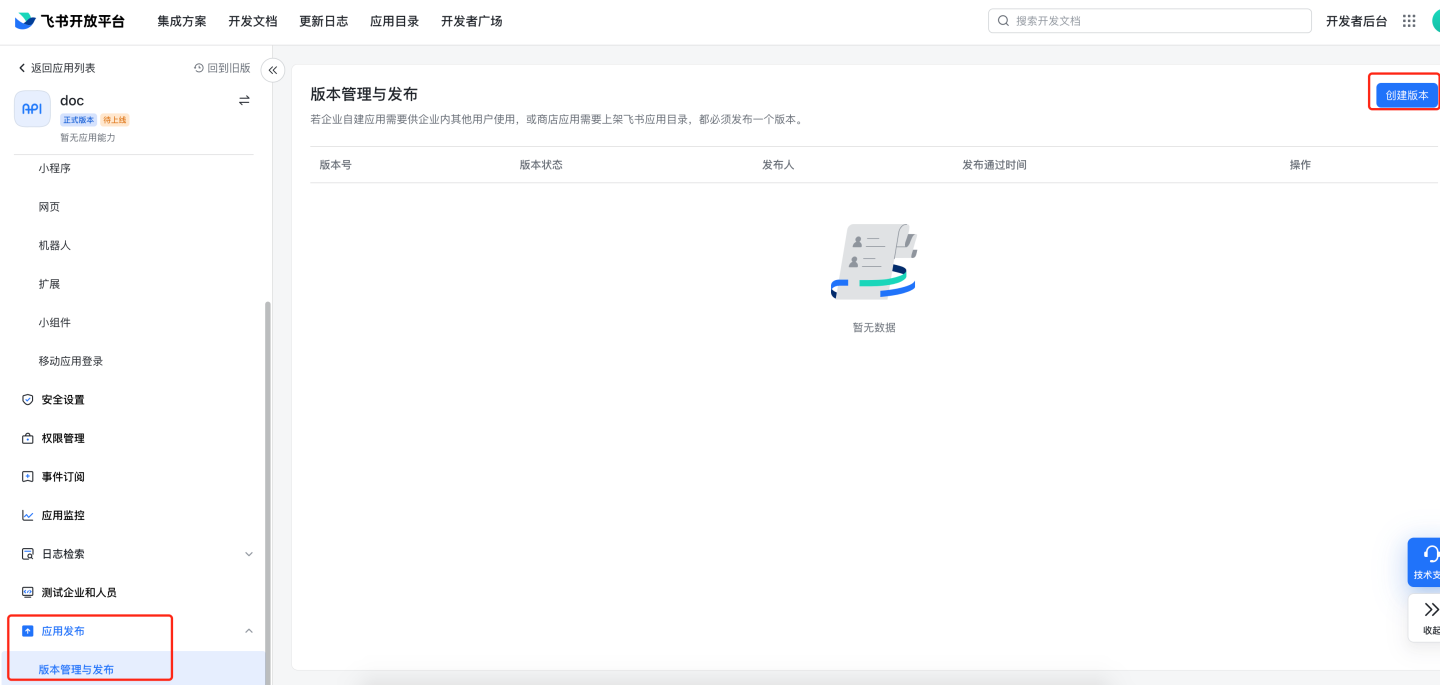
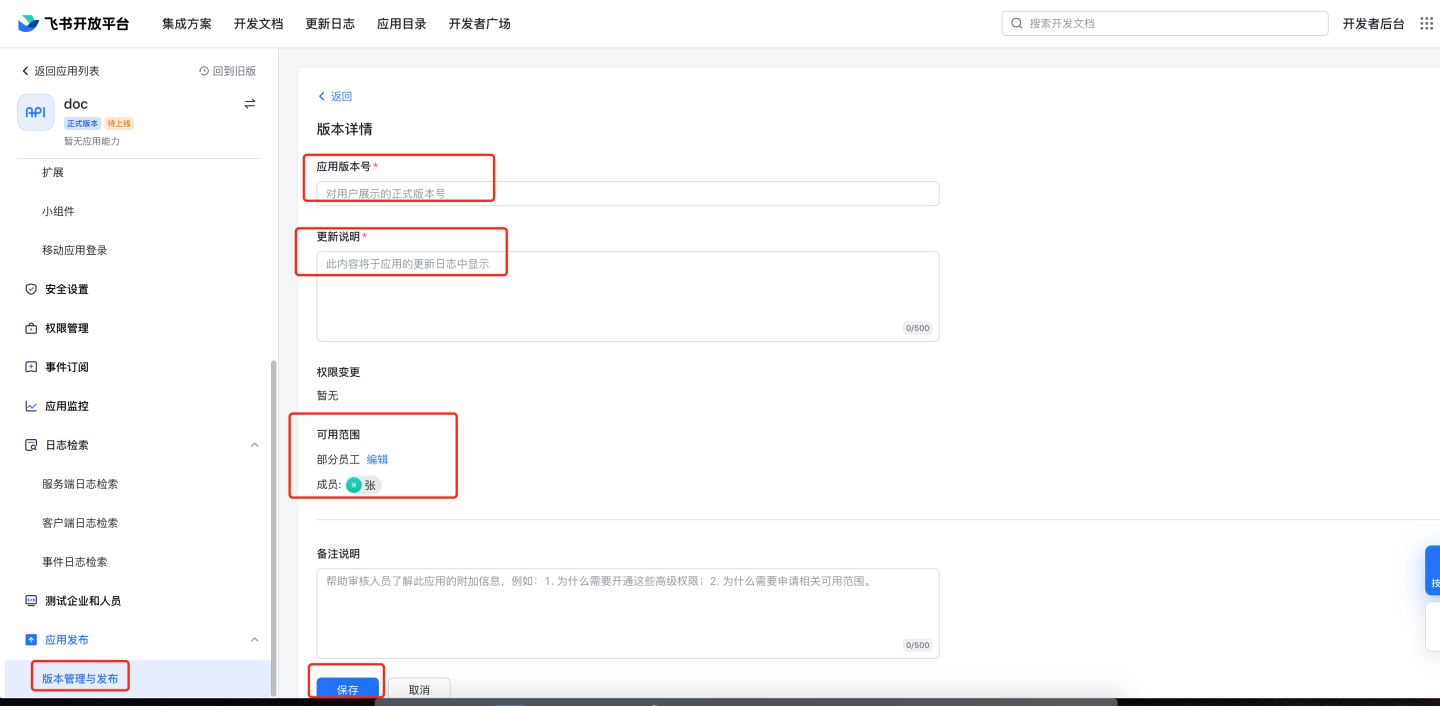
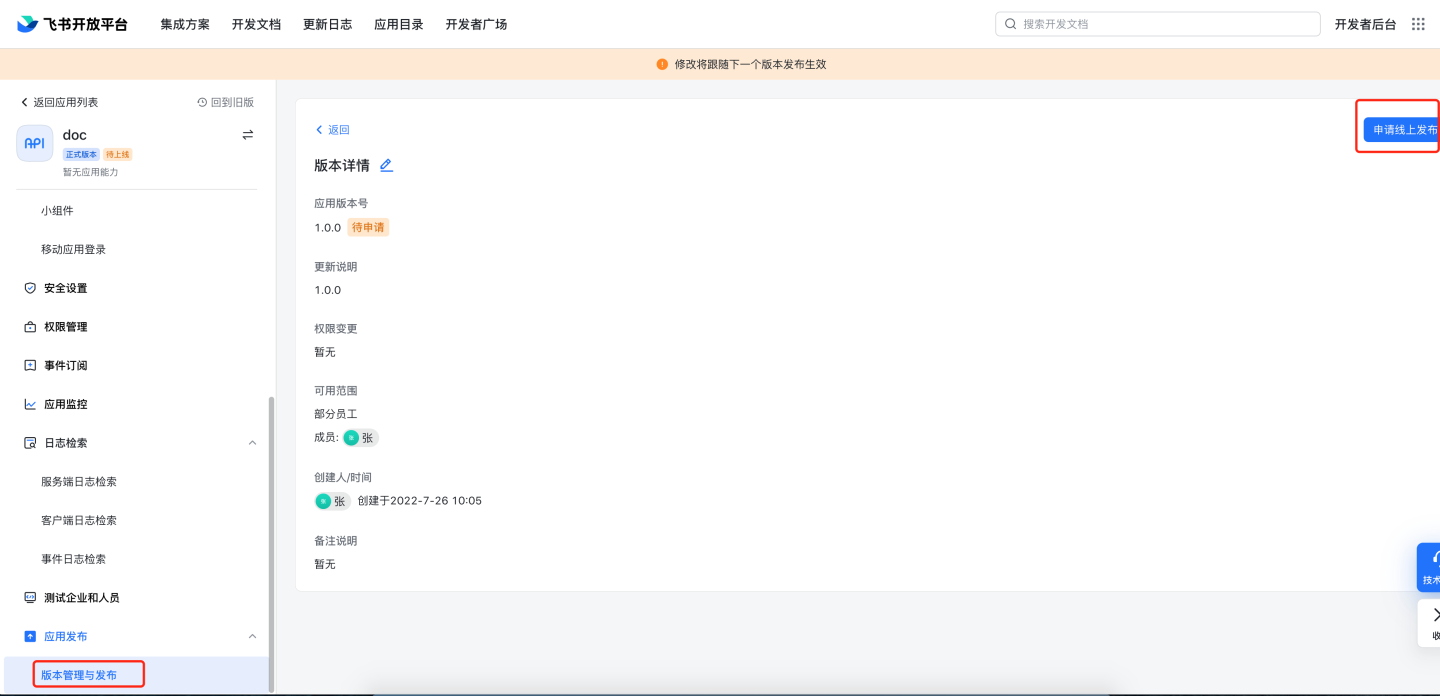
Version Management & Release: create a version, fill in the version number and release notes as required by Feishu, choose the availability scope, and apply for online release.
App review
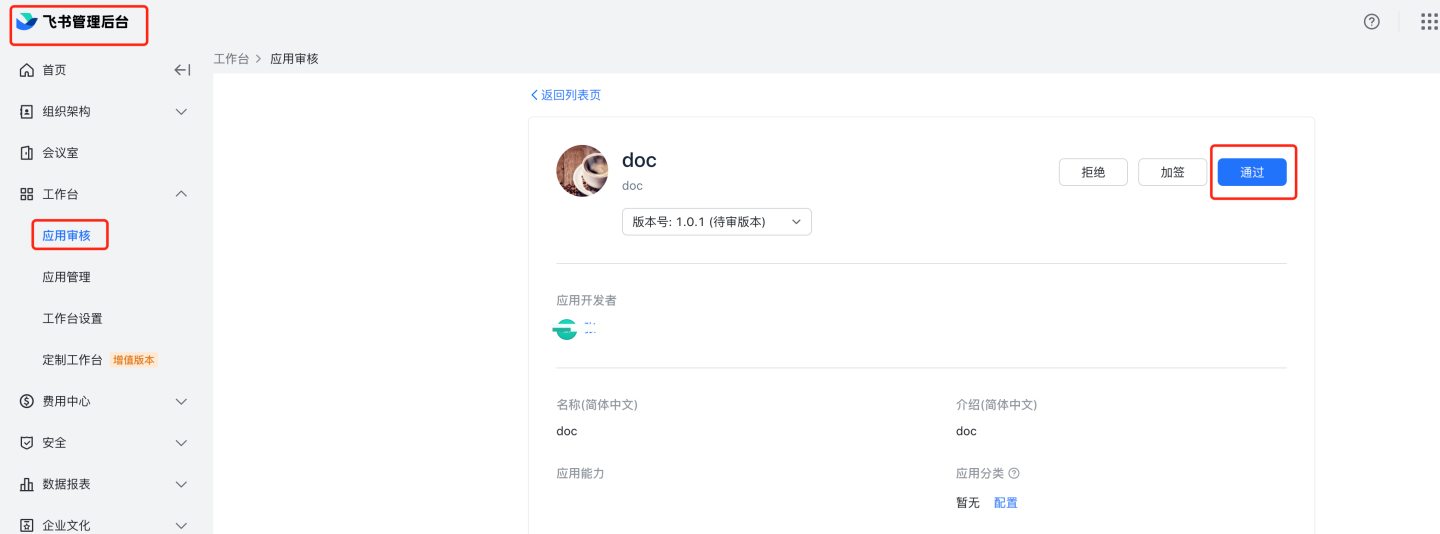
8.1 Manual review: go to Feishu Admin Backendhttps://bc0nlvsmah.feishu.cn/admin/appCenter/audit, select the app to review.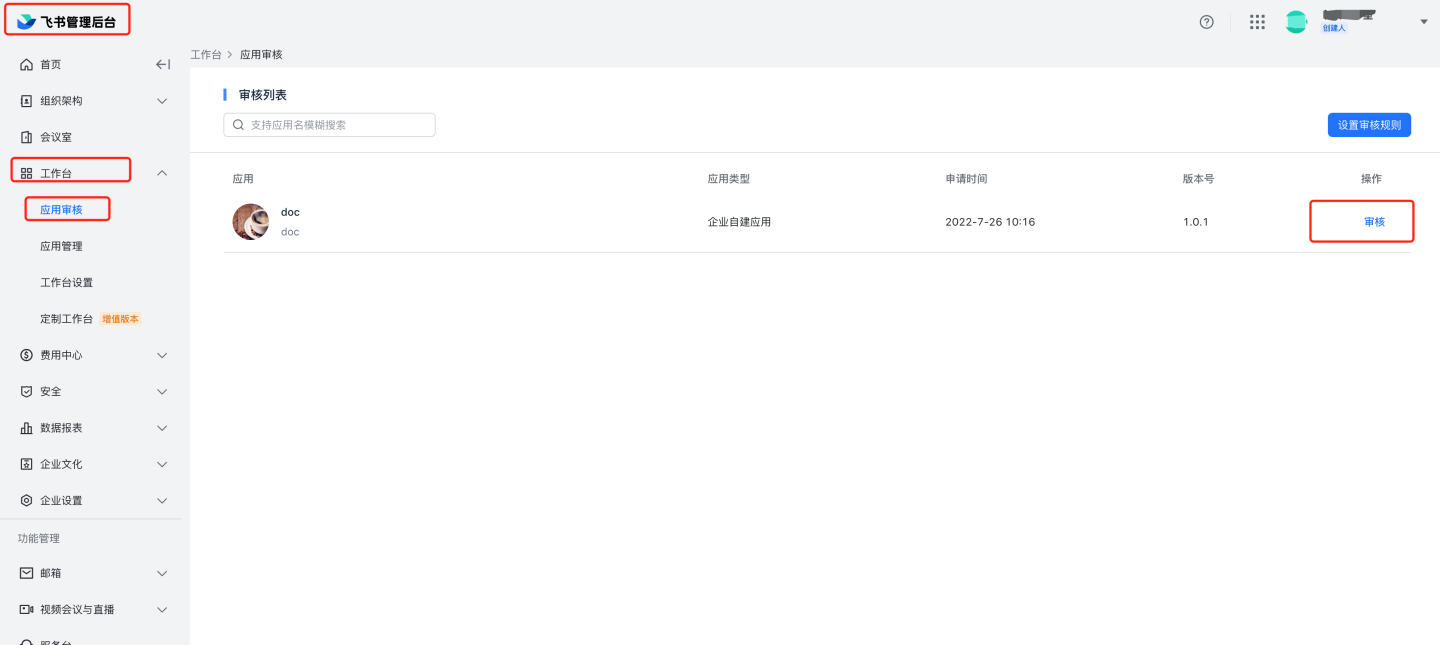
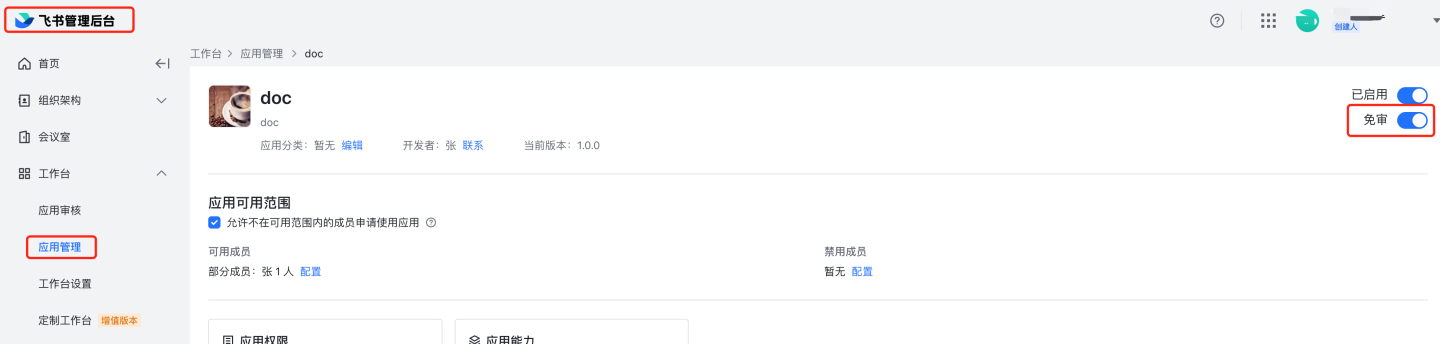
8.2 Auto review: go to Feishu Admin Backend → App Managementhttps://bc0nlvsmah.feishu.cn/admin/appCenter/manage, select the app, click Configure, and enable the auto-approval feature.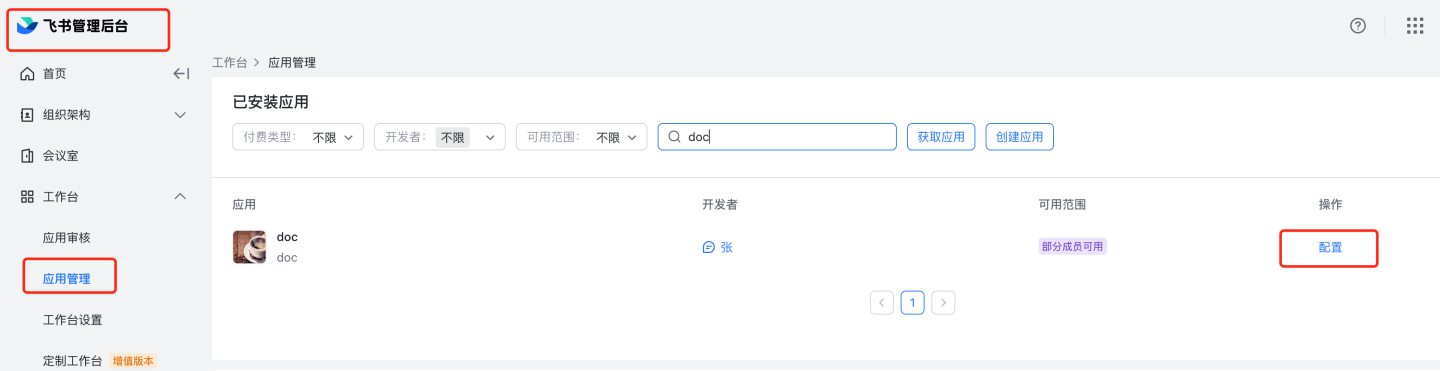
Configure the App ID and App Secret of the Feishu custom app in the system.
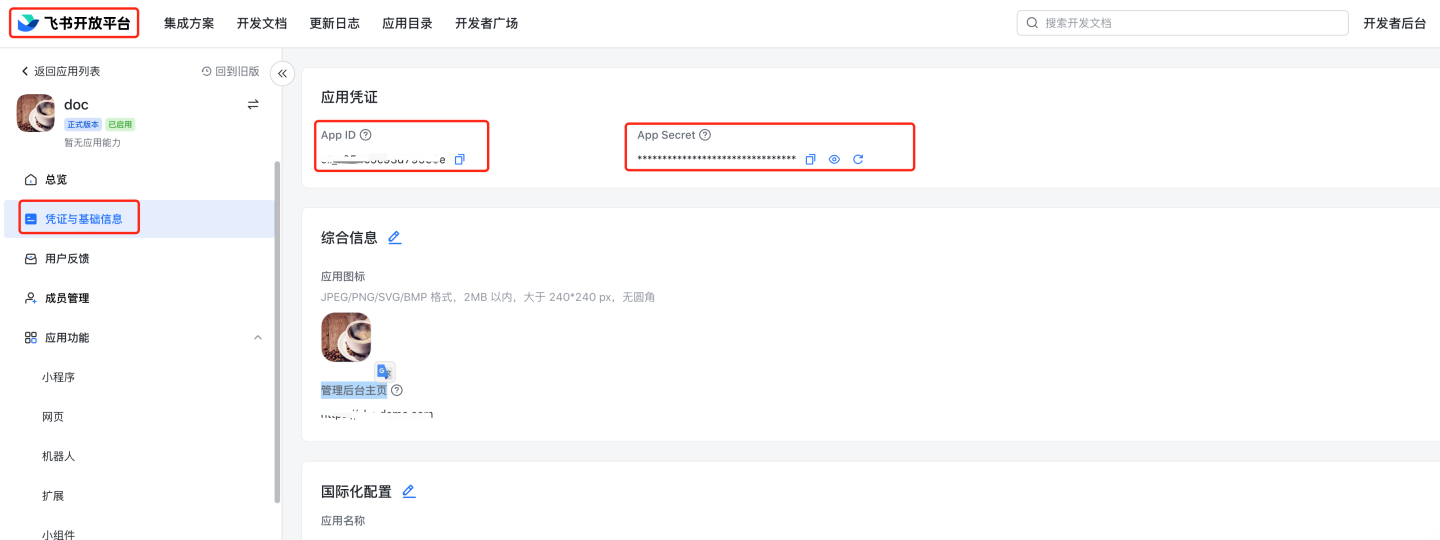
Related Feishu authentication documentation:
- App SSO
- View App ID & App Secret
Open Feishu Open Platform, select the app, and view the App ID and App Secret. - Feishu Admin Backend
https://bc0nlvsmah.feishu.cn/admin/appCenter/manage— SSO into the app
If you filled in the Admin Backend Homepage under Credentials & Basic Info, you can enter the app directly from the Feishu admin backend.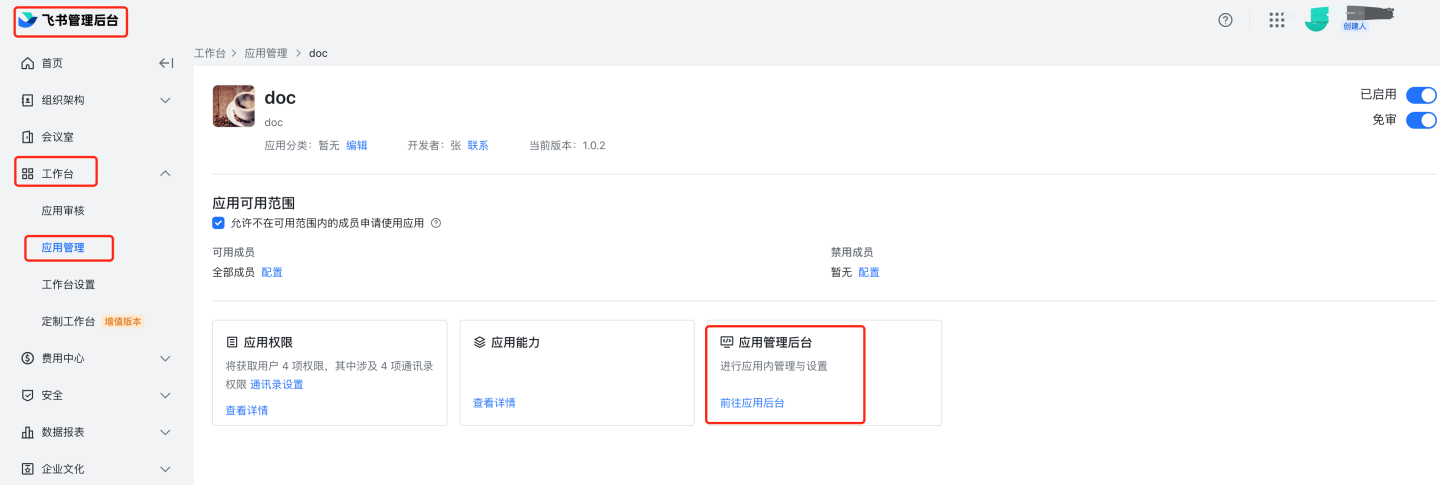
CAUTION
Feishu documentation is subject to change; always refer to the official Feishu docs.
Common Configuration
Some authentication methods (e.g., OAuth2, jwt-param) support mapping configurations for login name, email, phone, etc. Under these authentication methods, these configuration items share the same meaning.
Enable User Attribute Sync: Configure whether to synchronize user attributes.
Username Mapping: A field in the customer system will be used as the login name of the user in the system; it must be unique across the entire system so that the user can be automatically associated upon each login.
Display Name Mapping: A field in the customer system will be used as the display name of the user in the system.
Email Mapping: A field in the customer system will be used as the email of the user in the system; it must be unique across the entire system so that the user can be automatically associated upon each login.
Phone Number Mapping: A field in the customer system will be used as the phone number of the user in the system; it must be unique across the entire system.
Role Mapping: A field in the customer system will be used as the role(s) assigned to the user in the system. You can pass either the role ID or the role identifier; if not provided, the user defaults to “data viewer”. Role identifiers and their corresponding role names are as follows:
- system admin: System Administrator
- data admin: Data Administrator
- data analyst: Data Analyst
- data viewer: Data Viewer
- api admin: API Administrator
Group Mapping: A field in the customer system will be used as the group(s) to which the user belongs in the system. You can pass either the user group ID or the user group name.
Organization Structure Mapping: The organization structure in the customer system can be mapped into HENGSHI SENSE.
Enterprise ID Mapping: When logging in via tenant mode, this field can be used to map the Enterprise ID in the system.
Enterprise Name Mapping: When logging in via tenant mode, this field can be used to map the Enterprise Name in the system.
Platform ID: This field stores the platform ID.
Enable SSO exp Session Expiration Sync: Whether to synchronize the expiration time in the session.
Session Expiration Mapping: The session expiration field; defaults to exp.
JSON example: if the customer system passes the following JSON:
{
  "uniqueName": "zhangsan",
  //unique identifier
  "nickname": "张 san",
  "name": "张三",
  "given_name": "张三",
  "family_name": "张",
  "roles": [
    "data admin",
    //role identifier
    "data analyst"
  ],
  "groups": [
    "group1",
    //user group name
    "group2"
  ],
  "email": "zhangsan@hengshi.com"
}In HENGSHI SENSE, configure the login name mapping as uniqueName
In HENGSHI SENSE, configure the username mapping as name
In HENGSHI SENSE, configure the email mapping as email
In HENGSHI SENSE, configure the role mapping as roles
In HENGSHI SENSE, configure the user group mapping as groups
Authentication Integration Guide
- HENGSHI SENSE supports multiple authentication methods; you can choose the appropriate one for each scenario.
- Regardless of the chosen method, you can always log in with a HENGSHI username and password at: http://{host}:{port}/login.
- Selecting an authentication method can be done either via the configuration page or by passing a URL parameter.
- A method set on the configuration page becomes the default; if no method is specified in the URL, this default is used.
- If a method is explicitly passed in the URL, it takes precedence.
For example, if the configuration page sets the method to HENGSHI but the URL containsactiveAuth=oauth2, OAuth2 will be used for authentication.
Example:
http://{host}:{port}/?activeAuth=oauth2#/- To specify the authentication method for a tenant via URL, pass either
tenantCode={tenantCode}ortenantId={tenantId}.
Example:
http://{host}:{port}/?activeAuth=oauth2&tenantCode={tenantCode}#/Scenario: Using HENGSHI SENSE Directly in the Browser
When users access HENGSHI SENSE in the browser and only one authentication method is available, simply configure the corresponding authentication method and select it.
Scenarios for Embedding HENGSHI Pages via iframe
Users may create Apps directly in the browser using the HENGSHI SENSE system and then embed the HENGSHI Chart view into their own system via iframe, achieving single sign-on (SSO) in the process.
Taking OAuth2 as an example:
Both chart creation in the browser and iframe-embedded chart viewing go through the user’s OAuth Server for SSO.
Simply configure the OAuth authentication method and setreloadUsertofalse.
The iframe embed URL ishttp://{host}:{port}/?reloadUser=true#/.
The parameterreloadUser=trueensures that, after the user logs out of the customer’s main site and switches accounts, HENGSHI re-fetches the currently logged-in user from the OAuth Server when the HENGSHI page is re-entered.
When using HENGSHI SENSE in the browser for chart creation, there is no main-site logout, so there is no need to retrieve the current user from the OAuth Server every time.The user logs in to HENGSHI SENSE via username/password in the browser for chart creation, while the iframe leverages the OAuth Server for SSO.
2.1 Select HENGSHI Authentication as the authentication method; users will log in this way when creating charts in the browser.
2.2 Configure the OAuth2 authentication method, set
reloadUsertofalse, and use the iframe embed URLhttp://{host}:{port}/?activeAuth=oauth2&reloadUser=true#/, enabling SSO for chart viewing.
Embedding HENGSHI Pages in Mobile Micro-Apps
Mobile clients primarily support DingTalk, WeChat Work, and CloudHub.
The way a mobile micro-app embeds HENGSHI pages is essentially the same as embedding HENGSHI pages via iframe; the only difference is that multiple HENGSHI page addresses are configured on the mobile micro-app management page. Taking WeChat Work as an example:
- Select HENGSHI authentication; users log in on the web page with their HENGSHI username and password to create charts.
- Configure the HENGSHI embed address in the WeChat Work self-built app management page:
http://{host}:{port}/?activeAuth=wechat-work&wcwLoginType=oauth2#/,
then users can access HENGSHI without logging in again on either mobile or desktop clients.