

Dataset Management
A Dataset is the foundation of data modeling and the primary reference for data analysts when performing data analysis. A Dataset contains fields, metrics, and data, providing a detailed description of granular data and allowing analytical metrics to be defined on top of it.
Dataset Display
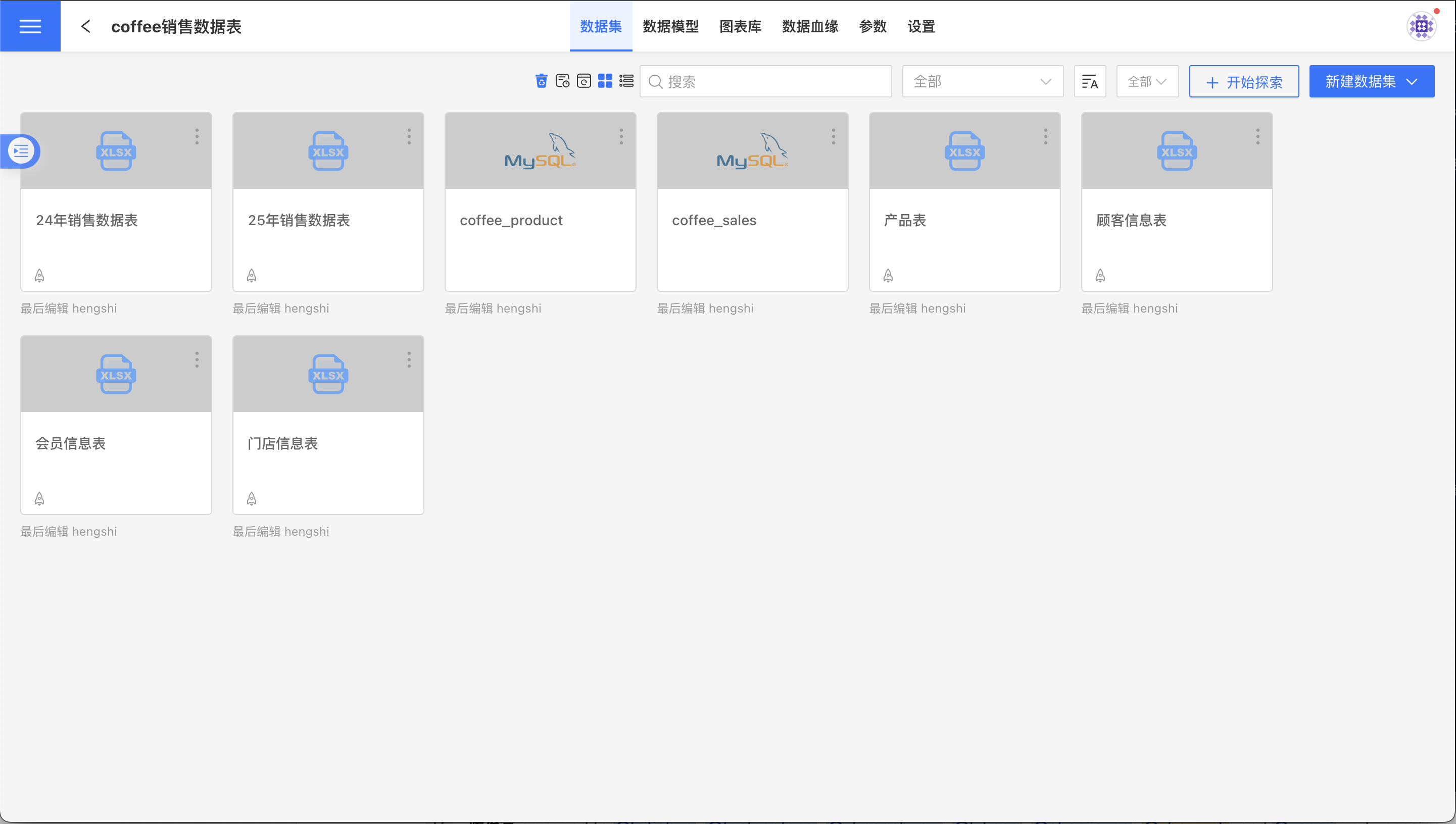
Click the Dataset menu in the App to enter the Dataset display page. The Dataset list offers two view styles: the default card style and a list style.
Card Style
List View
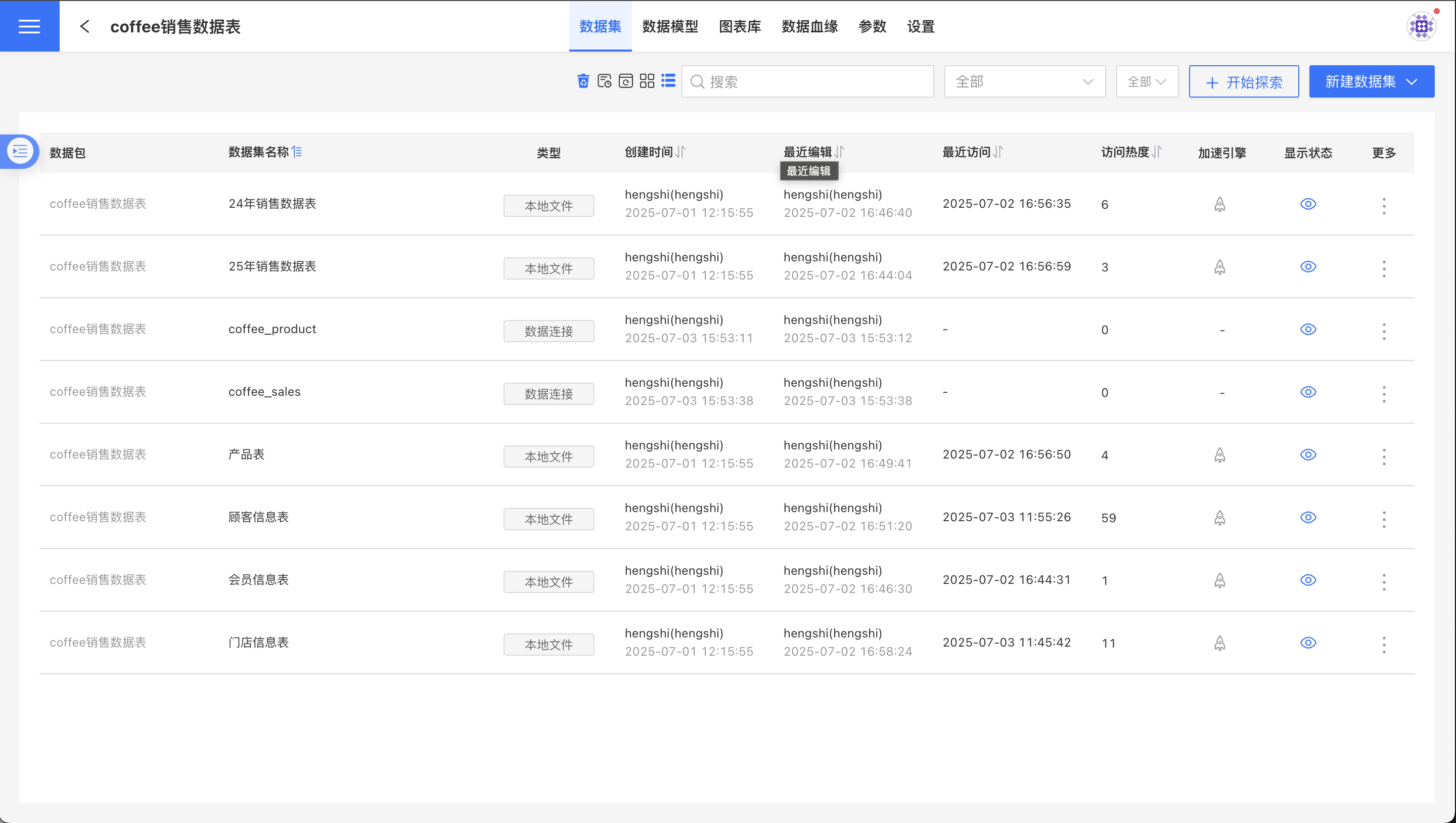
Click the list button to switch to list view.
In list view, both Access Heat and Last Access Time are provided so users can keep track of resource usage and clean up resources that have not been accessed for a long time.
Sorting
By default, the Dataset list is sorted in descending order by last modified time.
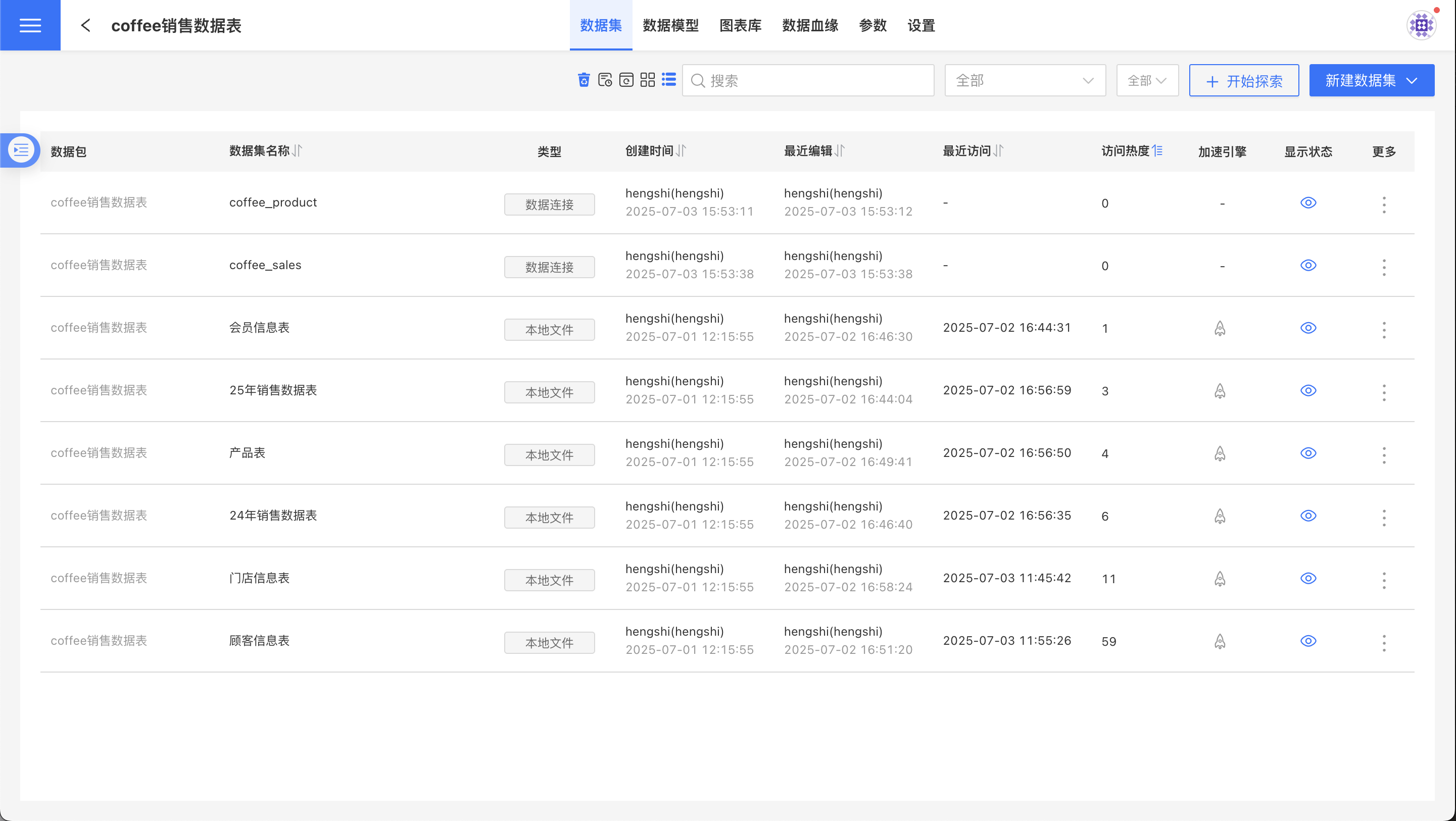
In list view, click any column header to sort; for example, the image below shows sorting by Access Heat:
Search
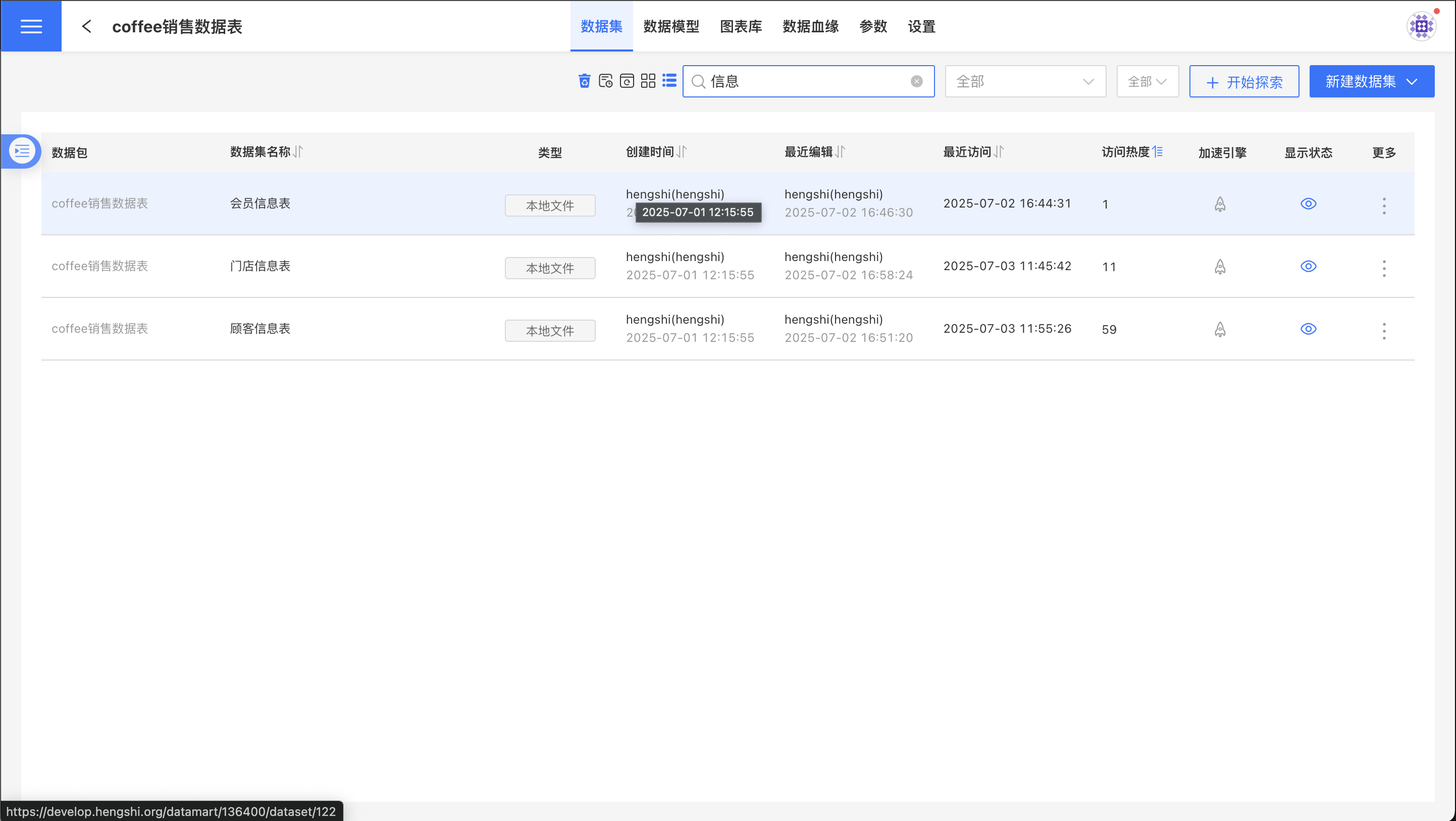
Enter characters in the search box to filter Datasets whose names contain the entered characters.
Dataset Operations
The entry point for creating a new Dataset is the menu in the upper-right corner of the Dataset list; all actions for an individual Dataset are located in the three-dot menu on its card.
Create Dataset
Create Blank Dataset
Click the New Dataset button in the upper-right corner to create a dataset; see Create Dataset for details.
Import Dataset
Click the New Dataset button in the upper-right corner and choose Import Dataset from the drop-down menu. This allows you to import Datasets from other Apps or data packages.
Tip
- Only Local File, Data Connection, and SQL Query Datasets support this feature, so the import list may not contain all Datasets in the App.
- After import, Dataset metrics and related data models will not be carried over to the new App.
- When the App’s data permission is set to Consumer, Datasets with the acceleration engine enabled cannot be imported.
Deletion
When deleting a Dataset, if it is already referenced by a Model or Chart, it cannot be deleted; only unreferenced Datasets can be removed. In this case, the Dataset is simply moved to the in-app Recycle Bin and is not permanently deleted.
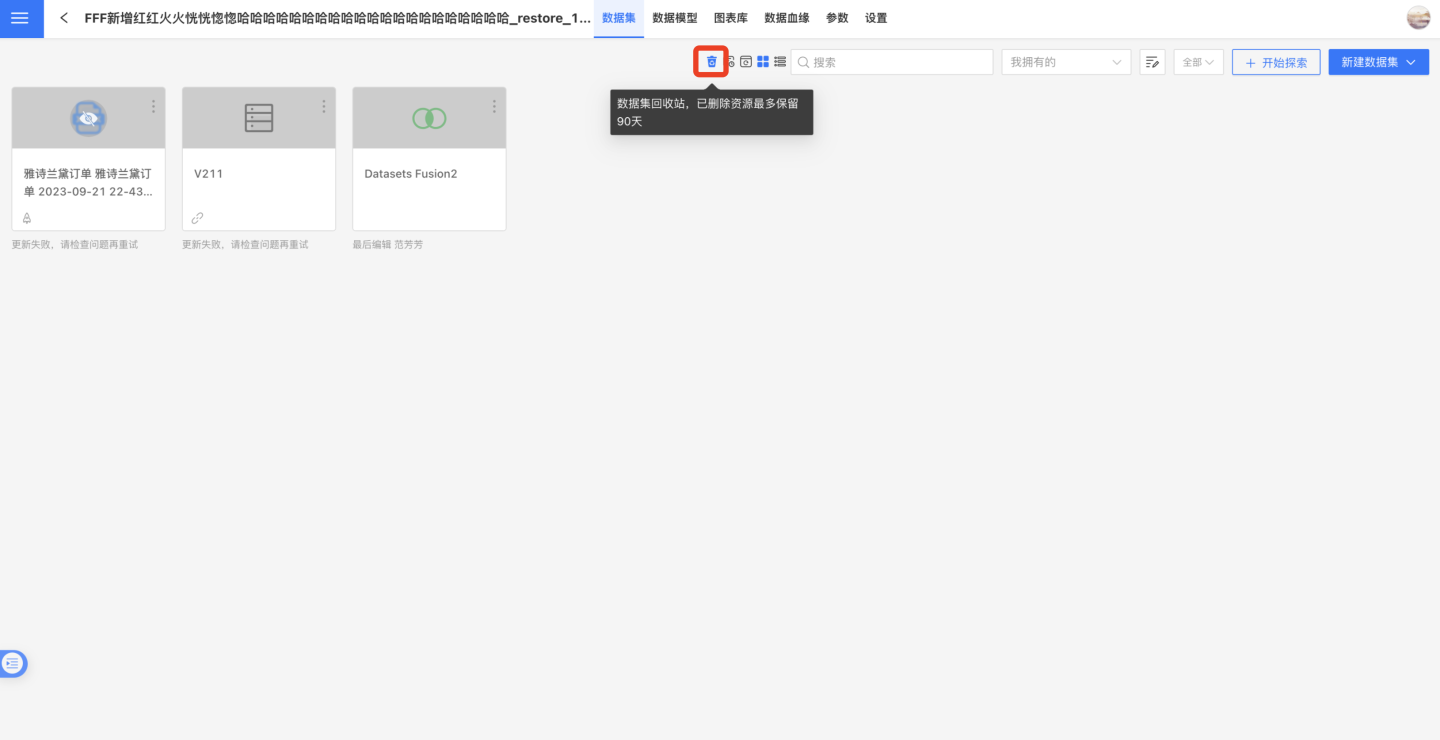
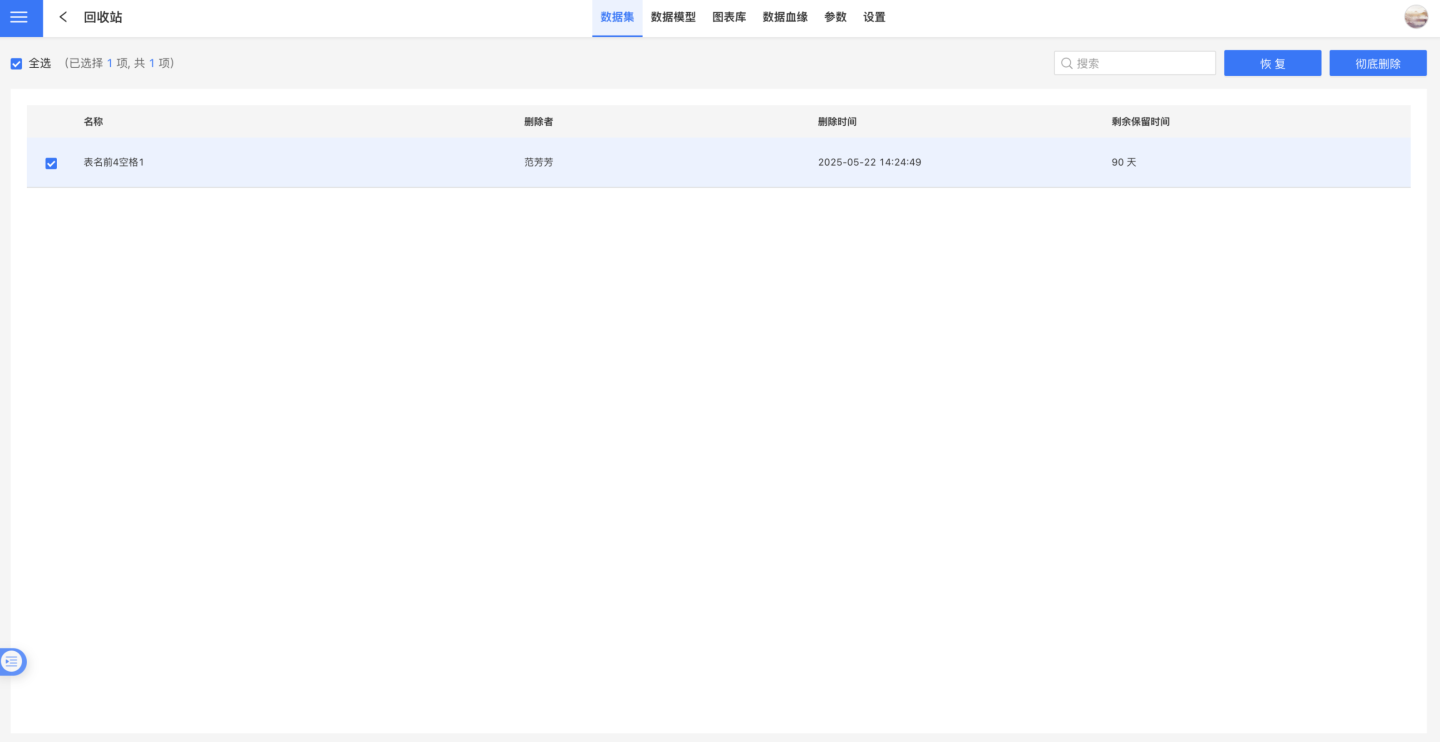
Datasets in the in-app Recycle Bin can be restored or permanently deleted; resources in the Recycle Bin are retained for a maximum of 90 days. Only users with App management or App editing permissions can see the Recycle Bin entry.
Rename
You can rename a Dataset to better align it with your business logic.
Create a Copy
Create a copy of the Dataset to generate a new Dataset.
Copy To
Copy To allows you to duplicate a Dataset into another App or Data Package, enabling cross-App reuse of Datasets.
Tip
- Only Local File, Data Connection, and SQL Query Datasets support this feature; other Dataset types do not.
- When a Dataset is copied to another App, Business Metrics, atomic metrics not created by the model, and the Dataset’s related Data Models will not be copied.
- If an Engine-enabled Dataset is copied to another App, that App’s data permission must be set to either App Author or Dataset Author mode.
Replace Dataset
To replace a Dataset, refer to Replace Dataset.
Hide
After processing a Dataset, some intermediate Datasets may no longer be needed when creating Charts. In this case, you can hide them so they will not appear during Chart creation.
Hidden Datasets can still participate in Relationship Models or Dataset processing; they are simply invisible on the Dashboard and Chart pages.
Once a Dataset is hidden, the Hide option in the three-dot menu changes to Show. Clicking Show will make the Dataset visible again.
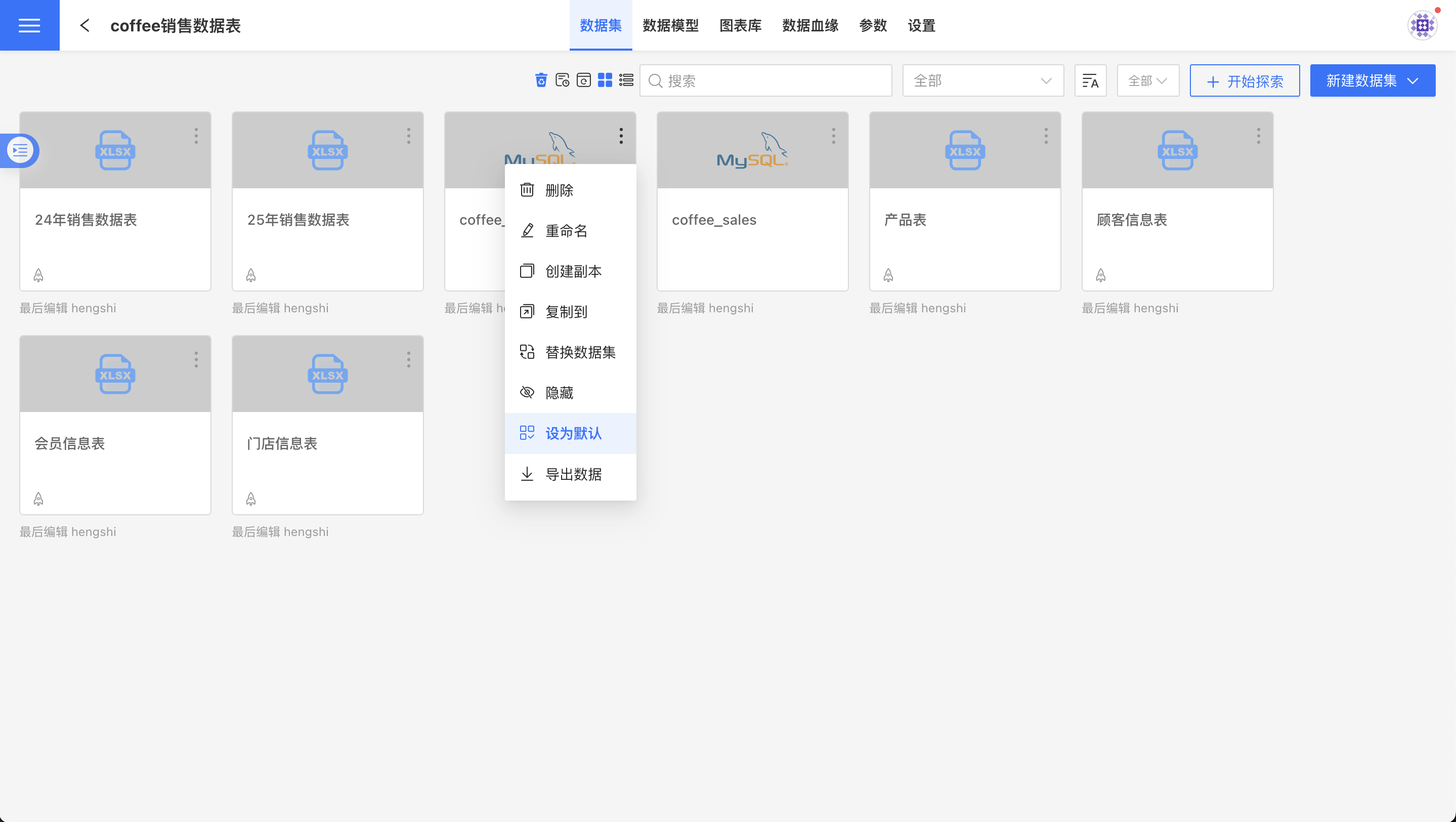
Set as Default Dataset
The system allows you to designate a Dataset as the default. During chart creation, the default Dataset in the data package will be displayed, reducing the need to switch or search for Datasets.
Data Management
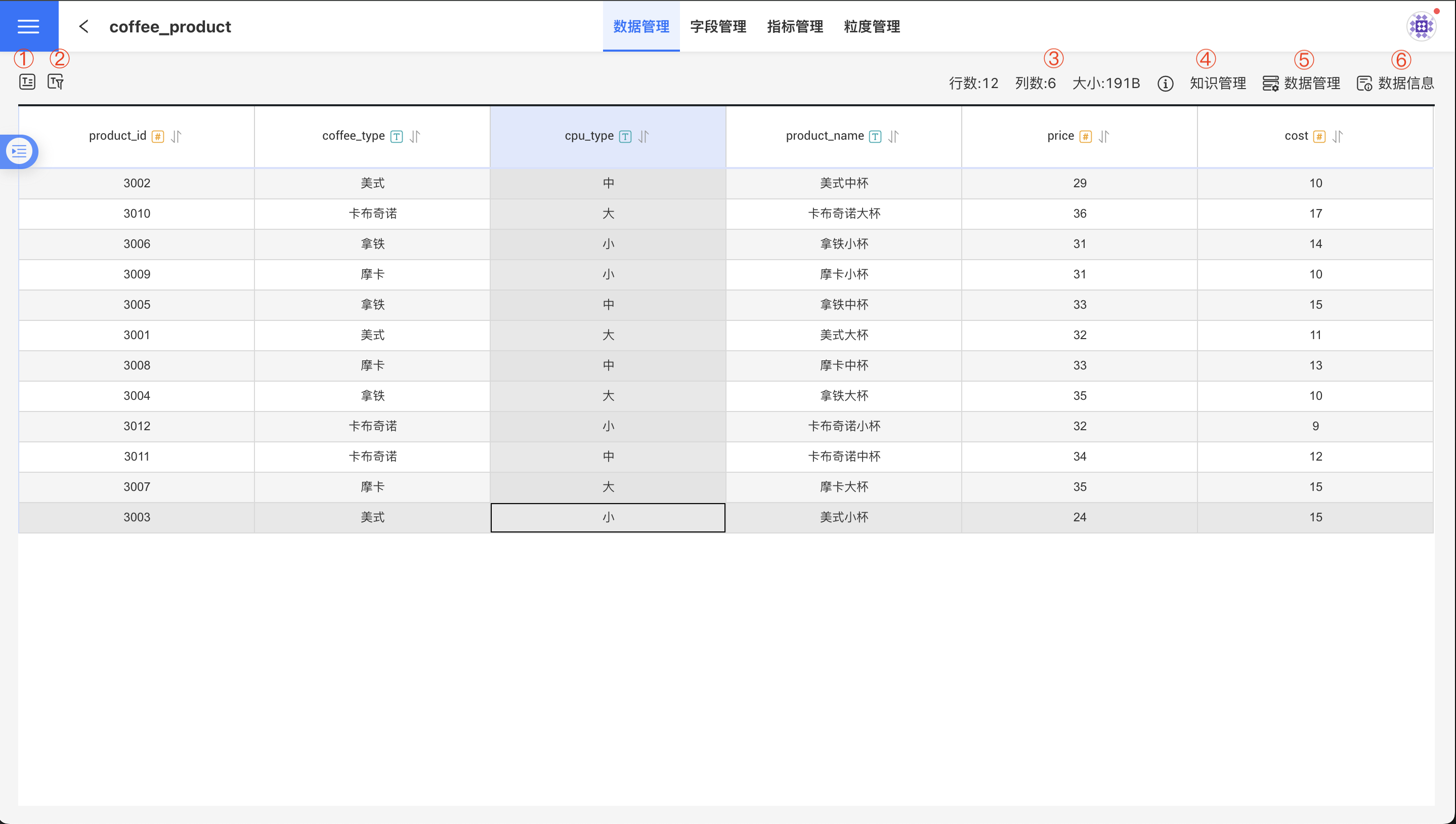
Clicking a single Dataset in the Dataset list takes you to that Dataset’s data management page. It presents a two-dimensional table that displays the Dataset’s column headers and a sample of the data. Above the column headers sits the Dataset’s action menu.
Field Selection
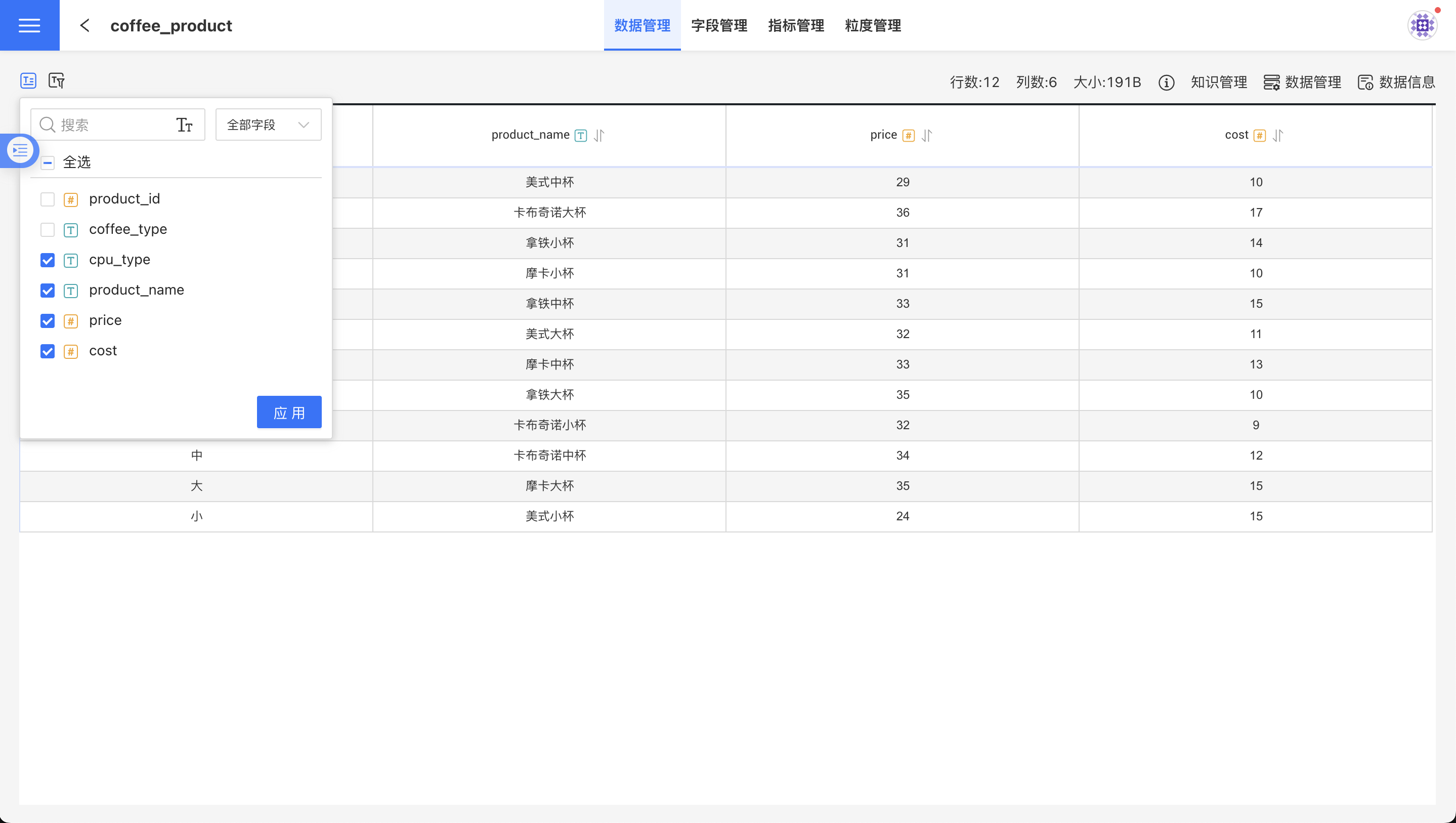
Corresponds to icon ① on the data management interface. Click the Field Selection icon to open the field selection list, choose the fields you care about, and then click Apply; the Dataset page will display the data for the selected fields.
Filter Data
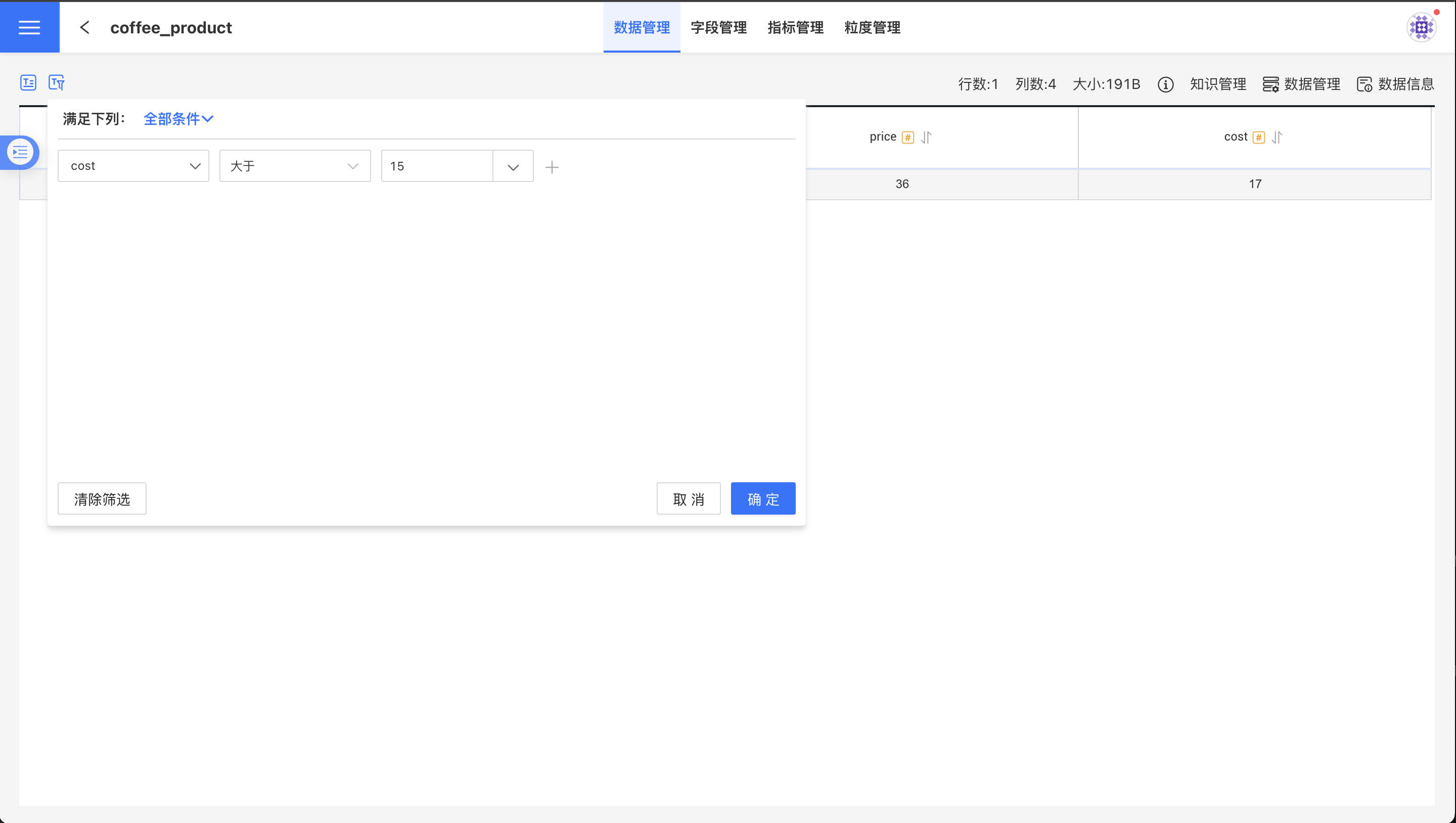
Corresponds to icon ② on the data management interface. Click the Filter Data icon to open the data-filter dialog, add filter conditions inside the dialog, then click OK; the Dataset page will display the filtered data.
Information Display Area
Corresponds to area ③ of the data management interface. It shows the row count, column count, and estimated storage size of the Dataset. Only Direct-Connect Datasets and Import-Engine Datasets display the estimated storage size. This estimate is calculated from the Dataset’s row count and row values and is provided for reference only; it does not represent the actual storage size in the database.
Knowledge Management
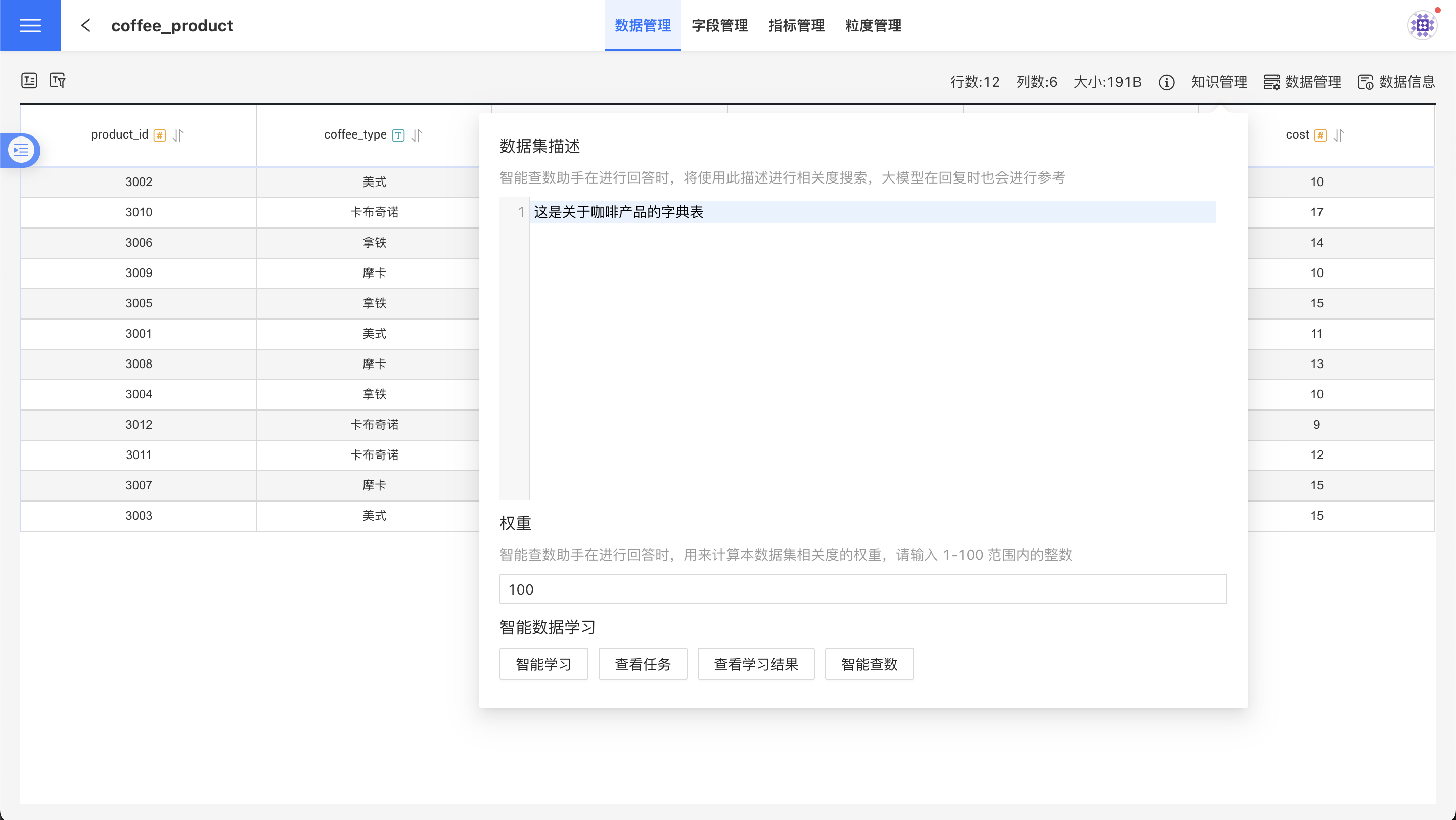
Corresponds to icon ④ in the data management interface. Knowledge Management is designed to improve the accuracy of Dataset usage in AI analytics and includes the following features:
- Edit
Dataset Description: the Intelligent Data Assistant uses this description for relevance search when answering, and the large model also refers to it when generating responses. - Edit
Weight: used by the Intelligent Data Assistant to calculate the relevance score of this Dataset. The weight is an integer between 1 and 100. - Trigger an
Intelligent Learningtask to extract knowledge from the Dataset content, enhancing the accuracy of the Dataset when the Intelligent Data Assistant answers questions. You can alsoView Task,View Learning Results, and directly start theIntelligent Data Queryfunction for the current Dataset.
Data Management
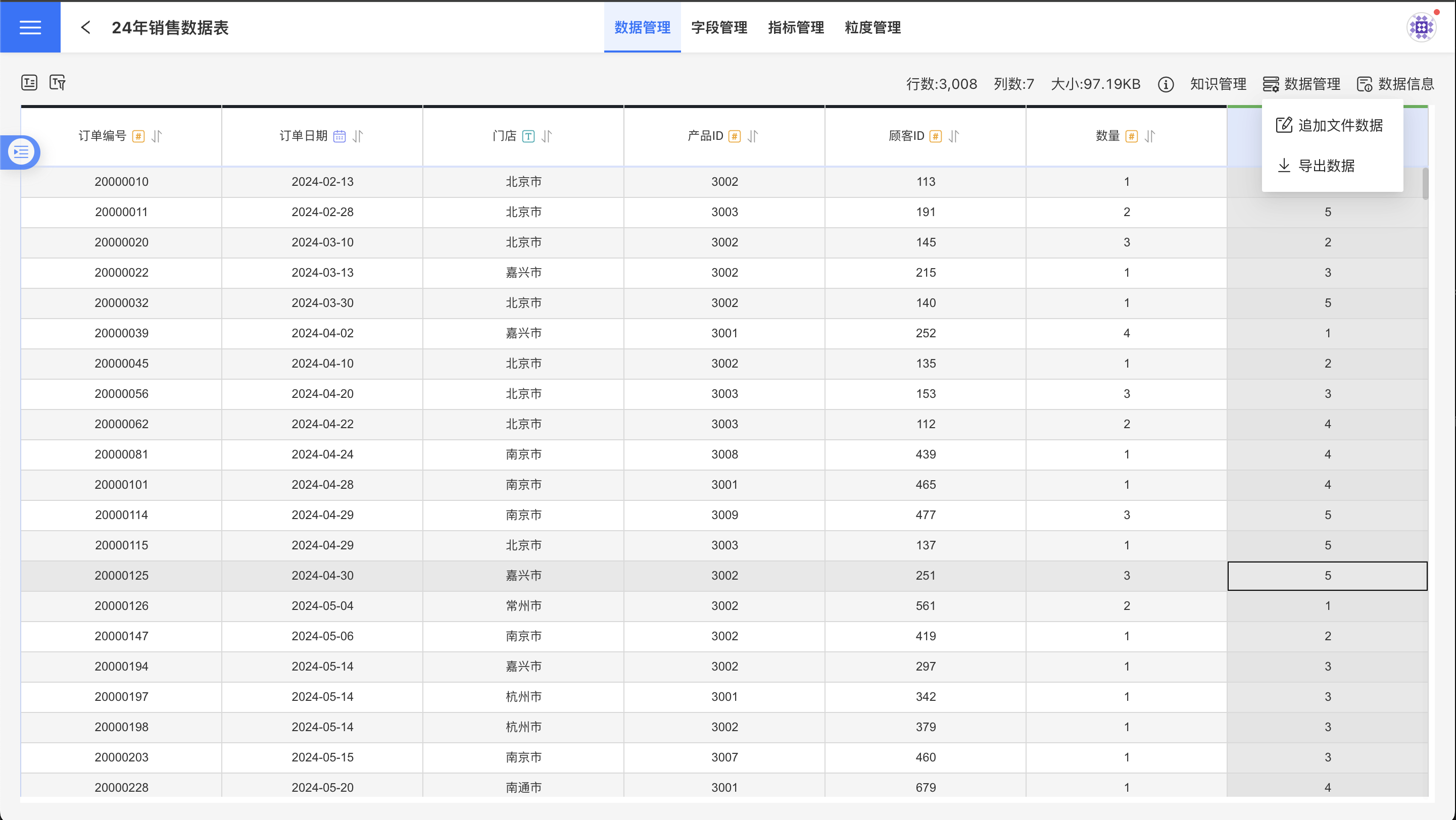
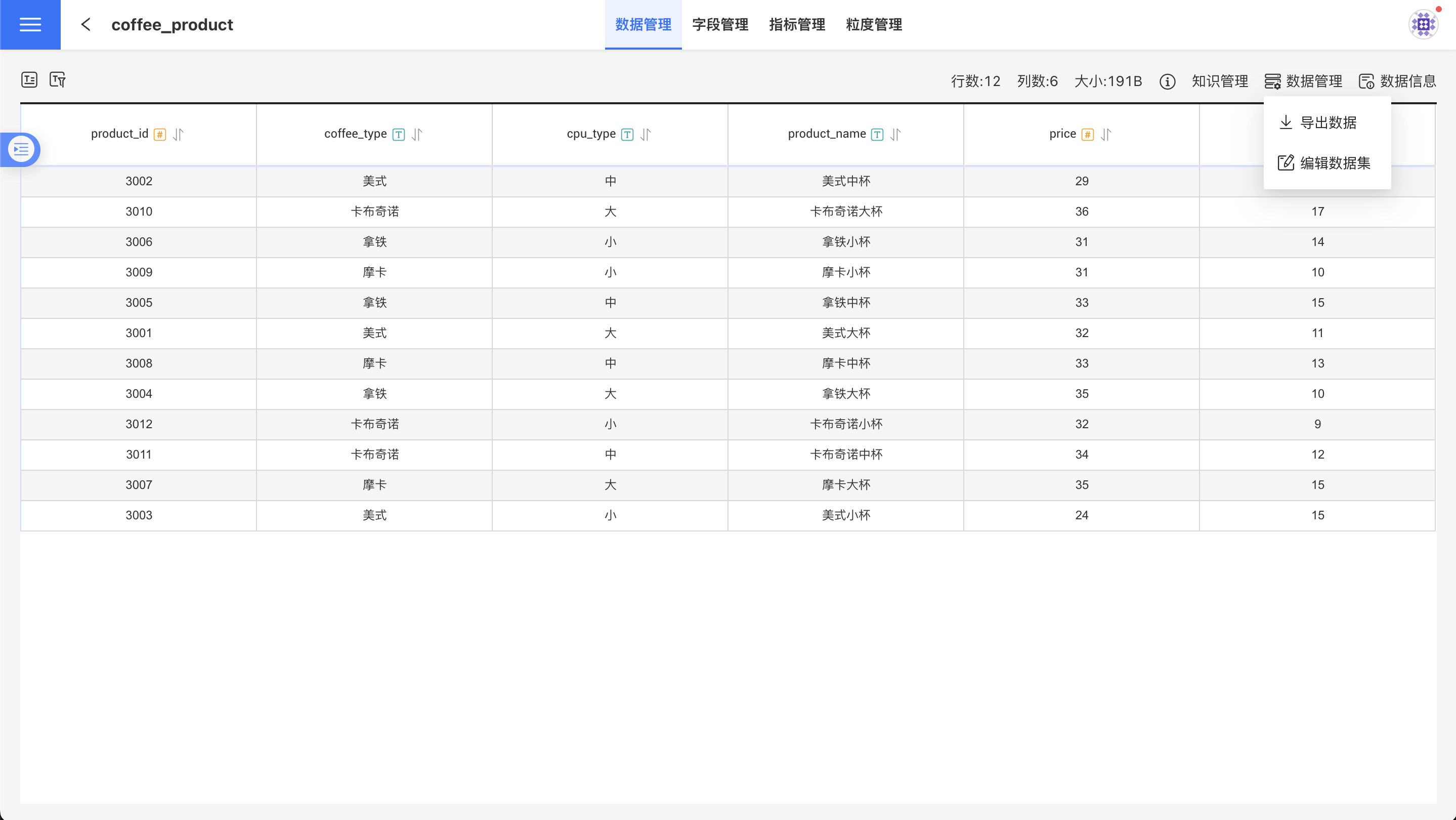
For file-type Datasets, the Data Management menu offers the functions Append File Data and Export Data. The Export Data function exports the Dataset’s data into an Excel file.
For non-file-type Datasets, the Data Management menu provides the functions Edit Dataset and Export Data. When editing a Dataset, a reference check is performed; fields already referenced elsewhere cannot be removed and must be retained.
Data Information
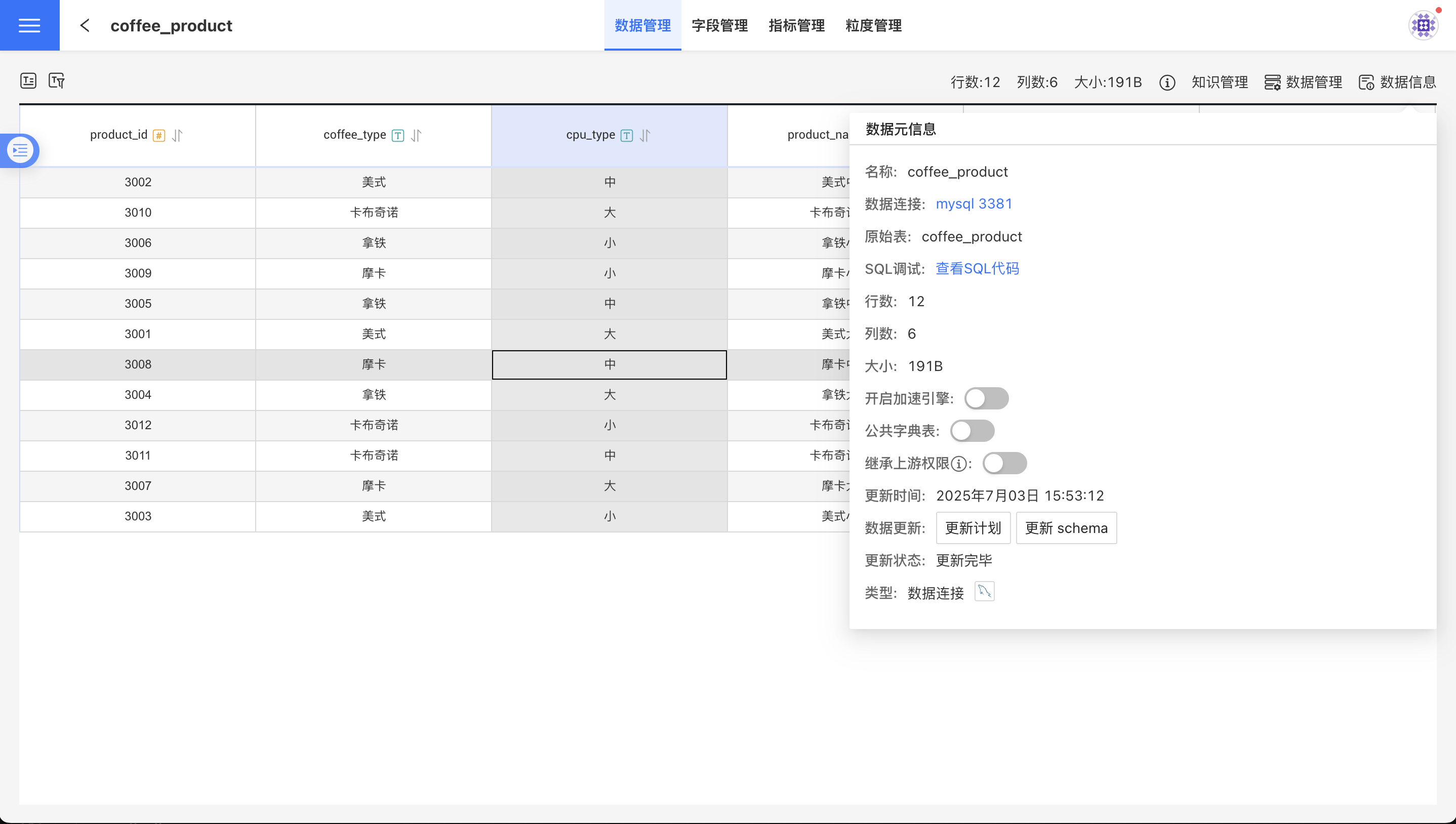
The Data Information panel displays the dataset’s metadata, including:
- Dataset Name
- Dataset Type: Text indicates the source of the dataset—data connection, local file, SQL query, etc.—while the icon shows the storage type.
- Data Connection: The connection used by the dataset.
- Rows / Columns / Size: Shows the current space occupied by the dataset in the system.
- Original Table: The name of the original table for data-connection datasets.
- Engine Table: For datasets whose storage type is “engine connection,” the table name inside the engine.
- Enable Acceleration Engine: Toggle to turn the acceleration engine on/off.
- Public Dictionary: When enabled, modeling across different data sources is allowed. The public-dictionary table must contain only numeric, text, or date columns, and the total row count cannot exceed 500.
- Inherit Upstream Permissions: When enabled, transformation datasets (multi-table joins, aggregations, unions, pivot, unpivot) inherit permission settings from their upstream datasets. This feature is disabled if the current dataset—or any of its downstream datasets—has already been imported into the engine.
- Last Updated: The timestamp when the dataset content was last updated.
- Data Refresh:
- Refresh Now: For engine-imported datasets, triggers a refresh task that re-inspects the data source and regenerates the information required for data exploration. For live-connection datasets, it refreshes metadata only.
- Refresh Schedule: Configure scheduled refreshes; see Refresh Schedule.
- Refresh Status: Indicates the result of the most recent refresh operation—completed, failed, pending, or in progress.
Field Management
Field management mainly involves operations on fields, such as field grouping, creating new fields, and modifying field types. For details, see Field Management.
Metric Management
Metric Management allows you to perform operations on Dataset metrics, including creating new metrics and grouping metrics. For details, see Metric Management.