

Page Settings
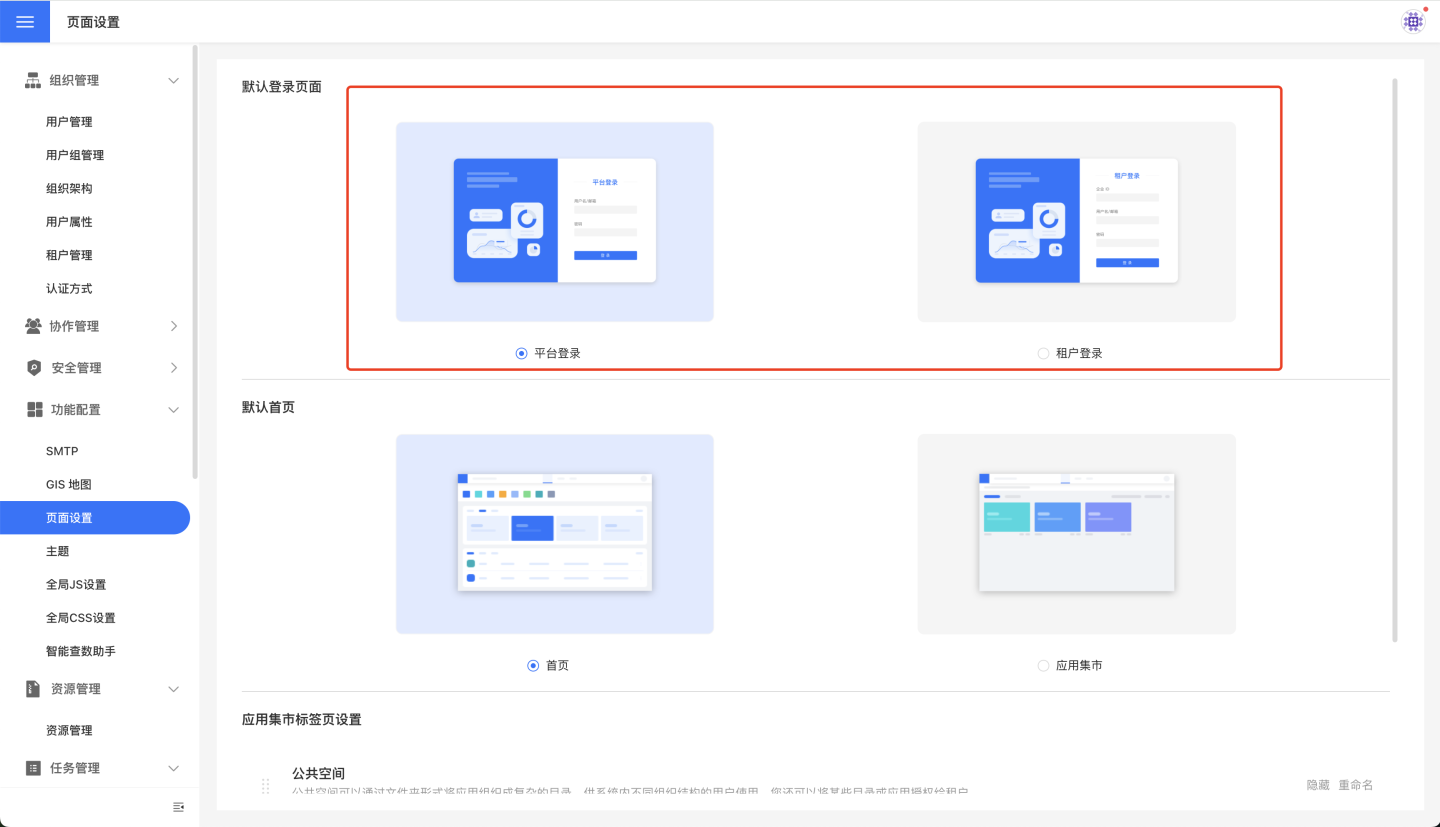
Default Login Page
The default login page is the first page a user sees after logging into the HENGSHI system with default HENGSHI authentication. It can be set as either the platform login page or the tenant login page.
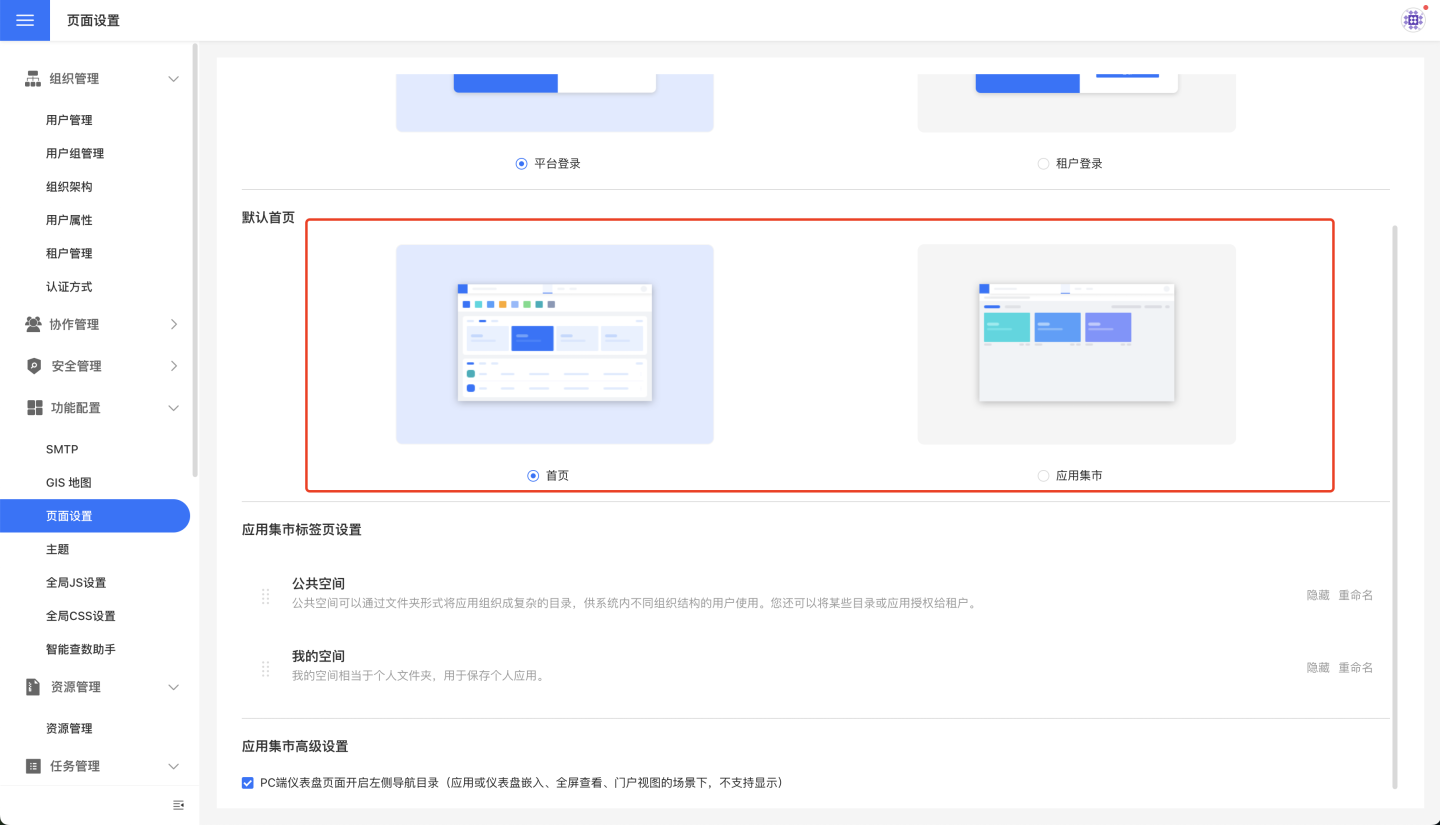
Default Home Page
The default home page setting determines what is displayed after logging into HENGSHI SENSE. You can choose to show the home page or the App Market page.
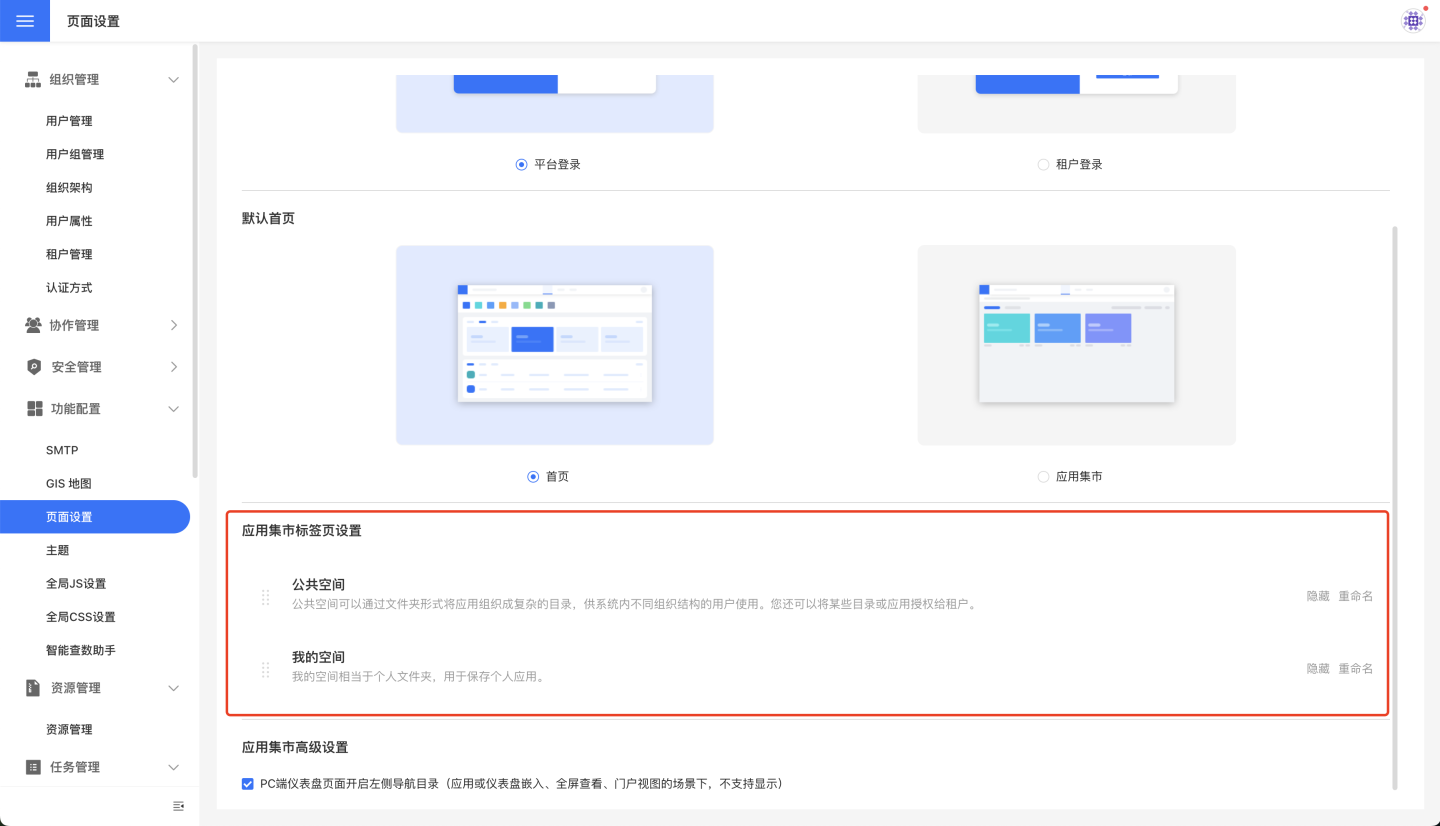
App Marketplace Tab Settings
Based on actual business needs, the App Marketplace administrator can configure tabs in the App Marketplace under Settings -> Feature Configuration -> Page Settings, including defining tab names, adjusting the display order, and hiding tabs. Regular users do not have permission to configure tabs.
- Rename: Supports renaming
My SpaceandPublic Space. All references to these spaces throughout the system will be updated automatically. - Hide/Show: In some business scenarios,
My SpaceorPublic Spacemay not need to be displayed; these spaces can be hidden. - Adjust Display Order: Supports adjusting the order in which spaces are displayed. By default,
My Spaceis shown first; you can drag tabs to reorder them.
Tenant-Side Label Settings
Similar to the platform side, App Market administrators on the tenant side can also configure pages. The difference is that, in addition to the “Public Space” and “My Space,” tenants have an extra tab called “Platform Space,” which hosts report resources shared by the platform side. All three tenant spaces support renaming, hiding/showing, and reordering.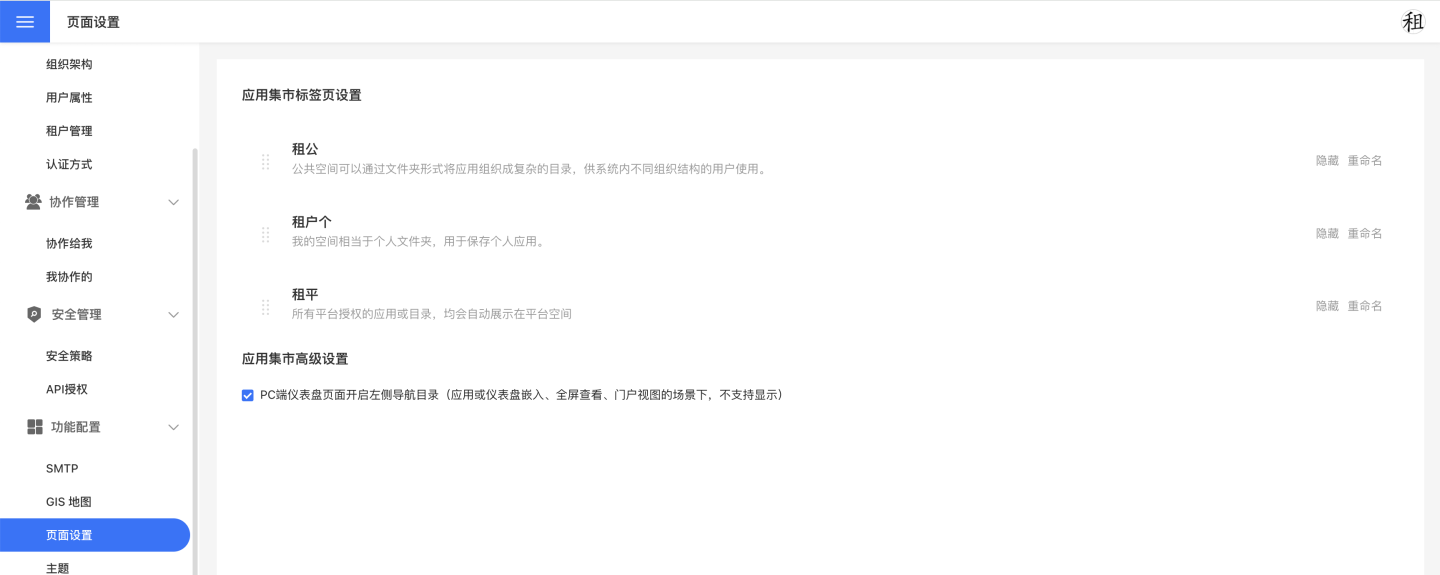
App Creation Tab Settings
To meet the personalized needs of different enterprises, the "App Creation" module now supports custom configuration for the "My Creation" and "Team Space" tabs. System administrators can flexibly adjust the display status and names of the pages according to actual business scenarios.
Configuration Path: Settings > Feature Configuration > Page Settings > App Creation Tab Settings
Supported Operations:
- Rename: Supports renaming "My Creation" and "Team Space". All references to these spaces in the system will be updated accordingly.
- Hide/Show: You can choose to hide or show the "My Creation" or "Team Space" tabs based on business needs.
- Adjust Display Order: Supports adjusting the display order of tabs. By default, "My Creation" is displayed first, but you can drag and drop tabs to change the order.
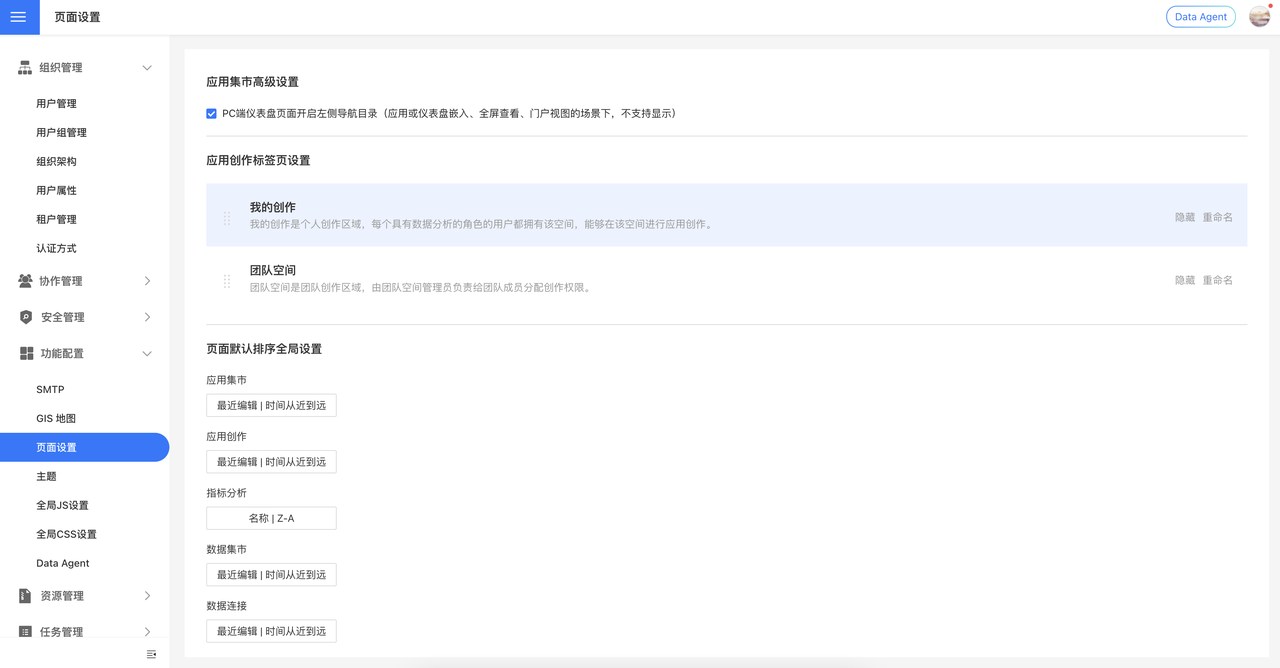
Global Default Sorting Settings for Pages
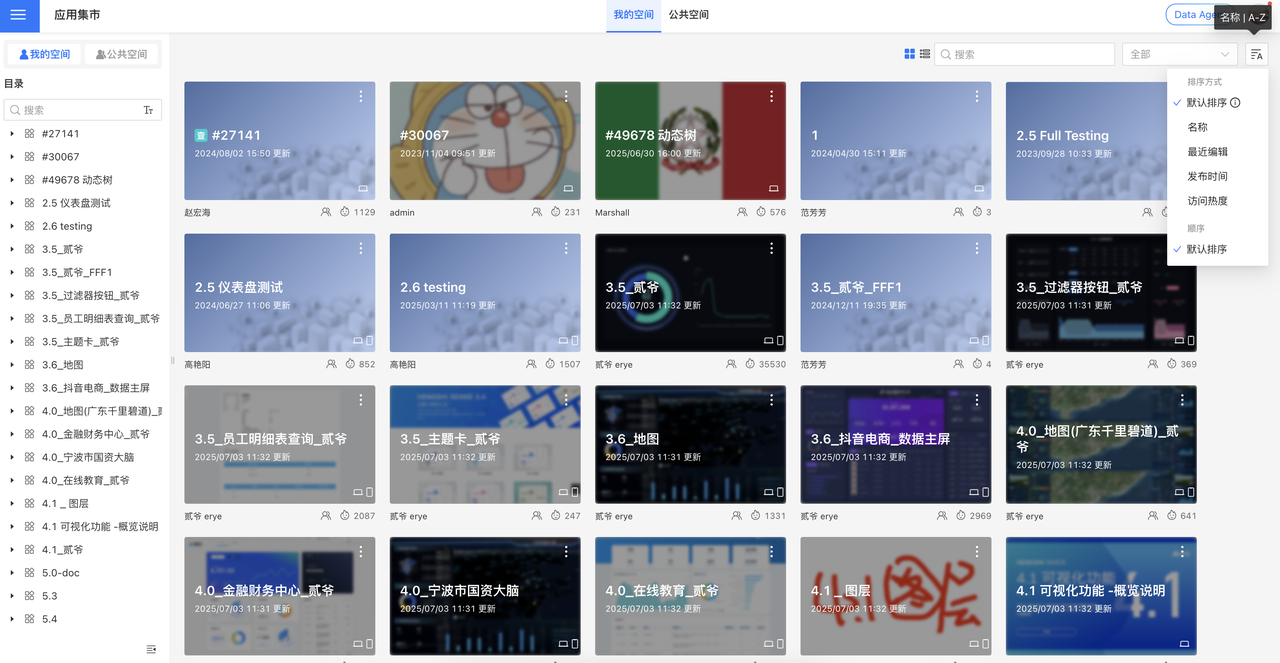
To improve resource-retrieval efficiency across different business scenarios and maintain a consistent system interaction experience, the platform now provides a "Global Default Sorting Settings for Pages" configuration. System administrators can use a unified entry point to define, in one click, the list-display rules for multiple core modules.
Configuration path: Settings > Feature Configuration > Page Settings > Global Default Sorting Settings for Pages
Module-level configuration: The default sort order of resources can be configured independently for the following modules:
- App Market
- App Studio
- Metric Analysis
- Data Market
- Data Connection
Advanced Settings for App Marketplace
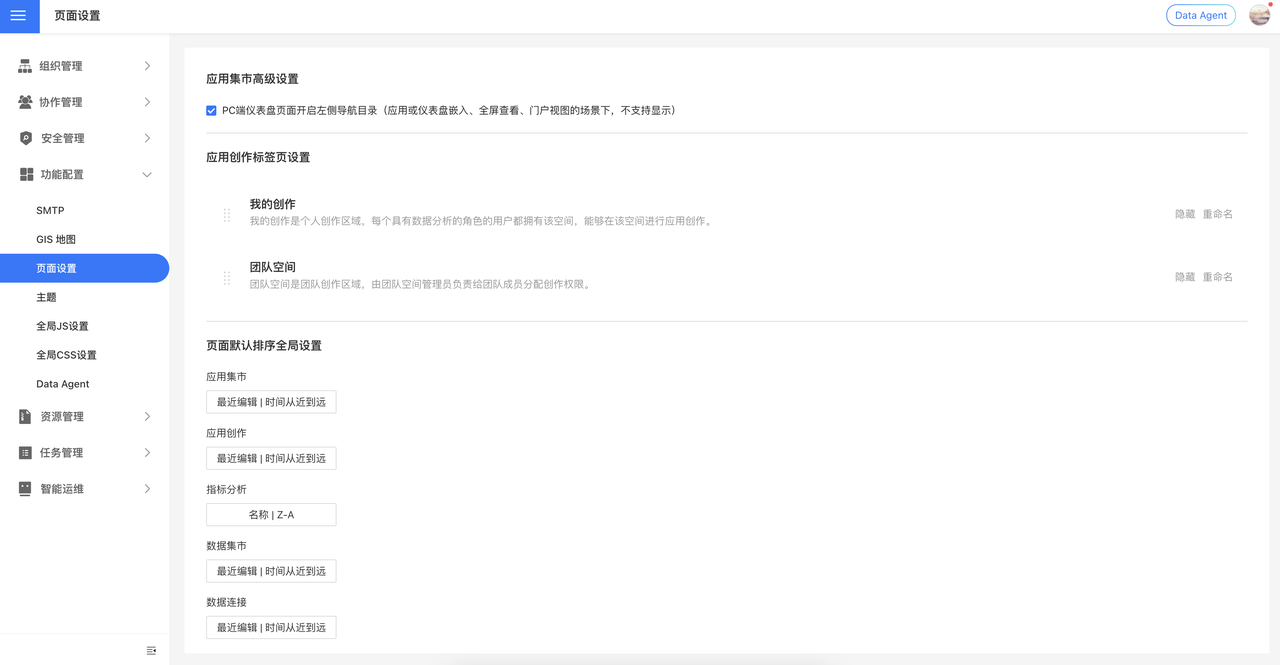
Advanced settings for the App Marketplace provide finer-grained page-display controls, helping administrators optimize the user experience for specific scenarios.
PC Left Navigation Panel Settings
Administrators can use a feature toggle to control whether the left navigation panel appears on Dashboard pages. The toggle is enabled by default (true), and the corresponding option is:
Enable left navigation panel on PC Dashboard pages (not supported when an App or Dashboard is embedded, viewed in full-screen, or displayed in Portal view)
- Applicable scope: PC desktop version only
- Active scenario: regular Dashboard viewing
- Restricted scenarios: the left navigation panel will not appear when an App or Dashboard is embedded, viewed in full-screen, or displayed in Portal view
Before this feature was introduced, published Dashboards opened without the main sidebar by default; now it is shown by default to improve navigation. Administrators can disable it as needed.