

Dashboard Auto Play
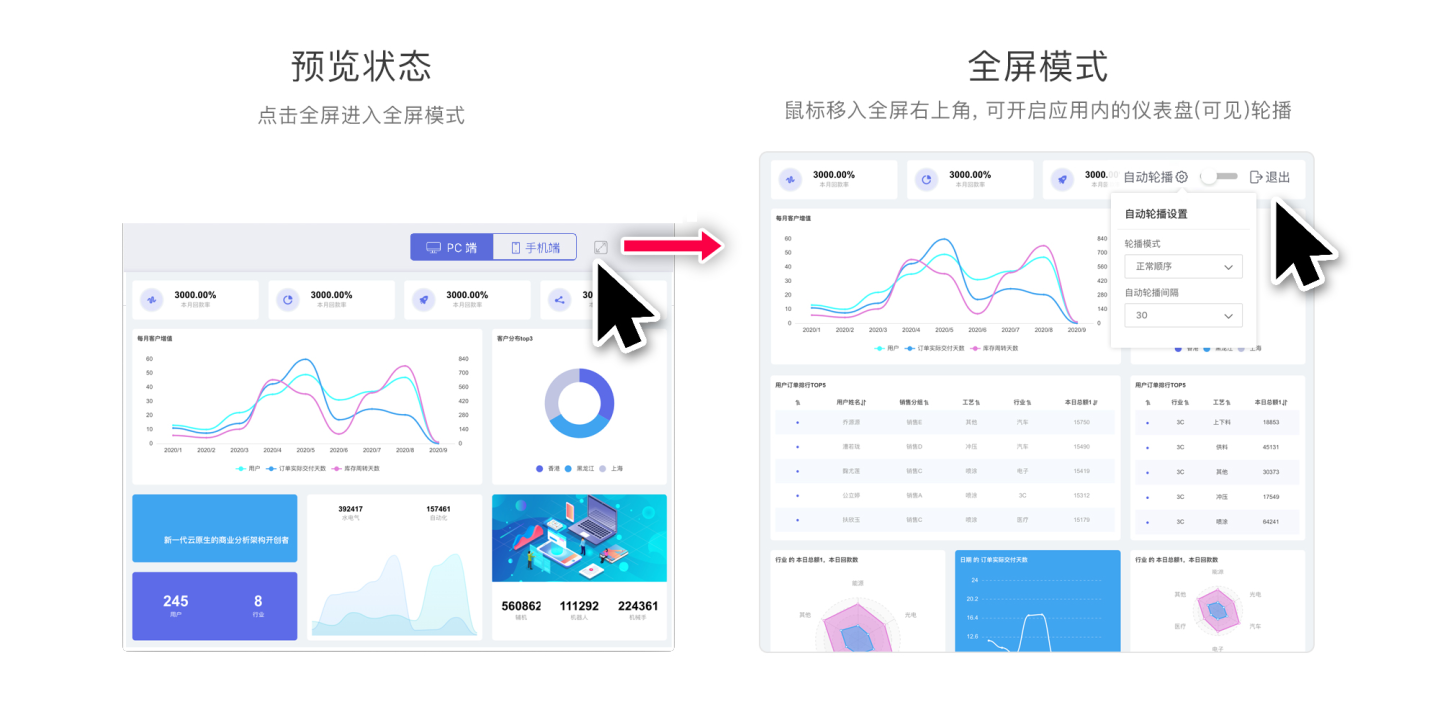
The dashboard supports auto play in full-screen mode.
Enable Auto Play
In full-screen mode, move the mouse to the top-right corner of the screen to enable the full-screen auto play feature.
Play Order The play order supports two modes: sequential order and random order.
Auto Play Interval You can set the duration for which the dashboard stays on the screen.
Large-Screen Link Playback If a large-screen device is not convenient for manually entering browser full-screen mode, append ?kiosk=1 to the dashboard preview or published link. The page hides the top navigation in the full-screen presentation style and, when auto play has already been configured, continues switching visible dashboards according to the configured order and interval. Remove this parameter to return to the normal preview or published view.
Note
- Auto play is intended for full-screen presentation and is available only on the PC application. Full-screen presentation includes browser full-screen mode and large-screen links with
?kiosk=1. ?kiosk=1is intended for fixed large-screen playback. It does not change the dashboard auto-play configuration; the playback scope and order still come from the application configuration.- The dashboards included in the auto play are limited to visible dashboards within the application.
- When auto play is enabled, if there is mouse movement, it is considered that the user has a presentation need on the current page. Auto play will pause, and the countdown for the play interval will restart once the mouse stops moving.
- When auto play is enabled, if there is a mouse click operation on a chart, such as triggering linkage or other interactions, auto play will automatically turn off.