

ChatBI
HENGSHI ChatBI is an intelligent data analysis tool integrated with AI technology, designed to provide business professionals with an intuitive and efficient data interaction experience. By leveraging natural language processing technology, users can directly converse with data to quickly obtain the required information, thereby offering strong support for business decision-making.
On the system homepage, access the primary ChatBI entry to open and navigate to the standalone ChatBI intelligent query page.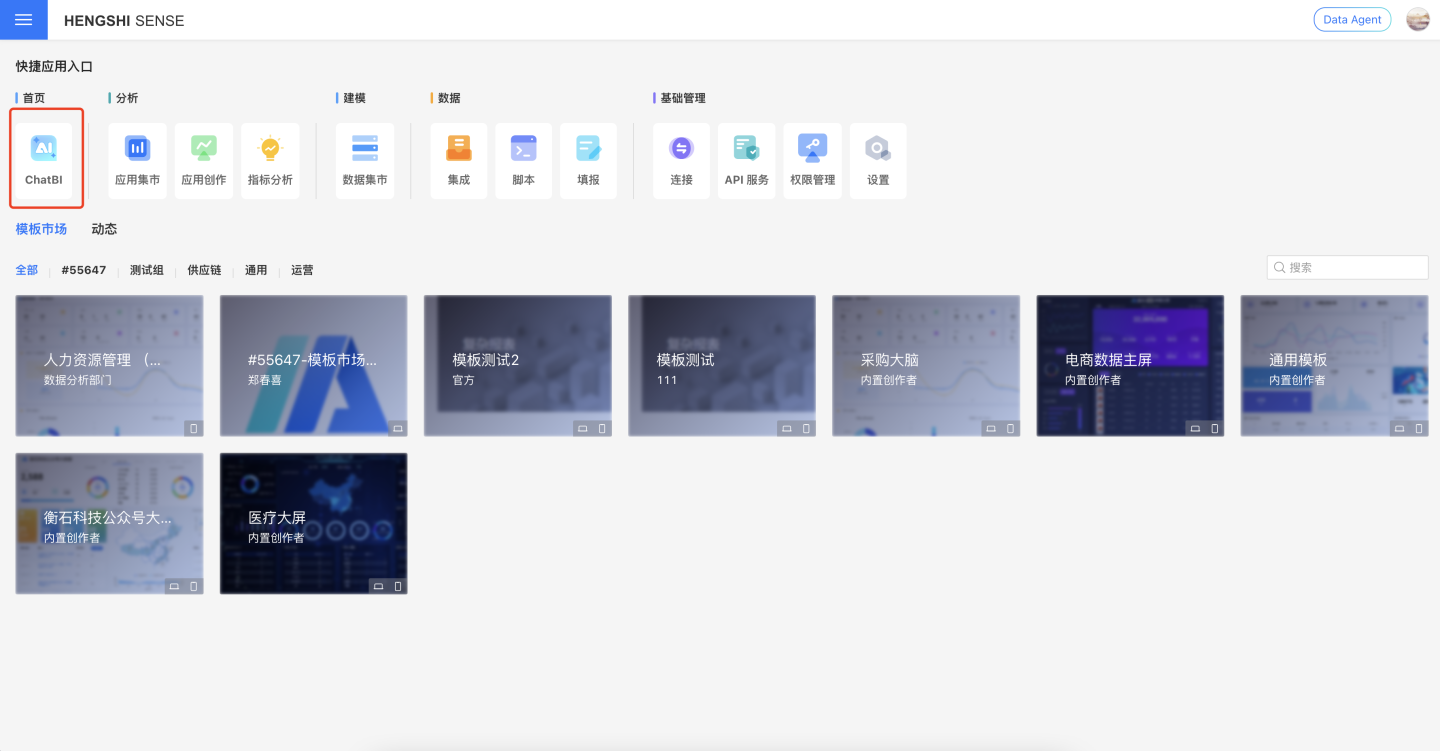
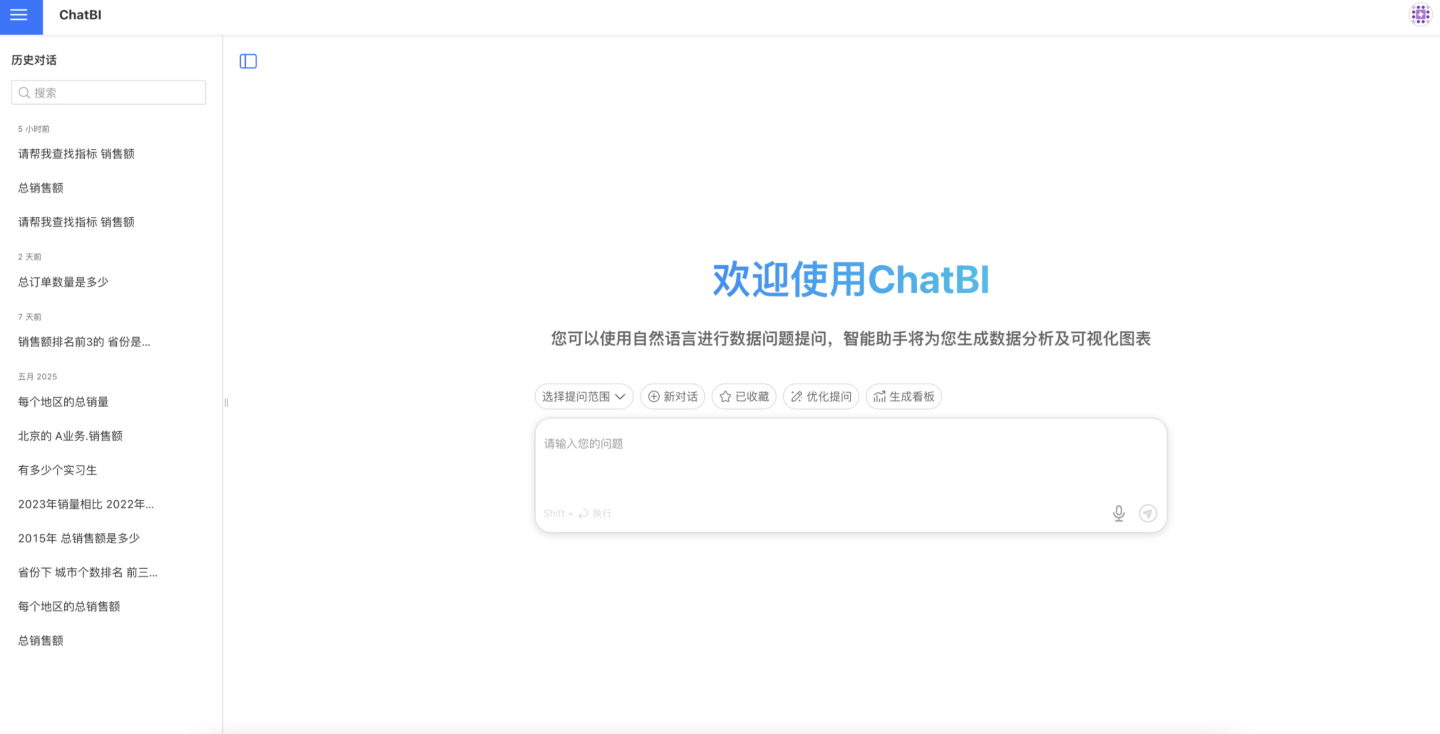
Using ChatBI
Select the Scope of Inquiry
Based on user role permissions, you can ask questions about datasets and business metrics. For example, if the user only has the metric analysis role, they can select the metric topic in this section as the scope of inquiry to ask data-related questions.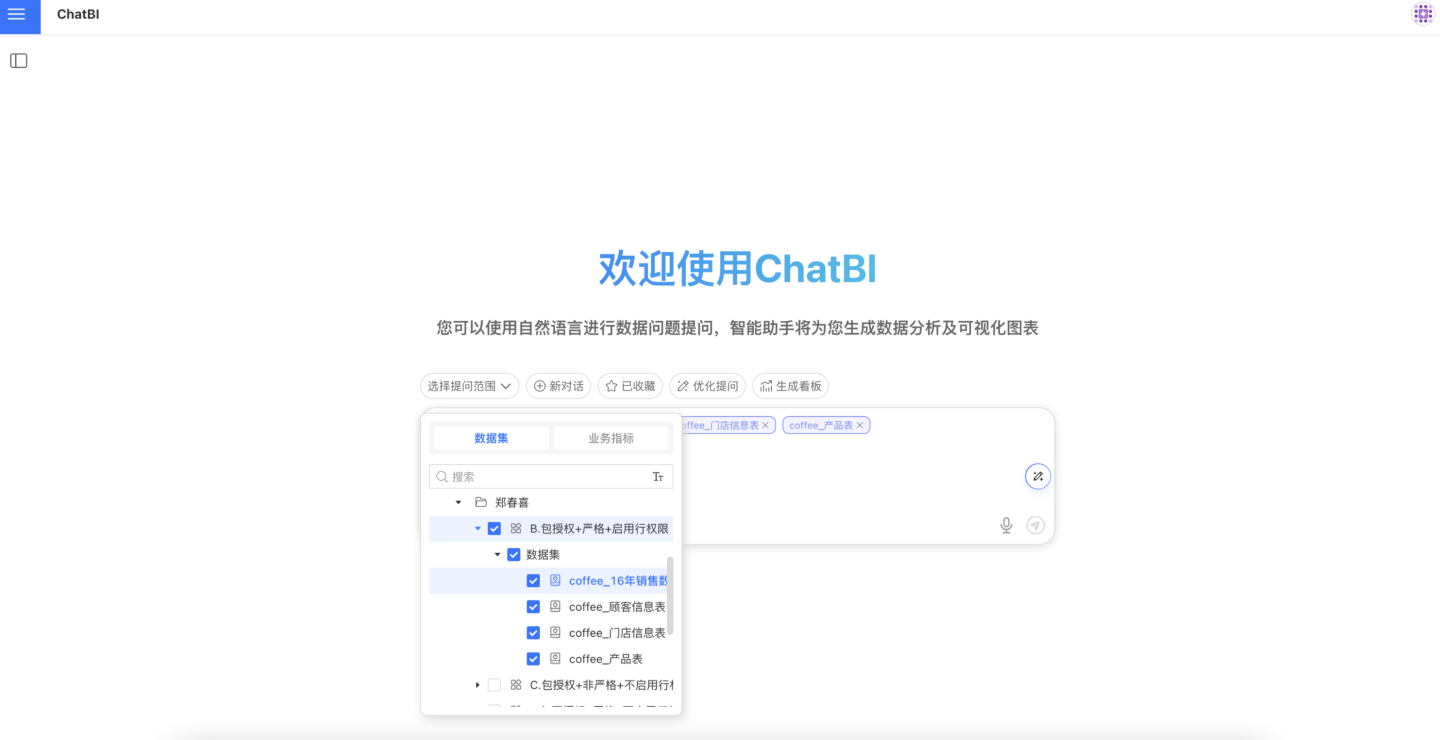
Question Analysis
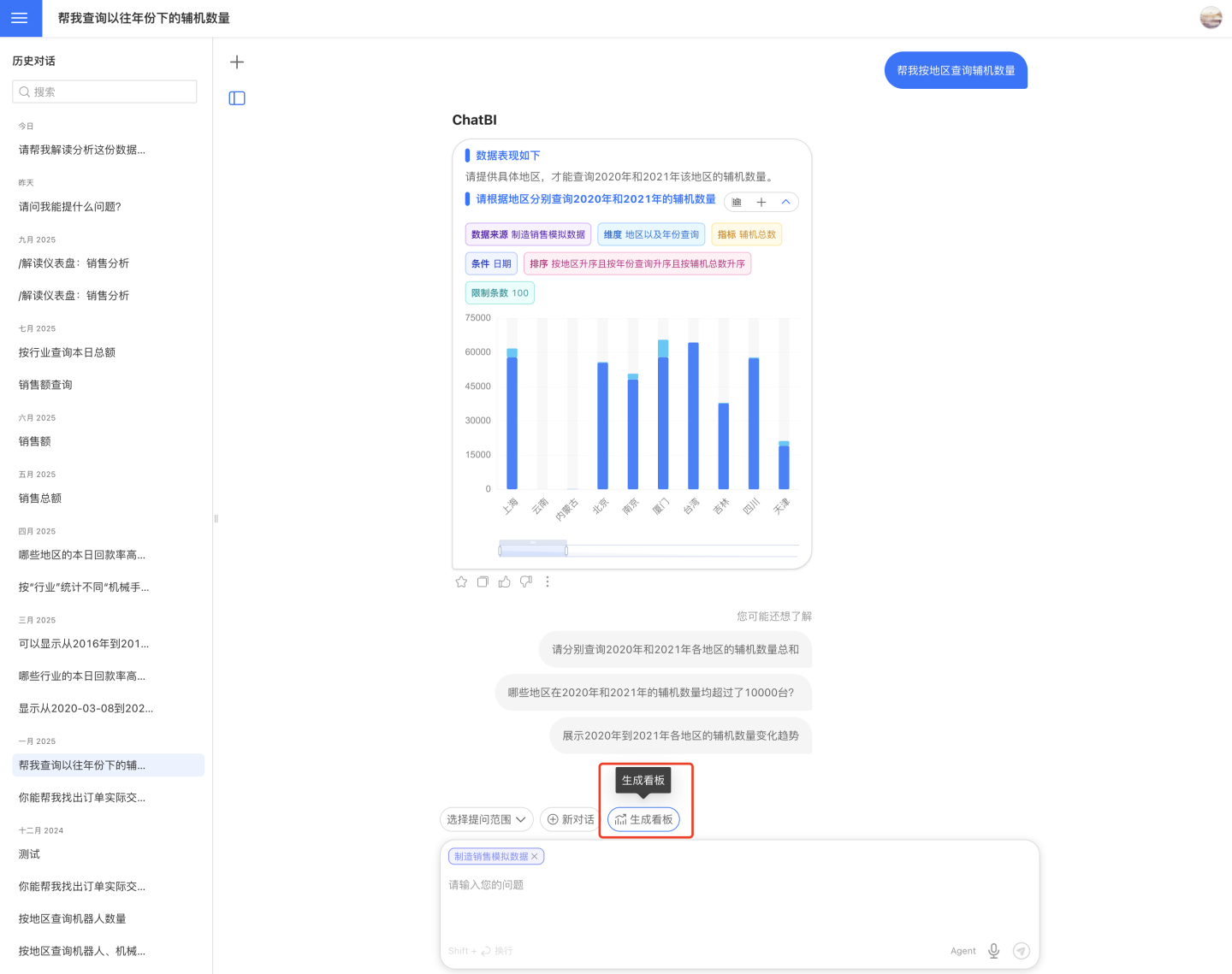
After selecting the question scope, you can ask questions in natural language. For example, querying manufacturing sales data with "Query the number of auxiliary machines by region." ChatBI will respond as shown in the figure below, returning relevant data and presenting it in the form of a chart.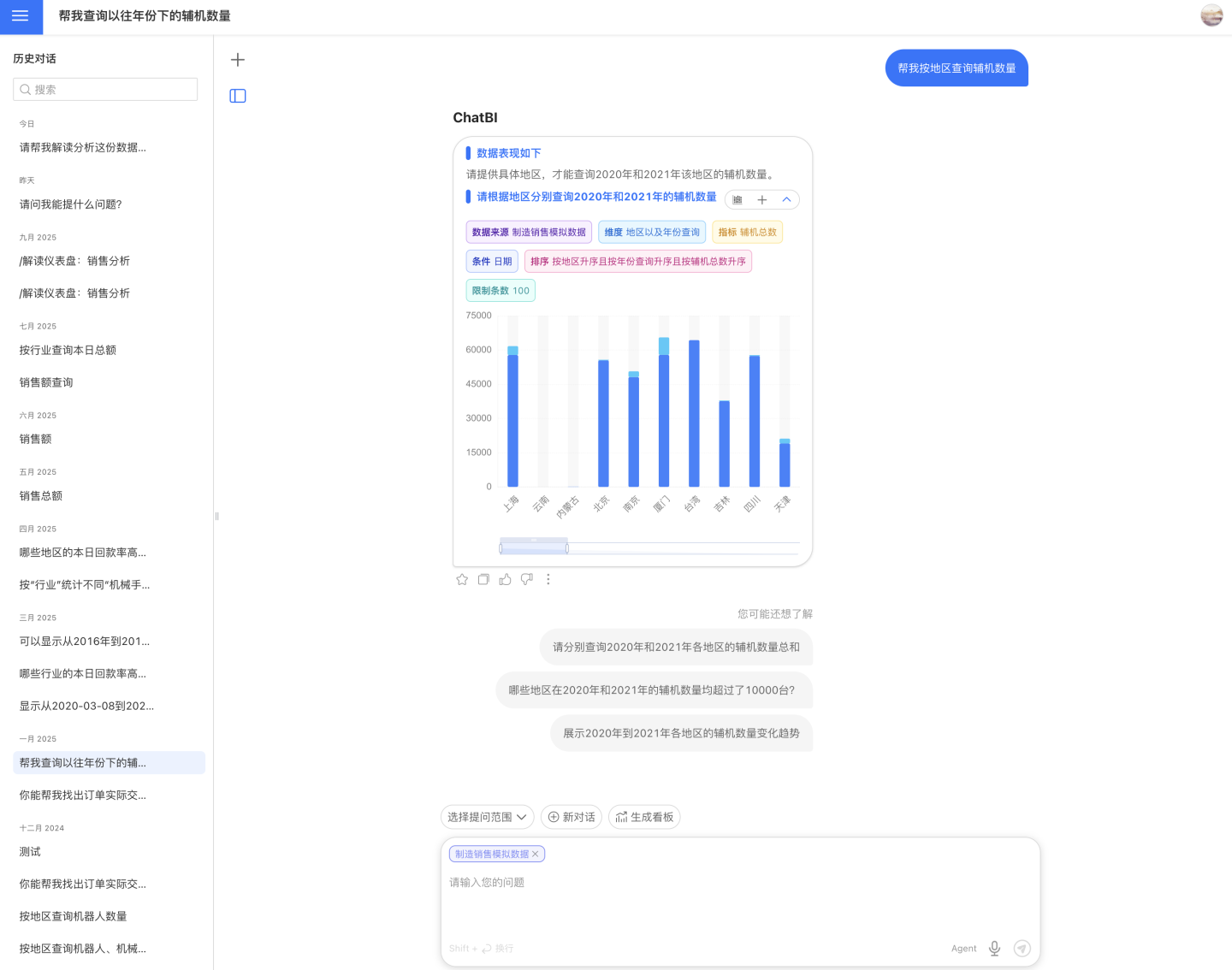
Note
During the Q&A process in agent mode, do not switch to other pages or other chat histories, as switching will interrupt the Q&A session.
Voice Input
The ChatBI page shows the voice-input entry dynamically based on the current runtime environment. After clicking the microphone button to switch into voice mode, press and hold the prompt area to speak.
- Chrome / Chromium browsers: The browser must expose
SpeechRecognitionorwebkitSpeechRecognition, and microphone access must be allowed for the current page. - WeCom container: WeCom authentication must already be configured in HENGSHI, and the ChatBI page must be opened inside WeCom.
- Feishu container: Feishu authentication must already be configured in HENGSHI, and the ChatBI page must be opened inside Feishu.
The underlying interfaces are: Chrome / Chromium uses the Web Speech API SpeechRecognition / webkitSpeechRecognition (in common Chrome environments this usually depends on Google’s online speech service rather than fully offline recognition); WeCom uses the JS-SDK voice-to-text APIs, see the official WeCom documentation; Feishu records on the page and relies on the server-side “speech file recognition” API for transcription, see the official Feishu documentation.
Note
If the current browser does not support speech recognition, the WeCom / Feishu authentication is not configured correctly, the JS SDK fails to initialize, or recording permission is denied, ChatBI hides the voice-input entry directly. In-page voice input depends on authentication and JS-SDK capability. It is different from the configuration used by Data Q&A Bot.
For a fuller configuration and troubleshooting guide, see the voice-input section in the Data Agent document.
Switch Chart Style
Click the icon in the upper right corner of the chart to switch the chart type.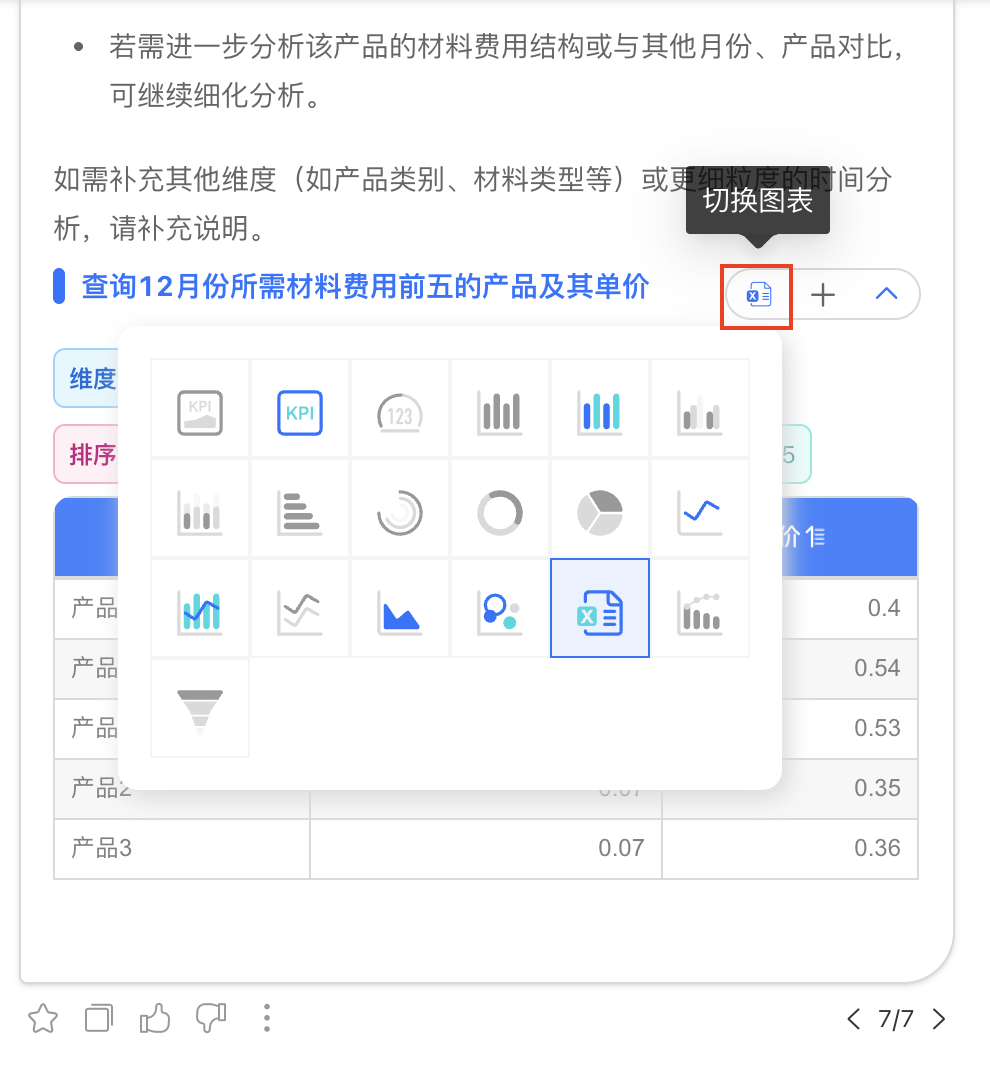
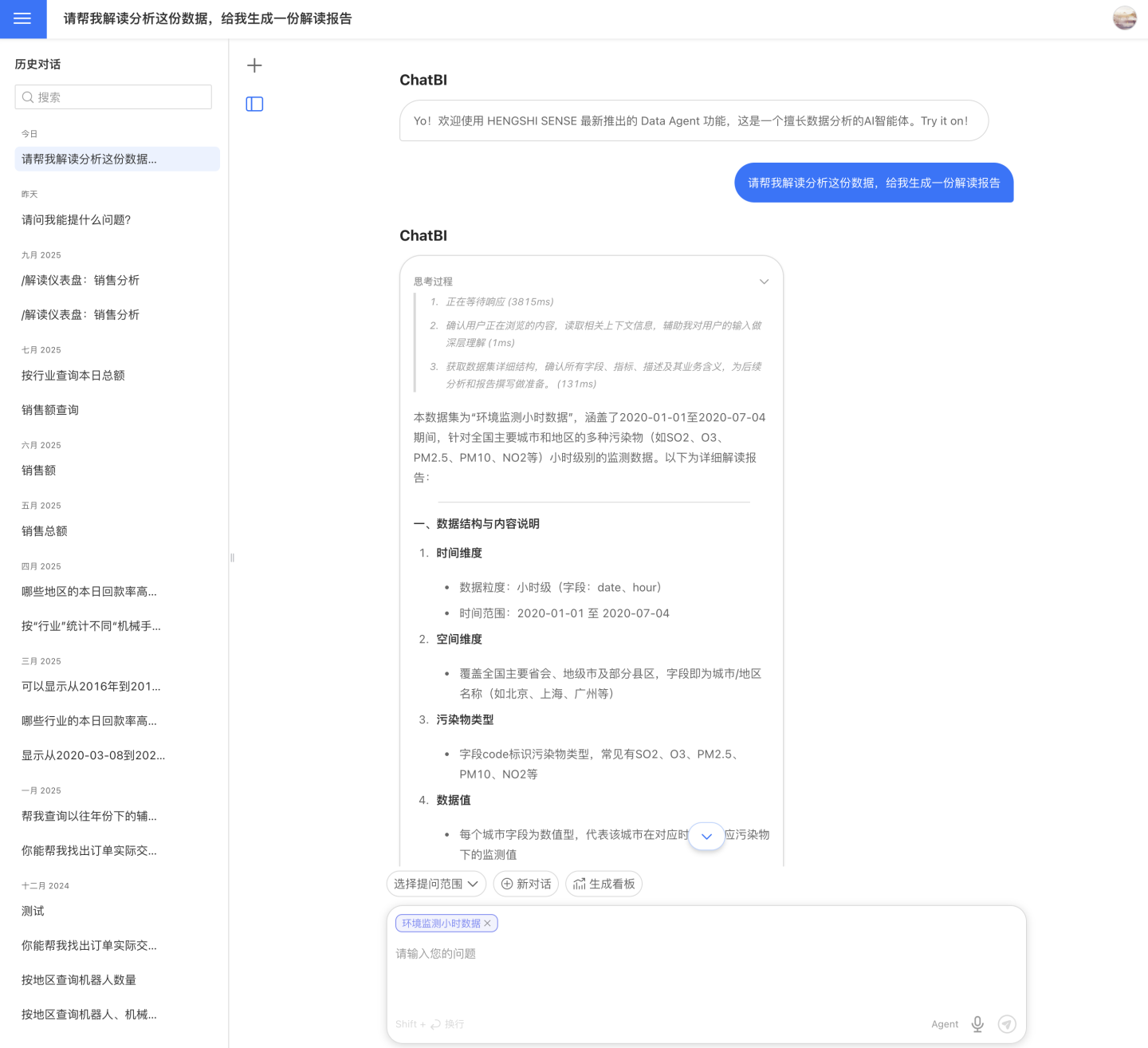
Data Analysis Interpretation
In Agent mode, it not only answers questions about the data but also supports analysis and interpretation of the selected data, as shown in the image below.
One-Click Dashboard Generation
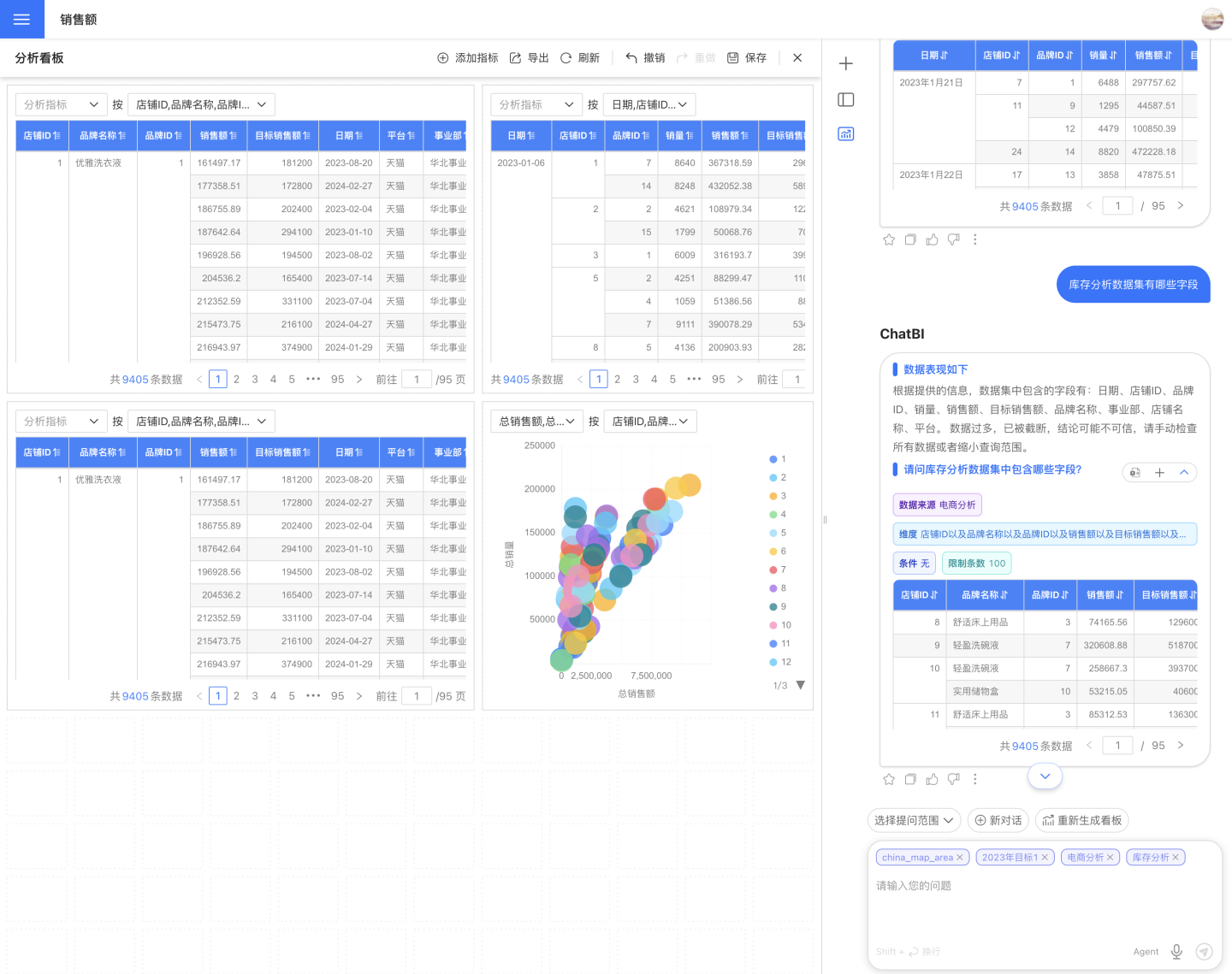
With one click, you can add all the charts from this session to a dashboard. The dashboard allows you to adjust the layout, export, and save it. Charts can also be further explored and analyzed.
Note
Each session can only generate one dashboard. After generating the dashboard, you can reopen it in the current session window.
The data charts obtained in the session responses can also be individually added to the dashboard for further exploration and analysis.