

Data Mart
The Data Mart is the core platform for enterprise-level data management and governance, providing a unified data infrastructure for data analysis and visualization creation. Through multi-layered data organization and fine-grained permission management, the Data Mart meets the data needs of different departments, users, and business scenarios.
Overview
As the foundational layer of the data-analytics ecosystem, the Data Mart is responsible for data integration, processing, governance, and distribution. Users first build and manage data assets in the Data Mart, then leverage them in App Creation for visual analysis and Dashboard development.
- Data Package: A container for data that includes Datasets, data models, parameters, and all other infrastructure required for analytics
- Folder: Provides a hierarchical structure that lets you classify Data Packages by business domain, department, or project
- Permission System: Fine-grained access control to ensure data security and compliant usage
The Data Mart supports the complete data-lifecycle management journey—from data-source ingestion, data processing, data modeling and joining, to data exploration and analysis. Unified data governance and permission control guarantee both security and consistency while improving data reusability and maintainability.
Dataset
Create a New Data Package
Only users who have both the System Admin and Data Admin roles can create a new data package in the Data Mart.
If a user has only the Data Admin role, they can create a package inside a folder on which they have been granted Manager or Editor rights.
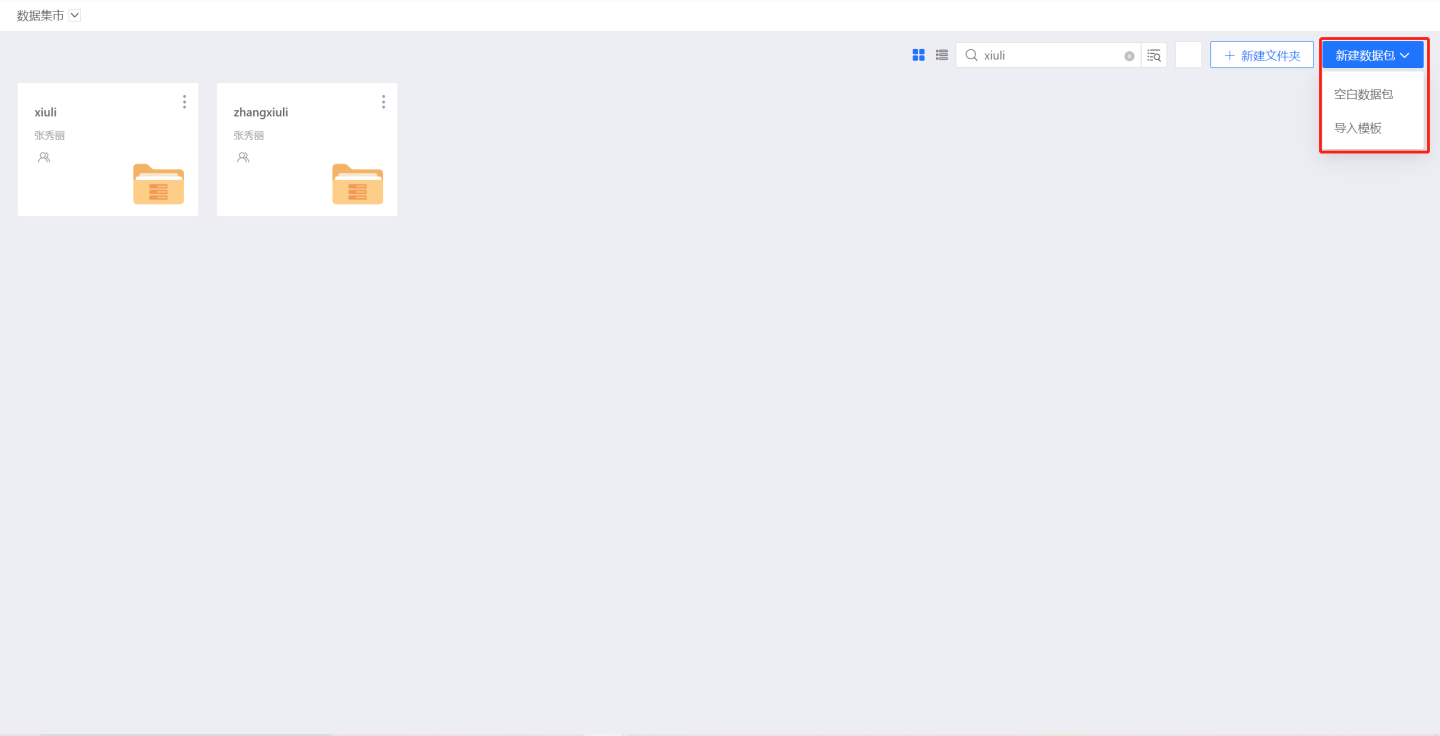
There are two ways to create a new data package:
Blank Data Package
The package is named “New Data Package” by default; rename it to something that better reflects your business logic.
Inside the package you can create Datasets, transform data, build relational models, and design Charts & Tables to satisfy specific analytical needs.Import Template
Select a previously exported.hstplfile and upload it; the package will be imported successfully.
Actions you can perform on a data package:
- Permission Management
- Export Template
- Import & Replace
- Create Duplicate
- Copy To
- Replace Data Connection
- Pin to Top
- Rename
- Move
- Delete
Permission Management
Users with the Manager permission on a Dataset can grant Manager, Editor, or Viewer rights to users, user groups, or organizational units.
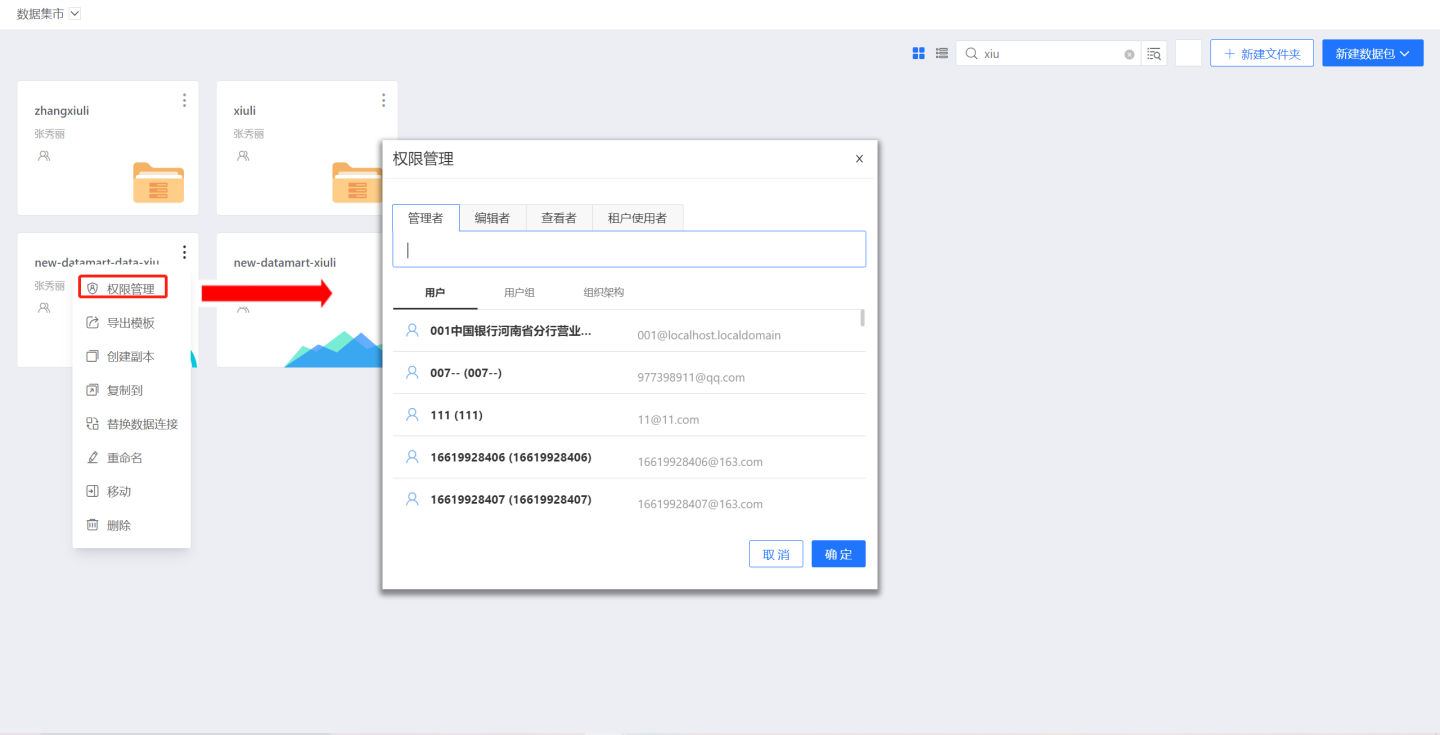
When a Scientist enters the Data Mart and holds the Manager permission on a Dataset, the following actions are available:
- Permission Management
- Export Template
- Import & Replace
- Create Duplicate
- Copy To
- Replace Data Connection
- Pin to Top
- Rename
- Move
- Delete
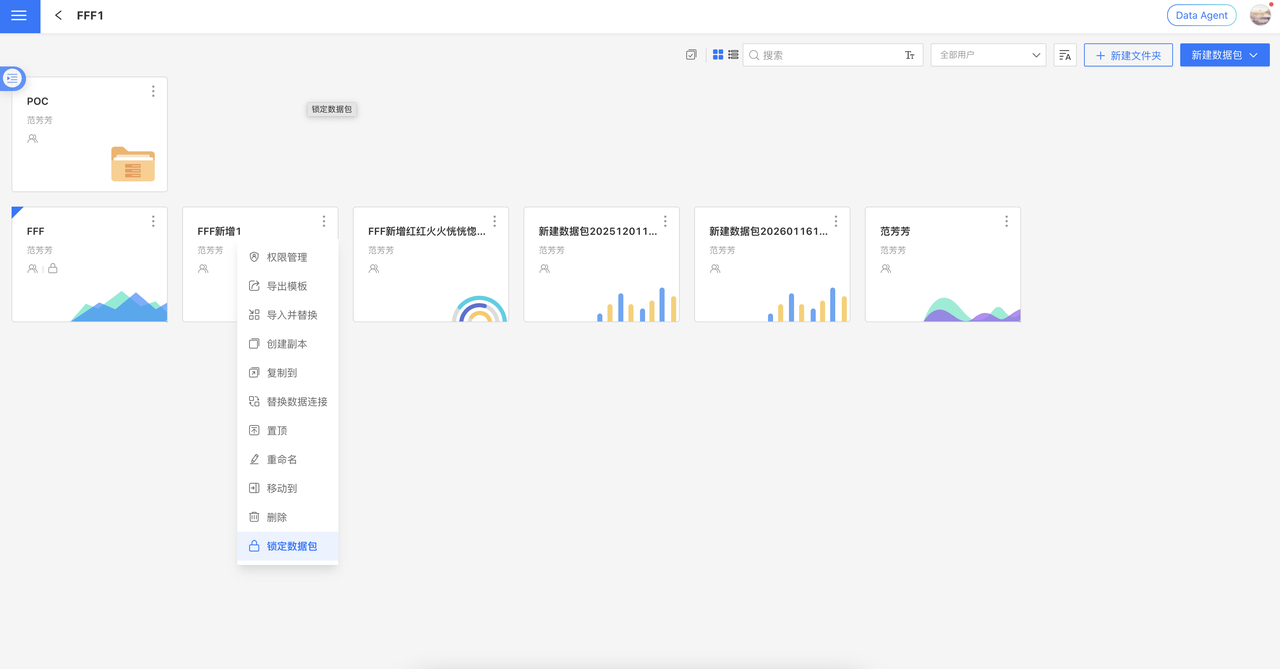
- Lock Dataset
When a Scientist enters the Data Mart and holds the Editor permission on a Dataset, the following actions are available:
- Export Template
- Create Duplicate
- Copy To
- Replace Data Connection
- Pin to Top
- Rename
- Move
- Delete
When a Scientist enters the Data Mart and holds only the Viewer permission on a Dataset, the following action is available:
- Export Template
Export Template
An Export Template refers to exporting the Datasets, Chart Library, Data Models, and other contents in the current Data Package to generate a JSON-format file. Users can leverage the template to quickly create a new Data Package.
Import Template
Create a New Data Package from Template
Click New Data Package → Import Template, open the template file in the pop-up dialog, and the template is imported—creating a brand-new data package.
The new package contains all Datasets and Data Models from the template, ready for users to explore.
- Package name after import: The imported package inherits the template’s name. If a package with the same name already exists in the folder, the new one is named “TemplateName (1)”. Users can rename it at any time.
- Application data in the imported template: Users must re-validate the data after import.
- If a Dataset in the template is based on a local file, it is imported empty; data can only be restored by replacing the Dataset.
- If the Dataset is a Live Connection or SQL Query, data is shown according to the current user’s permissions on the corresponding Data Connection.
- Relationships between Datasets inside the Data Model are preserved. Models built on local files retain their joins; simply re-upload the files to use them. Models that join Live or SQL Datasets keep both relationships and data.
- Permission settings in the imported template: When the template contains permission rules, you can choose whether to import them; the rules are only applied if this option is selected.
- During import, if a user object in the rules cannot be matched in the system, the authorization rule is kept while the unmatched user object is discarded.
Import Template into Existing Data Package
Existing data packages also support template import. Select the template via Import & Replace to overwrite the current package’s Datasets, Chart Library, and other contents with those from the template.
Create a Copy
In the Dataset menu, click the Create a Copy button to generate an App that contains the same data as this Dataset.
Creating a copy only produces a new Dataset in the current path, with the name set to the original Dataset name plus “(1)”.
Copy to
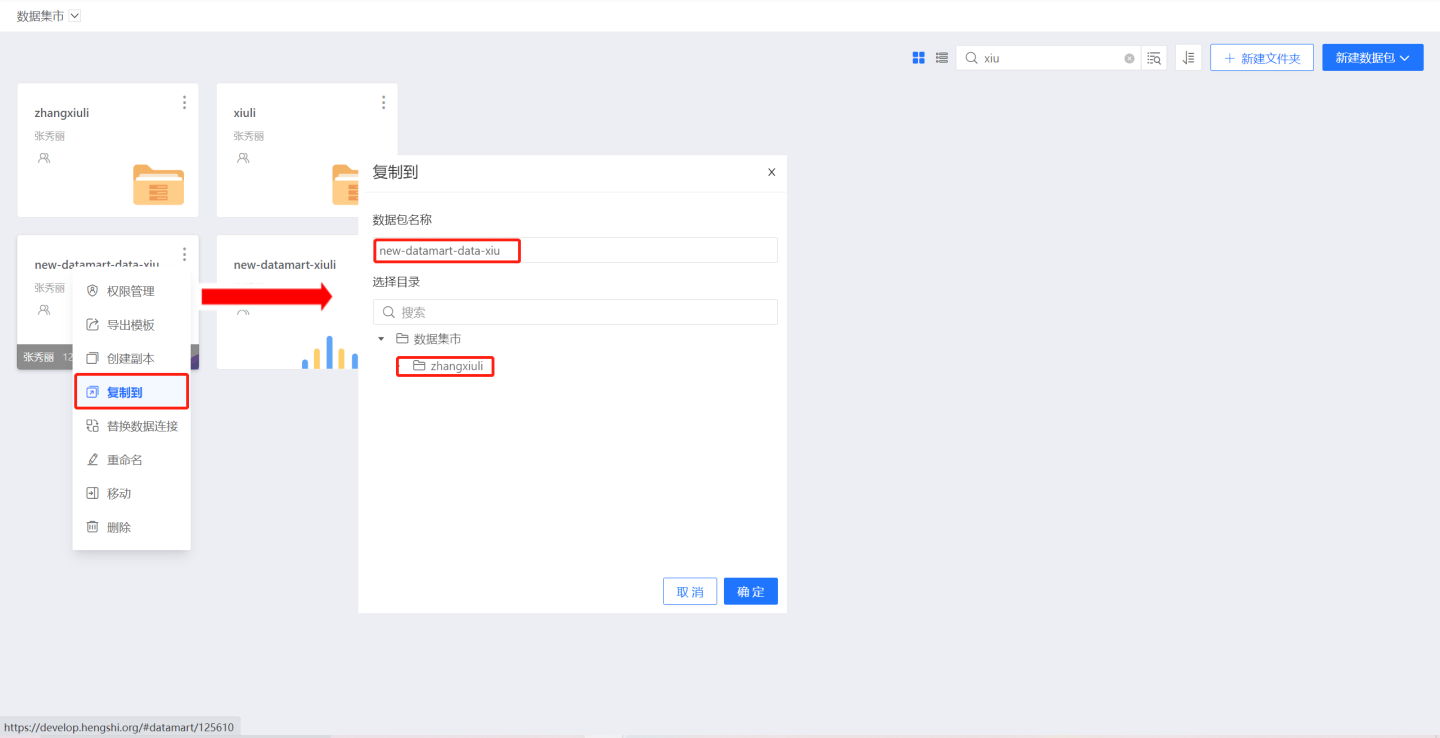
The Dataset menu contains a Copy to button. Clicking Copy to opens a copy dialog; choose the destination path for the Dataset copy and click OK to copy the Dataset to that location.
Copy to allows you to rename the Dataset and select the copy path.
Replace Data Connection
In the Dataset menu there is a Replace Data Connection button; click Replace Data Connection to select the connection you want to replace.
Pin to Top
To help you reach core data assets faster, the Data Mart now supports the “Pin to Top” feature. You can pin frequently used Datasets to the top of the list, keeping your asset management neat and orderly.
Users with Dataset Manager or Editor permissions can pin Datasets.
Rename
In the Dataset menu there is a Rename action button; if a Dataset with that name already exists in the current path of the Data Mart, the message “App name already exists, please choose another name” will appear.
Move
The Dataset menu contains a Move action button that lets you move the Dataset to any folder where you have edit permissions.
Delete
The data package menu contains a Delete action button; deleting a data package will simultaneously remove all Datasets and data models contained within it.
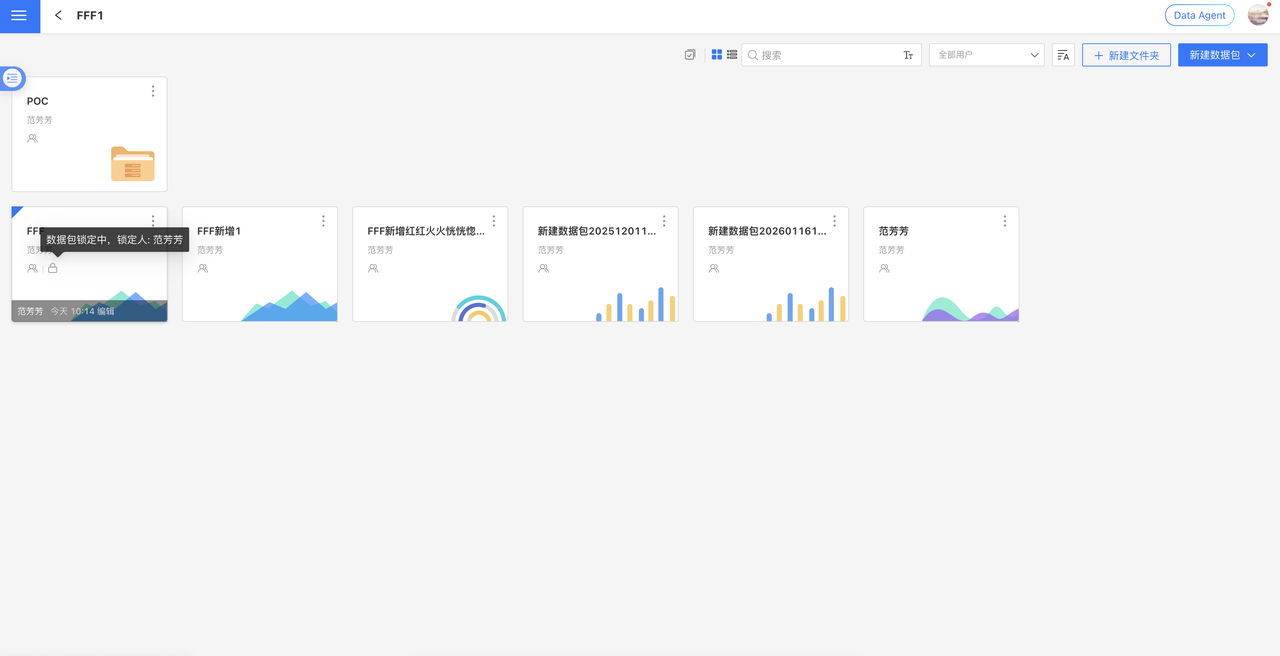
Data Mart Lock
To safeguard the stability of core data assets and prevent accidental changes during critical business cycles, we have introduced the Data Mart Lock feature. A data mart owner can "lock" the mart they manage. Once locked, the mart enters a protected state: all internal resources (Datasets, data models, etc.) become read-only, and no user—including other owners—can edit or delete them.
The mart follows the rule: "Whoever locks it, unlocks it."
Notes:
- If the original locker is no longer an owner of the mart, or their account has been disabled/deleted, the only way to unlock the mart is for a system admin to perform a "resource transfer." After the transfer, the system automatically removes the existing lock.
- After locking, the mart owner can still configure data permissions for the mart.
Dataset
A Dataset is a collection of data and the core component of data analysis; all subsequent data exploration and data management are built upon it.
During data analysis with a Dataset, you will work with Dataset Creation and Data Management; click the links for related instructions.
Users with the Manager or Editor role on a Data Package can create new Datasets and manage existing ones within that package.
Users with the Viewer role can only see the Dataset information they are authorized to view.
Data Model
A data model, i.e., a relationship model, allows you to create join or union relationships between Datasets and bring those relationships into Charts.
When building a data model, the source and target Datasets must come from the same Data Connection. For detailed instructions, please refer to this link.
Users with the Manager or Editor role for a Data Package can create new data models within it; users with the Viewer role can only view existing data models.
Parameters
Parameters are primarily used to enable flexible data control. Features that previously required changes in multiple places can now be handled by modifying a single parameter.
For detailed instructions on how to use the parameter feature, please refer to the link.
Data Lineage
Data lineage is the life cycle of data, showing the transformation process from the data source to the data target.
Click here to learn more about the data lineage feature.
Settings
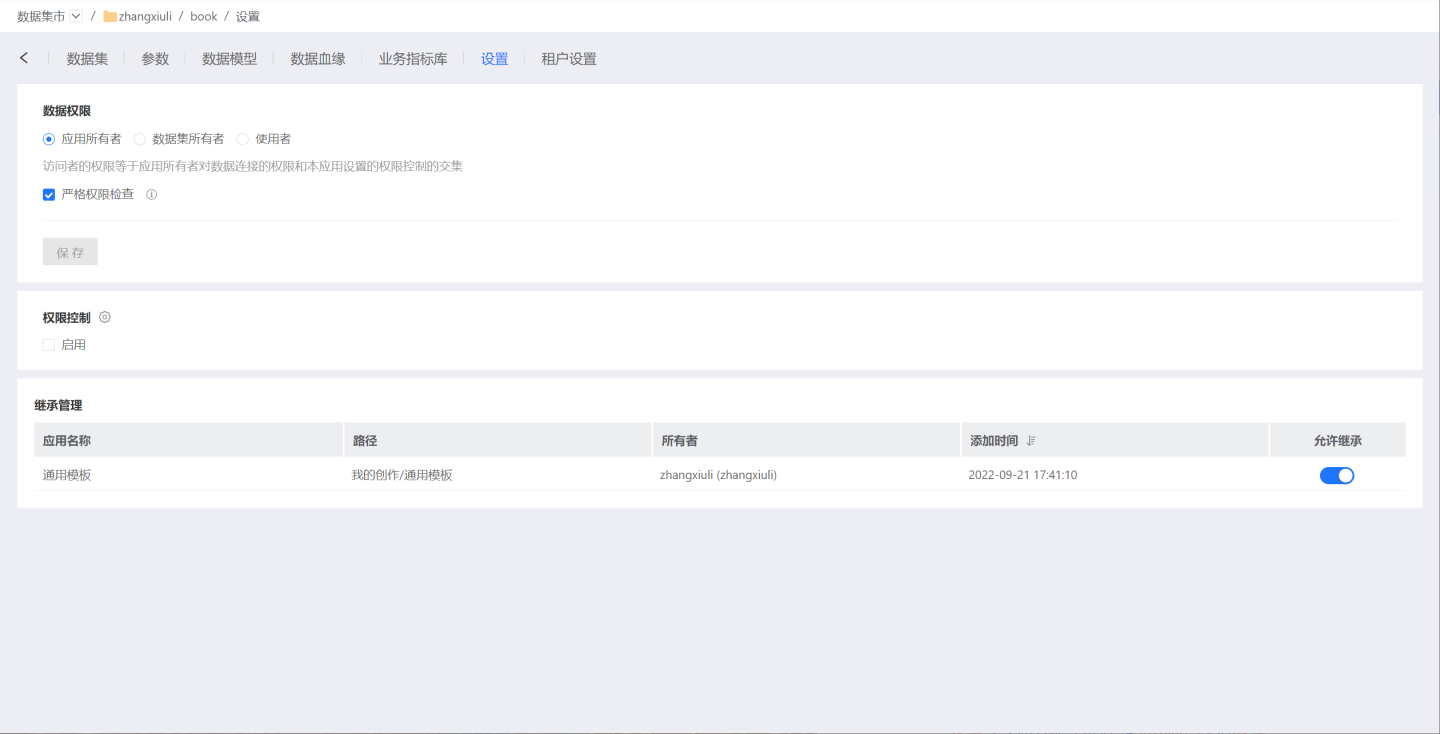
Data Permissions
Data permissions include three roles: App Author, Dataset Author, and Consumer. By default, the App Author option is selected.
Mode Switching: During a switch of dataset permission modes, datasets imported into the engine must be re-imported; switching from App Author or Dataset Author mode to Consumer mode will invalidate the datasets already imported into the engine.
For detailed information on data permissions, see Data Permissions.
Data Model
Data usually carries different security levels, so it is exposed to different audiences. High-security data can be shared only with designated personnel, whereas low-security data—such as internally public information—can be displayed to all members. The system therefore supports both Strict Mode and Non-Strict Mode to accommodate data of varying sensitivity.
- Strict Permission Mode applies to high-security data; every user must be explicitly granted permission for the data before they can view or use it.
- Non-Strict Permission Mode applies to low-security data; Apps or data packages that consume this data may present it to users who have no explicit permission for the underlying data.
Permission Control
For a detailed introduction to permission control, see Permission Control.
Inheritance Management
When an App needs to inherit data from a Dataset for analysis, it sends an Inheritance Request to the Dataset; the Dataset owner decides whether to grant the request. Once the “Allow Inheritance” toggle is enabled, the App displays the inherited Dataset and can use it for data analysis.
If a Dataset is configured to allow inheritance by other Apps, attempting to delete it will trigger a warning that Apps are currently inheriting from it. You may still force-delete it. After deletion, the inherited Dataset disappears from every inheriting App, and any Charts built on that inherited Dataset will throw errors.
Start Exploring
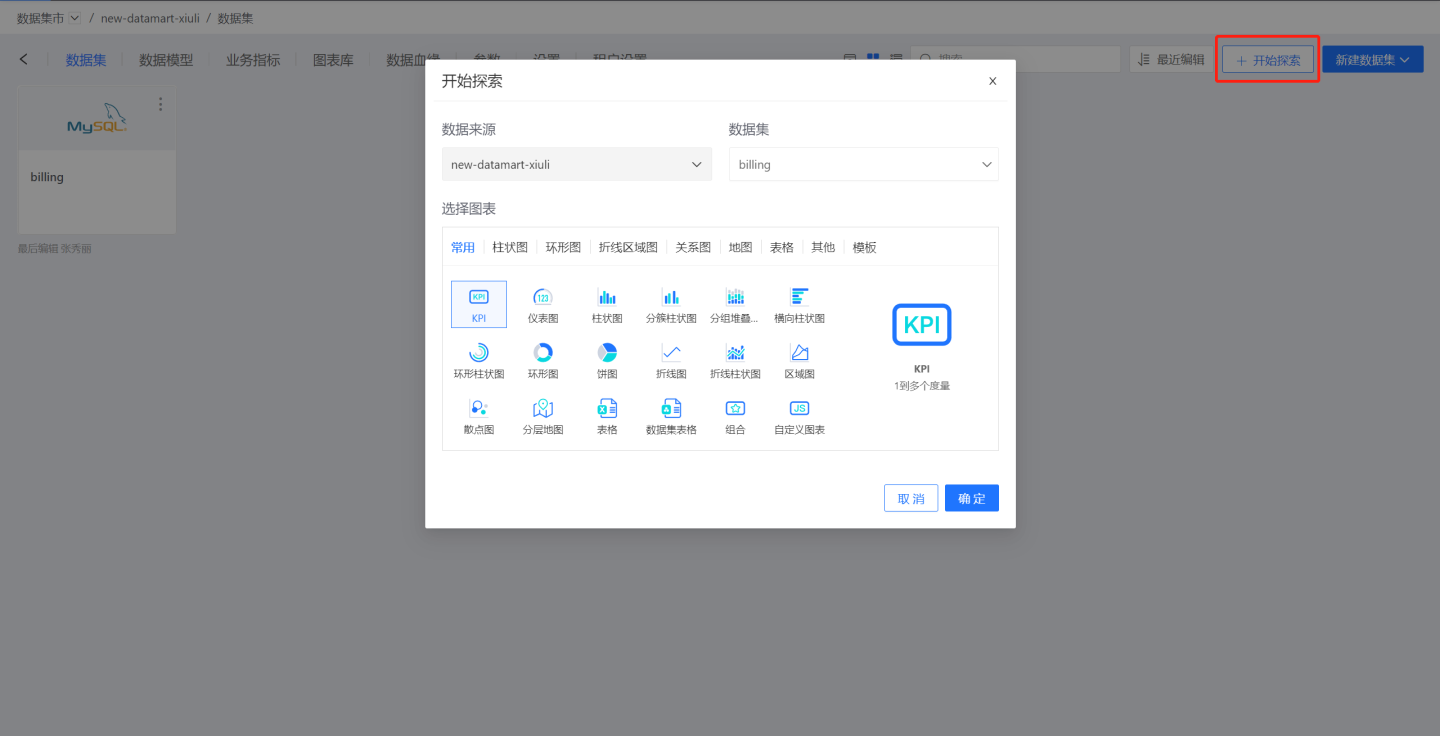
Create New Exploration
In the Data Mart, you can only create a new exploration inside a Dataset. Click the Start Exploration icon in the upper-right corner of the Dataset to open the "Start Exploration" dialog, select a chart type, and begin exploring. For chart-related operations, please refer to the Dashboard Controls documentation.
Save Chart
After creating a new exploration, you can save the chart to a Dashboard in My Creations or Team Space under App Studio. The Dashboard can be either newly created or already existing.
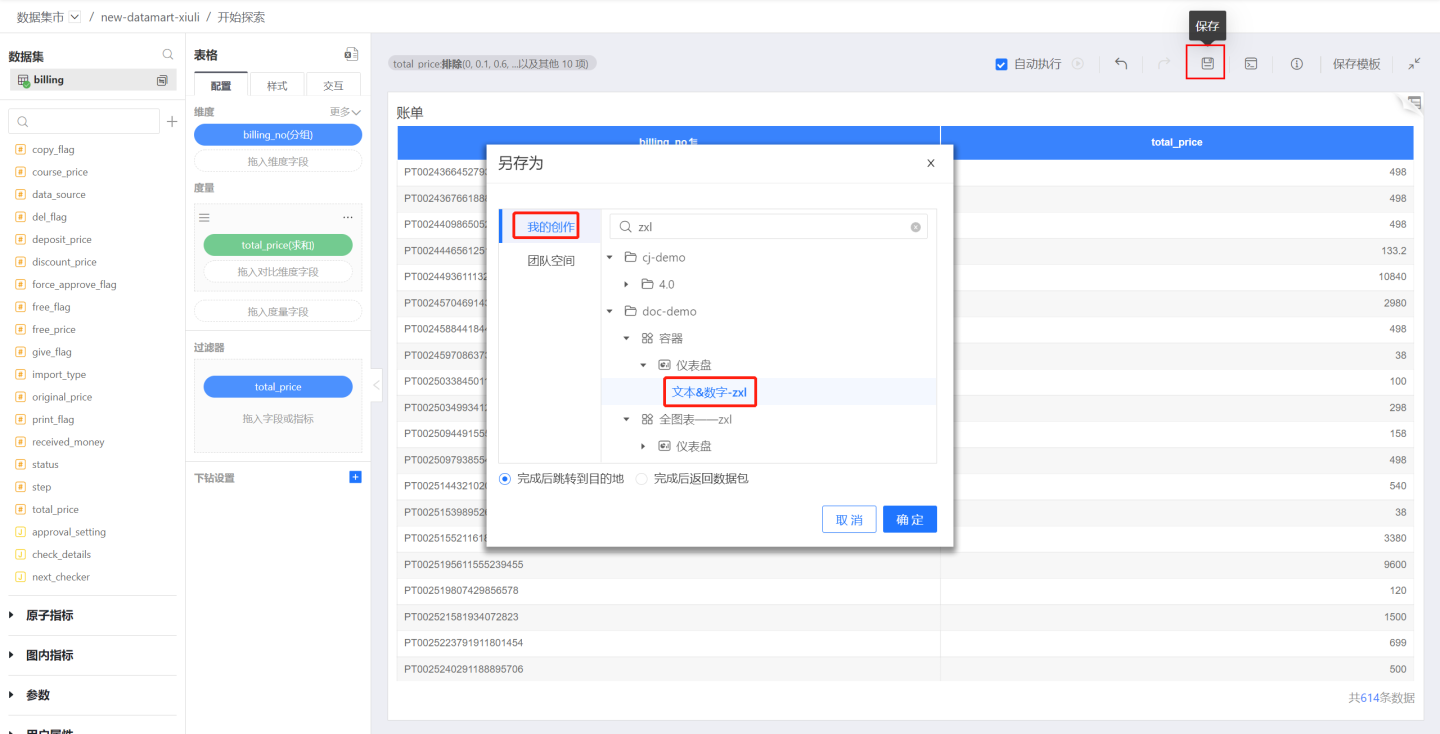
Once saved, you can choose to jump to the chart page in “App Studio->App->Dashboard”, or return to the Dataset page.
Note
If the Dataset used for the chart is deleted after the exploration is created, viewing the chart in App Studio will prompt “The Dataset does not exist in the Data Mart App”.
Folder
Only users with the System Admin role can create new folders in the Data Mart; folders can still contain new sub-folders and new Data Packages.
When creating a folder, if the folder is empty, the prompt “Please enter a folder name” appears.
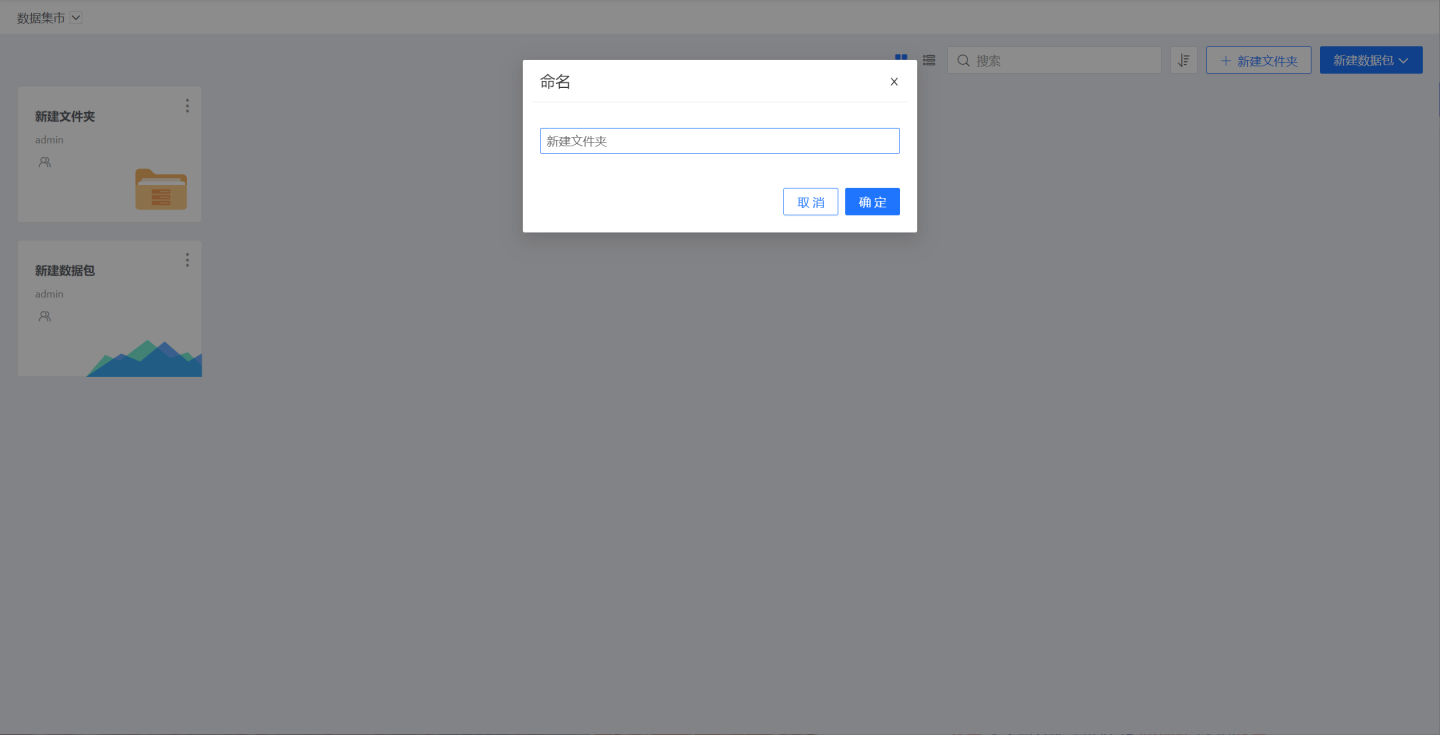
Actions that can be performed on a folder:
- Permission Management
- Pin to Top
- Move
- Rename
- Delete
Permission Management
Users with the Manager permission on a folder can grant Manager, Editor, or Viewer permissions to users, user groups, or organizational units.
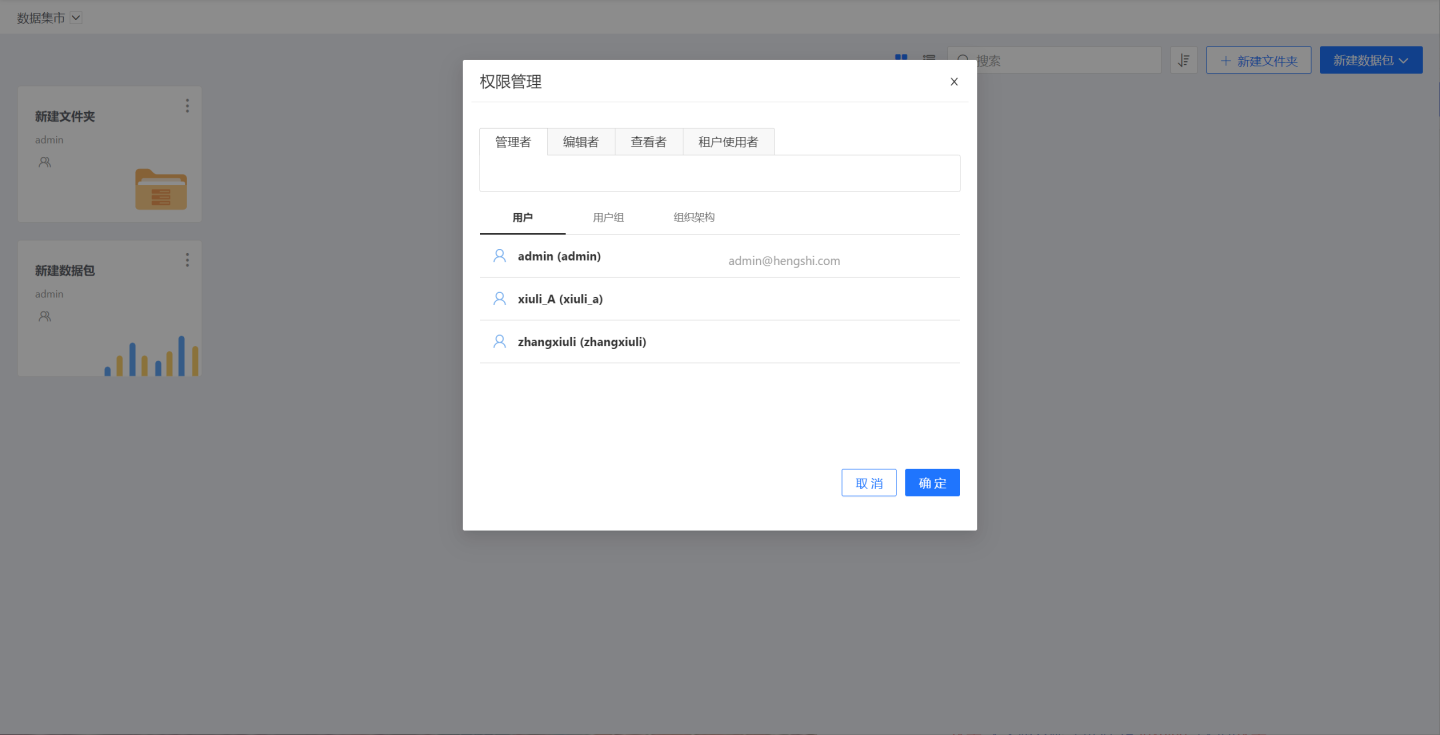
When a Scientist enters the Data Mart and holds the Manager permission on a folder, the following actions are available:
- Permission Management
- Pin to Top
- Rename
- Move
- Delete
When a Scientist enters the Data Mart and holds only the Editor permission on a folder, the following actions are available:
- Pin to Top
- Rename
- Move
- Delete
When a Scientist enters the Data Mart and holds only the Viewer permission on a folder, no folder operations are permitted.
Pin to Top
To help you reach core data assets faster, the Data Mart now supports the “Pin to Top” feature. You can pin important folders to the top of the list, keeping your assets neatly organized.
Users with the Manager or Editor role on a folder can pin it to the top.
Rename
In the folder menu, there is a Rename action button. If a folder with the same name already exists in the current path of the Data Mart, a message will appear: "Folder name already exists, please choose another name."
Move
In the folder menu, there is an action button labeled Move, which allows you to move the folder to another folder where you have edit permissions.
When moving, you can choose to retain the permission settings. If the mover does not have manager permissions for the target folder, the permission settings cannot be retained.
Delete
In the folder menu, there is a Delete action button. If the folder is empty, a “Deleted successfully” message appears; if the folder is not empty, the prompt reads “Folder is not empty.”