

Subscription
The platform supports instant or scheduled delivery of Dashboards within an App to users inside or outside the organization, enabling target users to view the business metrics they need in real time, use them as a basis for decision-making, and respond and adjust business direction promptly.
Data analysts on the platform can configure email delivery for any App over which they have management rights, including Apps in Personal Space and Team Space under the Create module, as well as Apps under the Apps module. Each App can have multiple subscriptions, pushing different content to different users.
Tenant scenarios also support the subscription feature, and subscription tasks can be set for Apps shared by the platform provider.
Create a Subscription Task
Each subscription task consists of a subscription name and a subscription delivery. The configuration of the delivery varies by channel, which includes: Email, WeChat Work, Feishu, Webhook, and DingTalk. These channels can be used simultaneously—for example, you can enable both Email and WeChat Work at the same time.
Select Users
When choosing system users for Feishu, DingTalk, or WeChat Work push channels, the user-selection interface displays whether each user has linked the corresponding third-party-app account.
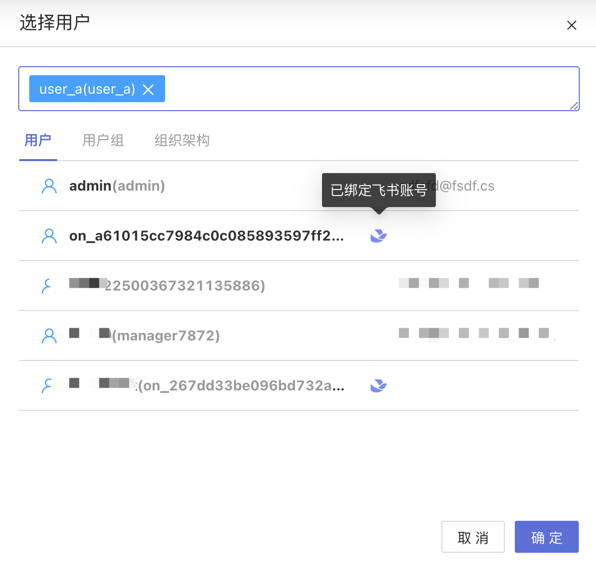
If a selected system user has not linked the required third-party-app account, the task will skip that user at runtime. The same rule applies to user groups and organizational units whose members lack the linked third-party-app account.
One-Click Copy & Paste
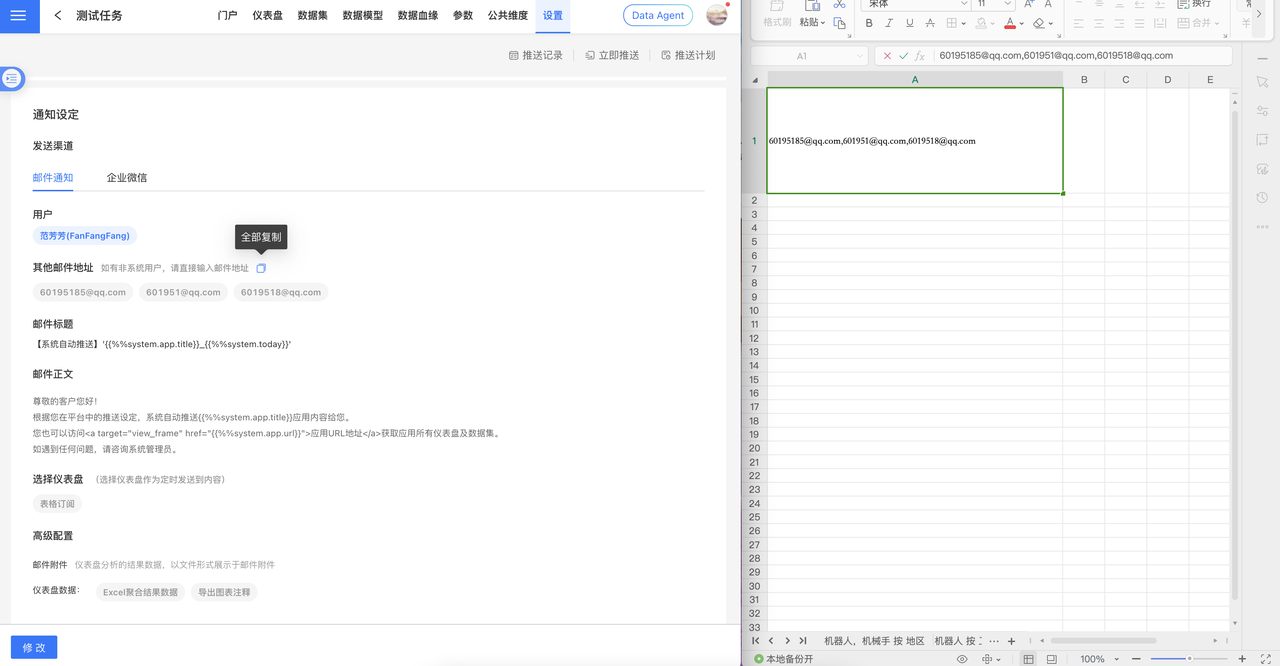
Version 6.2 introduces the One-Click Copy & Paste feature. From the task “View” screen you can copy account details in a single click for instant extraction; in a new task, one click pastes the same data for reuse, accelerating subscription-task configuration.
Template Variables
Template variables are supported in both the body and the title of push content.
Example:
This is a temporary subscription message {{%%system.dashboard.url}}Supported template variables are as follows:
| Variable Name | Description |
|---|---|
| system.app.title | App title |
| system.app.url | App link |
| system.today | Current date |
| system.app.share.url.pwd | When the App has a public link enabled and the “Require access password” option is turned on, this template variable will be replaced with the public link’s access password. If the public link is disabled or the password requirement is not enabled, and this variable is used, it will be substituted with a prompt text. |
Template variables supported only by Webhook push:
| Variable Name | Description |
|---|---|
| system.dashboard.url | Combined text of Dashboard title and Dashboard link |
Email Notifications
Email notifications deliver Dashboard-related business information via email. Before using this feature, please ensure that the SMTP service has been configured.
Information Configuration
- Select User: Enter the system user for email notifications.
- Other Email Addresses: When the recipient is not a system user, enter the recipient’s email address.
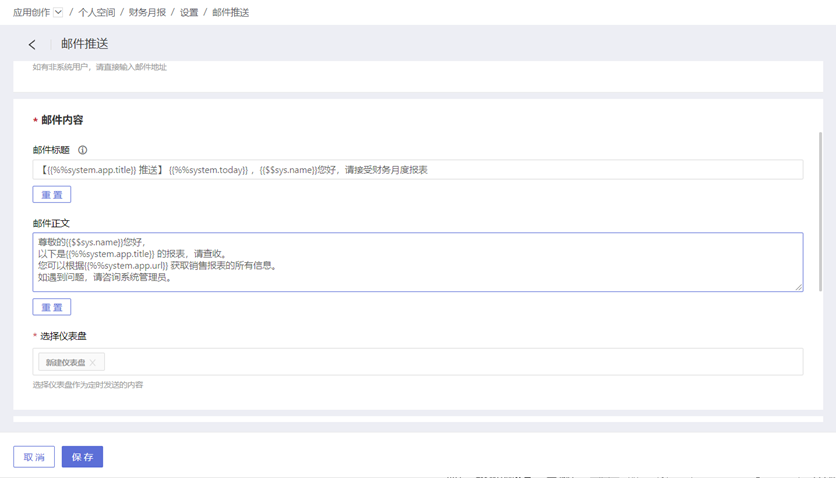
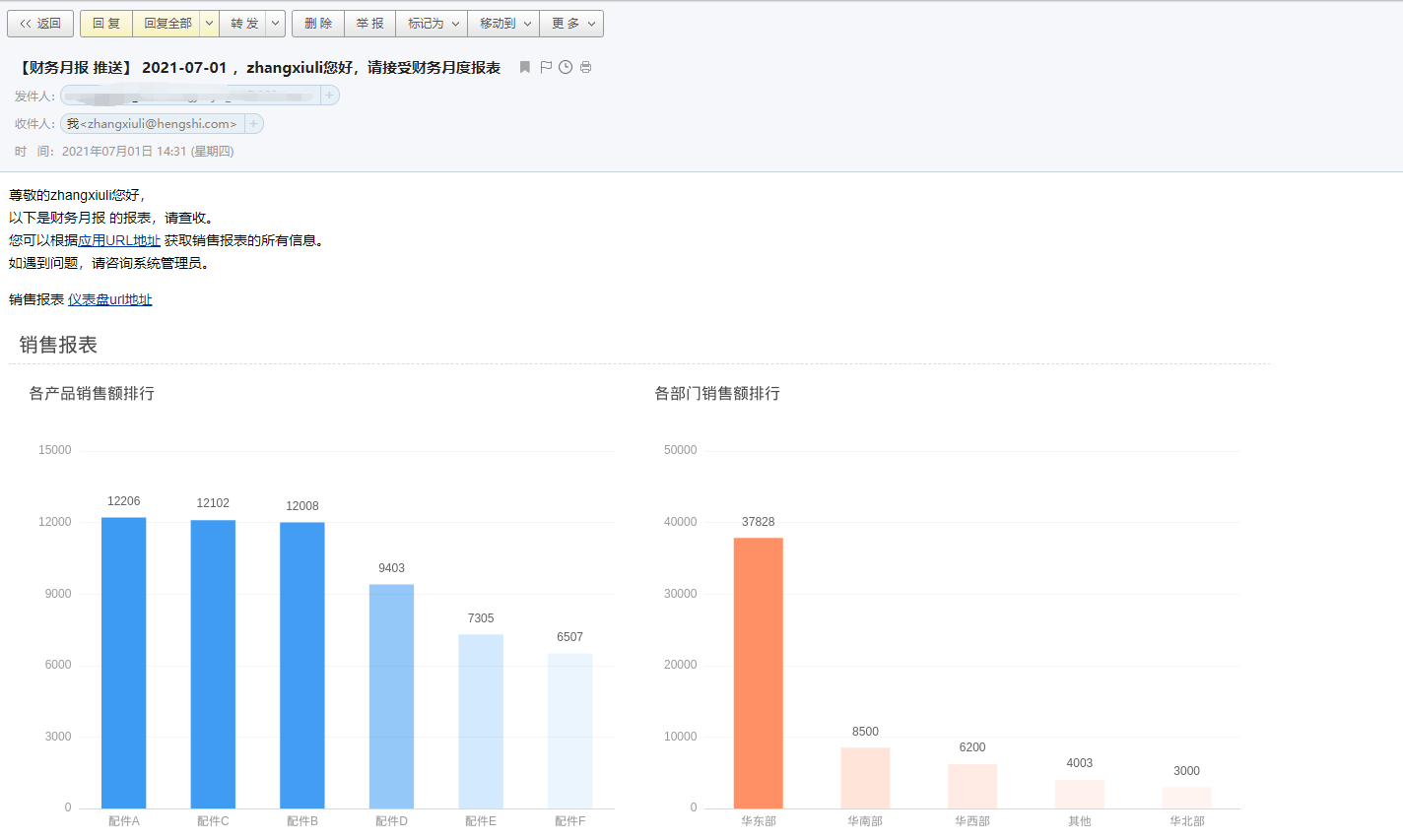
- Email Content: Includes the email subject, body, and selected Dashboard. The email body supports custom plain text, system parameters, App parameters, and user attributes.
System parameters: App name, App URL, and email push date.
App parameters
User attributes The example below shows an email body written with various parameters and user attributes, along with the actual sending scenario.
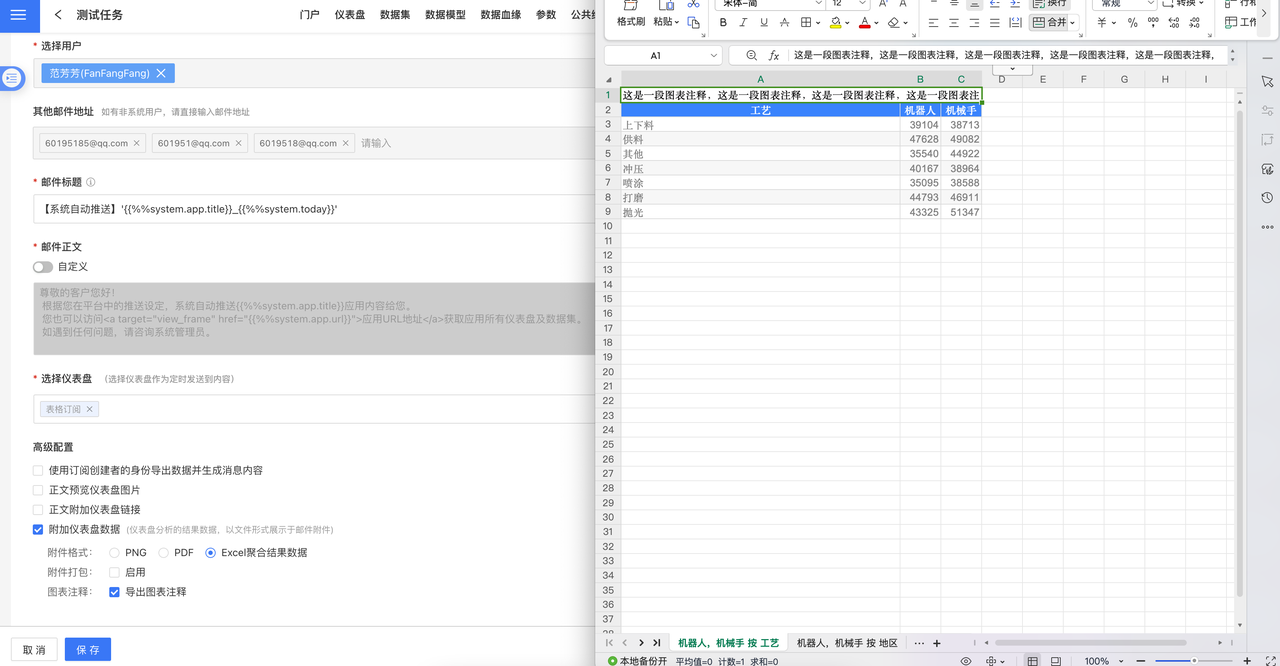
- Advanced Configuration: Supports exporting data and generating message content using the subscription creator’s identity, previewing the Dashboard image in the body, attaching a Dashboard link in the body, and attaching Dashboard data (the result data of Dashboard analysis, displayed as a file in the email attachment).
Export Chart Annotations
Version 6.2 introduces the Export Chart Annotations feature. When a subscription task is configured to export Excel data, chart annotations can now be included, ensuring data integrity throughout the transfer process.
Generate Download Links for Large Attachments
When a data analyst sets up email subscriptions or alert pushes for users, different mail servers may impose size limits on large attachments, causing delivery failures. In version 6.1, email attachments can be converted into download links for delivery (see image). 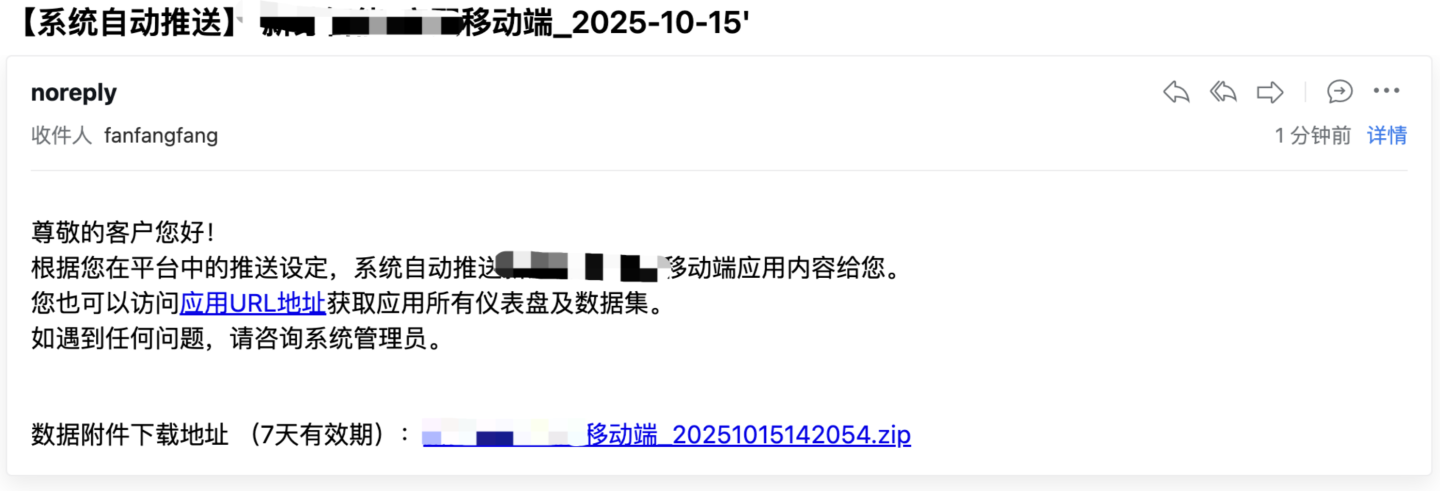
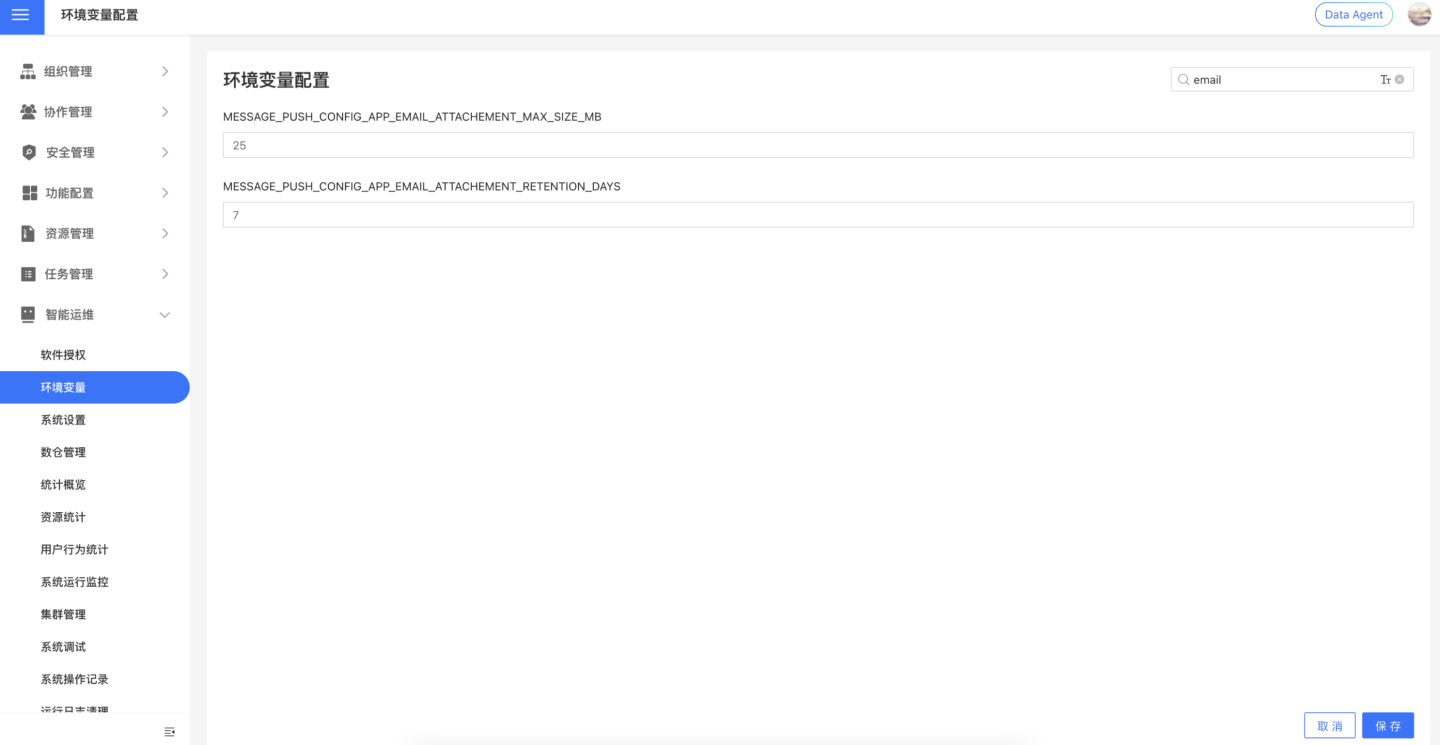
- The threshold at which an email attachment is converted to a download link is controlled by the environment variable
MESSAGE_PUSH_CONFIG_APP_EMAIL_ATTACHEMENT_MAX_SIZE_MB; the default is 25 MB. - The generated download link has an expiration period, controlled by the environment variable
MESSAGE_PUSH_CONFIG_APP_EMAIL_ATTACHEMENT_RETENTION_DAYS; the default is 7 days. A notice is included in the email body.
WeCom (WeChat Work)
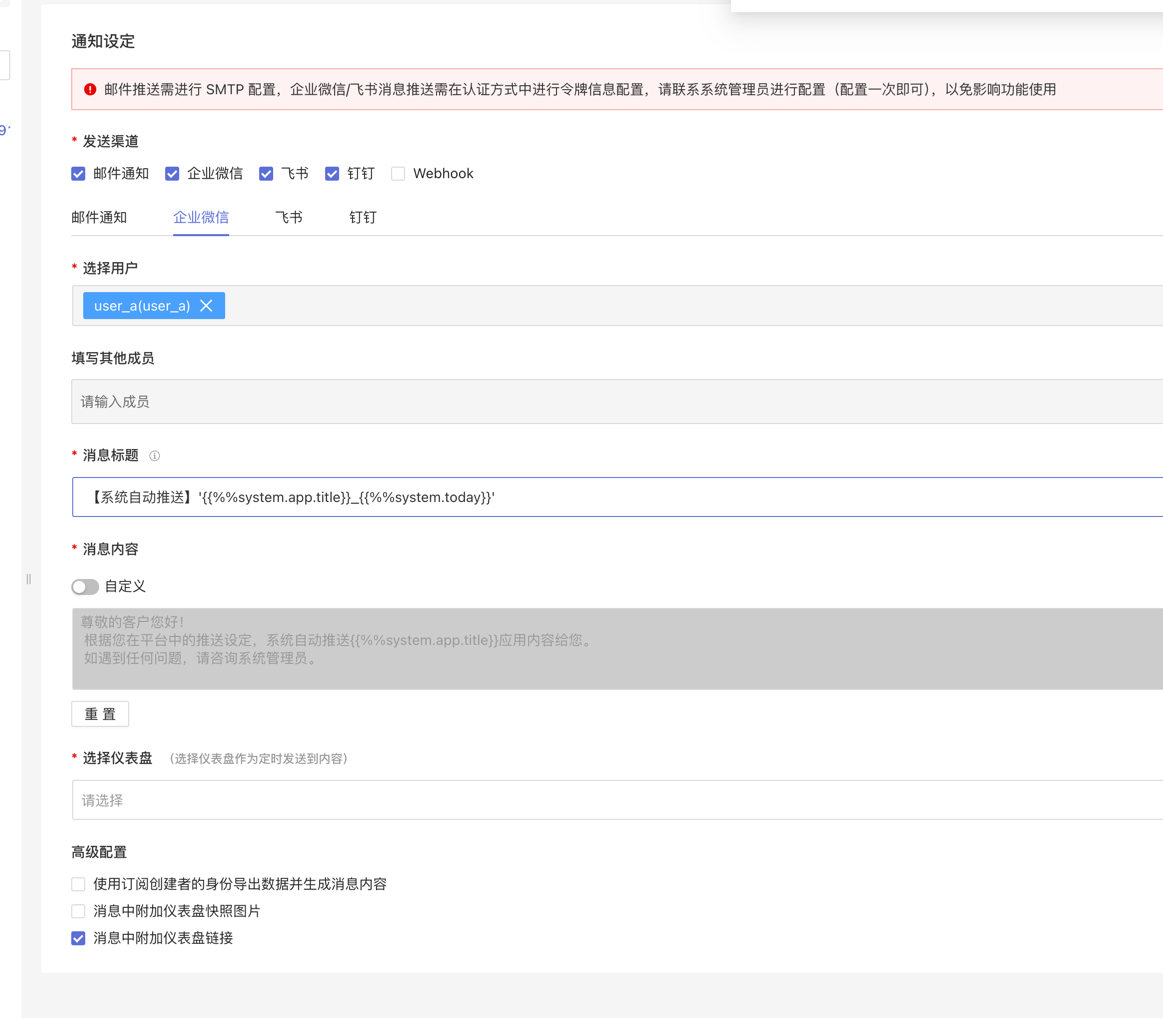
The WeCom method sends notifications to users via WeChat Work messages and allows dashboard information to be embedded in the message.
Before enabling the WeCom method, you must configure the token information in Authentication Method. Please contact your system administrator to complete this one-time setup; otherwise, the feature will not function properly.
When subscribing to dashboard messages via WeCom, configure the following items:
- Message Title: Required. Up to 100 characters; parameter substitution is supported.
- Select Users: Optional. Choose users already in the system.
- Add Other Members: Optional. Manually enter the WeCom
useridof users inside WeChat Work. Multiple user IDs are supported; separate them with commas.
How to obtain the WeComuserid: Tutorial. - Message Content: The system provides a default message body, but you can customize it. Custom text supports system parameters, App parameters, and user attributes.
- Select Dashboard: Choose the dashboard to be included in the message.
- Advanced Settings: Optionally attach a dashboard snapshot image and/or a dashboard link to the message.
At least one of “System Users” or “Other Members” must be specified.
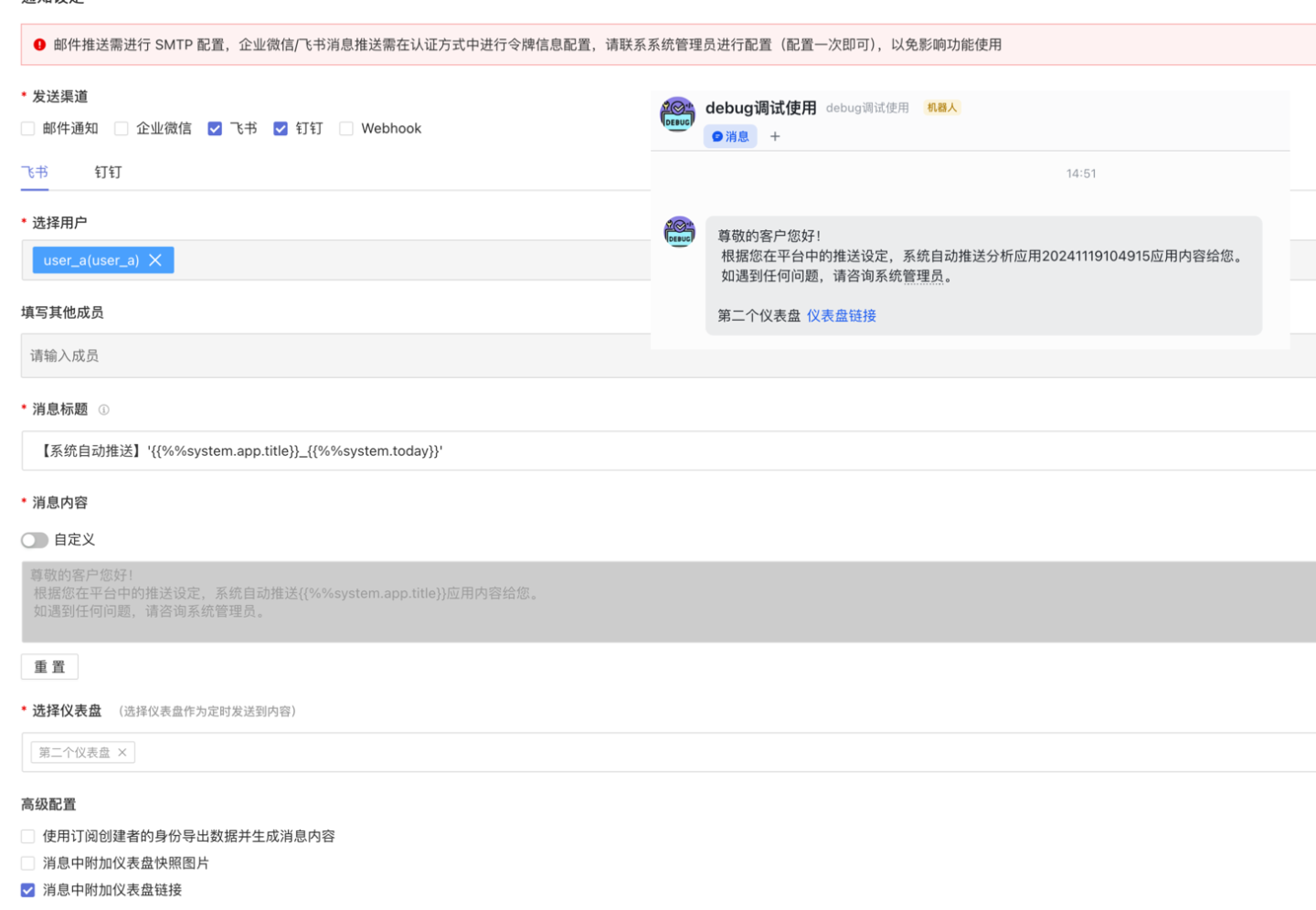
Feishu
The Feishu channel delivers notifications as messages inside the Feishu app and allows you to attach Dashboard information to the message.
Before enabling it, token information must be configured under Authorization. Please ask your system administrator to complete this one-time setup; otherwise the feature will not work.
When subscribing to Dashboard messages via Feishu, configure the following items:
- Message Title: Required, ≤ 100 characters; parameters are supported.
- Select Users: Optional; choose users inside the system.
- Add Other Members: Optional; manually enter Feishu user IDs. Multiple IDs should be separated with commas.
How to obtain Feishuuser_id: Tutorial. - Message Body: A default body is provided; you can customize it as plain text and include system parameters, App parameters, and user attributes.
- Select Dashboard: Choose the Dashboard to be sent in the message.
- Advanced Settings: Optionally attach a Dashboard snapshot image and a Dashboard link.
- At least one of “System Users” or “Other Members” must be filled in.
- Feishu user IDs come in three types; the manually entered
user_idmust be of typeuser_id. An incorrect type will cause delivery failures.
DingTalk
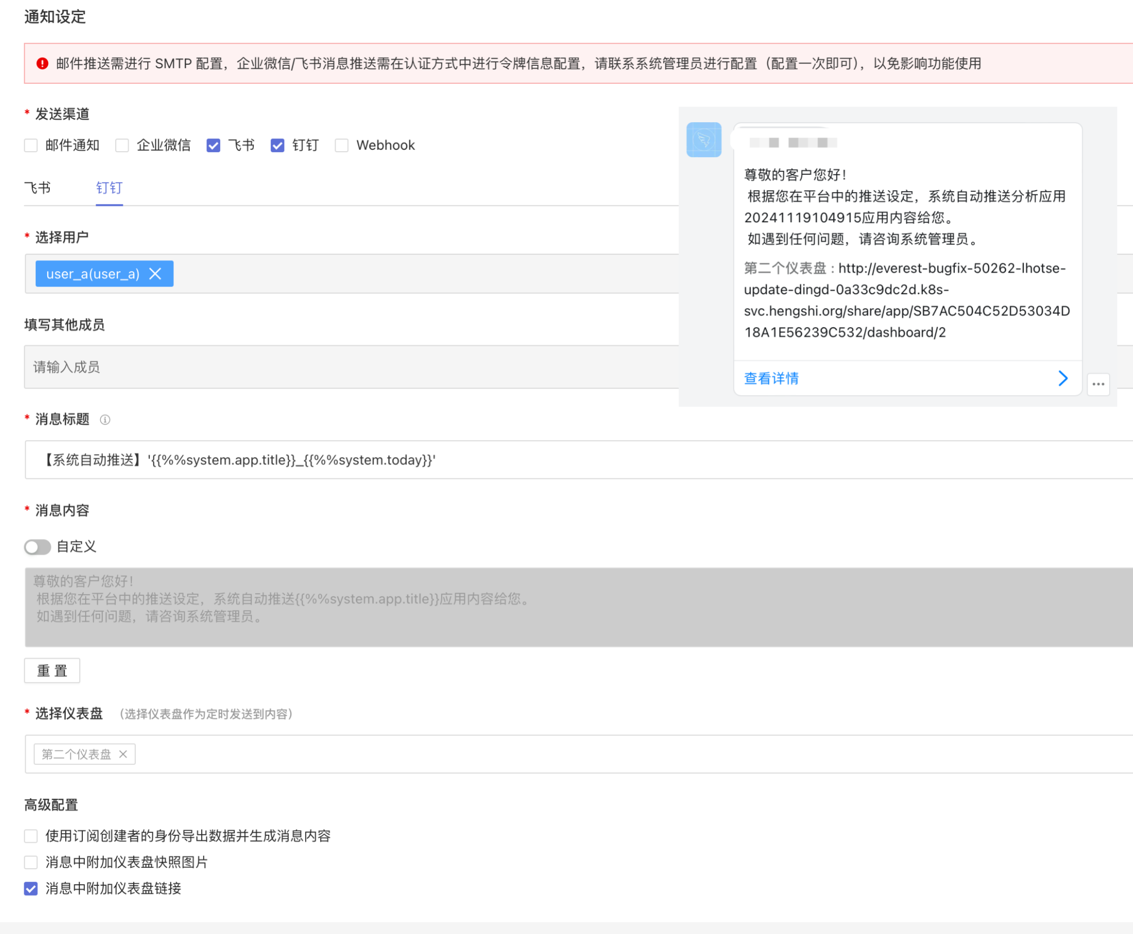
The DingTalk channel delivers notifications to users as in-app messages and allows Dashboard cards to be embedded.
Before enabling it, the token must be configured under Authorization. Ask your system administrator to complete this one-time setup; otherwise the feature will not work.
In addition to the auth token, the AgentId is also required for DingTalk push.
When subscribing to Dashboard messages via DingTalk, configure the following items:
- Message Title: Required, ≤ 100 characters; parameters are supported.
- Select Users: Optional; choose users inside the system.
- Add Other Members: Optional; manually enter DingTalk user IDs (userid). Multiple IDs are separated by commas.
How to obtain the DingTalkuserid: tutorial. - Message Body: A default body is provided; you can customize it as plain text and include system parameters, App parameters, and user attributes.
- Select Dashboard: Choose the Dashboard(s) to be sent in the message.
- Advanced Settings: Attach a Dashboard snapshot image and/or a Dashboard link.
- At least one of “System Users” or “Other Members” must be filled.
- Due to DingTalk message limits, at most 6 Dashboard links can be attached; if more are selected, a reminder will be added to the message.
- Due to DingTalk message limits, at most 1 Dashboard snapshot image can be attached; if more are selected, a reminder will be added to the message.
Webhook
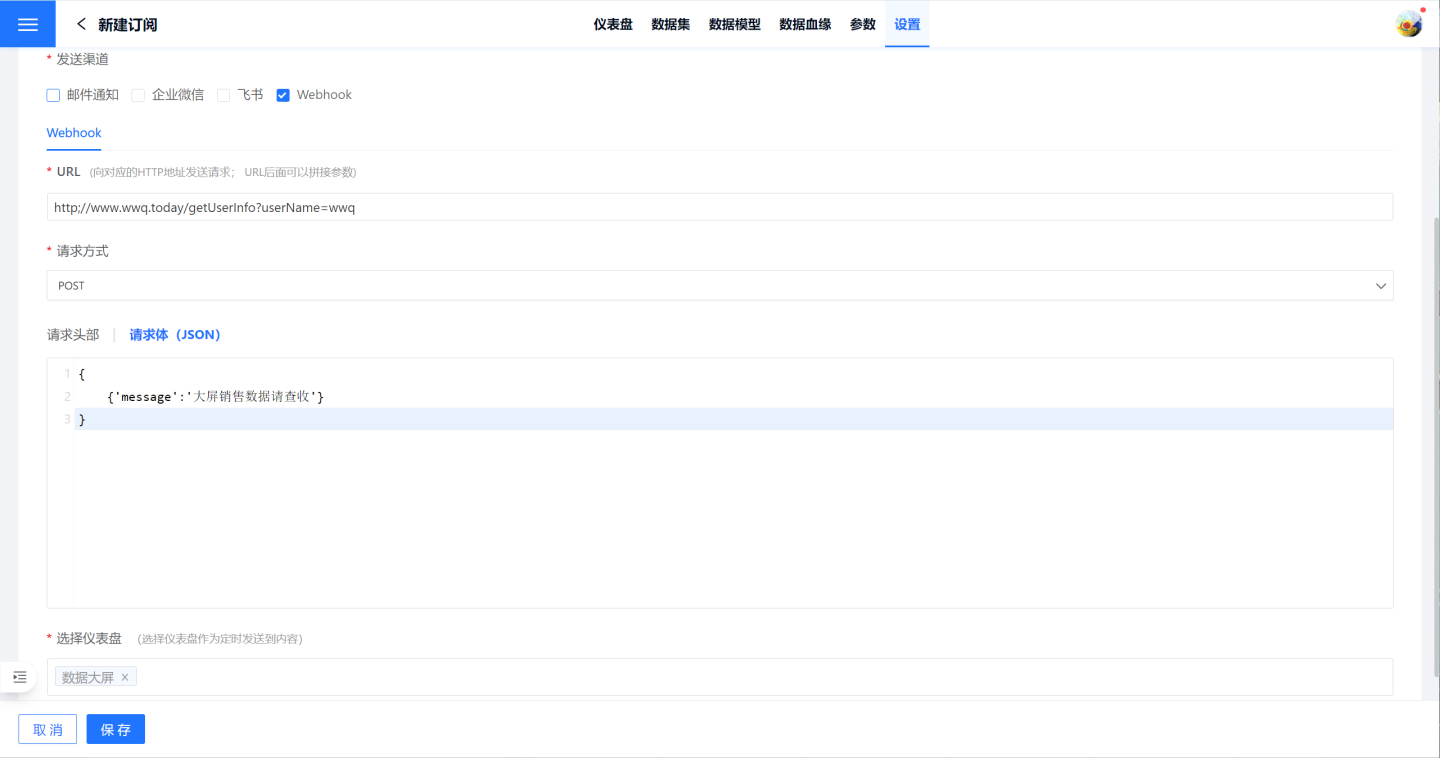
When using Webhook, users must customize the message request method and content.
- URL: The system sends a request to the corresponding HTTP address; parameters can be appended to the URL.
- Request Method: GET, POST, PUT, and DELETE are supported.
- Request Headers & Body: Fill in the headers and body according to the alert content; both can carry alert information.
The example sends the message via POST, placing the alert content in the request body to notify the user.
GET requests contain only the headers. - Select Dashboard: Choose a Dashboard to be sent on a schedule.
Subscription Push Schedule
Once the email subscription is configured, clicking the subscription on the subscription list page opens the configuration details. In the upper-right corner of the details page, click “Push Now” to immediately deliver the App to the target recipients. Alternatively, choose “Push Schedule” to set up a timed email push; the email will arrive at the scheduled time.
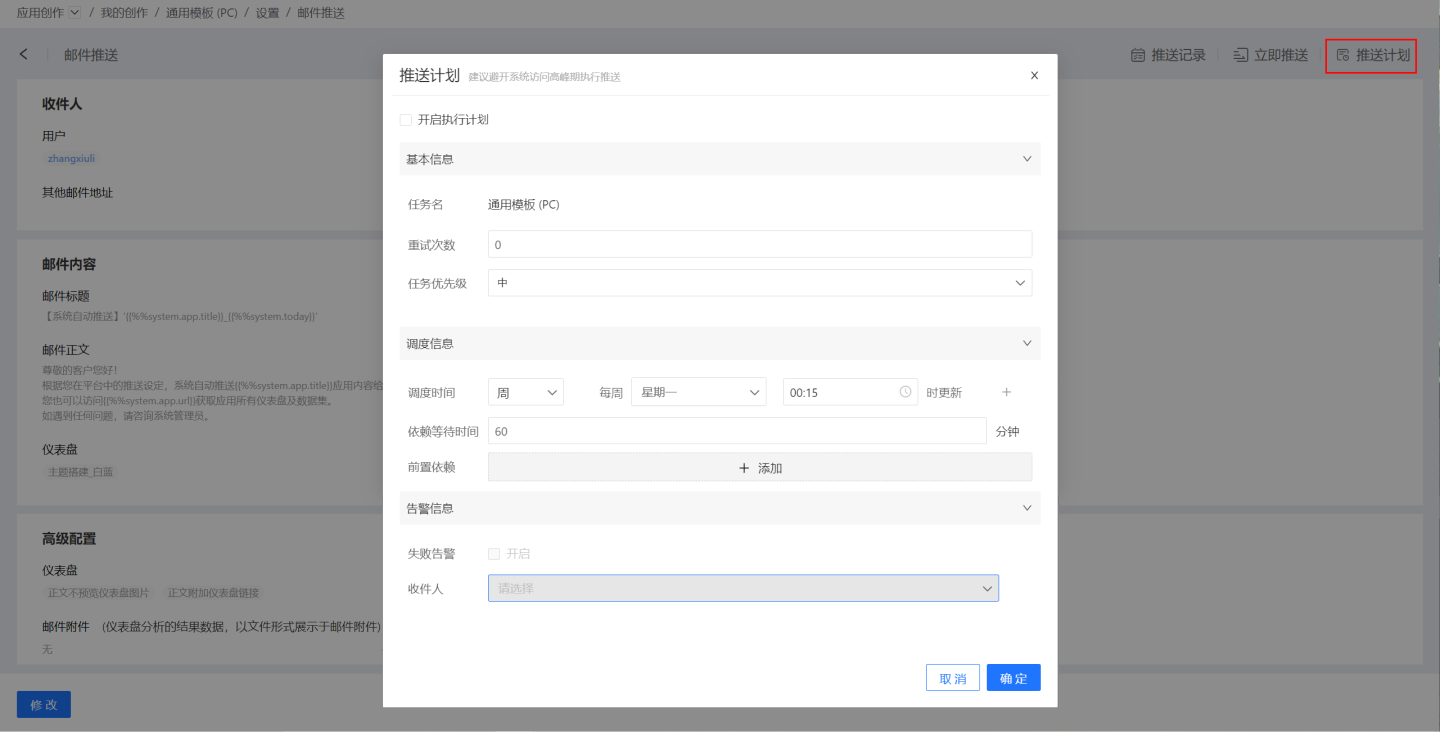
- Basic Information: Configure the number of retries on execution and the task priority. Priority levels are High, Medium, and Low; higher-priority tasks are processed first.
- Scheduling Information:
- Set the task schedule; multiple schedules are supported. Execution plans can be defined by Hour, Day, Week, Month, or Custom.
- Hour: Specify the minute within every hour to run.
- Day: Specify the exact time of day to run.
- Week: Specify the day(s) of the week and exact time to run; multiple days can be selected.
- Month: Specify the day(s) of the month and exact time to run; multiple days can be selected.
- Custom: Define any arbitrary execution time.
- Set upstream task dependencies; multiple dependencies are allowed.
- Set the dependency wait time.
- Set the task schedule; multiple schedules are supported. Execution plans can be defined by Hour, Day, Week, Month, or Custom.
- Alert Information: Enable failure alerts; when a task fails, recipients are notified by email.
Subscription Push Records
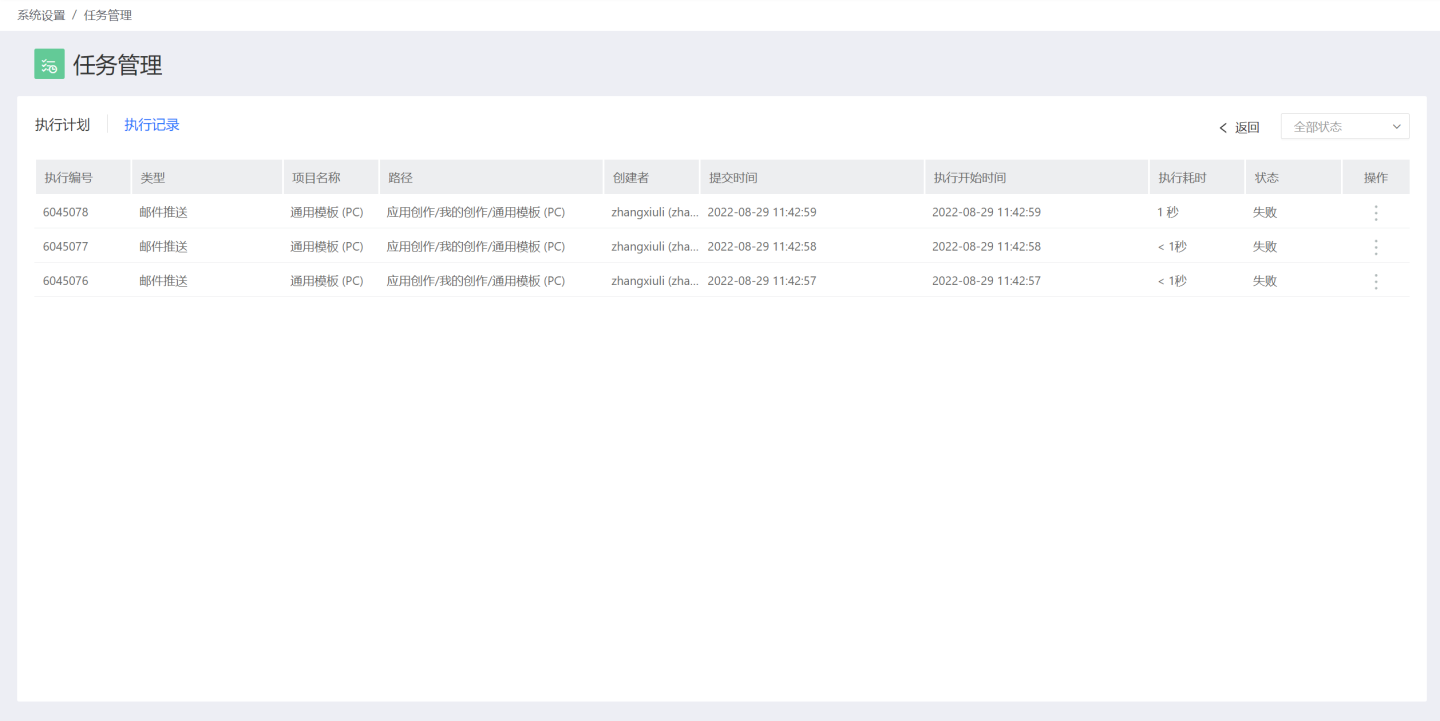
In the upper-right corner of the email push details page, select "Push Records" to view all push history and push logs for this App.
Push Permission Rules
• Content received by users within the system via email push inherits the same data permissions as App → Settings → Data Permissions.
• Content received by users outside the system via email push inherits the data permissions of the app author.