

Global CSS Settings
Hengshi System provides global CSS functionality. By customizing global CSS, you can more precisely control the visual appearance of the page. For example, you can use the display:none CSS rule to hide features that do not need to be displayed.
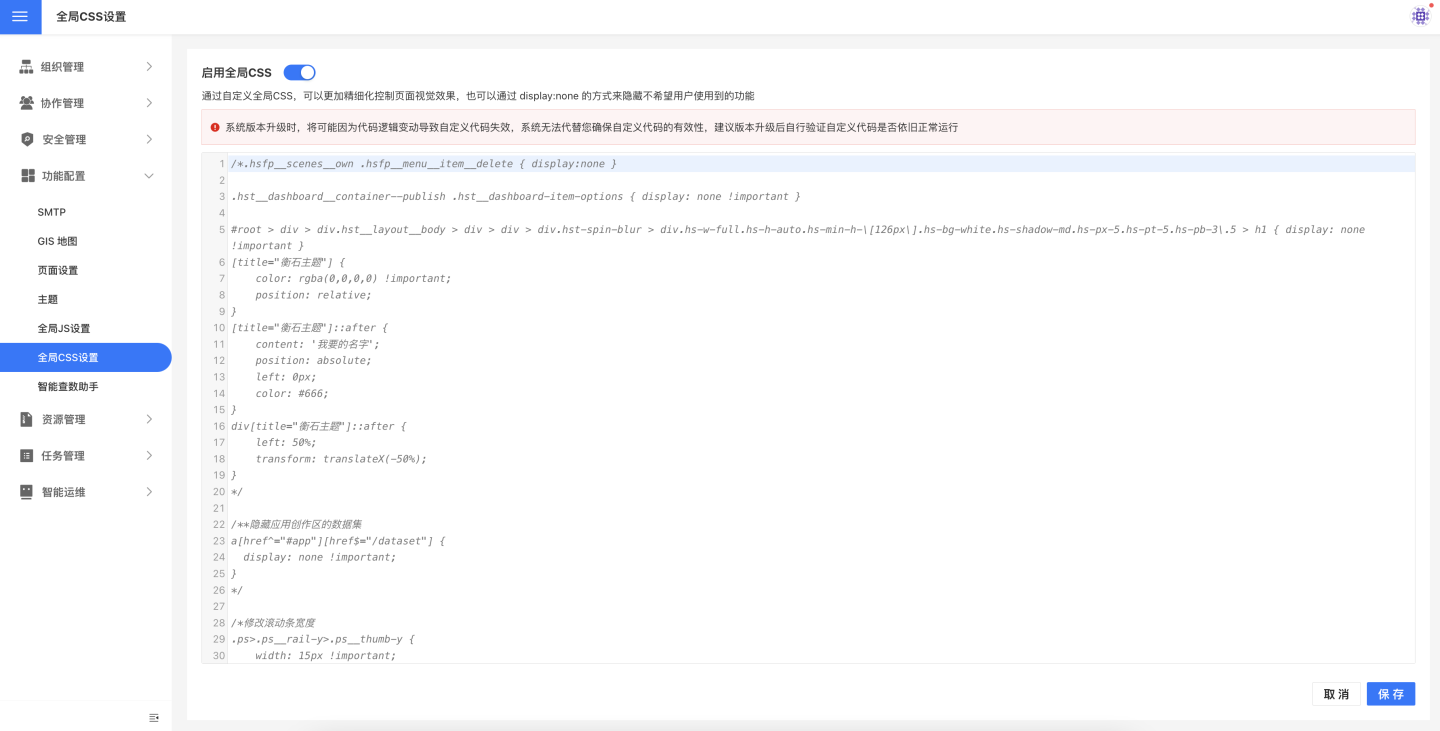
First Decide Whether CSS Is the Right Tool
Global CSS is best for "how the page looks", not "what the page does". Use the guide below for a quick decision:
| Requirement | Use global CSS? | Why | Typical cases |
|---|---|---|---|
| Hide buttons, tabs, cards, or descriptive text | Recommended | This is purely presentation-layer control. | Hide "Export", hide "Forgot password", hide homepage cards |
| Adjust colors, fonts, borders, spacing, or branding style | Recommended | CSS is naturally suited to visual branding. | Adjust app market fonts, align the tenant visual style |
| Handle content dynamically based on route or runtime state | Not the first choice | These cases usually need event listeners or render timing, so Global JS is a better fit. | Hide items only on a specific page, redirect after logout |
| Replace built-in product copy | Not the first choice | If an i18n key exists, prefer customI18nPostProcessor in Global JS. | Customize greetings, button labels, prompt text |
| Extend Data Agent capabilities | Not suitable | This is not a visual concern; use window.heisenberg.createTool() in Global JS. | Connect knowledge bases or internal APIs |
Usage Scenarios
Global CSS can control the page appearance and is commonly used in the following scenarios.
Scenario 1: Controlling Page Visual Display Effects
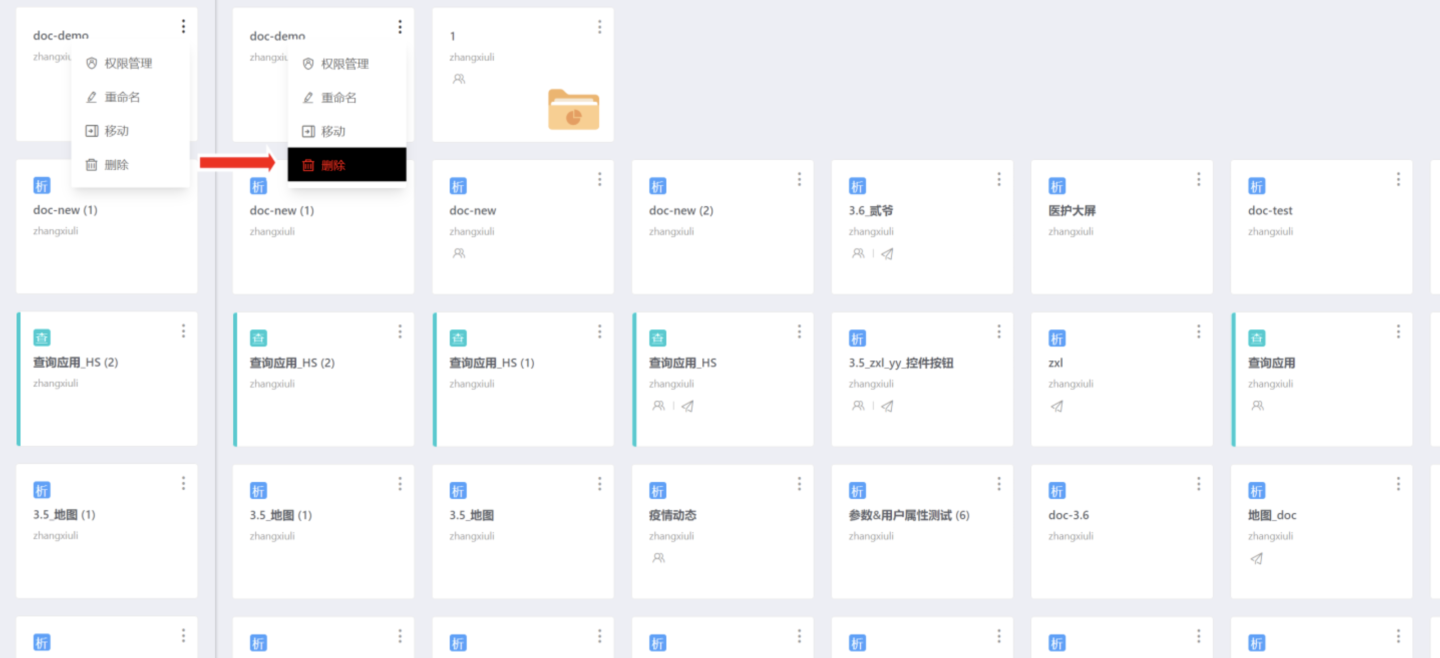
Use global CSS to control the visual display effects of the page. For example, you can add borders to menu items, modify menu fonts and backgrounds, etc., through global CSS. In the example, the background and text of the menu are modified. The modifications only take effect in the application creation module and do not affect other modules.
Scenario 2: Hiding Page Display Content
Use global CSS to hide page display content, such as hiding displayed text via CSS. In the example, some text on the homepage is hidden.
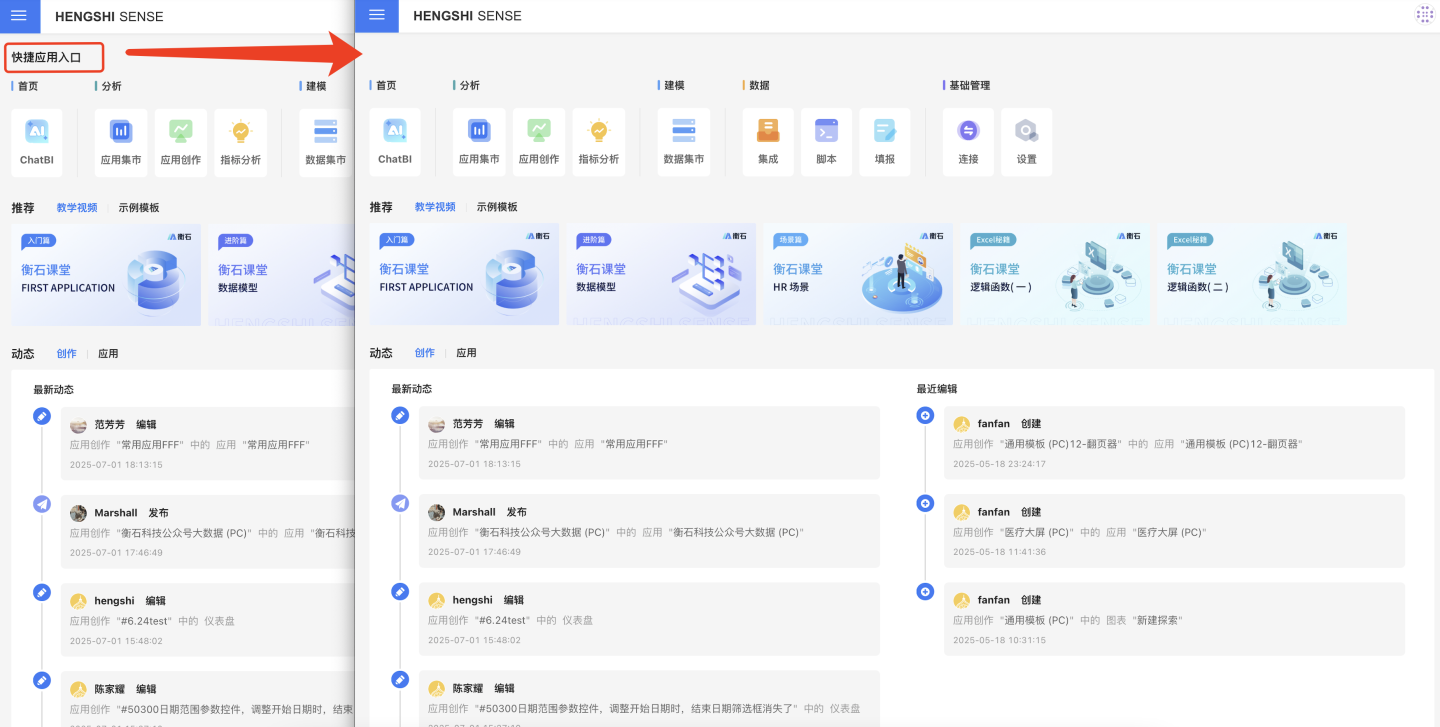
The most common customer-support requests fall into this category, for example:
- Hide operational content such as "Industry Cases" or "Help" on the homepage.
- Hide the "Forgot password" entry on the login page.
- Hide specific menu items such as "Export" or "Edit" in the App Market.
- Hide user group or organization tabs inside modal dialogs.
Scenario 3: Hiding Function Buttons
You can also hide function buttons through CSS settings. In the example, the delete button in the application creation menu is hidden, and it does not hide the delete buttons in other modules.
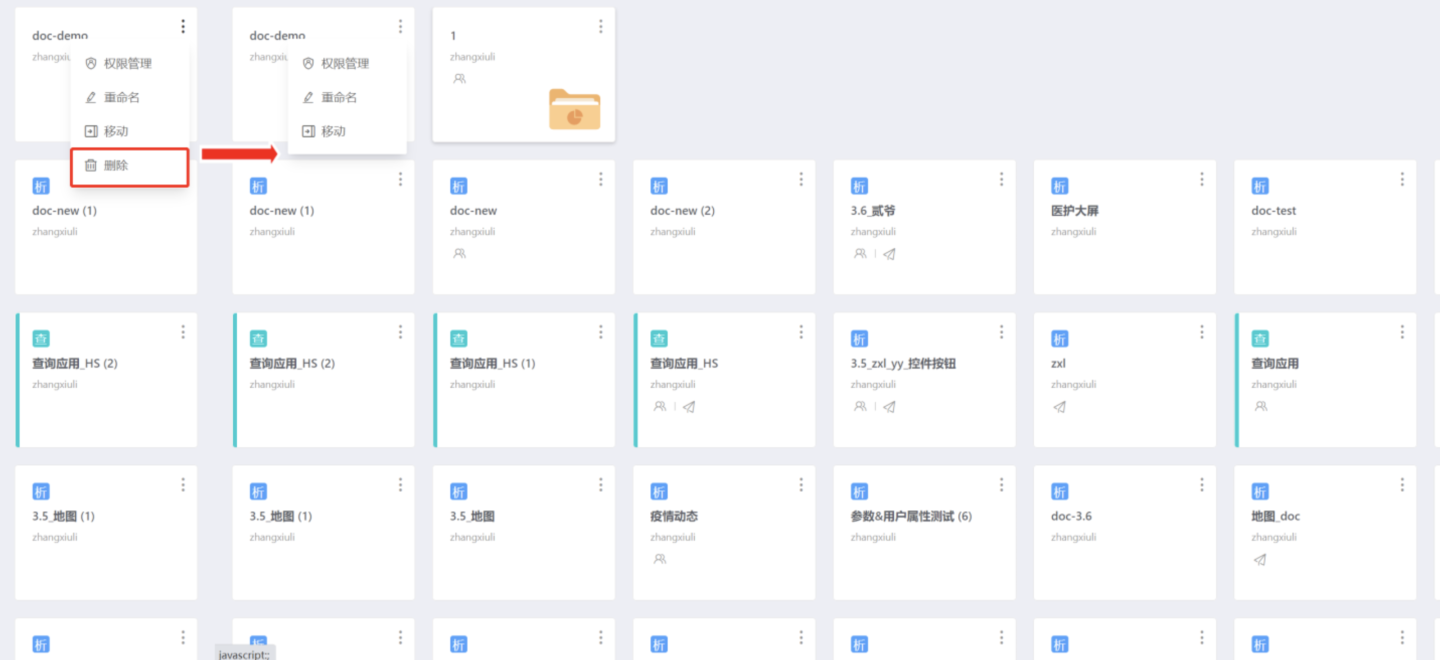
If the requirement becomes "hide only on a specific page" or "hide only after a popup appears", you usually need more specific selectors. If you also need route checks or runtime conditions, switch to Global JS.
Scenario 4: Limit the Visible Feature Surface
Besides single buttons, global CSS is also commonly used to reduce an entire visible feature surface, for example:
- Keep only part of the chart category tabs and hide chart types after the fourth tab.
- Hide several chart types in the chart-switching dialog.
- Hide selected configuration entries or icons on editing pages.
This approach is useful for OEM, lightweight delivery, or role-specific scenarios where customers should only see a limited subset of features.
Recovering from Out-of-Control CSS Code
The ability to customize CSS code is very powerful, but it also comes with risks. If you make a mistake in your custom CSS code or for other CSS-related reasons, it is likely to cause the system to be inaccessible.
To address this, we provide the ability to recover from out-of-control CSS code using URL parameters. You can visit https://{host}/setting/global-css?no-global-css=true to disable the CSS code and access the configuration page, thereby restoring access to the system.