

API Data Source
When users work with EXT API data, they can bring it into HENGSHI SENSE through an API Data Source.
An API Data Source defines a unified ingestion specification that supports a large number of APIs lacking native compute capabilities. Out-of-the-box connectors for many common APIs are provided, while custom development lets you add internal enterprise APIs or any public API, enabling rapid ingestion. API Data Sources make it easy to scale external API ingestion from 1 to N, continuously strengthening HENGSHI SENSE’s data-integration power.
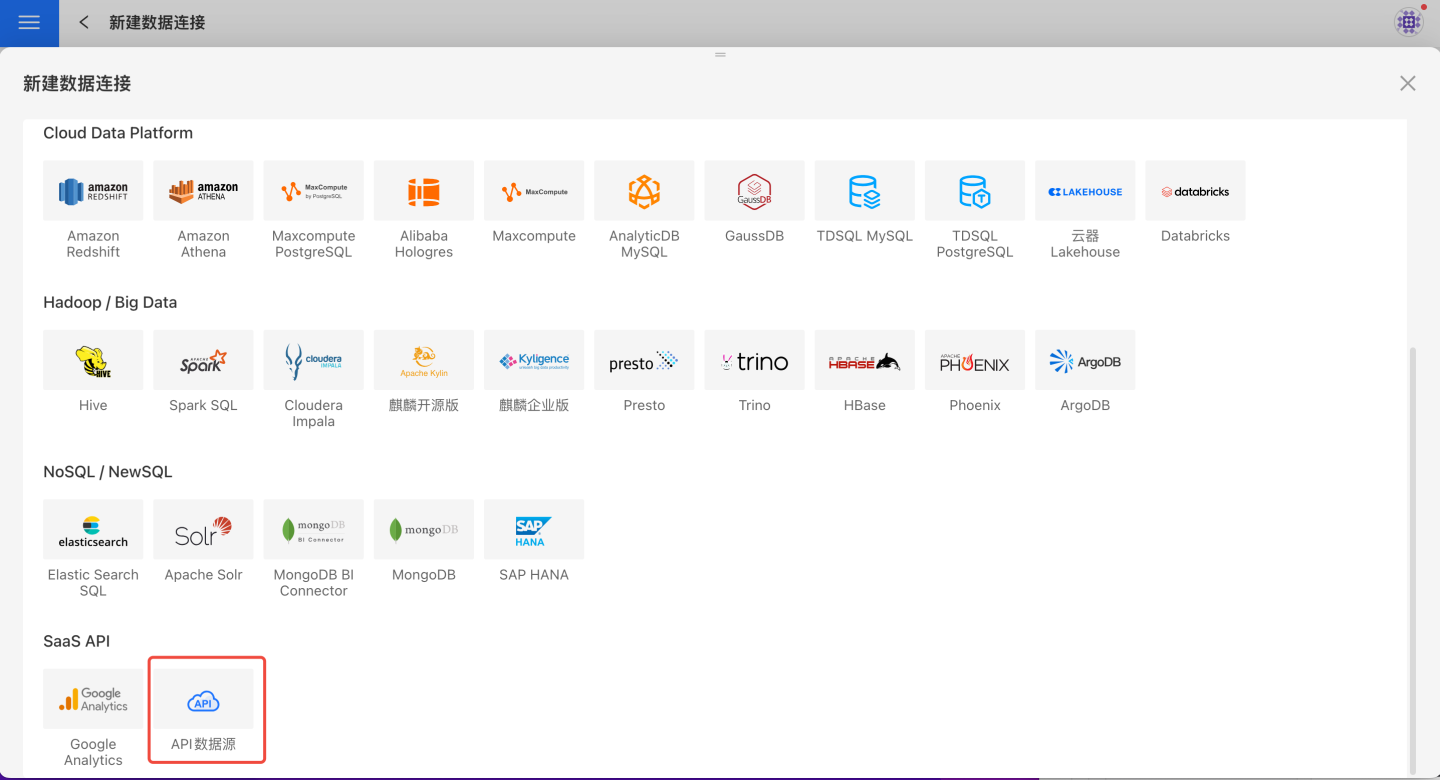
Built-in API Data Sources
Mingdao Cloud Data Source
Application data on Mingdao Cloud can be connected to HENGSHI SENSE with a few simple steps:
Select API as the data source when creating a new data connection.
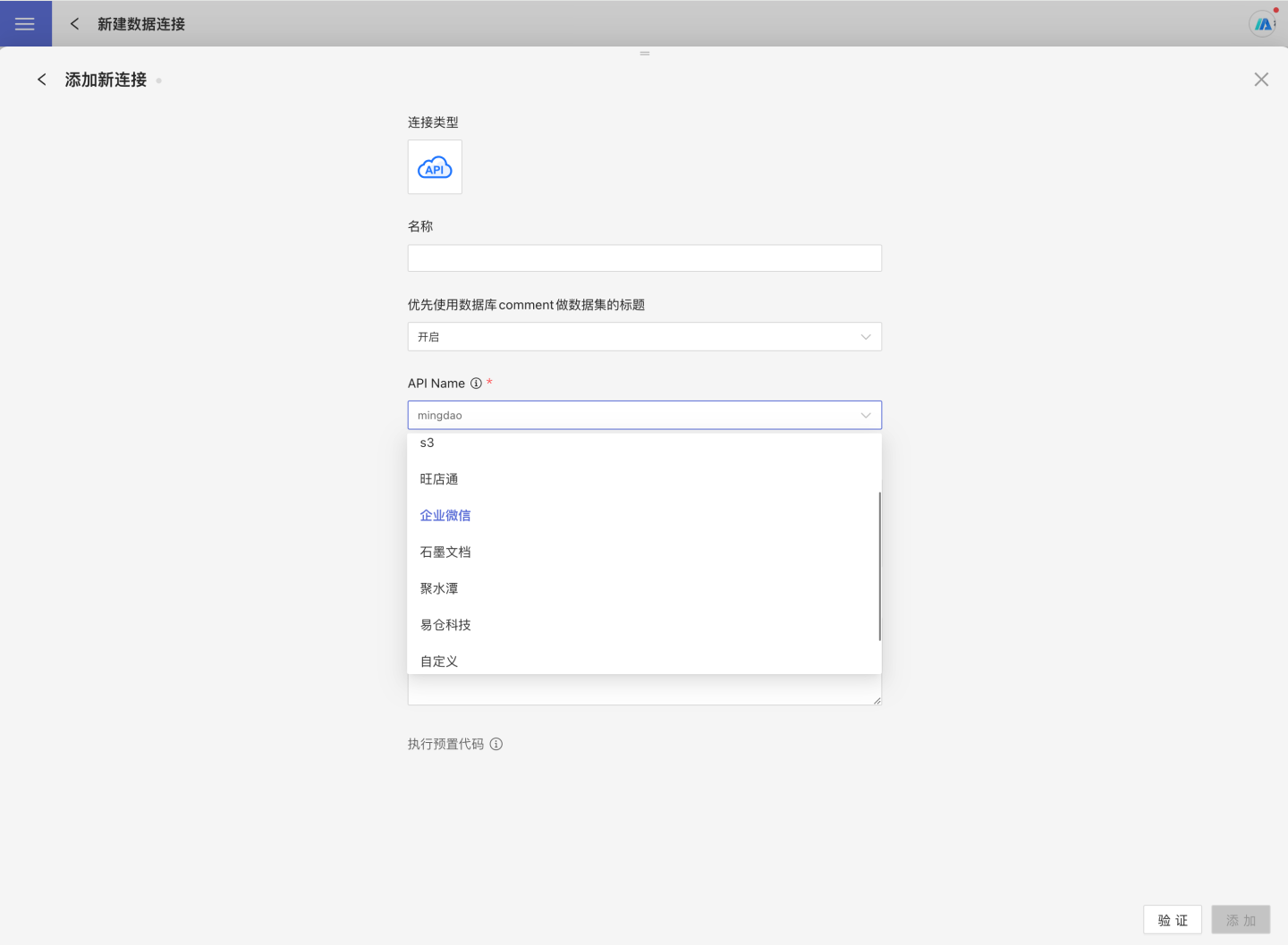
Enter a name for the new connection and set API name to
mingdaoyun.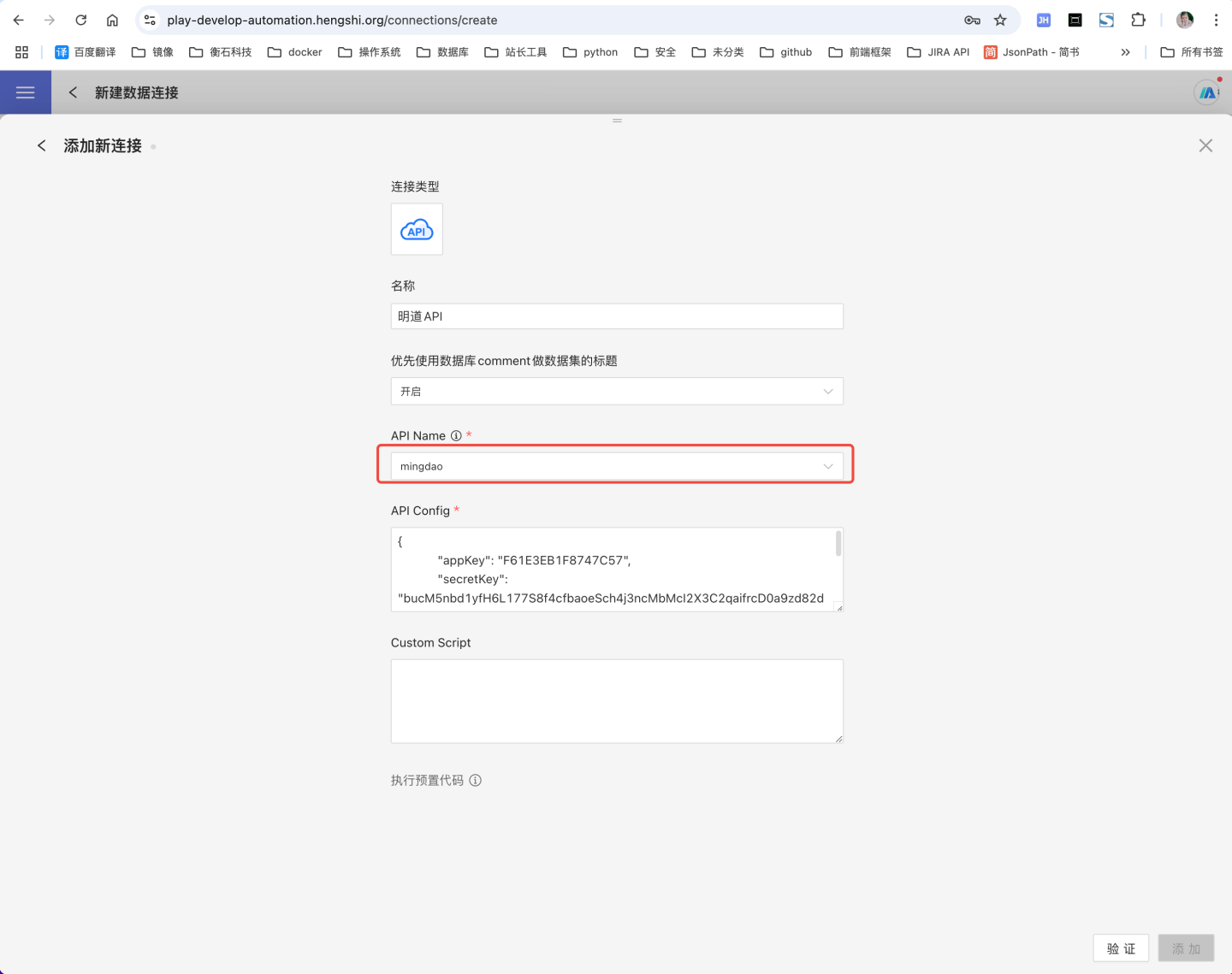
Fill in the Mingdao Cloud configuration information under API Config. Example:
json{ "appKey":"ab1axxxxxxxx", "secretKey":"68b7eqbp7r1p5ZeAbw60aXcG0h8Gxxxxxxxxxxxxxxxxxxxxxxxxxxxxxxxxxxxxxxxxxxxxx", "sign":"NWRiODkxZmQ0NzljNzcxZDhiMDZjMzE5ZDxxxxxxxxxxxxxxxxxxxxxxxxxxxxxxxxxxxxxxxxxxxxxxx", "apiUrl": "https://api.mingdao.com/v2/open" }Mingdao Cloud API Config Description
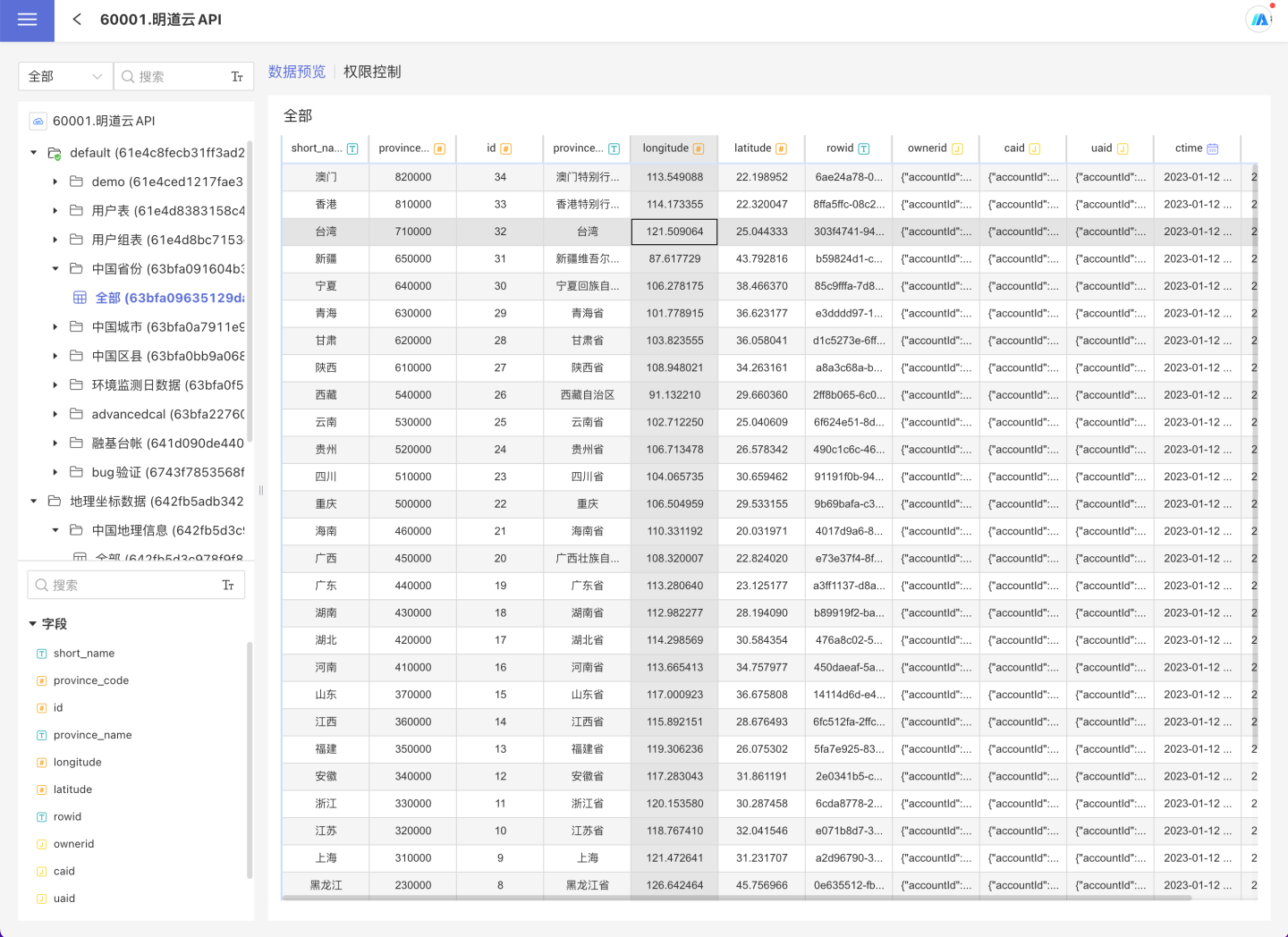
Field Required Description appKey Yes AppKey from your Mingdao Cloud application secretKey Yes secretKey from your Mingdao Cloud application sign Yes sign from your Mingdao Cloud application apiUrl No For private deployment, provide the private URL; for public deployment, leave empty or use the public Mingdao Cloud URL After successful validation, click Save to complete the data connection. You can now view and use Mingdao Cloud data within the system.
FTP Data Source
The system supports FTP data sources. In HENGSHI SENSE, files under a specified FTP path can be read through simple configuration. The configuration steps are as follows.
Select API Data Source when creating a new data connection.

Enter the new connection name and choose
ftpas the API name.Fill in the FTP API Config information. Example:
json{ "host": "10.10.x.y", "username": "xxxxxxx", "password": "xxxxxxx", "directory": "/opt/ftp", "encoding": "utf8", "passive": true }FTP Data Source API Config Description
Field Required Description host Yes FTP server address username Yes FTP login username password Yes FTP login password directory No FTP mapped directory encoding No File encoding passive No Whether to use passive mode After successful validation, click Save to complete the data connection creation. The connected data can then be viewed and used in the system.
Tips
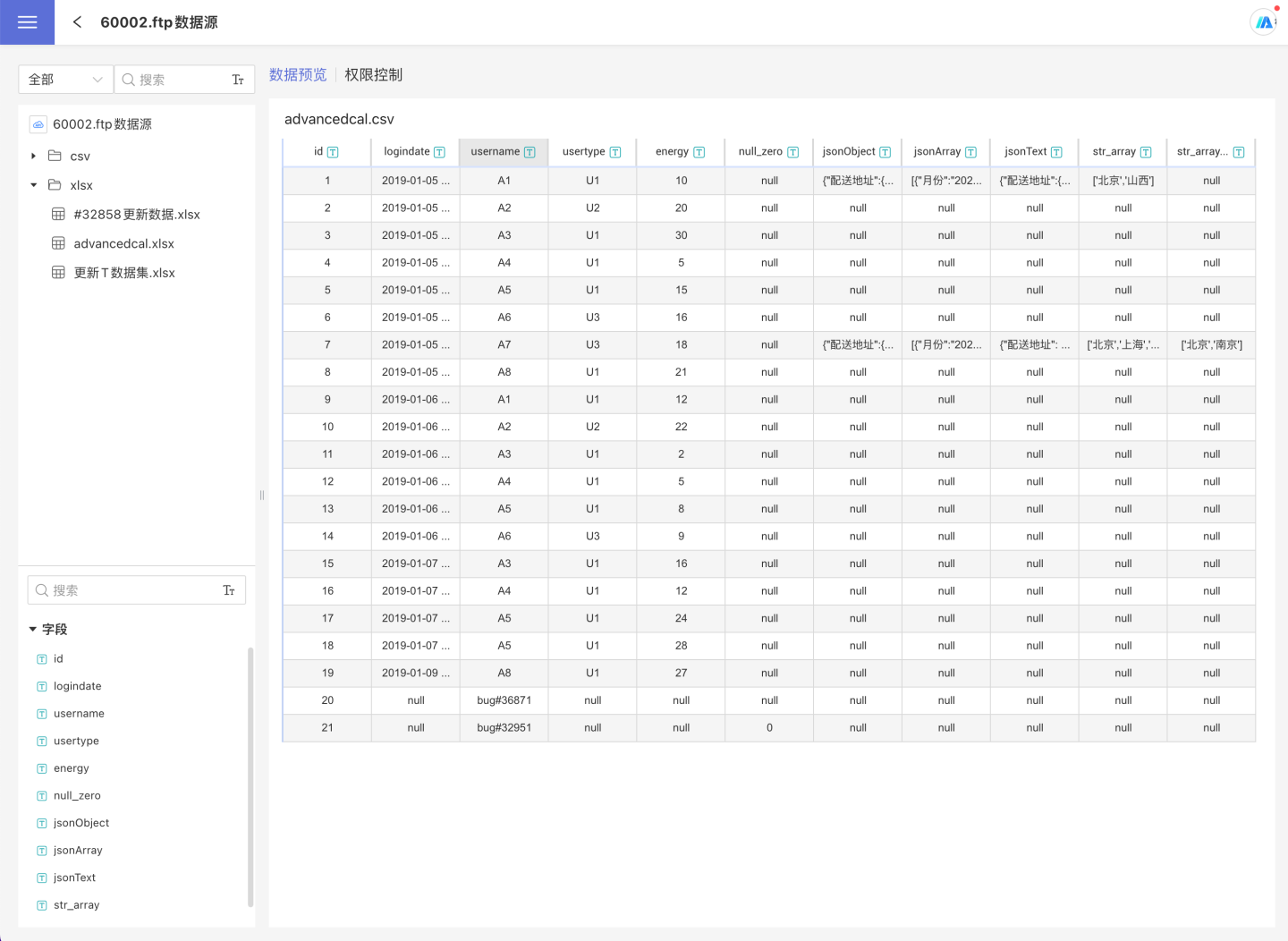
FTP data sources can only parse CSV and Excel files into table format; other file types are not supported.
For Excel files in FTP data sources, data can only be previewed after creating a new Dataset; direct preview in the data connection is not supported.
Other Built-in Data Sources
In addition to the FTP and Mingdao Cloud mentioned above, the system also supports API data sources such as S3, Wangdiantong, WeCom, Shimo Docs, Jushuitan, E-Cang Technology, and Wai Qin. After configuring the API config, users can bring the data into the HENGSHI SENSE platform.
API Config Configuration Examples
Below are the API Config examples for several built-in API data sources:
S3 Data Source API Config
{
    "access_key_id": "AKIAWBC5HCDHELXXXXXXXX",
    "secret_key_id": "67U4ZvclZxkqiM9owAVTEootwyxxxxxxxx",
    "region": "cn-north-x",
    "useVirtualFolderDelimiter": false,
    "bucket": "",
    "path": ""
}WangDianTong Data Source API Config
{
    "appsecret": "3a5737fc6bc2d6970f790308xxxxxxxx",
    "sid": "xxxxxxxx",
    "appkey": "xxxxxxxx-ot",
    "env": "production",
    "customizedStartTime": "2022-01-01 00:00:00",
    "addHSTimeColumn": true,
    "tableConfig": {
        "/stockin_order_query.php": {
            "timeWindow": 60,
            "timeWindowLimit": 50
        }
    }
}WeCom Data Source API Config
{
    "corpid": "wwcXXXXXXXXXX",
    "corpsecret": "XGGBxxxxxxxxxxxxxxxxxxxxxxxx",
    "customizedStartTime": "2022-09-01 00:00:00",
    "addHSTimeColumn": false,
    "templates": [
        "ZLyhvnbAYmJnwLXyyxxxxxxxxxxxxxxxxxxxx1",
        "ZLyhvnbAYmJnwLXyyxxxxxxxxxxxxxxxxxxxx2"
    ]
}Shimo Data Source API Config
{
    "sid": "s%3A7db3e9d7bab34969a6d592xxxxxxxxxxxx.hnmK3aq2yOYYJB9exxxxxxx",
    "addHSTimeColumn": true,
    "customCacheMaxLifetime": 5
}Jushuitan Data Source API Config
{
    "app_key": "b0b7d1db226d4216xxxxxxxxxxxxxxxx",
    "app_secret": "99c4cef262f34ca88xxxxxxxxxxxx",
    "access_token": "b7e3b1e24e174593xxxxxxxxxxx",
    "env": "test",
    "customizedStartTime": "2022-11-15 00:00:00",
    "addHSTimeColumn": true,
    "tableConfig": {
        "/open/orders/single/query": {
            "timeWindow": 30,
            "timeWindowLimit": 3
        }
    }
}ECCANG Data Source API Config
{
    "app_key": "e4bd91dcxxxxxxxx",
    "service_id": "xxxxxxxx",
    "secret_key": "bab4d5xxxxxxxx"
}Wai Qin Data Source API Config
{
    "openId": "76776371xxxxxxxx",
    "appKey": "u7To2bdLxxxxxxxx",
    "customFormList": [
        "74842108646xxxxxxxx1",
        "74842108646xxxxxxxx2"
    ],
    "aiProductIdentificationResultQueryStartTime": "2025-01-01 00:00:00"
}Custom API Data Source
Attention
Starting from version 5.1, for security reasons, the system disables the Groovy script feature filled in on the page by default. To use a custom API data source (via Groovy script entered on the page), add the following to the configuration file:
ENABLE_GROOVY_SCRIPT=trueAfter the configuration is complete, restart the service for it to take effect. Groovy scripts uploaded to the server (configured via the EXT_API_PATH variable) are not affected.
In addition to the built-in API data sources, the system supports user-defined API data sources, which can be implemented using Groovy scripts.
- Select the API data source when creating a new data connection.
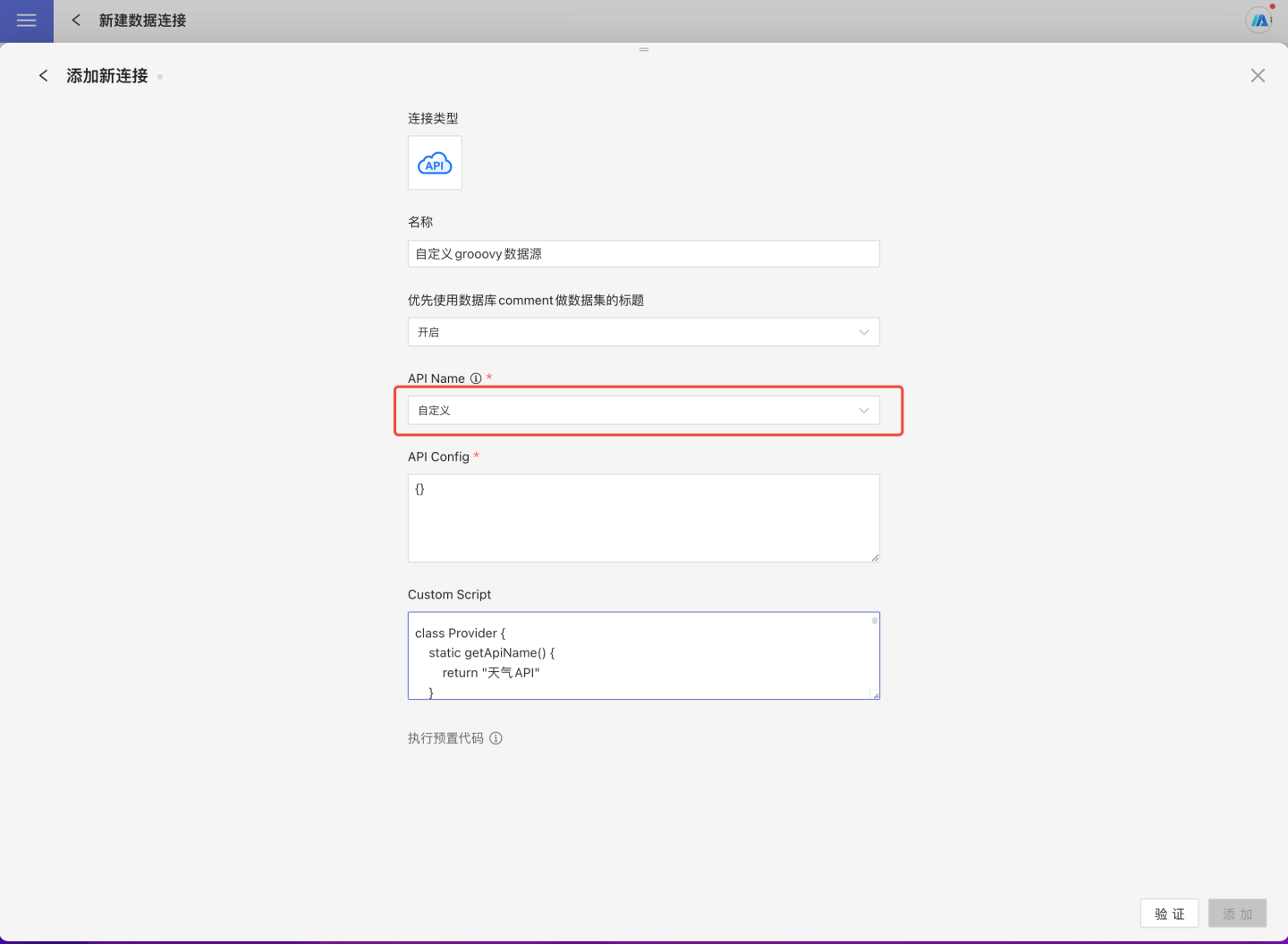
- Enter the new connection name and select
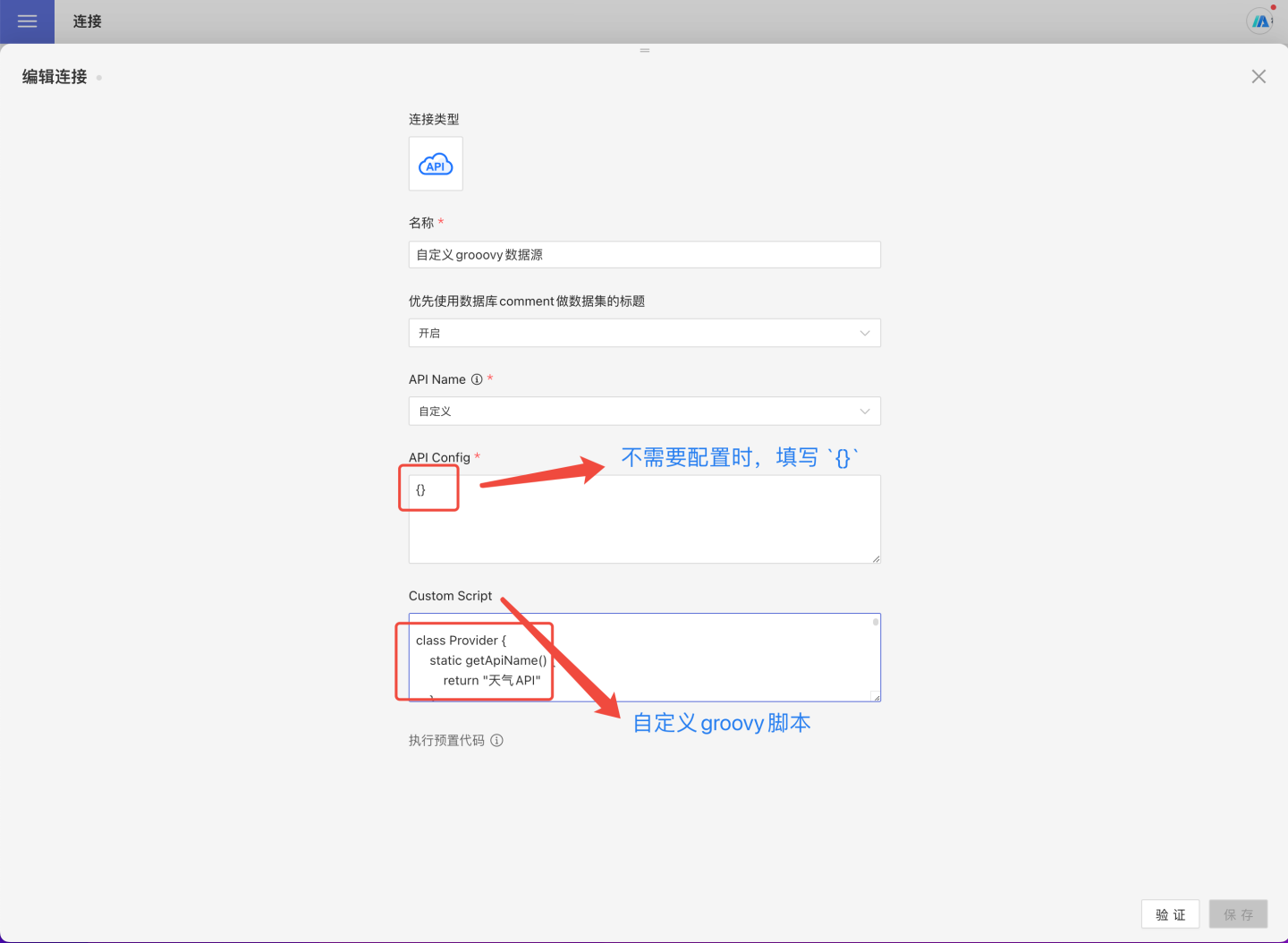
Customfor the API name. - Fill in the API Config information. Note: This configuration needs to be parsed in the script via code. If no configuration is required, it is recommended to leave it empty as
{}. - Write the Groovy script for the custom API data source according to the specifications and place it in
Custom Script.
Custom API Data Source Script Specification
When connecting a custom data source, implement the following four interfaces in the Groovy script:
- getAPIName: Returns the API name.
- setOptions: Handles authentication and authorization configuration.
- fetchPathTables: Retrieves the data source directory structure.
- fetchTableData: Fetches data for the table node.
Function getAPIName
The function getAPIName is used to return the API name. Each API data-source name must be unique; duplicates will cause conflicts.
This is a class-level static function and returns a string value.
    static getApiName() {
        return "TrivalApiDemo"
}Function setOptions
The setOptions function is used to persist configuration related to authentication and authorization.
If no external network requests are involved, it can be left empty.
This is an object function; its parameter is a JSON string containing the information the user filled in when adding the data connection.
    def setOptions(String options) {
        if (!options?.trim()) {
            return
        }
        def json = jsonSlurper.parseText(options)
        if (json.cityCodeURL?.trim()) {
            config.cityCodeURL = json.cityCodeURL
        }
        if (json.weatherURL?.trim()) {
            config.weatherURL = json.weatherURL
        }
}Function getPathTables
The getPathTables function returns the directory tree, listing the entire catalog/schema/table structure of the data source. Sample code:
  def getPathTables() {
      def tableTree = [
           [ pathType: "table", name: "table1", tableType: "table"],
           [ pathType: "path", name: "schema2",
              children: [
                  [ pathType: "table", name: "table3", tableType: "view"],
                  [ pathType: "table", name: "table4", tableType: "table", remarks: "table alias 4"]
              ]
          ]
      ]
      return new JsonBuilder(tableTree).toString()
}Structure definition:
pathTypevalues:table(leaf node representing a table) orpath(intermediate node representing a schema or catalog)nameis the table name or schema/catalog nametableTypeis only meaningful whenpathTypeistable; usually set totable(alternative:view, rarely used)- When
pathTypeispath, the node is not a table but an intermediate directory such as a schema or catalog; it may contain achildrenarray remarksis an optional description for the current node
With the schema defined above, tables can be retrieved from the data connection.
Function fetchTableData
The fetchTableData function is used to retrieve the data of a leaf node, i.e., a table node. Sample code is as follows.
  def fetchTableData(List<String> tablePath) {
      def tableName = tablePath.last()
      def schemaData = [
          schema: [
              [fieldName: "field1", label: "Field Alias 1", type: "string"],
              [fieldName: "field2", label: null, type: "string"],
              [fieldName: "field3", type: "number"],
              [fieldName: "field4", type: "date"],
              [fieldName: "field5", type: "time"]],
          data: [
              ["a", "b", 10, "2022-01-01", "2022-01-01 23:59:59"],
              ["c", "d", 20.20, "2019-12-39", "2019-12-39 23:59:59"]
          ]
        ]
      return new JsonBuilder(schemaData).toString()
}Schema structure definition:
fieldName: Field name, must be unique within the table to distinguish different fields.type: Field type; commonly used types are: string, number, date, time, json, bool.label: Field alias.
Data structure definition:
- Each element in
datais an array; the number of elements must match the schema, and the data types must correspond one-to-one.
Custom API Data Source Code Example
Below is a Java-based custom data source for a weather API. The content of the weather.groovy file is as follows:
//Weather.groovy
import com.hengshi.nangaparbat.dto.DatasetResultDto
import com.hengshi.nangaparbat.model.PathTableNode
import static com.hengshi.nangaparbat.model.Dataset.Field
import static com.hengshi.nangaparbat.model.Type.TypeName
import groovy.json.JsonSlurper

class Provider {
    static getApiName() {
        return "Weather API"
    }

    def setOptions(String options) {
        if (!options?.trim()) {
            return
        }
        def json = jsonSlurper.parseText(options)
        if (json.cityCodeURL?.trim()) {
            config.cityCodeURL = json.cityCodeURL
        }
        if (json.weatherURL?.trim()) {
            config.weatherURL = json.weatherURL
        }
    }

    def getPathTables() {
        def txt = config.cityCodeURL.toURL().text
        def arr = jsonSlurper.parseText(txt)
        return arr.collect{ obj ->
            def node = PathTableNode.createTableNode(obj.city_code)
            node.setRemarks(obj.city_name)
            return node
        }
    }

    def fetchTableData(List<String> tablePath) {
        def url = config.weatherURL + tablePath.last()
        def txt = url.toURL().text;
        def result = new DatasetResultDto()
        def schema = []
        def data = []
        def row = []
        def arr = jsonSlurper.parseText(txt)
        arr.data.each{ k, v ->
            def field = new Field();
            field.setFieldName(k)
            field.setType(TypeName.string)
            if (k.startsWith("pm")) {
                field.setType(TypeName.integer)
            }
            schema.add(field)
            row.add(v);
        }
        result.setSchema(schema)
        data.add(row)
        result.setData(data)
        return result
    }

    def jsonSlurper = new JsonSlurper()

    def config = [
        cityCodeURL: "https://github.com/baichengzhou/weather.api/raw/master/src/main/resources/citycode-2019-08-23.json",
        weatherURL: "http://t.weather.itboy.net/api/weather/city/"
    ]
}Code explanation:
DatasetResultDtodefines the return result offetchTableData, consisting ofschemaanddata, written viasetDataandsetSchema.PathTableNodedefines the return ofgetPathTables, consisting ofpathType,name,children, andtableType, also written via their respective setters.schemais composed of multipleFields, each consisting offieldName,type, andlabel.- The
typeis an enum defined byTypeName. - CityCode defines the directory structure.
- Weather Site is the source of weather data, recording weather information for various cities.