

Data Connection Dataset
A Data Connection Dataset refers to a Dataset created using a data connection as its data source. You can set filter conditions to perform row-level selection, processing, and cleansing operations on the data, choosing only the data you need. The filtering feature supports both simple filtering and expression-based filtering.
Creating a Dataset
Follow the steps below to create a Dataset from a data connection.
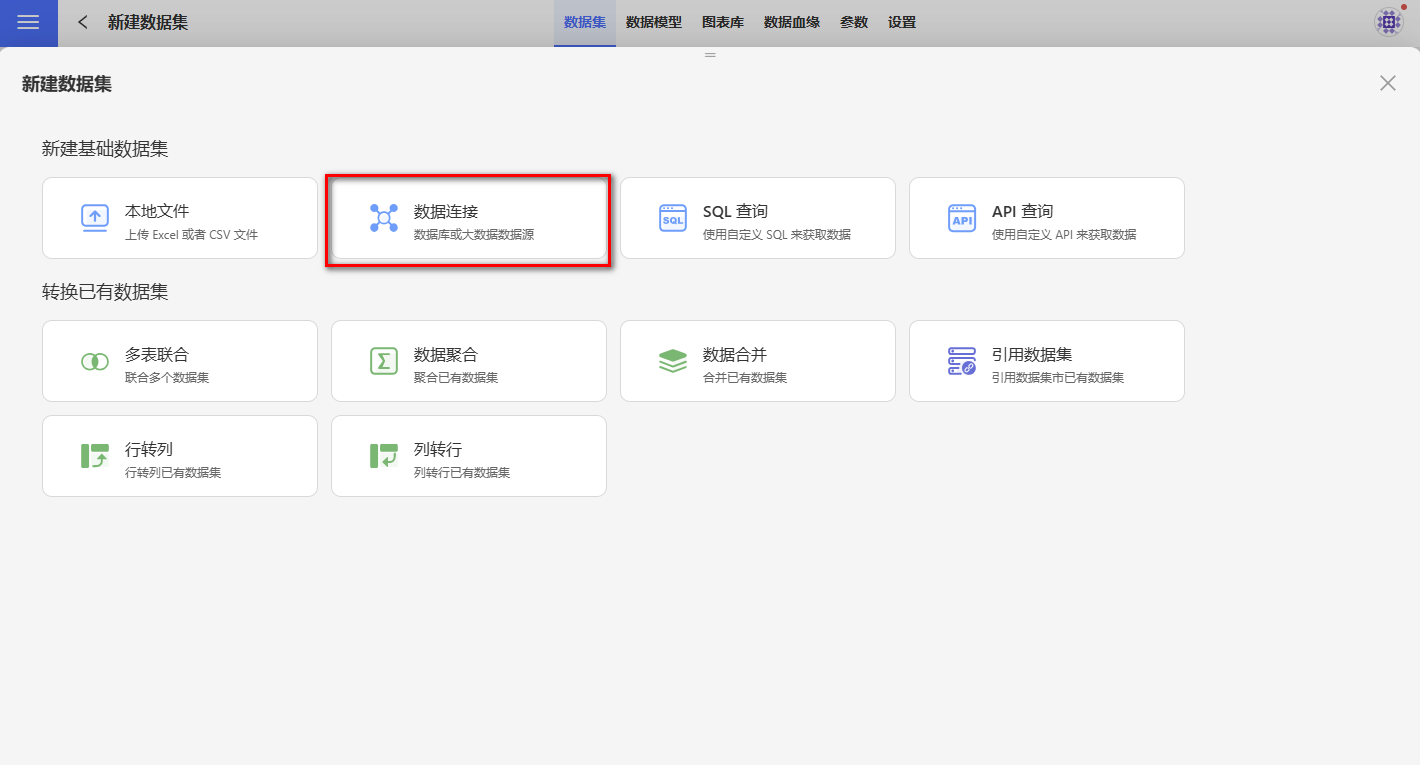
On the Dataset page, click New Dataset and select Data Connection.
Choose the data connection to be used for the Dataset.
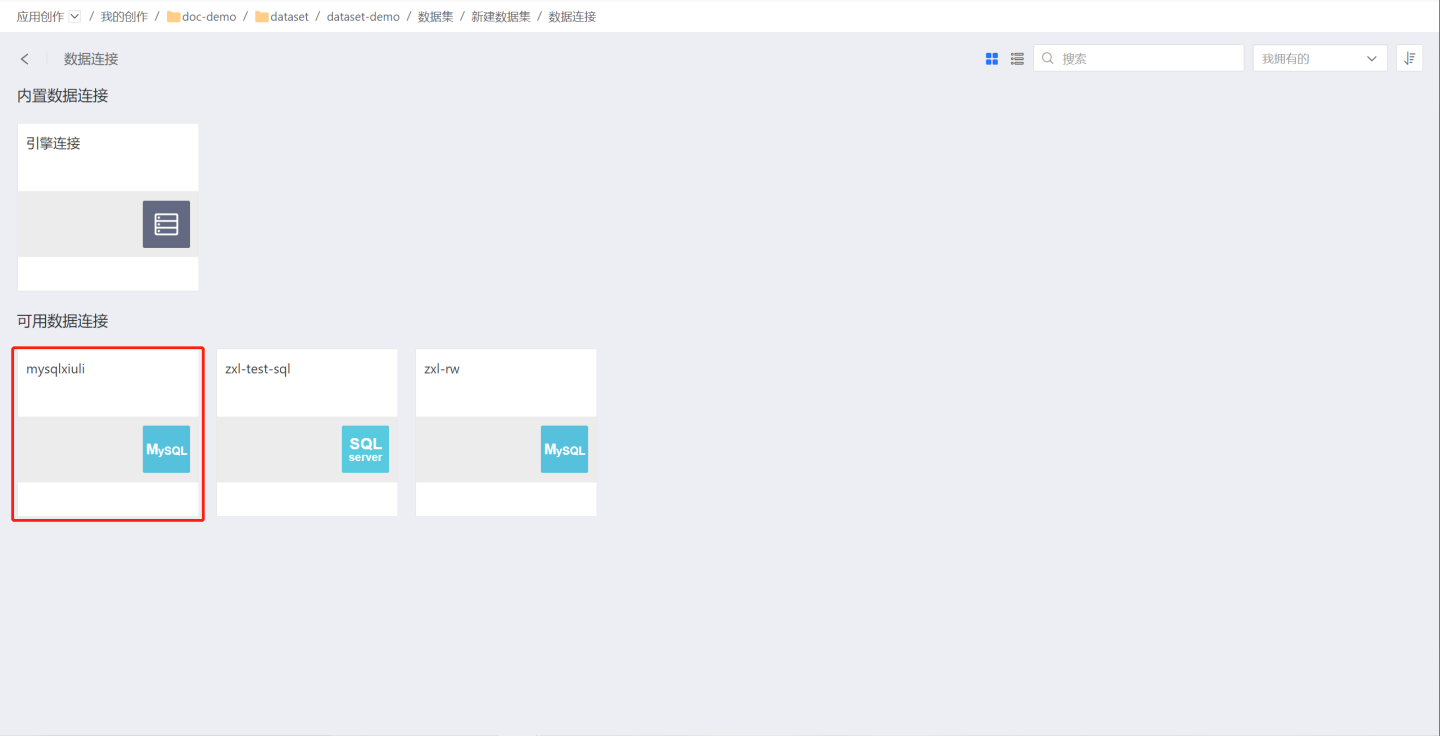
If the desired connection is not listed, ask your data administrator to authorize the required
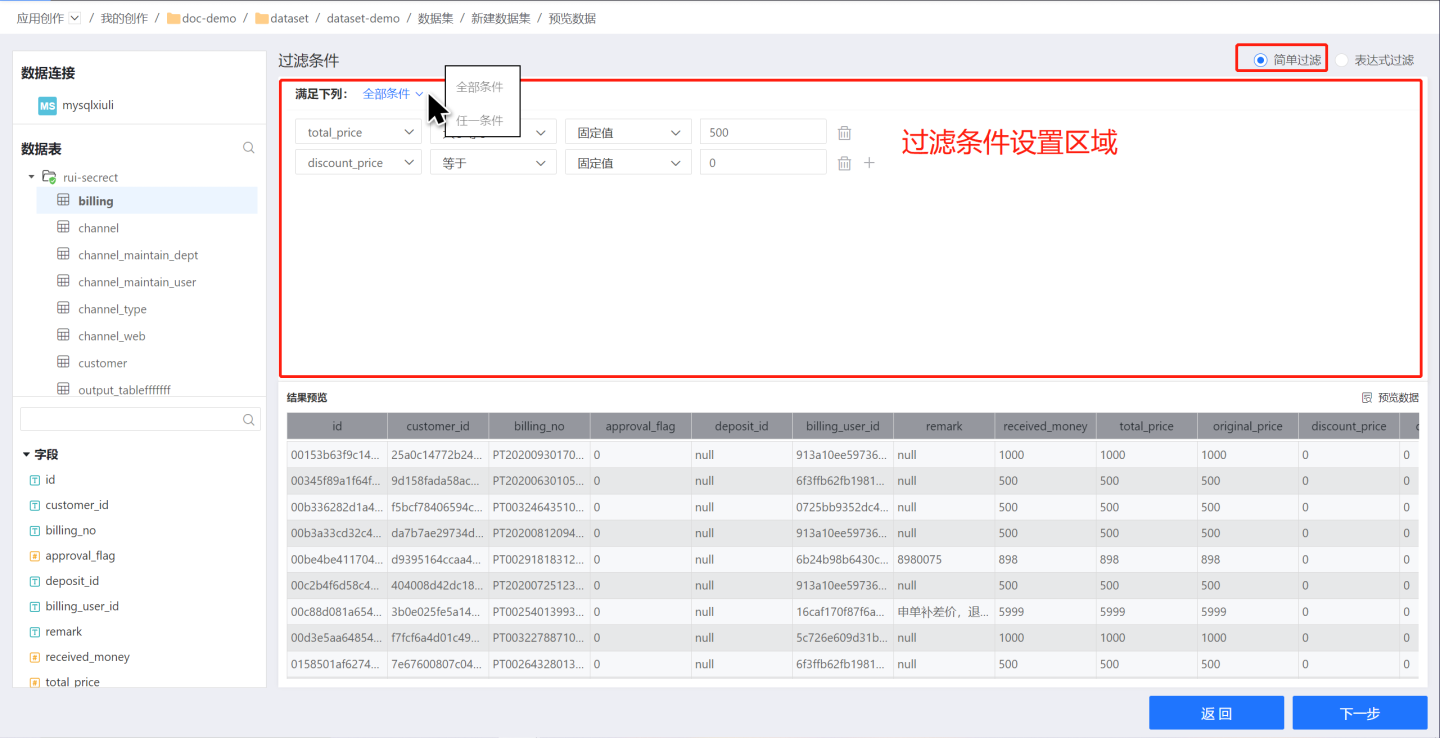
Data Connectionbefore use.Edit the Dataset content. You can define the Dataset by adding filters to screen the data. Both simple and expression filters are supported.
- Simple filter: Set conditions via options. When multiple filters exist, choose whether data must meet All conditions or Any condition.
- All conditions: returned rows must satisfy every filter.
- Any condition: returned rows need satisfy only one filter.
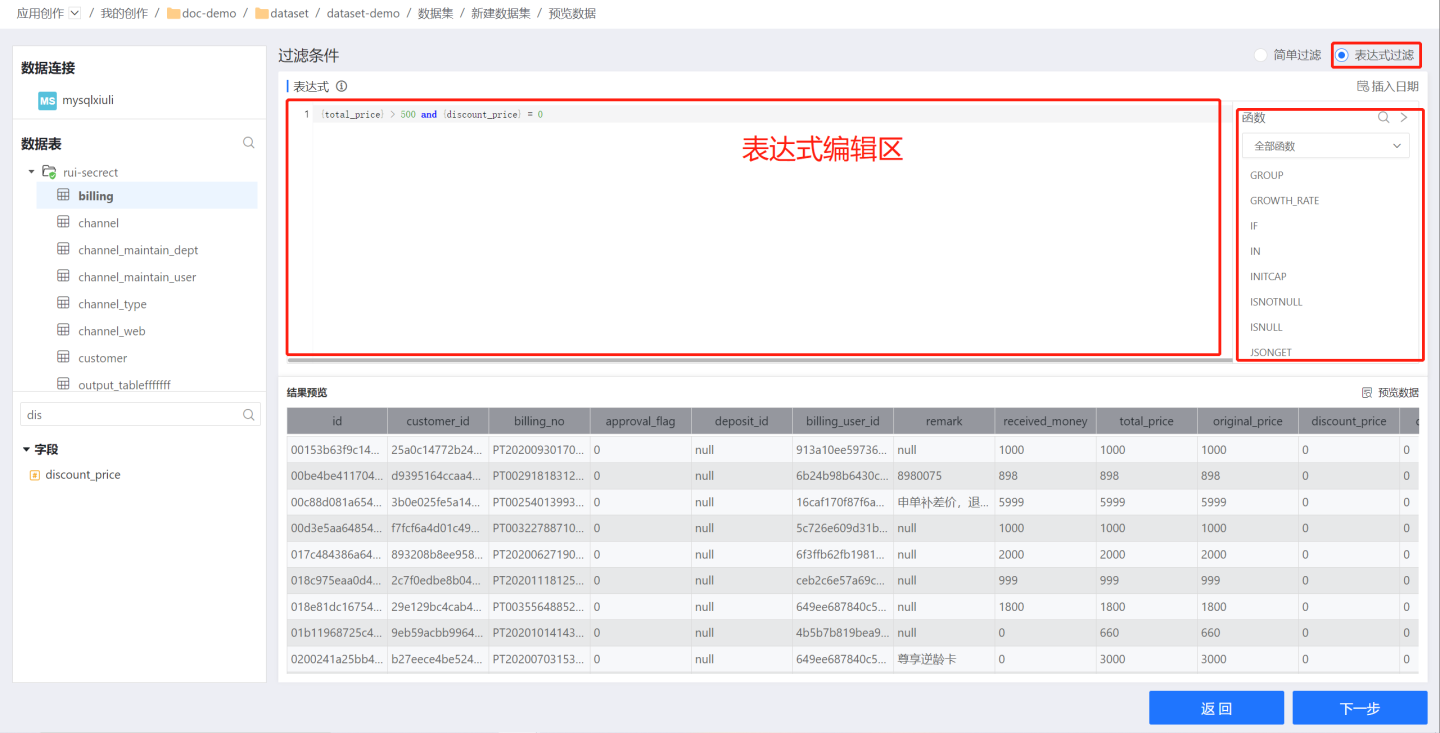
- Expression filter: Write an expression for more flexible filtering. The expression must return a Boolean value. A function list is provided on the right of the expression editor for reference.
TIP
After writing filters, you must preview the data before proceeding.
Cross-Dataset filtering
When using the “in” or “not in” operator, you can select a field from another Dataset as the filter scope, enabling inclusion/exclusion checks without building a data-model relationship. This is useful when values of field A in the current Dataset must fall within the value list of field B in another Dataset.
- Simple filter: Set conditions via options. When multiple filters exist, choose whether data must meet All conditions or Any condition.
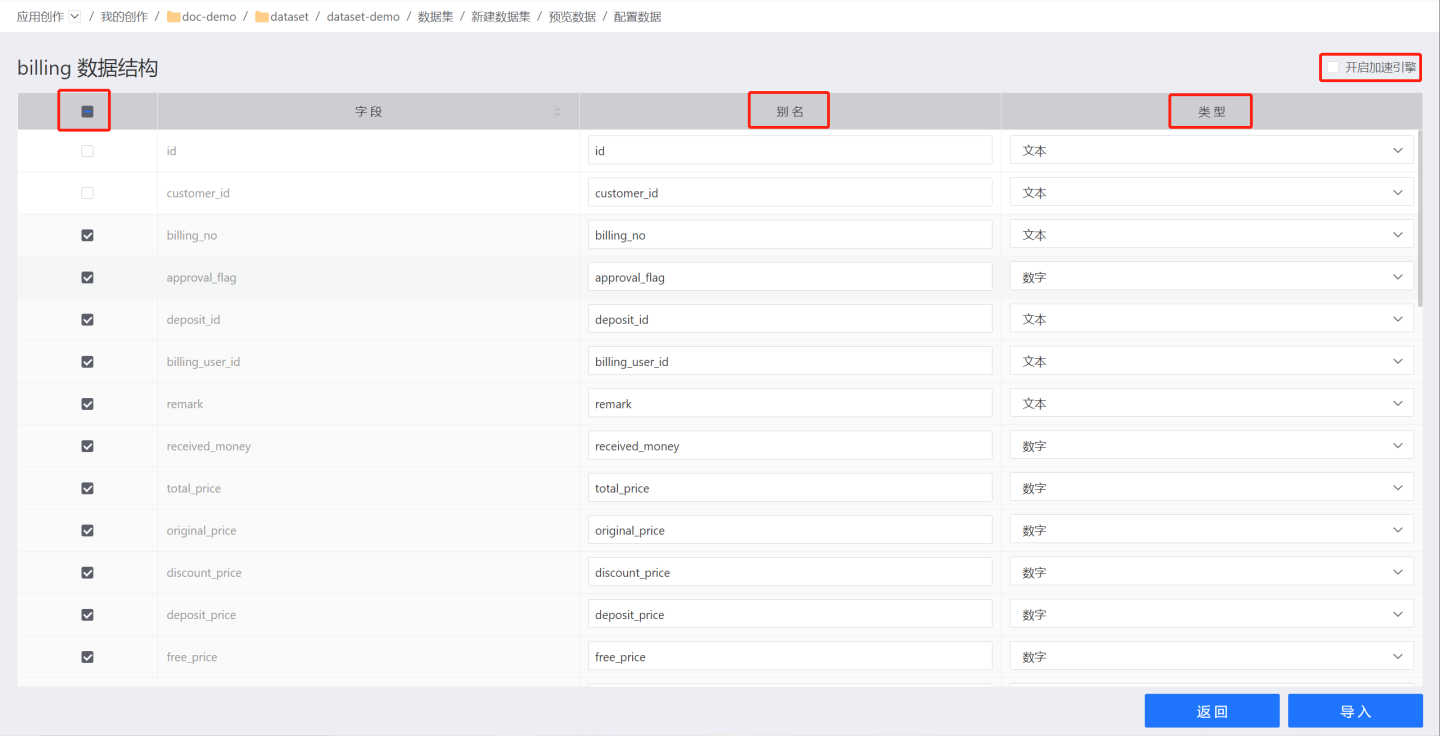
Click Next to enter the schema configuration page. Check/uncheck fields, set aliases, and specify data types.
TIP
- Unchecked fields are hidden in the Dataset but remain available; users can display them later if needed.
- You can enable the acceleration engine to import the Dataset for faster queries.
Click Import, edit the Dataset name, and finish creation. You can now view the Dataset on the Dataset page and perform Dataset management operations.