

Metric Management
The Metric Platform manages metrics through business topics and authorizes their usage. In metric management, business administrators create relevant topics based on business needs, add business-related metrics to the topics, manage the activation and deactivation of metrics, and authorize the topics and their associated metrics for use by other users within the platform.
This article primarily introduces how business administrators can create business topics, manage metrics, and authorize business topics for use by other users under metric management.
Create a New Business Topic
Indicator management is composed of business topics, each containing indicators and subtopics. Below is an introduction on how to create business topics and add indicators.
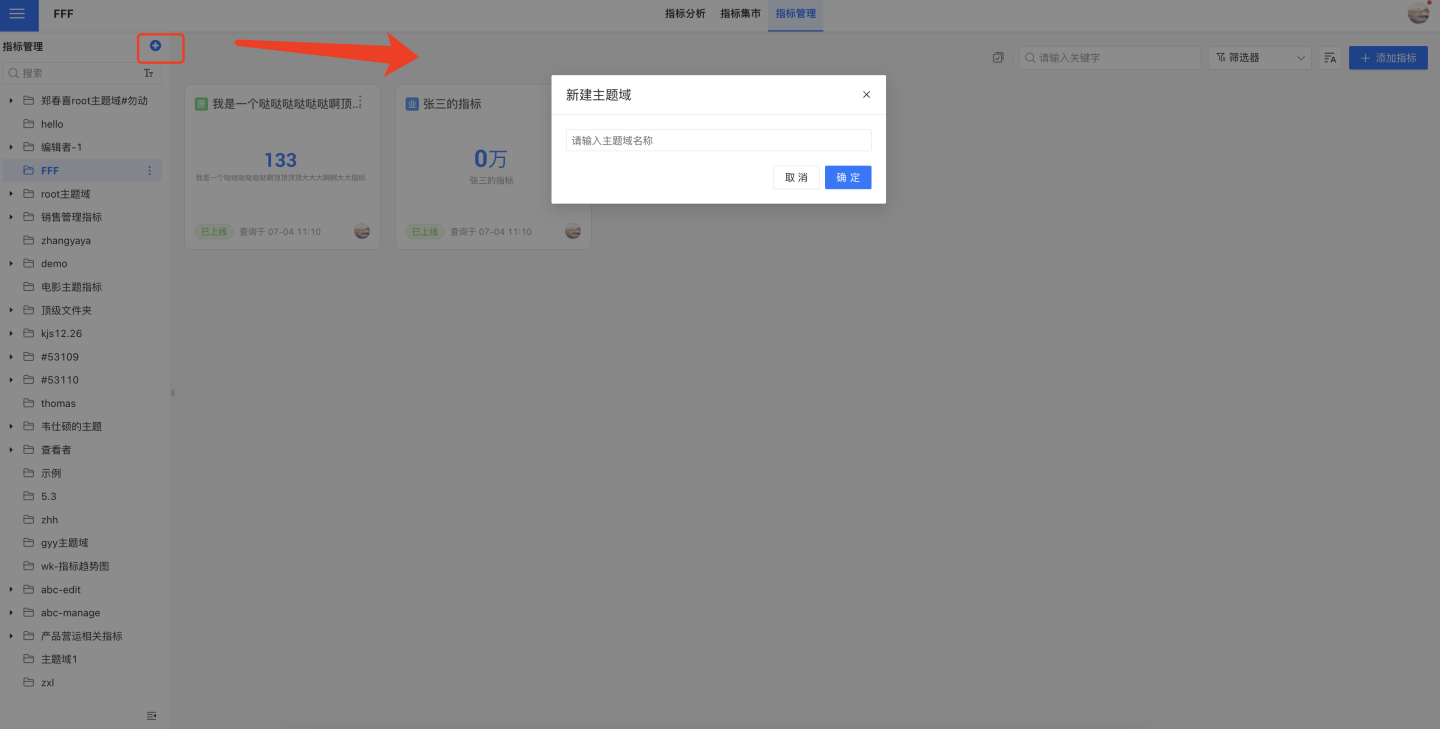
Click the blue "+" under Indicator Management, enter the topic name in the pop-up window, and click Confirm. This will create a new business topic under Indicator Management.
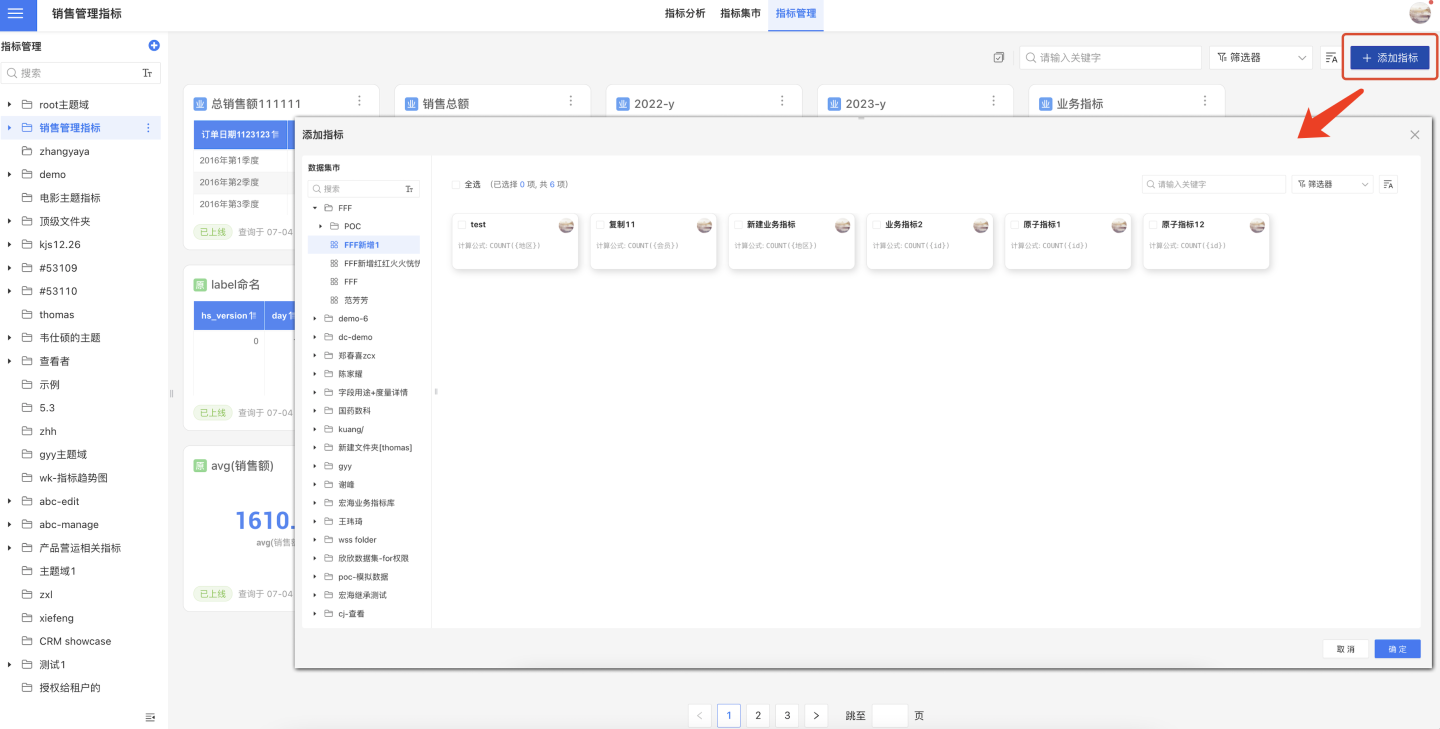
To add indicators under a business topic, click "Add Indicator" under the specific business topic and select the indicators you want to add. You can filter different types of indicators using the filter.
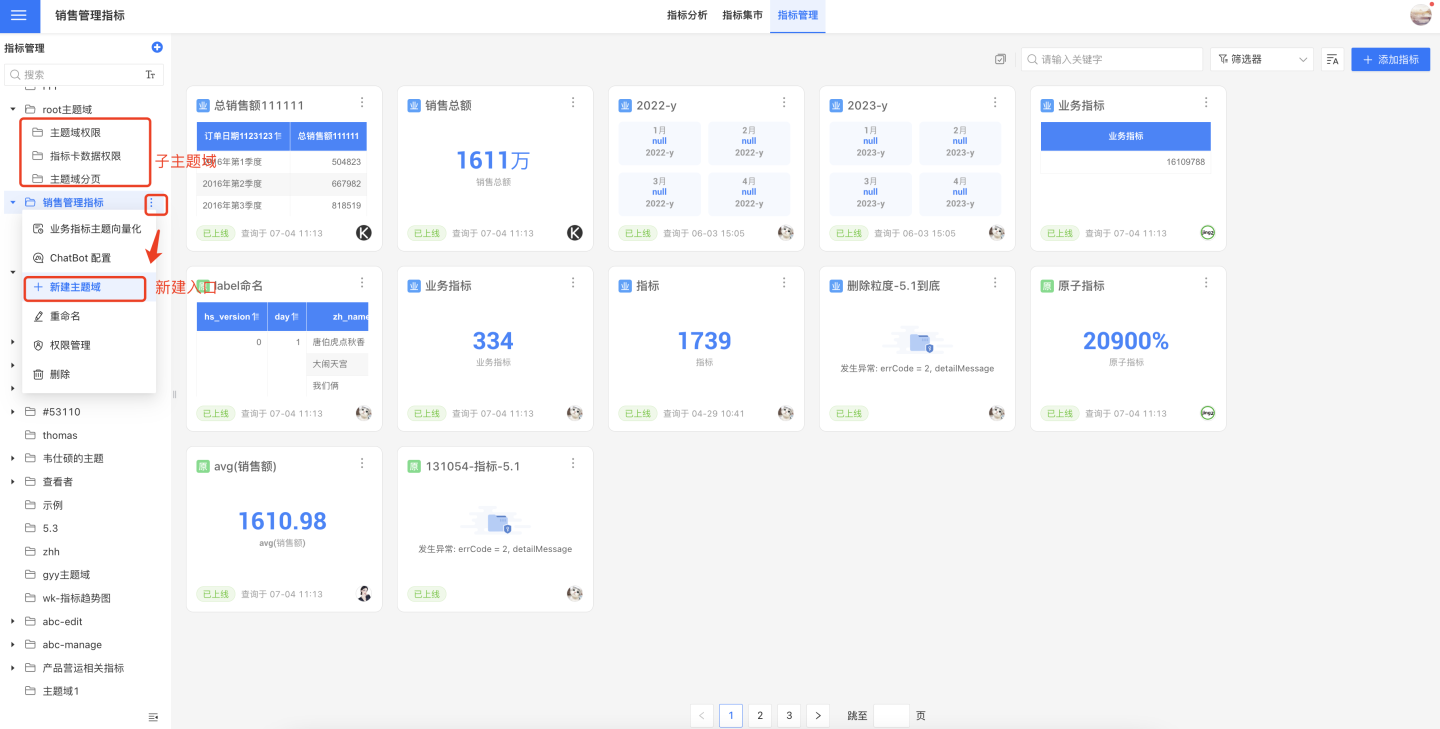
If the business topic contains subtopics, you can click the "+" to the right of the topic to add a subtopic to it.
Tips
- Indicator management requires the user to have three user roles: System Management, Data Management, and Indicator Management, to qualify as a Super Business Administrator. A Super Business Administrator can create business topics in the root directory of Indicator Management. The Super Administrator can authorize the business topics in the root directory to ordinary administrators (ordinary administrators have Data Management and Indicator Management roles) for management.
- The same indicator can be added to multiple business topics. If an indicator is related to multiple business topics, it can be added to the relevant business topics.
Business Theme Management Metrics
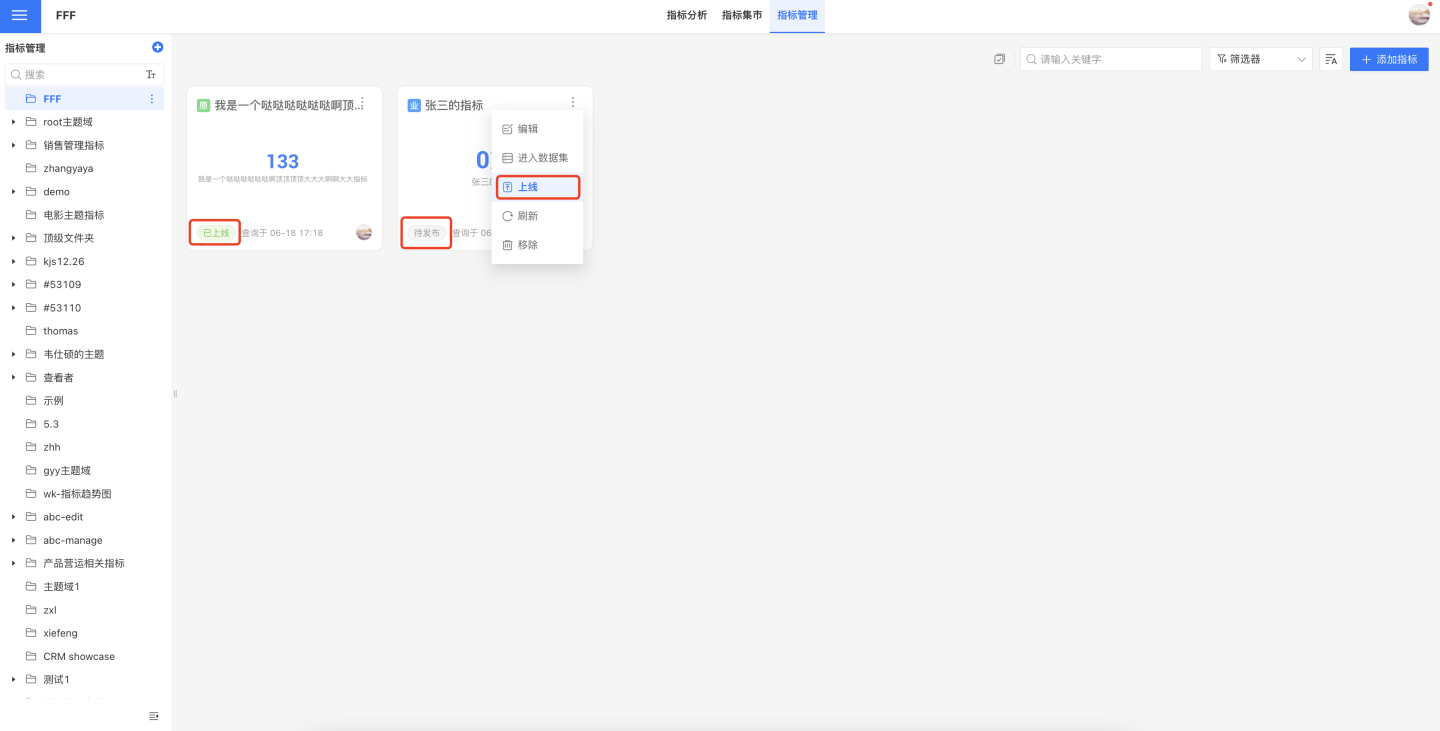
Metrics can be added to both business themes and their sub-themes for management. Metrics within a theme can undergo operations such as publishing, unpublishing, removal, and more.
- Publish: After performing the publish operation, the metric will be in a published state, allowing users to view and analyze it. Metrics are in the published state by default upon being added.
- Unpublish: After performing the unpublish operation, the metric will be in a draft state, and users will not be able to view or use it.
- Remove: Metrics can be removed from the business theme if they are no longer needed.
- Refresh: Update metric information.
- Edit: Edit the metric. This requires permissions for the dataset to which the metric belongs and the data management role.
- Enter Dataset: Access the dataset where the metric was created to view and manage the metric. This also requires permissions for the dataset to which the metric belongs and the data management role.
Operations Related to Business Topics
Business topics support operations such as renaming, authorization, deletion, vectorization of business topics, and Chatbot configuration.
- Create a New Domain: Add subtopics under a business topic.
- Rename: Modify the name when editing a business topic.
- Delete: Delete a business topic when it is no longer in use. Deletion requires that the business topic is empty, with no subtopics or metrics.
- Permission Management: Business topics can be authorized to other users through permission management. Below is a detailed introduction to the operations users can perform after being authorized for a business topic.
- Vectorization of Business Metric Topics: Process business metric topics through vectorization to enhance data understanding. This feature is visible only after configuring the AI License. See AI Vector Library.
- Chatbot Configuration: Provide a data Q&A bot in instant messaging tools, supporting WeCom/Feishu/DingTalk ChatBot configuration. This feature is visible only after configuring the AI License. For details, see ChatBot.
Business Topic Permission Management
When managing permissions for business topics, the system provides users with the following two types of permissions. If the User Role includes the Metric Management role, the user can have both Permission 1 and Permission 2; otherwise, only Permission 2 is granted.
Permission 1: Business topics can authorize other users as Managers, Editors, Viewers, or Tenant Users. Authorized users can collaboratively manage and view the business topic.
- Manager: Manages the business topic, including editing, deleting, managing permissions, adding subtopics, and adding metrics.
- Editor: Edits the business topic, including editing, deleting, adding subtopics, and adding metrics.
- Viewer: Views the business topic and the metric information under its subtopics.
- Tenant User: Authorized tenants can view the business topic and the metric information under its subtopics in the metric management section of the tenant system.
Permission 2: After a business topic is authorized to other users, the authorized users can see the relevant business topic and the metrics under its subtopics in Metric Analysis -> Metric Marketplace. They can perform business analysis on these metrics in the Metric Analysis Dashboard.
Tip
The same business metric can be included in multiple thematic domains, and it will be treated as two independent metrics in different thematic domains. Having permissions for one thematic domain does not automatically grant the user viewing permissions for the same business metric in another thematic domain.
The administrator of a business metric must have management permissions for the dataset where the metric library resides in order to add the business metric to a thematic domain in the metric management module. This check is only performed when the metric is added to the thematic domain. Therefore, even if the administrator subsequently loses management permissions for the dataset, it will not affect the use of business metrics already added to the thematic domain.
Viewing Permissions for Business Metric Data in Business Topics
After a business topic containing business metrics is authorized to a user, the user will automatically be granted viewing permissions for the underlying dataset. The row-level permissions the user has for the underlying data are restricted by the row-level permission configurations in the dataset.