

Guide to Embedding Data Filters on Published Pages
When accessing or embedding HENGSHI SENSE dashboards/charts, you can add parameters to the URL to achieve functionality similar to filters within the dashboards/charts. Below are examples with detailed explanations.
Example
We use a simple dashboard to demonstrate filtering data through the URL parameter where.
First, as shown in the figure below, we created a dashboard using data from the movie table. A table chart was created, using the prime_genre field as the dimension and the votes field as the measure.
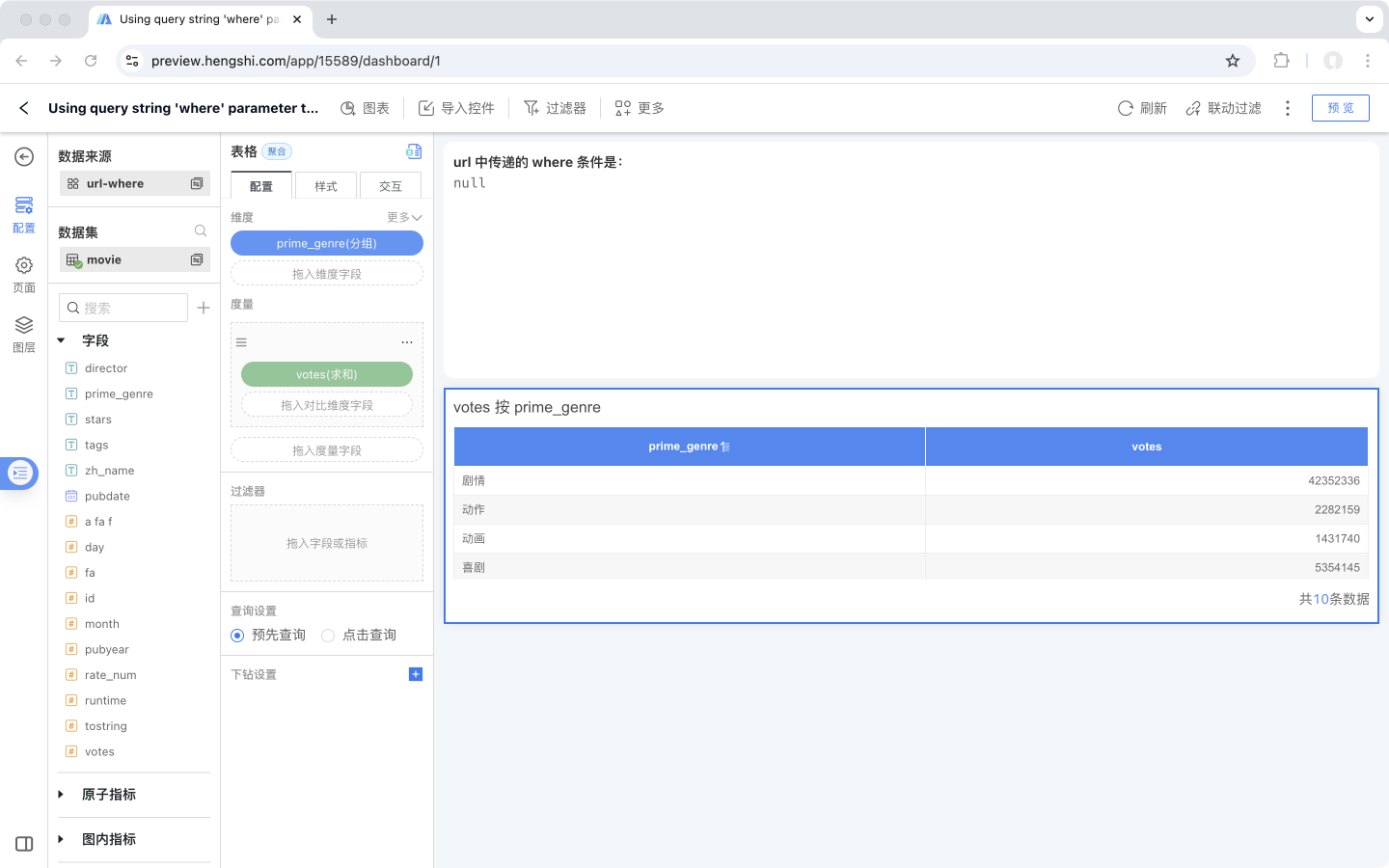
Suppose we want to filter the prime_genre field values in the movie dataset to include only Drama or Action through the where parameter in the application's published or public link URL. We can set it as follows:
https://preview.hengshi.com/share/app/S23C1AA81F984C9822B354838730D3AF2/dashboard/1?where=%5B%7B%22kind%22%3A%22formula%22%2C%22op%22%3A%22in(%7B%7Bmovie%7D%7D.%7Bprime_genre%7D%2C%20%5B'Drama'%2C%20'Action'%5D)%22%7D%5D
The value of the where parameter is an HQL statement, which decodes to:
[
    {
        "kind": "formula",
        "op": "in({{movie}}.{prime_genre}, ['Drama', 'Action'])"
    }
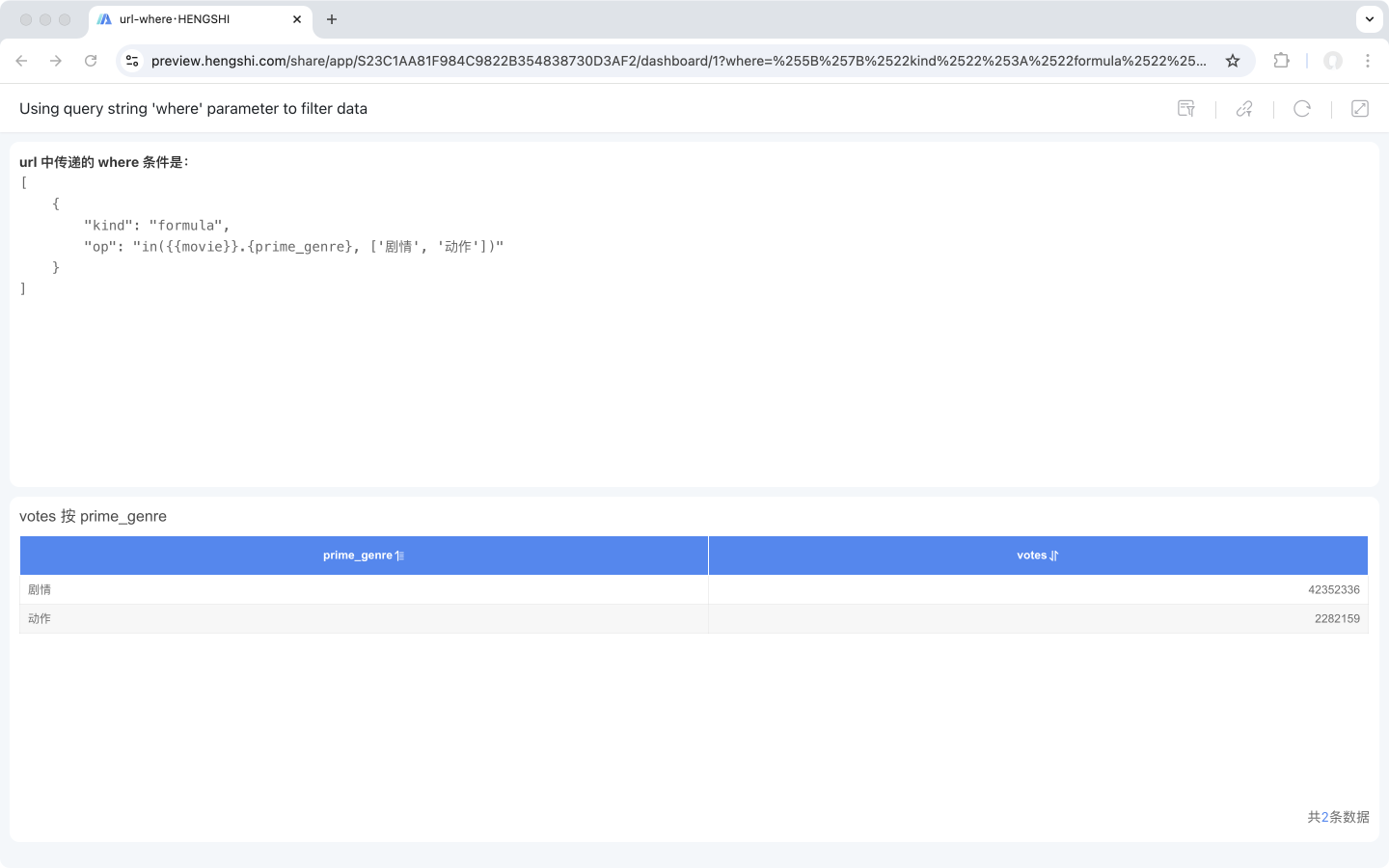
]Opening the above link, as shown in the figure below, demonstrates how we can pass filtering conditions in the URL to achieve dynamic data filtering.
Note
The format is {url}?where={where}. Note that the value of the where parameter needs to be JSON.stringify-ed and URL-encoded before being passed. The where= part itself does not need to be encoded. You can use the tool below to conveniently generate the URL-encoded where parameter value and complete the URL.
Using Data from a Dataset
If the chart uses data from a dataset, you need to include the dataset's ID in the where condition. An example is as follows:
[
    {
        "kind": "formula",
        "op": "in({{movie}}.{prime_genre}, ['Drama', 'Action'])"
        "appId": 123
    }
]URL parameters for individual Kanban charts
Starting with 7.0, metric analysis Kanbans accept a kanbanCharts parameter to set the initial chart type, analysis dimensions and filters separately for each chart. Its value is a JSON object keyed by the chart ID within the Kanban. When the same metric appears in multiple charts, use each chart's own ID. Charts omitted from the object retain their saved configuration.
Find the chart ID at the end of its embed URL: /private/share/kanban/<kanbanId>/chart/<chartId>. Identify dimensions by data app ID, dataset ID and internal field name, rather than display labels.
For example, the decoded value is:
{
  "chart-a": {
    "defaultChartType": "Line",
    "dimensions": [
      {
        "parent": [12, 34],
        "fieldName": "trade_date",
        "currentAggrType": "month"
      }
    ],
    "where": [
      {
        "kind": "formula",
        "op": "in({{sales}}.{region}, ['East'])",
        "appId": 12
      }
    ]
  },
  "chart-b": {
    "defaultChartType": "Table",
    "dimensions": []
  }
}Replace chart-a, chart-b, the data app and dataset IDs, field names and formula with the values for your Kanban.
| Field | Meaning |
|---|---|
defaultChartType | A case-sensitive internal chart type name, such as Line, Bar, Table or KPI. Omit it to inherit the saved type. If the type is incompatible with the selected metrics and dimensions, the existing chart recommendation and fallback rules apply. |
dimensions | An ordered array of analysis dimensions. Omit it to inherit the saved selection; use [] to clear the selection; a nonempty array replaces the selection in the supplied order. Supplying dimensions resets temporary sorting. parent is [dataAppId, datasetId], and fieldName is the internal field name. The optional currentAggrType selects an existing granularity, such as month for a date field. Fields and granularities must be available for analysis on the metric. |
where | The same HQL filter array accepted by the dashboard URL where parameter, including existing formula expressions. Omit it or use [] to add no conditions. Conditions apply only to the addressed chart and are AND-combined with saved chart filters, Kanban filters and time filters. |
Single-chart embed links also AND-combine these conditions with the global URL where. Global filters passed by the SDK continue to apply. Full Kanban pages do not read the global URL where; specify conditions for each chart that needs filtering in kanbanCharts.
Use URLSearchParams to preserve existing parameters and encode characters such as %, + and & correctly:
const url = new URL('https://bi.example.com/private/share/kanban/123');
const kanbanCharts = {
  'chart-a': {
    defaultChartType: 'Line',
    dimensions: [{ parent: [12, 34], fieldName: 'trade_date', currentAggrType: 'month' }],
    where: [{ kind: 'formula', op: "in({{sales}}.{region}, ['East'])", appId: 12 }]
  },
  'chart-b': { defaultChartType: 'Table', dimensions: [] }
};
url.searchParams.set('kanbanCharts', JSON.stringify(kanbanCharts));
// Use url.toString() as the link or iframe.src.URLSearchParams already URL-encodes the value. Do not also call encodeURIComponent on its input. When concatenating the query string manually, encode the value once with encodeURIComponent(JSON.stringify(kanbanCharts)).
These settings define the initial view. Opening a link does not automatically save the Kanban. Existing controls can still change the chart type and dimensions afterwards; entering edit mode and explicitly saving follows the existing save behavior. Per-chart where remains in the URL query context and is not stored in saved chart filters. Reopening the link reapplies its initial settings. To replace the complete initial configuration, update the link or iframe.src and reload the page.
The parameter works on Kanban pages and Kanban chart embed URLs. Unknown chart IDs do not affect other charts. Malformed JSON is ignored. An invalid chart configuration structure or unsupported chart type causes that chart's configuration to be ignored while other valid entries can still apply. Filters remain subject to server validation and existing data permissions.
URL Encoding
Result(Click to Copy)
https://preview.hengshi.com/share/app/S23C1AA81F984C9822B354838730D3AF2/dashboard/1?where=%5B%7B%22kind%22%3A%22formula%22%2C%22op%22%3A%22in(%7B%7Bmovie%7D%7D.%7Bprime_genre%7D%2C%20%5B'Drama'%2C%20'Action'%5D)%22%7D%5D
Introduction to HQL
HQL is a language for querying business data through structured data. It is an original computational process description language created by HENGSHI, known as HENGSHI SENSE Query Language (HQL). Its primary purpose is to address critical issues in the field of data analysis by providing a unified, cross-database data query language. For more details, please refer to the API Documentation.
HQL supports various data types, such as boolean values, integers/floats, and strings. It also provides conditional functions like if and casewhen, as well as a variety of operators, including arithmetic, comparison, and logical operators. Additionally, it supports most native SQL functions and some custom functions. Moreover, it includes advanced functions for complex calculations, such as continuous activity rate, (active/retention) rate, and year-over-year/month-over-month rate.
Data Types
The data types in HQL are defined as follows:
- Boolean, which has two values: true and false.
- null, a special keyword indicating a null value. Like SQL and other database languages, it is case-insensitive, so null, Null, NULL, or variations are equivalent.
- Integer/Number, integers or floating-point numbers, such as: 42 or 3.14159.
- String, a sequence of characters representing textual values, such as: "Howdy".
Conditional Judgment
Conditional judgment refers to executing specific statements based on the result (true, false, or other predefined values) returned by specified conditions. HQL supports two types of conditional judgment functions: if and casewhen.
if
The if function is used to return a value based on a condition. The syntax is as follows:
if(condition, trueValue, falseValue)The if function has an alias with the same usage: ifelse()
casewhen
The casewhen function is used to return a value based on conditional judgments. The syntax is as follows:
casewhen(value1, condition1, value2, condition2, ..., valueOfElse)Operators
HQL has the following types of operators:
- Parentheses:
(), also known as grouping operators. - Not In:
not in - Exponentiation, Modulus:
^,% - Multiplication, Division:
*,/ - Addition, Subtraction:
+,- - Comparison Operators:
>=,<=,=,!=,<>,>,< - Logical Operators:
or,and
Expressions
An expression is a collection of code used to compute and return a value. HQL supports the following types of expressions:
- Variables: Supports four types—Dataset, Field, Parameter, and User Attribute. For example:
{{datasetNameOrId}},{fieldName},{{%parameterName}},{{$userAttributeName}}. - Strings: Produces a string, such as "Fred" or "234". Typically uses string-related functions like
concat('Fr', 'ed'),concat('2', '34'). - Arithmetic: Produces a number, such as 42 or 3.14159. Typically uses arithmetic operations like
{number_field_a} + {number_field_b}. - Logical Values: Produces true or false. For example:
if(42 > 3, true, false). - Basic Expressions.
Writing HQL Filter Conditions
Assume there is a numeric field price in the dataset, and you want to filter data where the value is greater than 20. You can write the following HQL filter condition:
where = [
    {
        "kind": "function",
        "op": ">",
        "args": [
            {
                "kind":"field",
                "op": "price",
            },
            {
                "kind": "constant",
                "op": 20
            }
        ]
    }
]Alternatively, you can simplify it as:
where = [
    {
        "kind": "formula",
        "op": "{price} > 20"
    }
]Assume there is a date field time in the dataset, and you want to filter data where the time is greater than 2018-12-31. You can write the following HQL filter condition:
where = [
  {
    "kind": "function",
    "op": ">",
    "args": [
      "time",
      {
        "kind":"constant",
        "op":"2018-12-31",
        "type": "date"
      }
    ]
  }
]Or you can use the formula shorthand:
where = [
    {
        "kind": "formula",
        "op": "{time} > '2018-12-31'"
    }
]HQL functions and operators are very rich and can meet various complex filtering requirements. For specific functions, refer to the HQL Function List.