

ChatBI user guide
Applies to HENGSHI SENSE 7.0. ChatBI is the standalone read-only entry point for Data Agent. Use Authoring in the global Data Agent for resource creation tasks.
Ask a question
- Open ChatBI from the home page.
- (Optional) Select one application/data package or one measure subject. Only accessible resources appear. When Query scope optional is on, you can skip this step and ask against all data you can access.
- Specify the measure, time range, dimensions, and filters, for example “Show monthly sales quantity by region for 2025, with months ascending.”
- Review the answer, chart, scope, and Processing. Select a clarification option or provide additional text when asked. When no scope is selected and several applications/datasets could fit, the system asks which one to use.
- Ask a follow-up, such as “Only show the East region.” With a selected scope, it stays fixed; create a new conversation to change application or subject. Without a selected scope, follow-ups reuse the scope confirmed in the conversation.
Users with only the Data Viewing role can select an authorized measure subject to ask questions.
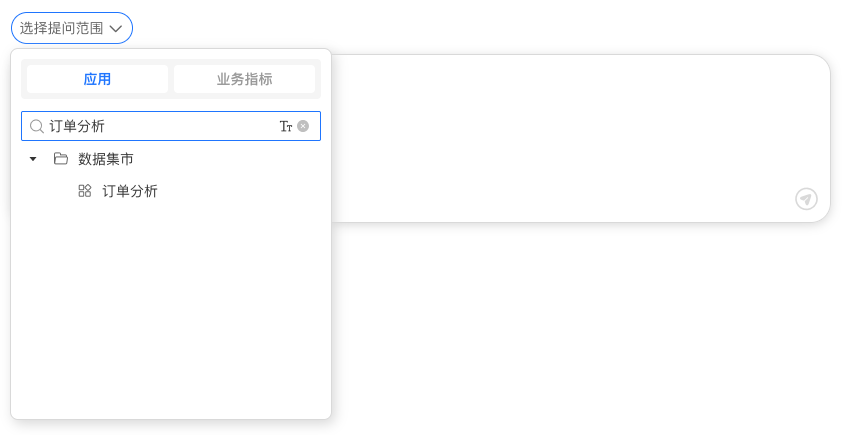
In the Chinese UI shown, select 选择提问范围 (Select query scope), choose 应用 (Applications) or 业务指标 (Business measures), then search for an accessible resource. The example searches for the Order analysis data package.
Multiple datasets and relationships within an application/data package are supported; cross-application queries are not. A subject can include visible child subjects. Without a selected scope, the system locates the application/dataset from the question and the answer names the actual scope. Administrators can turn off Query scope optional in System Settings → AI Assistant → Conversation & presentation; when off, new read-only conversations on the page must select a scope. Published App Market applications and dashboard interpretation always use a fixed scope. Once a scope is selected, scope and model profile identity are fixed at creation; profile revision is audit metadata. See Data Agent.
View and reuse results
- Chart type switching follows the product's chart capabilities; available types depend on the data structure.
- Add answer charts to an existing dashboard, or create a formal dashboard from the conversation. In dashboard edit mode the add entry expands into Add to current dashboard and Add to another dashboard; other pages open the target picker directly. Choose an editable target application or dashboard, check measures, filters, and theme, then save.
- Temporary board generation is retired. The former one-board-per-conversation rule no longer applies.
- Intelligent Interpretation uses a saved dashboard scope. Save pending edits before starting interpretation.
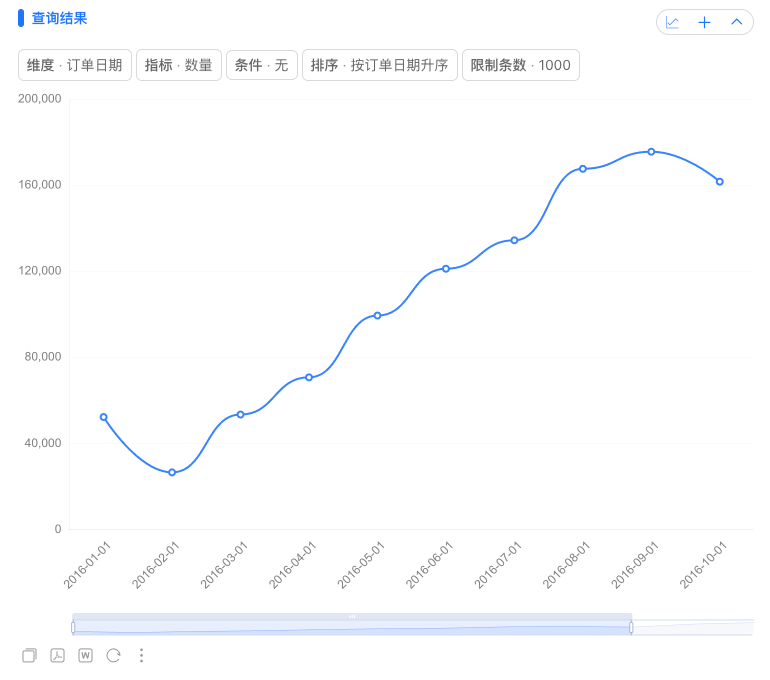
This Chinese UI example uses coffee sales test data. Dimensions, measures, filters, and sorting appear above the chart; the upper-right actions switch chart type, or use one add entry to write into the current dashboard or pick another one. The screenshot illustrates the controls; verify data before relying on business conclusions.
Published App Market applications, share links, and app portals are read-only consumption surfaces. The sidebar Data Agent on these pages does not offer "Add to dashboard" or "Generate dashboard", does not offer the Ask/Act switch, and lists only Q&A and dashboard interpretation conversations in history.
History, cancellation, and answering again
Open a saved conversation from history to read its questions, results, and processing records. Conversations from older versions without a fixed scope remain readable; create a new conversation to ask further questions.
Cancellation stops an active question. Answer again executes the same question as a new turn and retains the original result. If the model profile is disabled or unavailable, restore a valid profile or create a new conversation.
Closing or switching a page does not itself cancel the server task. Check the saved chat and run state after reopening, and avoid resending because of a temporary disconnection.
Mobile
Mobile supports scope selection, questions, history, and result reading, with responsive answer layout. Use desktop for dashboard operations such as adding charts and generating dashboards. Page voice input is not available in 7.0.
Quality and troubleshooting
Describe fields and measures, including formulas, units, and time grain. Distinguish no matching data from insufficient permissions; a wider scope cannot bypass permissions. Model answers can vary, so verify chart data and query logic for important decisions.
On failure, retain the question, time, conversation/chat identifiers, and Copy complete log output. Ask the administrator to check model configuration, runtime services, and permissions. For integration issues, see integration prerequisites.