

Customization Guide for Embedded Page Styles
After creating Dashboards and Charts using the HENGSHI SENSE platform, you can embed them into existing systems via iframes. To achieve a unified style, embedding iframes supports a variety of customization options.
Set the Embedded Page's Light or Dark Theme
The host page can specify the current embedded page's theme mode through the iframe's name attribute:
| name parameter | Result |
|---|---|
theme=dark | Use the dark theme. |
theme=light | Use the light theme. |
No theme parameter, or another value | Follow the HENGSHI system appearance settings. When those settings use “Follow system”, follow the end user's operating system color scheme. |
For example, embed the entire HENGSHI platform with the dark theme:
<iframe
  name="topLevel=system,theme=dark"
  src="https://bi.example.com/home">
</iframe>Put theme in the name attribute, separating it from other parameters with commas. Values are case-sensitive. Specify one theme mode per iframe. theme=dark and theme=light take precedence over system appearance settings and affect only the current iframe; they do not change HENGSHI system settings or other pages. The parameter does not apply to a page opened outside an iframe.
Set name when creating the iframe. To switch modes, recreate the iframe with the new name. Recreate it without theme to follow HENGSHI system appearance settings again. Changing only the loaded iframe element's name and refreshing may leave the child page reading the old window name.
Set the Embedded Page's Primary Color
Set primaryColor=#RRGGBB in the iframe's name to choose the primary color when the embedded page loads. For example, primaryColor=#7856E8 makes buttons, links, and other components that use the system primary color appear purple. Use a # followed by six hexadecimal digits. Letters can be uppercase or lowercase. If primaryColor is omitted or invalid, the page uses the HENGSHI system primary color.
<iframe
  name="topLevel=system,theme=dark,primaryColor=#7856E8"
  src="https://bi.example.com/home">
</iframe>Specify one primaryColor per iframe. Use it on its own or separate it from parameters such as theme with commas. To switch colors, recreate the iframe with the new name. The theme parameters apply to the system interface in that iframe. Dashboards and charts use their own configured themes and palettes.
Customize the iframe of the Dashboard
Parameter List
The following parameters are supported when embedding a dashboard.
| Parameter Name | Parameter Function | Parameter Type | Parameter Value |
|---|---|---|---|
| copyright | This parameter controls the display status of the dashboard header and footer. | Boolean | Parameter values: true: Display header and footer, default is true. false: Do not display header and footer. |
| header | This parameter controls the display status of the dashboard header. | Boolean | Parameter values: true: Display header, default is true. false: Do not display header. |
| pager | This parameter controls the display status of the dashboard pager. | Boolean | Parameter values: true: Display pager, default is true. false: Do not display pager. |
| scrollable | This parameter controls the scrolling behavior within the dashboard. | Boolean | Parameter values: true: Supports scrolling within the dashboard, default is true. false: Does not support scrolling within the dashboard. |
| chartAccessible | This parameter controls the chart interaction behavior within the dashboard. | Boolean | Parameter values: true: Supports opening charts for interaction, default is true. false: Does not support opening charts for interaction. |
| sidebar | This parameter controls the sidebar of the dashboard editor. It only applies to the dashboard editor page. | Boolean | Parameter values: true: Keeps the sidebar interactions, default is true. false: Hides the dashboard editor sidebar and the chart settings panel: clicking a chart does not highlight or select it, does not open the sidebar, and does not navigate to the chart editor page. |
| interpret | This parameter controls the chart interpretation entry on the dashboard editor page. It only applies to the dashboard editor page. | String | Parameter values: Absent or local: clicking "Interpret" opens the Data Agent inside the embedded page. parent: clicking only posts a chart.interpret.request message to the parent page and does not open the internal conversation. |
| parentOrigin | This parameter sets the parent page origin used as the target for interpret=parent messages. | String | Example value: https://portal.example.com. Recommended; when omitted, the target is derived from a same-origin parent or document.referrer. |
| showRepublish | This parameter controls the "Republish" button in the dashboard editor top action bar. | Boolean | Parameter values: true: Show republish; clicking it republishes the app directly. Absent or false: hidden. It only applies to the dashboard editor page. The button requires app administrator permission (`admin |
| background | This parameter sets the background color of the dashboard. If the dashboard theme has already set a background color, this parameter will not take effect. | String | Parameter value format: rgba(255,255,255,1). |
| wrapperBackground | This parameter sets the background color of the parent div element of the dashboard, which can override the dashboard theme background color. | String | Parameter value format: rgba(255,255,255,1). |
| chartTitleColor | This parameter sets the color of chart titles within the dashboard. It applies to all chart titles within the dashboard (excluding filters). Use with caution. | String | Parameter value format: rgba(255,255,255,1). |
| chartGap | This parameter sets the spacing between charts within the dashboard. | String | Parameter value should include pixel information, e.g., 10px. |
Common Embedding Questions
1. How do I show the embedded page in English or another language?
Append the locale parameter to the embed URL, for example:
?locale=en-US?locale=zh-CN?locale=zh-TW
This is especially useful for multilingual portals, OEM scenarios, or any host system that needs the embedded page to follow the host language.
2. How do I trigger fullscreen from the host page?
In a standard iframe embedding scenario, call fullscreen directly from the host page:
const iframe = document.querySelector('iframe');
iframe.requestFullscreen();This lets the customer's own page controls switch the embedded dashboard into fullscreen mode.
3. How do I refresh the dashboard externally without rebuilding the iframe?
If the host page keeps multiple iframes cached and you do not want to recreate them when switching back, trigger a dashboard refresh with postMessage:
const iframe = document.querySelector('iframe');
iframe.contentWindow.postMessage(
  JSON.stringify({
    event: 'dispatchCustomEvent',
    data: ['hs_dashboard_refresh', {}],
  }),
  '*',
);For more events, see Embed Interaction Events.
4. What should I do if I hit cross-domain issues?
Use one of these recommended deployment patterns first:
- Deploy HENGSHI and the host system under the same main domain, using a sub-path or reverse proxy, for example
https://example.com/bi. - Deploy HENGSHI as a dedicated HTTPS domain such as
https://bi.example.com, and configure the Base URL and reverse-proxy headers correctly.
For SSO or proxy scenarios, make sure headers such as X-Forwarded-Host and X-Forwarded-Proto are forwarded correctly. See Third-Party Software Configuration FAQs for related proxy guidance.
5. How do I hand dashboard chart interpretation to the host page?
By default, clicking "Interpret" on a chart opens the Data Agent inside the embedded page. To handle it yourself, append interpret=parent to the dashboard editor URL:
https://bi.example.com/app/251/dashboard/18?sidebar=false&header=false&pager=false&interpret=parent&parentOrigin=https%3A%2F%2Fportal.example.comUse the dashboard editor route /app/{appId}/dashboard/{dashboardId}; /kanban/... is the chart analysis page and does not accept these parameters.
On click, the dashboard posts one message to the parent:
{
  "type": "hengshi:dashboard-embed",
  "version": "1.0",
  "event": "chart.interpret.request",
  "payload": {
    "appId": 251,
    "dashboardId": 18,
    "chartId": 42,
    "chartTitle": "Sales by region"
  }
}window.addEventListener('message', (event) => {
if (event.origin !== 'https://bi.example.com') return;
if (event.data?.type !== 'hengshi:dashboard-embed'
|| event.data.version !== '1.0'
|| event.data.event !== 'chart.interpret.request') return;
const { appId, dashboardId, chartId, chartTitle } = event.data.payload;
// Render it yourself, or hand it to the complete UI SDK:
agent.onCreateChat({
prompt: `Interpret chart: ${chartTitle}`,
dashboardContext: { appId, dashboardId, chartId, chartTitle, mode: 'edit' },
});
});- The message is a one-way notification; no reply is expected.
- Validate both
event.originandevent.source(the dashboard iframe'scontentWindow). - When
parentOriginis omitted, the target origin is derived from a same-origin parent ordocument.referrer. A strictReferrer-Policy: no-referreron the host requires the explicit parameter; otherwise the dashboard falls back to its internal Data Agent. - The parameter changes only the entry behavior; data permissions are unchanged.
6. How do I put republishing into the embedding flow?
Append showRepublish=true to the dashboard editor URL. The top action bar then shows a "Republish" button. Clicking it calls POST /api/apps/{appId}/republish directly (no body; reuses the previous publish configuration) without a dialog. The publish hash stays stable, so embedded publish links keep working.
After publishing, the dashboard posts to the parent:
{
  "type": "hengshi:dashboard-embed",
  "version": "1.0",
  "event": "publish.result",
  "payload": {
    "success": true,
    "originAppId": 251,
    "publishedAppId": 252,
    "publishHash": "<stable-hash>",
    "dashboardId": 18,
    "url": "https://bi.example.com/publish/<stable-hash>"
  }
}On failure success is false with error.code / error.message. The host refreshes or navigates the published iframe itself. The button only appears in edit mode; publish permission is still validated server-side.
The following are deprecated parameters in the dashboard embedding scenario.
| Parameter Name | Parameter Function | Parameter Type | Parameter Value | Deprecation Notes |
|---|---|---|---|---|
| padding | This parameter sets the inner padding of the dashboard. | String<number> | Example value: 0 0 0 0 | This parameter is no longer supported. |
| chartBackground | This parameter sets the background color of chart controls. | String | Example value: rgba(255,255,255,1) | This parameter is no longer supported. |
| chartPadding | This parameter sets the inner padding of charts. | String<number> | Example value: 0 0 0 0 | This parameter is no longer supported. |
| borderRadius | This parameter sets the border radius of chart controls. | String | Example value: 2px | Follows the dashboard theme settings. |
| borderWidth | This parameter sets the border width of charts. | String | Example value: 1px | Follows the dashboard theme settings. |
| borderColor | This parameter sets the border color of charts. | String | Parameter value format: rgba(255,255,255,1) | Follows the dashboard theme settings. |
| borderStyle | This parameter sets the border style of charts. | String | Options: solid, dashed, dotted | Follows the dashboard theme settings. |
| filterPadding | This parameter sets the inner padding of filters. | String<number> | Example value: 0 0 0 0 | This parameter is no longer supported. |
Example
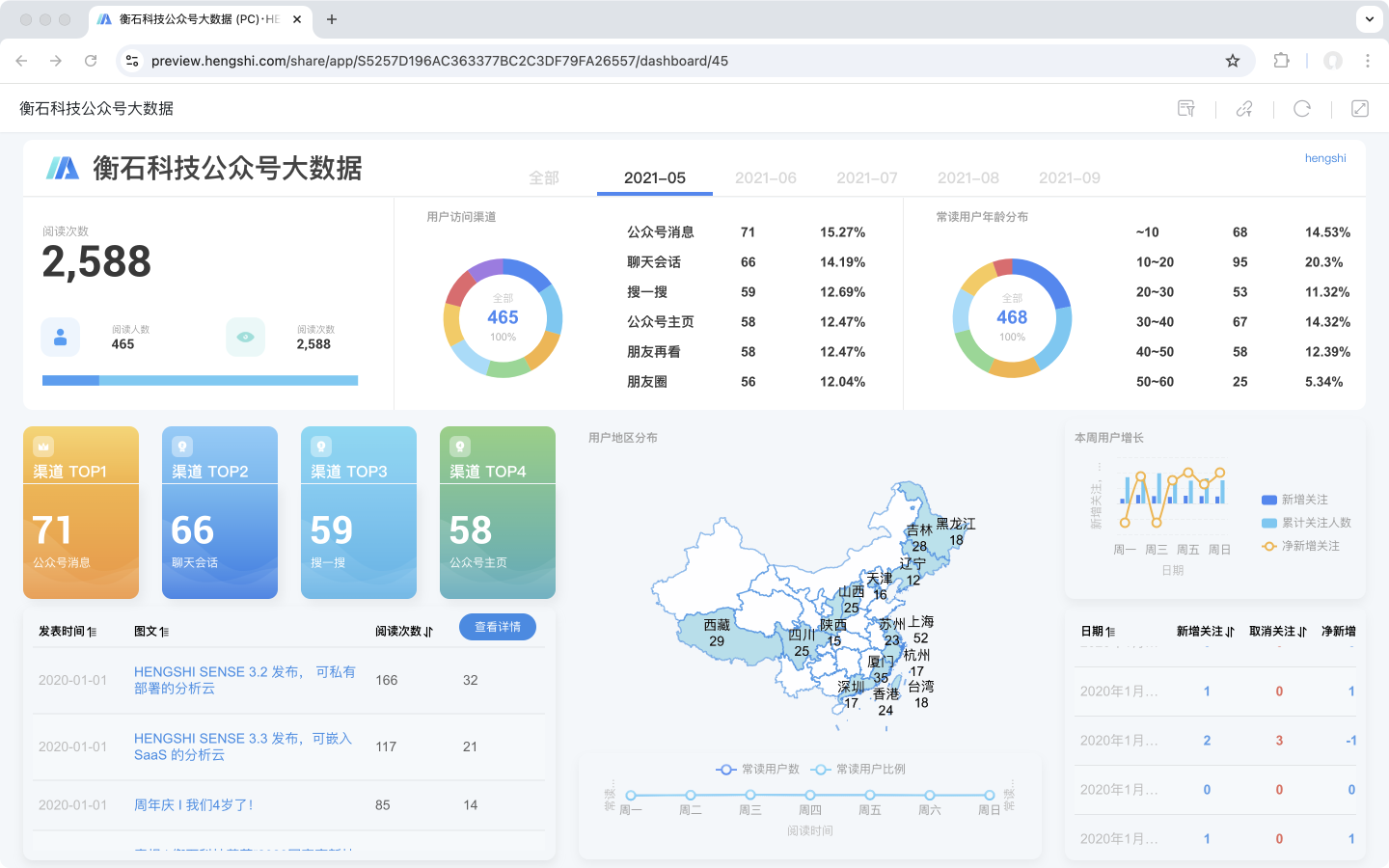
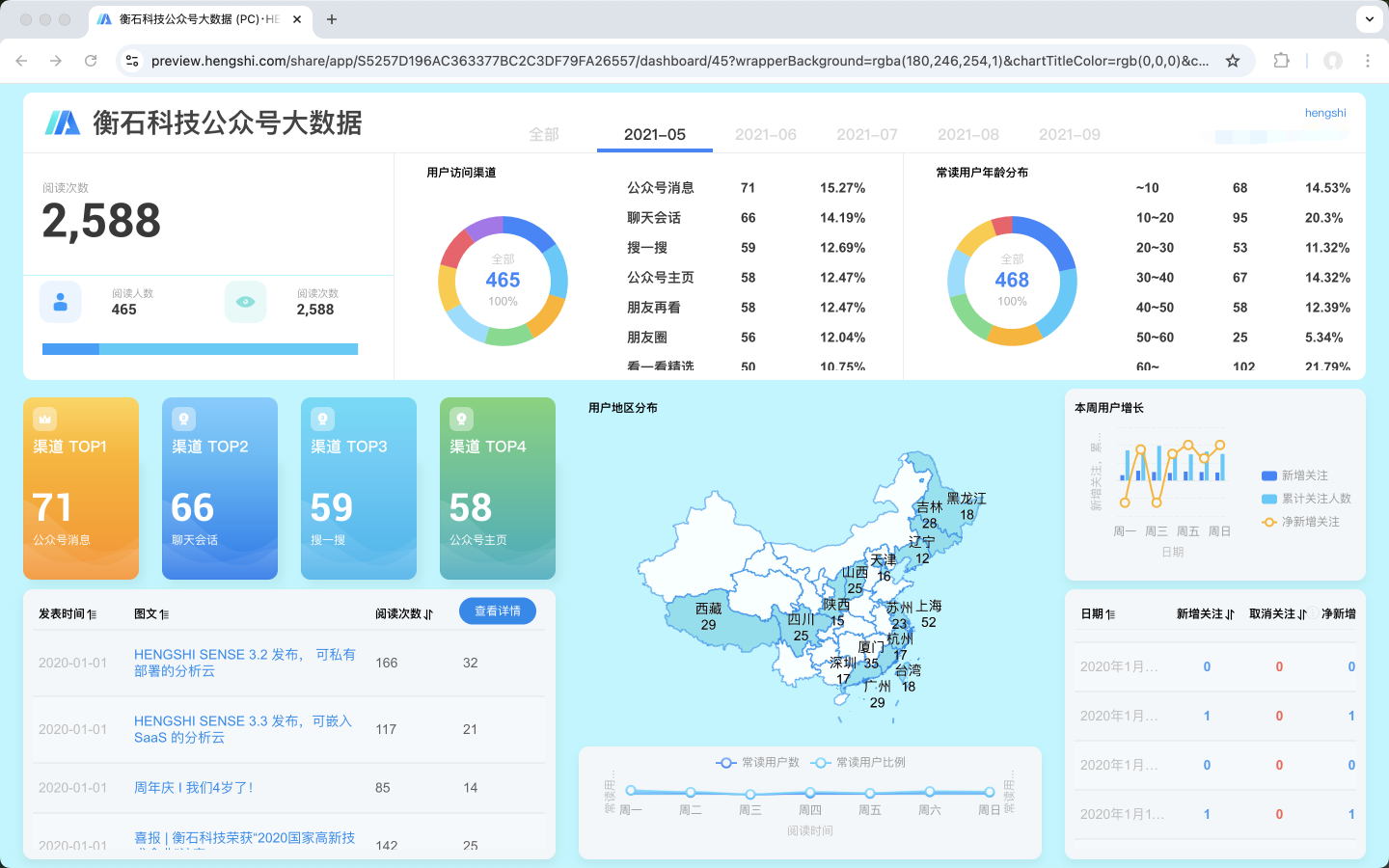
As shown in the dashboard below, the background color and chart title color are modified when embedding it.
Original dashboard link and style:
https://preview.hengshi.com/share/app/S5257D196AC363377BC2C3DF79FA26557/dashboard/45
Embedded dashboard link and style: https://preview.hengshi.com/private/share/E454FF2E910B7B9445C8F66391B25CCA/dashboard/EC0E826AB75FD2AA2C3D755CF8374DD6C?wrapperBackground=rgba(180,246,254,1)&chartTitleColor=rgb(0,0,0)©right=false&scrollable=false
Customize the Chart iframe
Parameter List
The following parameters are supported when embedding a chart.
| Parameter Name | Parameter Function | Parameter Type | Parameter Value |
|---|---|---|---|
| showAction | This parameter configures the interaction button in the top-right corner. | Boolean | Parameter values: true: Displays the interaction button in the top-right corner (default is true). false: Hides the interaction button in the top-right corner. |
| chartPadding | This parameter sets the chart's inner padding. | String<number> | Example parameter value: 0 0 0 0. |
The following parameters are deprecated and no longer supported.
| Parameter Name | Parameter Function | Parameter Type | Parameter Value | Deprecation Notes |
|---|---|---|---|---|
| noFilter | This parameter controls whether to display filters. | Boolean | Parameter values: true: Displays filters (default is true). false: Hides filters. | Filters are no longer supported when embedding charts. |
| titleColor | This parameter sets the chart title color. | String | Example parameter value: rgba(255,255,255,1). | Chart titles are no longer displayed when embedding pages. |
| chartBackground | This parameter sets the chart background color. | String | Example parameter value: rgba(255,255,255,1). | The chart background color will be overridden by the theme background color used by the chart. |