

Embedded Page Events
External Controls for Embedded Pages
HENGSHI SENSE supports the use of external buttons to operate embedded pages, including refreshing page content, exporting pages as PDF, PNG, etc.
Refresh Page
When a client-embedded page needs to refresh dashboard data without reloading the iframe, an external button can be used for the refresh. Below is a code example and display style for refreshing an embedded page via an external button for your reference.
<html lang="en">
<head>
  <meta charset="UTF-8">
  <meta http-equiv="X-UA-Compatible" content="IE=edge">
  <meta name="viewport" content="width=device-width, initial-scale=1.0">
  <title>Document</title>
</head>
<body>
  <div>
    <button>Refresh</button>
  </div>
  <iframe
    frameborder="0"
    importance="high"
    allowFullScreen="true"
    width="100%"
    height="760"
    src="https://preview.hengshi.com/share/app/SC7624DA6F8451588A1C621DFD6A4FC44/dashboard/1">
  </iframe>
  <script>
    const button = document.querySelector('button');
    // 1. Click the button outside the iframe
    button.addEventListener('click', () => {
      const iframe = document.querySelector('iframe');
      // 2. Send a message to the iframe to refresh the dashboard
      iframe.contentWindow.postMessage(JSON.stringify({
        event: 'dispatchCustomEvent',
        // 3. Dashboard refresh identifier `hs_dashboard_refresh`
        data: ['hs_dashboard_refresh', {}]
      }), '*');
    });
  </script>
</body>
</html>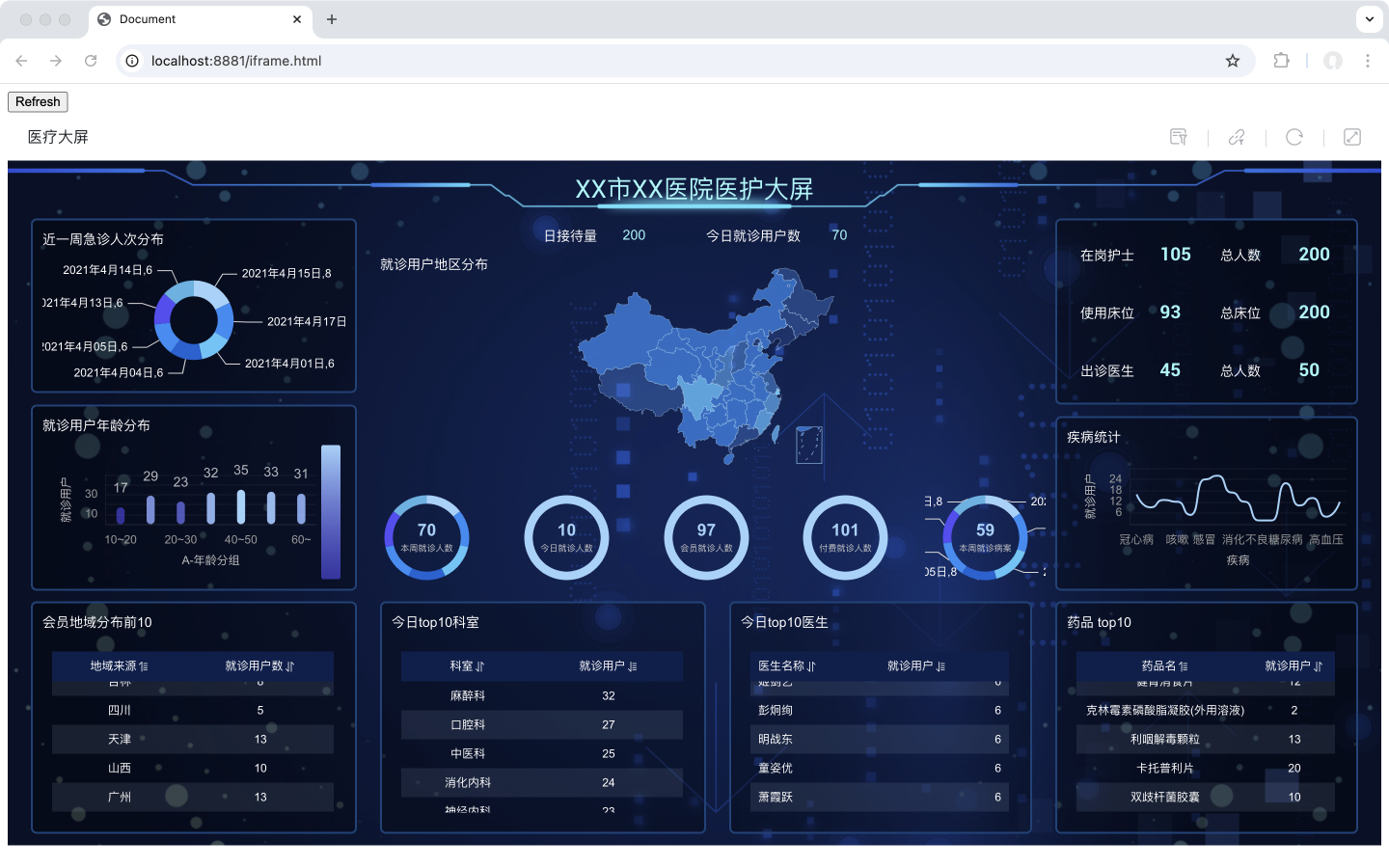
Export Dashboard PDF/PNG
Embedded pages can export the dashboard as PDF and PNG via external buttons. Below is a code example and a demonstration screenshot.
<!DOCTYPE html>
<html lang="en">
<head>
  <meta charset="UTF-8">
  <meta http-equiv="X-UA-Compatible" content="IE=edge">
  <meta name="viewport" content="width=device-width, initial-scale=1.0">
  <title>Document</title>
</head>
<body>
  <div>
    <button id="exportPNG">Export PNG</button>
    <button id="exportPDF">Export PDF</button>
  </div>
  <iframe
    frameborder="0"
    importance="high"
    allowFullScreen="true"
    width="100%"
    height="760"
    src="https://preview.hengshi.com/share/app/SC7624DA6F8451588A1C621DFD6A4FC44/dashboard/1">
  </iframe>
  <script>
    document.addEventListener('click', e => {
      if (!['exportPNG', 'exportPDF'].includes(e.target.id)) return;
      // Get export type, pdf or png
      const type = e.target.id === 'exportPNG' ? 'png' : 'pdf';
      const iframe = document.querySelector('iframe');
      // Send export event message
      iframe.contentWindow.postMessage(JSON.stringify({
        event: 'dispatchCustomEvent',
        data: ['hs_dashboard_export', {
          type,
        }]
      }), '*');
    });
  </script>
</body>
</html>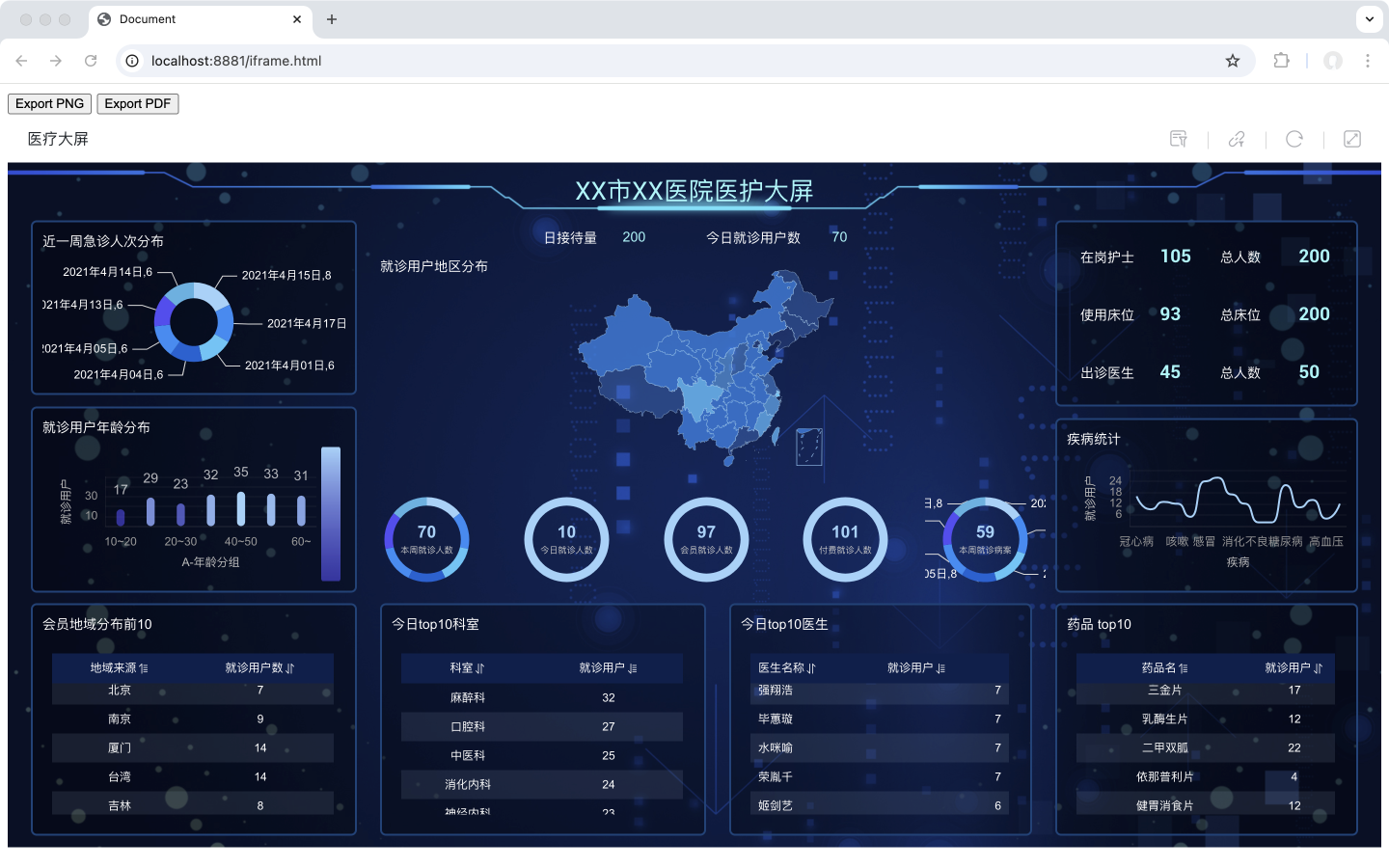
Listening to Embedded Page Events
During page interactions, use postMessage to broadcast the following events to better integrate with business processes. On the business page, use
window.addEventListener('message', function handlePostMessage(event) {});to listen to the events we broadcast. Currently, the embedded scenario supports the following events:
- Directory and application changes, including the addition, modification, and deletion of directory folders and applications, as well as application republishing.
- Clicking on system elements, where the target objects are applications, folders, dashboards, charts, and datasets.
- URL change.
- Chart data requests.
The handlePostMessage receives an event of type JavaScript MessageEvent, where event.data is the broadcast content. event.data is a serialized JSON string, which can be used after being parsed with JSON.parse(event.data).
Chart Data Requests
Before an embedded dashboard sends a chart data request to the server, it broadcasts a fetchChartData event to the parent page. The event is sent only from an iframe and follows actual network-request granularity: one event is broadcast for each request that is made. Its payload is the same request body sent by the dashboard and includes the runtime filters applied to the chart.
- Batched request: When multiple charts are combined into one request, only one event is sent. Its
payloadis the complete request-body array, and it does not contain a singlechartId. - Direct request: When a chart does not use the batching path, one event is sent for that request. Its
payloadis the request body, and it includes the correspondingchartId.
window.addEventListener('message', event => {
  const message = JSON.parse(event.data);
  if (message.event !== 'HengshiInteractiveEvent'
    || message.data?.event !== 'fetchChartData') {
    return;
  }

  const { appId, dashboardId, payload } = message.data.data;
  const chartId = message.data.data.chartId; // undefined for a batched request
  const isBatchRequest = Array.isArray(payload);
  // Record the payload or use it to retrieve chart data with the host page's API authorization.
});message.data.data contains:
appId: Application ID.dashboardId: Dashboard ID.chartId: Chart ID. This field is present only for a direct request and is omitted for a batched request.payload: The chart data request body. For a batched request, it is the complete array containing every chart request in the batch; for a direct request, it is an object.
The host page should validate the message source and apply its own API authorization policy. The event does not include a chart data response.
Directory and Application Changes
Directory and application changes convey information through the following structure, where data is a stringified object. After JSON.parse, the information can be obtained.
data.eventis the event type, includingupdateFolderfor folder changes,updateAppfor application changes, andupdatePublishfor application publishing changes.data.datacontains the specific details of the event, includinginsert,update,delete, andduplicatetypes.
{
  // HENGSHI Interactive Event Standard
  "event": "HengshiInteractiveEvent",
  "type": "HengshiInteractiveEvent",
  "data": {
    // Event type: add, delete, or modify directory 'updateFolder'; add, delete, or modify application 'updateApp'; update publishing 'updatePublish'
    "event": "updateFolder",
    // Specific event details: insert, update, delete, duplicate
    "data": "insert_2198",
  }
}Click System Elements
// After JSON.parse(event.data):
{
  event: 'HengshiInteractiveEvent',
  data: {
    event: 'clickItem',
    data: {
      type: 'app',
      data: {
        id: xxx,
        ...
      },
    },
  },
}Where type refers to the type of the clicked element. In addition to app, it can also be:
- publishApp: Published App
- dashboard: Dashboard
- chart: Chart
- publishChart: Published Chart
- dataset: Dataset
- folder: Folder
- datamart: Datamart